
View Wallet Pass Dashboard
Loyalty's Mobile Wallet Pass feature leverages Apple and Google's built-in wallet apps to deliver content, thereby allowing marketers to reach their Members on their devices in a manner similar to Push Notifications, without the expense of creating a branded mobile app.
As Members download, install, and view your Wallet Pass on their mobile devices, these actions are captured and reported back to your Loyalty account. These actions are referred to as “responses.”
The Dashboard tab allows you to analyze responses to your Wallet Pass, and to view trends in Member activity over time.
To view the Wallet Pass Dashboard:
-
Select Campaigns from the top navigation bar, then select Wallet Passes from the side navigation menu. The Wallet Passes screen is displayed.
-
Optionally enter a text string in the Search field, then click the Search icon. The platform filters the screen to only Wallet Passes that have that text string anywhere within the Display Name or Internal Name.
-
Click the desired Wallet Pass. The Wallet Pass Details screen is displayed, with the Apple tab selected by default.
-
Select the Dashboard tab.
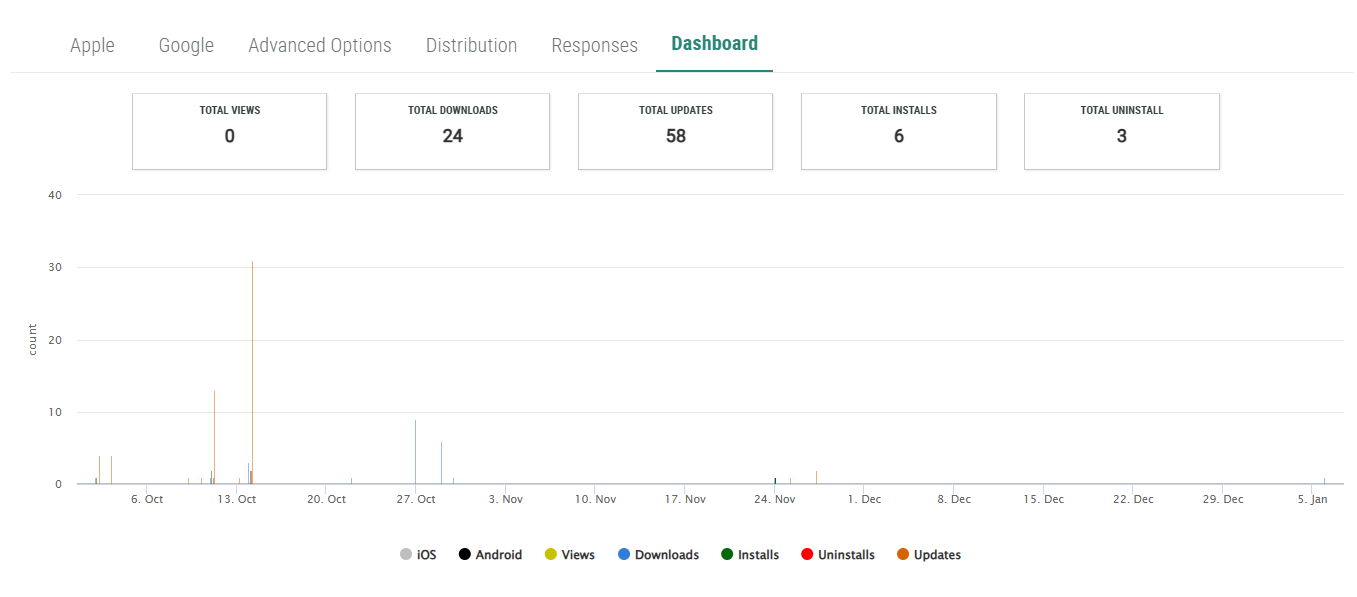
The Dashboard comprises a series of Key Performance Indicators (KPIs) across the top: Total Views, Total Installs, and Total Uninstalls (for both Google and Apple), as well as Total Downloads and Total Updates (for Apple only).
Beneath the KPIs, the platform displays a bar chart showing responses of all types over time. If you hover your mouse over a bar, the platform displays a pop-up with the exact count of that response type for that date.
Optionally, to toggle off a response type from the bar chart, click the response type within the legend beneath the chart.
