

Within a standard Dashboard in Loyalty Essentials, you can define alerts that will trigger an automated notification if a certain Key Performance Indicator (KPI) surpasses a set threshold.
To set an automated alert:
-
Select Analytics from the top navigation bar, then select the desired standard Dashboard from the side navigation menu.
-
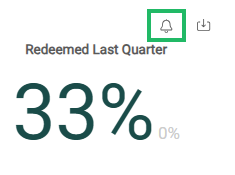
Hover your mouse over the desired tile. The Alert icon appears in the top-right corner of the tile.
-
Click the Alert icon. The Add Alert pop-up window is displayed.
-
Enter a name for the new alert.
-
The Trigger section allows you to define the alert threshold by means of a logical condition. Typically this condition comprises an aggregation (count, sum, etc.), the desired metric (Member ID, Order Count, etc.), a mathematical relationship (equals, less than, etc.), and a value (100, 20, etc.). Using the options in this section, define the alert threshold.
-
The Category section may be displayed depending on the selected KPI. Optionally use this section to define a time period.
-
The Filter section allows you to further refine the alert threshold by establishing a logical condition that limits what data is used to calculate the threshold. Click Add New Filter, then define the filter by selecting an Attribute, a mathematical relationship, and a value. Repeat this step as needed to define additional filters.
-
Optionally to delete a group or filter, click the Delete icon next to it.
-
Click Next.
-
In the Frequency section, determine how often the platform should evaluate the alert threshold. Enter a value and a frequency, such as “1 day” to check every day, for example.
-
In the Channels section, select the means by which you want to receive the alert notification: Email, Slack, SMS, or Webhook.
-
Click Create.
