

To create certificate codes for an Offer, the platform allows you to either: manually define the code values (see
To auto-generate a series of certificate codes:
-
Select Campaigns from the top navigation bar, then select Offers > Offers from the side navigation menu. The Offers screen is displayed.
-
Search for and select the desired Offer (see Search for an Offer for more information on the available search options). The Offer Details screen is displayed, with the Definition tab selected by default.
-
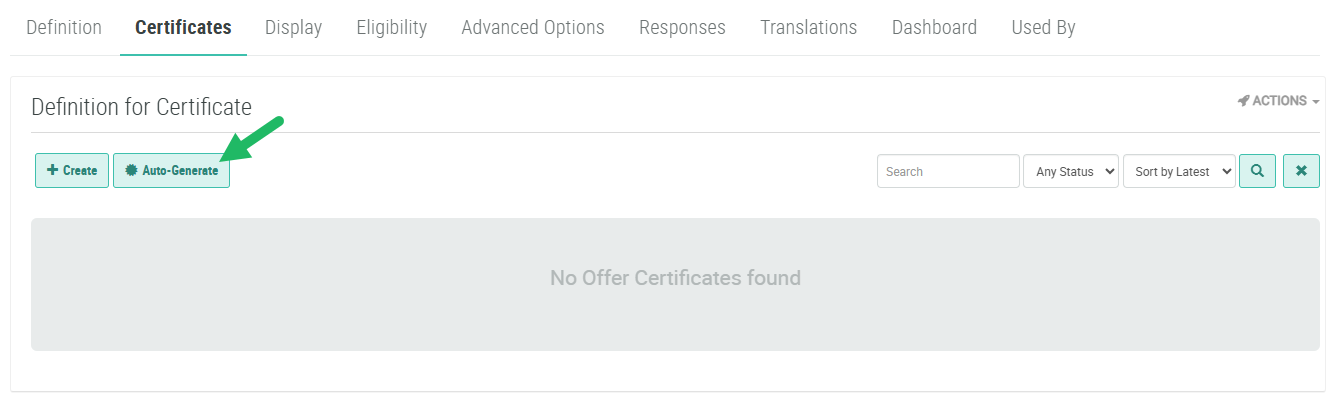
Select the Certificates tab.
Note: The Certificates tab is displayed only for Offers of type Barcode, Certificate, and Coupon.
-
Click Auto-Generate. The Generate Certificates pop-up window is displayed.
-
In the No. of Certificates field, enter how many certificate codes you want to generate.
Note: The Length of Code, Code Prefix, and Excluded Characters fields described below are automatically populated with default values saved within a Program Setting called Certificate Generation Defaults. If you alter these default values within the Generate Certificates pop-up window, the platform displays a Save as Default button. If you click this button, the platform updates this Program Setting with the new values. For more information, see Program Setting Category - Offer.
-
In the Length of Code field, enter the character length for the certificate code value.
-
In the Code Prefix field, optionally enter a prefix to be inserted before the code value (if defined, the code prefix doesn't count towards the length entered above).
-
From the Excluded Characters drop-down menu, optionally select a letter or number to be excluded from the code. Repeat this step as needed to exclude additional characters.
Note: The recommended best practice is to exclude the following characters: 0,O,o,1,I,i,l,6,A,E,I,U,G,g,Q,q,5,S,s,a,b,c,d,e,f,h,j,k,m,n,p,r,t,u,v,w,x,y,z
-
Optionally check Use Offer Effectivity to have the auto-generated codes "inherit" the overall Effectivity Period defined for the Offer (see Define Offer Operational Ranges for details on how to set the Offer's Effectivity Period). If you don't check this option, you will need to define the Effectivity Period for each individual code value (see
-
Optionally check Unique in all Offers to make the auto-generated certificate code values unique across all Offers in your account.
-
Optionally to instruct the platform to generate certificate codes in batches, enter the number of records in a batch within the Batch Size field
-
Click Generate.
Note: The platform may require a few minutes to generate the new certificate codes. Refresh the screen periodically until the new codes are displayed within the list on the Certificates tab. During this process, the Auto-Generate button label changes to read Certificates Generation On-going; you can't generate new certificates until the process is finished.
