

Loyalty Essentials clients have access to a library of pre-defined Coupon Offer templates. These templates address many common marketing use cases and contact strategies, and are intended to serve as a quick starting point for presenting special promotions and discounts to Members. Marketers can simply copy the template, optionally adjust the discount conditions to meet their specific requirements, then publish and use the new Offer.
The platform also supports other Offer types that address other marketing use cases. Instead of using the pre-defined Offer templates, you can also create an Offer from scratch.
Copy an Offer from a Template
To copy an Offer from a template:
-
Select Campaigns from the top navigation bar, then select Offers > Offers from the side navigation menu. The Offers screen is displayed.
-
Search for the desired Offer template (see Search for an Offer for more information on the available search options). All the Offer templates are named using the convention “TEMPLATE: <template name>.” Searching for the text string “template” can be a useful way to filter the Offers screen to show only the Offer templates.
-
Next to the desired Offer template, click the Copy icon.
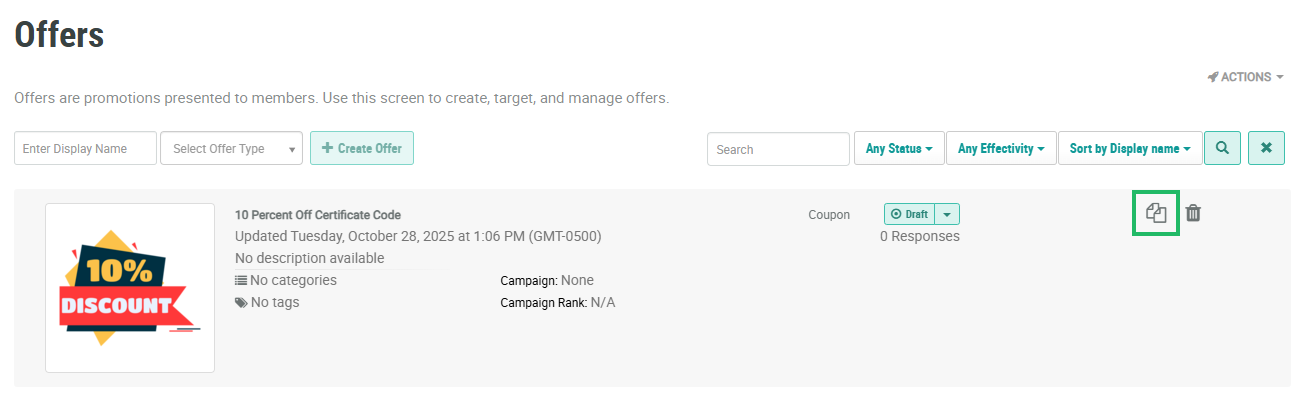
Note. You can also copy an Offer from the Offer Details screen. Navigate to the Offer Details screen for the desired template, then click the Copy icon within the header area of the screen.
-
The platform creates a copy of the Offer and displays the Offer Details screen with the Definition tab selected. The default name of the new Offer is the name of the base template followed by a counter, such as "(1)."
-
To rename the Offer, within the Offer Details section, enter a descriptive name in the Display Name field.
-
Optionally, in the Description field, enter a description of the new Offer.
-
By default, Offer templates are assigned to the Template Offer Category, and assigned the Tag value of Template. Offer Categories are used to organize Offers, often for controlling what Offers get displayed on your website or app. Tags are intended to make it easier to search for the base templates within your Loyalty Essentials account. When you copy a template, the best practice recommendation is to remove these default Category and Tag assignments in the copied Offer. In the Categories field, click the X icon next to Template. Likewise, in the Tag field, click the X icon next to Template. Optionally, you can assign your own Offer Category and / or Tag value to the new Offer.
-
When copying objects, the recommended best practice is to change the new object’s internal name. At the bottom of the Offer Details section, click Show More to reveal additional properties. Click the lock icon next to the Internal Name field to make the field editable. A confirmation dialog box is displayed; click OK. Enter a new internal name.
Note: The internal name must be unique and can not include any special characters or spaces; only numbers, letters, and underscores are allowed. Do not change the internal name once the Offer is published.
-
Click Save.
For additional information on how to configure the new Offer, please see the following Help Center articles:
-
Offer Configuration:
Create a New Offer
To create a new Offer from scratch:
-
Select Campaigns from the top navigation bar, then select Offers > Offers from the side navigation menu. The Offers screen is displayed.
-
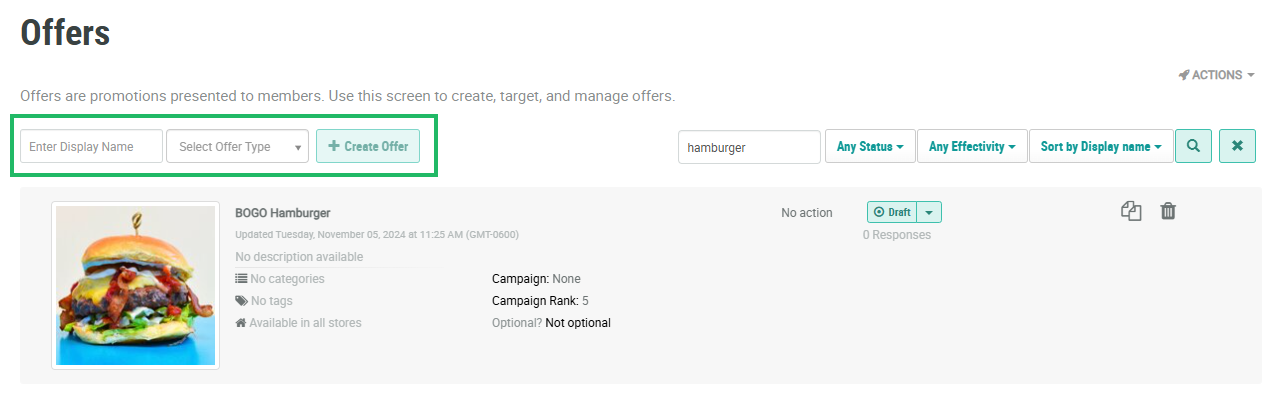
In the Enter Display Name field, enter the Display Name value for the new Offer.
-
From the Select Offer Type drop-down, select the desired Offer type.
-
Click Create Offer. The Offer Details screen is displayed with the Definition tab selected.
For additional information on how to configure the new Offer, please see the following Help Center articles:
