

Video Learning
Here's a brief video to get you started.
Use Case Steps
Offers are a powerful feature in Loyalty Essentials that enable marketers to present promotions, discounts, and special deals to their customers. The platform supports many Offer types and configurations, allowing you to target different groups of customers, apply rules to define when someone qualifies, and to limit Offers based on time, location, or allocation.
This article explains how to create a Coupon Offer that can be redeemed only within a fixed time period.
Use case: Cooper and Madison want to incentivize their Members to make a purchase by giving them a $3-off coupon. The coupon can be redeemed only between December 1 and December 17.
-
Select Campaigns from the top navigation bar, then select Offers > Offers from the side navigation menu. The Offers screen is displayed.
-
Search for the Offer template named:TEMPLATE_Subtotal_Discount_Amount . You can search for this specific template by entering its name in the Search field at the top.
-
Next to the Offer template, click the Copy icon.

-
The platform creates a copy of the Offer and displays the Offer Details screen with the Definition tab selected. The default name of the new Offer is the name of the base template followed by a counter, such as "(1)."
-
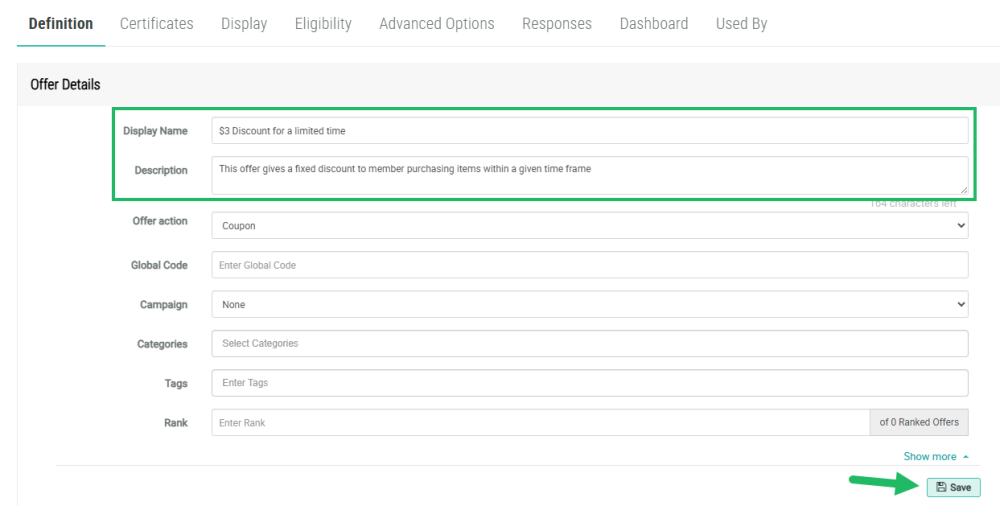
On the Definition tab, in the Offer Details section, update the Display Name to reflect your Offer purpose, and optionally enter a description in the Description field.
-
By default, Offer templates are assigned to the Template Offer Category, and assigned the Tag value of Template. Offer Categories are used to organize Offers, often for controlling what Offers get displayed on your website or app. Tags are intended to make it easier to search for the base templates within your Loyalty Essentials account. When you copy a template, the best practice recommendation is to remove these default Category and Tag assignments in the copied Offer. In the Categories field, click the X icon next to Template. Likewise, in the Tag field, click the X icon next to Template. Optionally, you can assign your own Offer Category and / or Tag value to the new Offer.
-
Click Save.
-
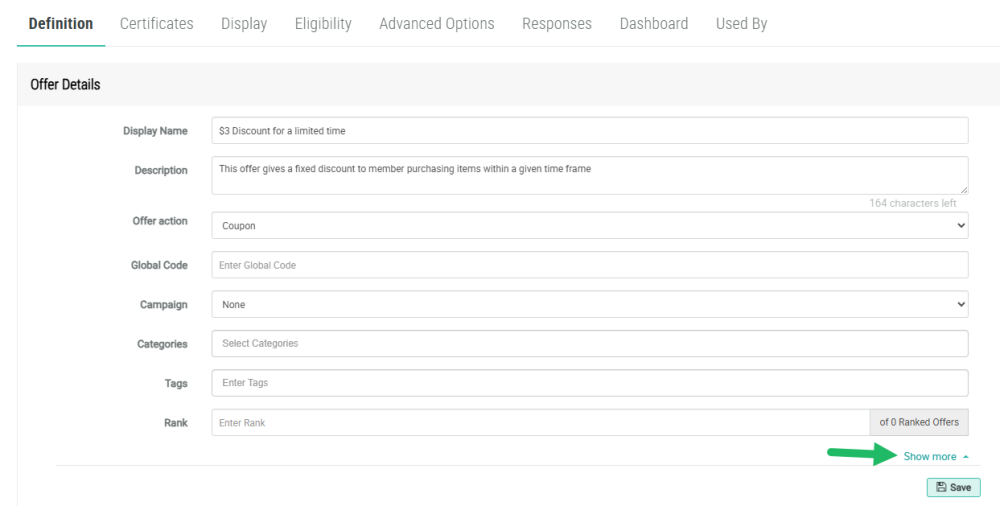
When copying an object, the recommended best practice is to update the object's Internal Name so as to avoid any duplicate name issues if you copy this object again in the future. At the bottom of the Offer Details section, click Show More to display additional fields.
-
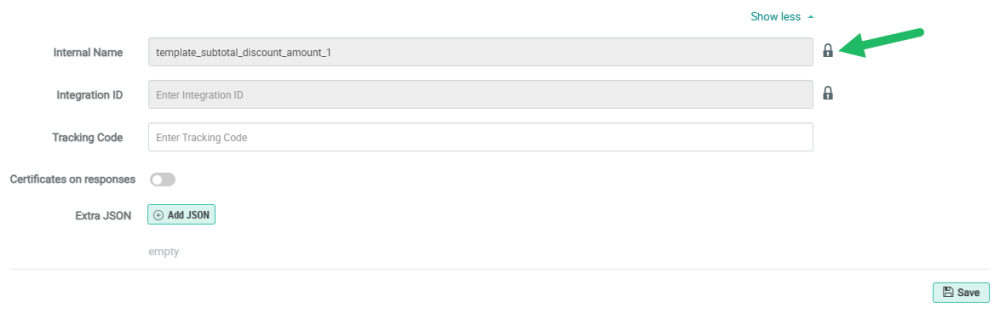
Click the Lock icon next to the Internal Name field to make the field editable. A confirmation dialog box is displayed; click OK.
-
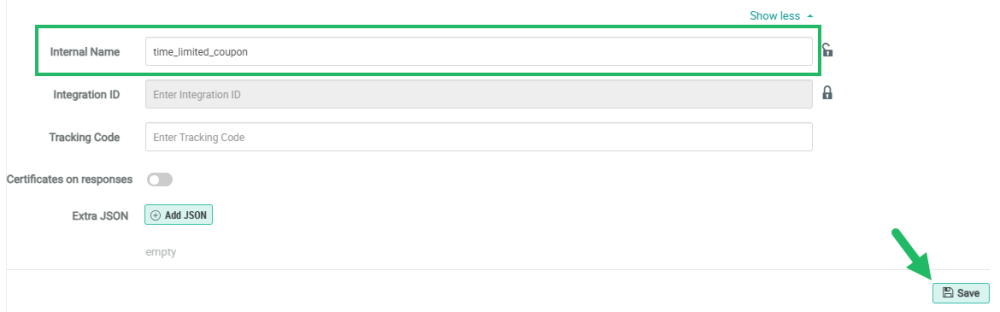
In the Internal Name field, enter a new value. The Internal Name must be unique and can not include any special characters or spaces; only numbers, letters, and underscores are allowed. Do not change the Internal Name once the Offer is published.
-
Click Save.
-
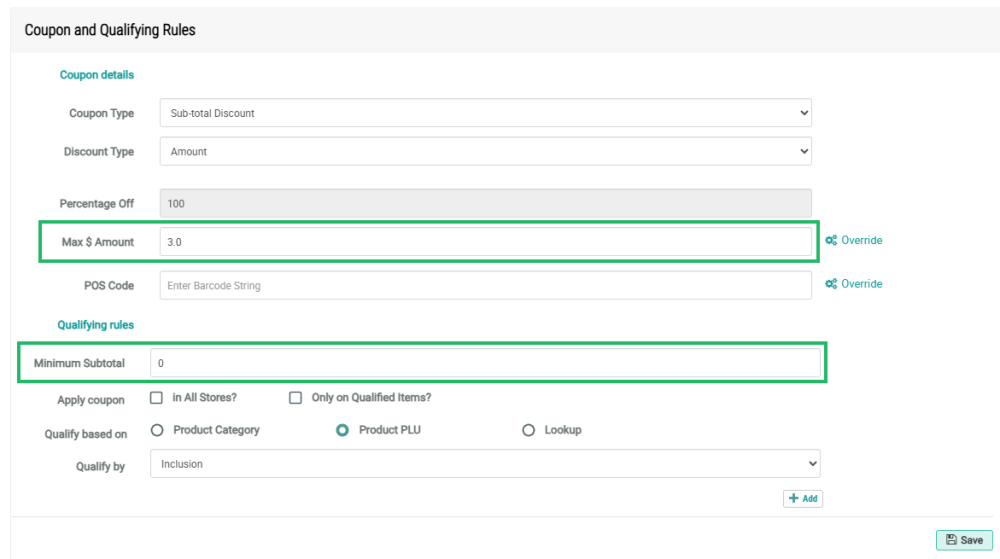
Within the Definitions tab, scroll down to the Coupon and Qualifying Rules section. Click this section header to expand it.
From the base template that you cloned, the Coupon Type is set to Sub-total Discount and the Discount Type is set to Amount. This configuration will give customers a discount calculated as a fixed amount. Leave these options as set in the template.
-
From the base template that you cloned, the Max $ Amount is set to 4.0. Since you want to offer a $3 discount, change this value to 3.0.
-
From the base template that you cloned, Minimum Subtotal is set to 25. Since you don't want to impose a required purchase minimum, change this value to 0.
-
Click Save.
-
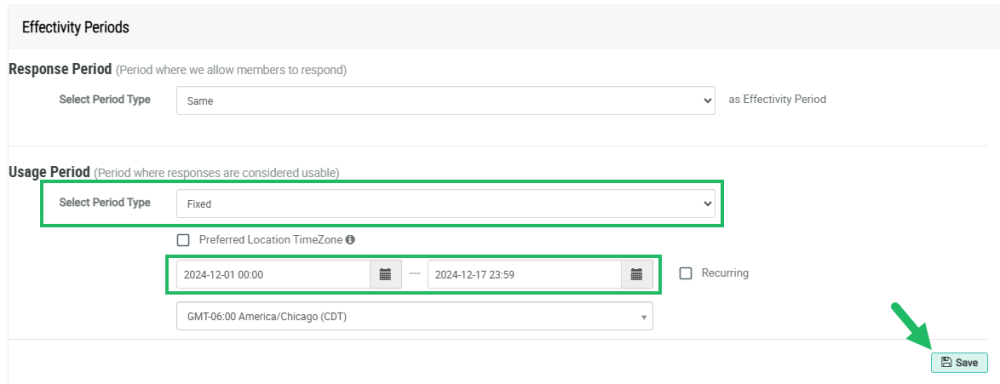
Within the Definitions tab, scroll down to the Effectivity Periods section. Click this section header to expand it.
-
Beneath Usage Period, from the drop-down menu, select Fixed.
-
Click into the first date field, and select December 1, 2024 as the start date, and 00:00 as the start time. Click into the second date field, and select December 17, 2024 as the end date, and 23:59 as the end time. The Coupon can be used only between these dates.
Note: Using the Time Zone drop-down menu, you can change the time zone for this Offer to the one applicable to your business. In addition, if Members have a preferred location set within their Profile, the time zone for that location can be used; check Preferred Location Time Zone to enable this feature.
-
Click Save.
-
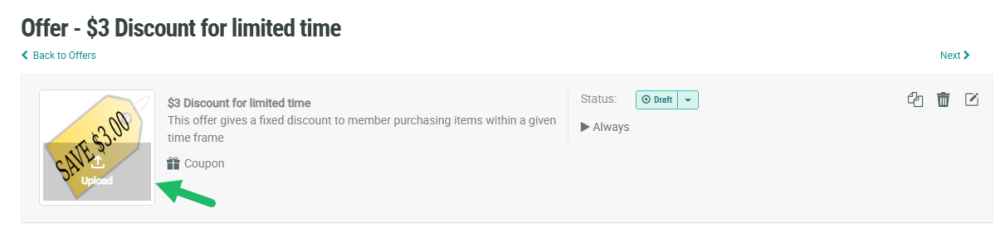
Scroll up to the Offer header area. Click into the image area, and upload a new image from your local PC.
-
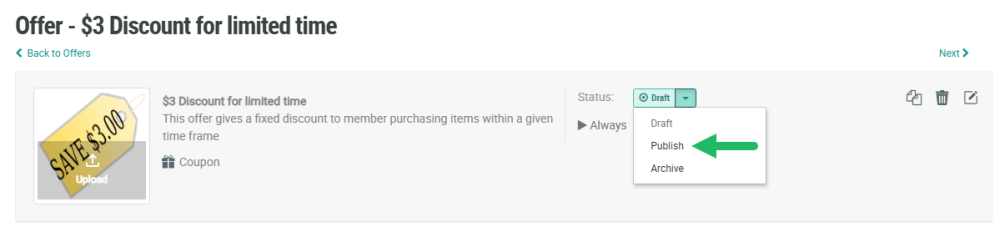
To publish the Offer, from the Status drop-down menu in the Offer header area, select Publish. A confirmation dialog box is displayed; click Confirm.
Your Offer is now ready and can be used to provide Members a coupon for a fixed discount that needs to be used within the given time frame.
