

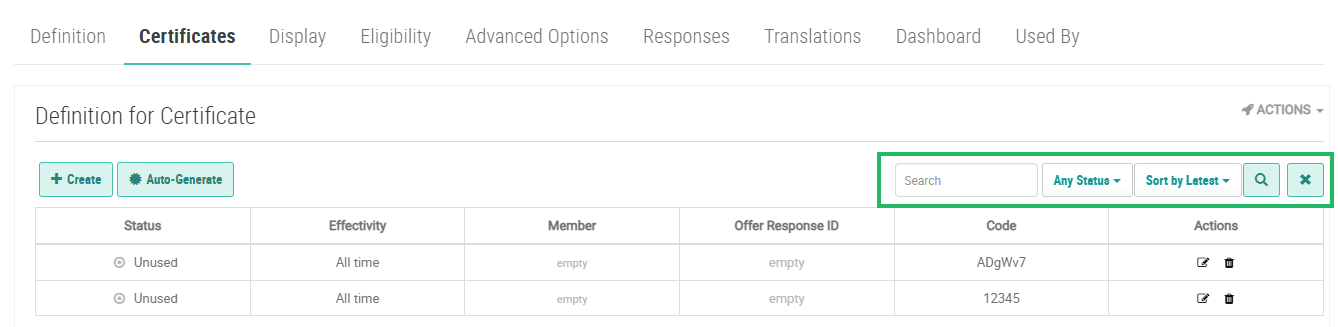
On the Certificates tab of the Offer Details screen, existing certificate codes are displayed in a spreadsheet-style grid. Each row in the grid represents a single certificate code value, and displays information about it, such as its status, and the Member who redeemed the code.
The search feature on the Certificates tab allows you to search for a specified text string within the certificate code. You can also filter the Certificates tab to show only codes with a specified status.
To search for a certificate code:
-
Select Campaigns from the top navigation bar, then select Offers > Offers from the side navigation menu. The Offers screen is displayed.
-
Search for and select the desired Offer (see Search for an Offer for more information on the available search options). The Offer Details screen is displayed, with the Definition tab selected by default.
-
Select the Certificates tab.
Note: The Certificates tab is displayed only for Offers of type Barcode, Certificate, and Coupon.
-
Optionally, in the search field near the top of the Certificates tab, enter the desired text string.
-
Optionally, from the Status drop-down menu, select a certificate code status: Unused, Reserved, Redeemed, and Fulfilled. The default value is Any Status.
-
Press Enter, or click the Search icon. The Certificate tab is refreshed to show only the certificate codes that meet your search criteria. If you entered multiple search criteria, the code must meet ALL criteria.
-
To sort the search results, select the desired sort order from the Sort By drop-down menu. The default sort order is by: Latest.
-
Optionally, to remove all search criteria and revert to the default criteria, click the Clear icon.
