

When a Member claims an Offer, or when an Offer is automatically assigned to a Member (such as via a Triggered Action or a Reward), the platform creates a new asset called an Offer Response, which is linked to that Member’s Profile. The Offer Response is used to indicate to the Point of Sale system that the Member has an Offer they can use in their purchase. The Offer Response contains the details and metadata of the Offer, its current status, and expiration (if it has one).
Offer Responses are considered a one-time use asset, with their status changing to Completed once they are successfully used. If an Offer has been configured to allow Members to respond more than once, then each response will create a new Offer Response linked to the Member’s Profile, with its own status.
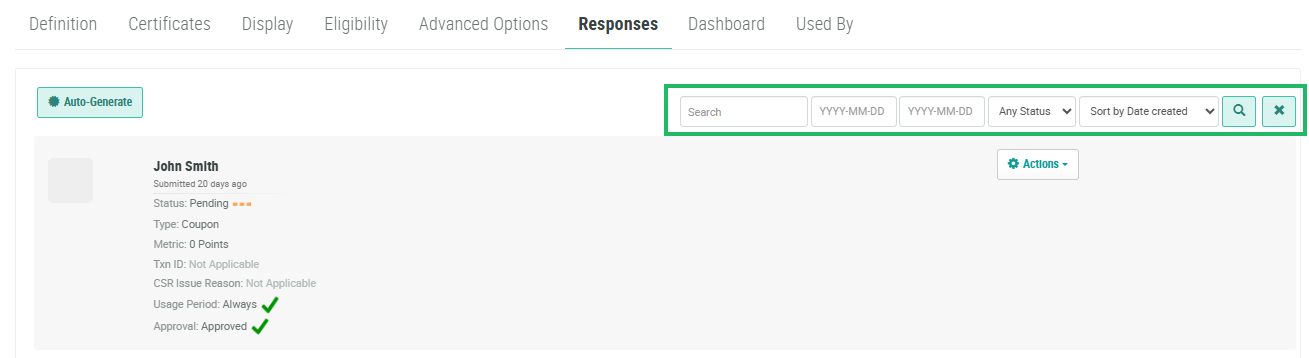
The Responses tab of the Offer Details screen is used to view and manage the Offer Responses for an Offer. This tab shows all Offer Responses, from all Members, to the currently selected Offer.
Note: To view all Offer Responses from all Members across all Offers, see the
The search feature on the Responses tab allows you to search for a specified text string anywhere within several commonly-used Offer Response fields, including Offer name, Member name, and email address. You can also filter the Responses tab to show only Offer Responses created within a date range, or with a specified status.
To view the Offer Responses for an Offer:
-
Select Campaigns from the top navigation bar, then select Offers > Offers from the side navigation menu. The Offers screen is displayed.
-
Search for and select the desired Offer (see Search for an Offer for more information on the available search options). The Offer Details screen is displayed, with the Definition tab selected by default.
-
Select the Responses tab.
-
Optionally, in the Search field, enter the desired text string.
-
Optionally, use the two date fields to define a range for "created date."
-
Optionally, from the Status drop-down menu, select the Offer Response status. The default is Any Status.
-
Click the Search icon. The screen is refreshed to show only the Offer Responses that meet your search criteria. If you entered multiple search criteria, the Offer Response must meet ALL criteria.
-
To sort the search results, select the desired sort order from the Sort By drop-down menu. The default sort order is by: Date Created.
-
Optionally, to remove all search criteria and revert to the default criteria, click the Clear icon.
