Punch Cards in
From the Member Profile screen, you can manually issue a punch on a Member's Punch Card.
To issue a punch toward a Member’s Punch Card:
-
Select Members from the top navigation bar, then select CSR > People from the side navigation menu. The People screen is displayed.
-
On the People screen, search for and select the desired Member (see
-
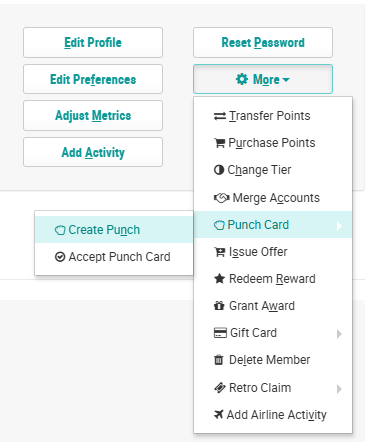
Within the header section of the screen, click More > Punch Card > Create Punch. The Give a Punch to a Member pop-up window is displayed.
-
From the Punch Card Type drop-down menu, select the desired Punch Card.
-
From the Punch Mode drop-down menu, select Named Punch. In the Named Punches field, enter one or more comma-separated Named Punches.
-
Click into the Process Date field, and use the calendar pop-up to select the process date for the new punch (or punches).
-
Punch Cards can optionally be configured with limitations, such as a maximum number of punches in a time period. To override these limitations for this punch, select Yes for Ignore Limits.
-
Click Submit.
This process will generate a “Punch Card Punch Action” Activity, which will be visible on the Activities tab of the Member Profile screen.