

Loyalty provides several mechanisms for automating the process of refreshing Segments (see
Before you can manually refresh a Segment, the following prerequisites must be completed:
-
Publish the Segment (see
-
If you made any changes to the Segment Rules since the last time you deployed Segment metadata, you must deploy metadata again (see
To refresh a Segment:
-
Select Members from the top navigation bar, then select Segments from the side navigation menu. The Segments screen is displayed.
-
Search for and select the desired Segment (see
-
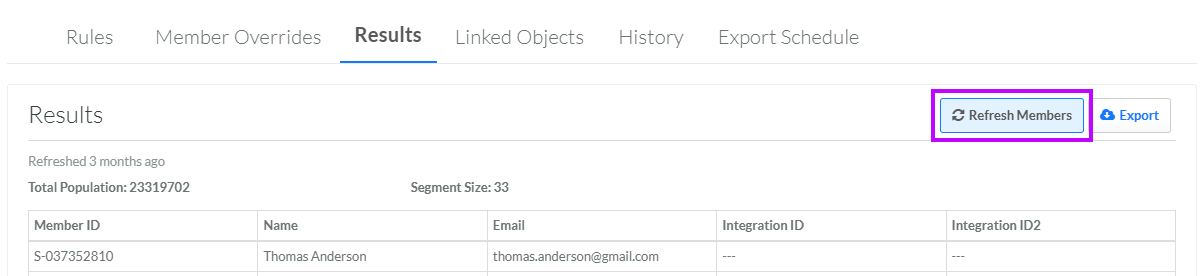
Select the Results tab.
-
Click Refresh Members. The system displays a progress bar, indicating the current state of the Segment execution process.
-
When finished, the Results tab is refreshed with a list of the Members selected by the Segment. For each Member, the platform displays the following columns:
-
Member ID
-
Name
-
Email Address
-
Integration ID
-
Integration ID 2
-
