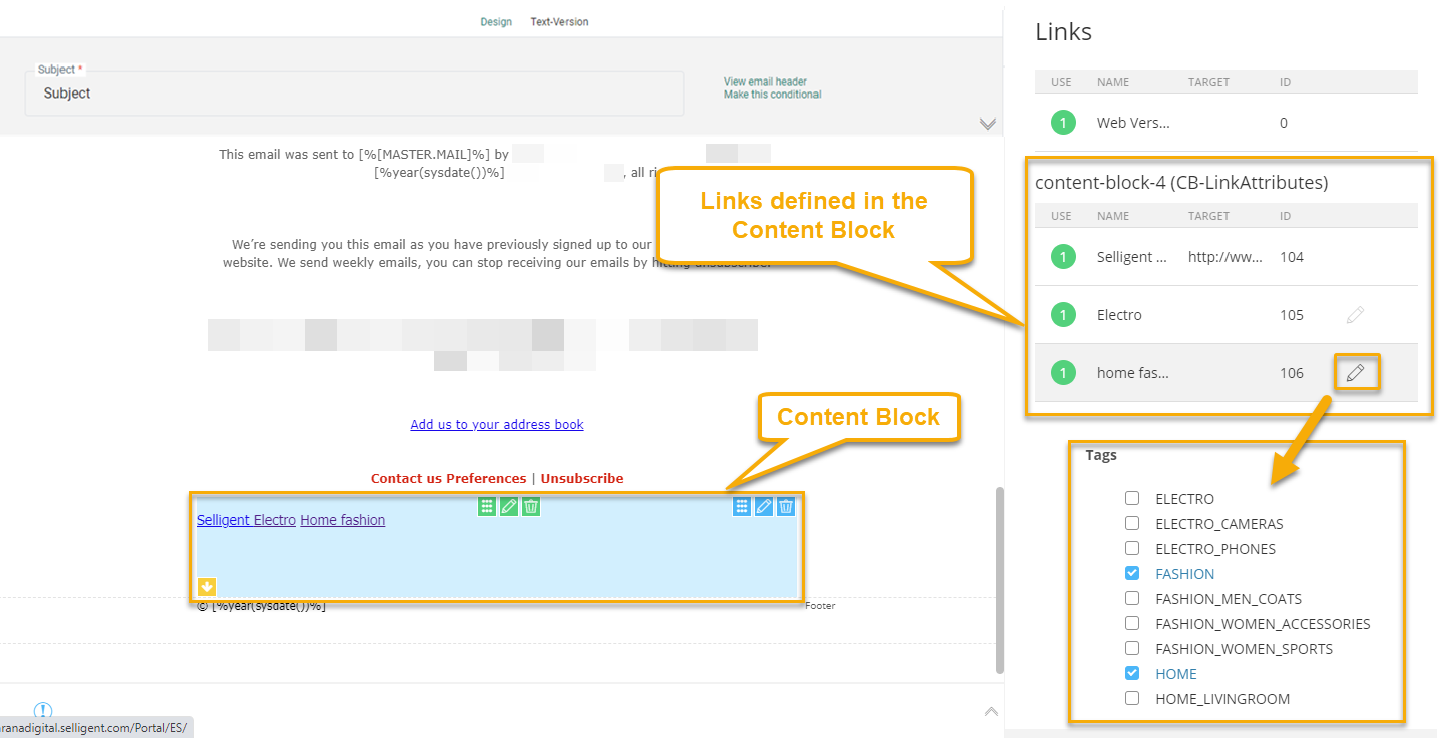
You can add links to a Content Block. Depending on how you define the link, it may be tracked or untracked when the Content Block is used in a message.
Data-link attribute for tracking purposes
To create a tracked link, add the data-link attribute to the syntax and provide a name for it.
Example:
<a href="" data-link="Website">
In the below example, it looks like the following: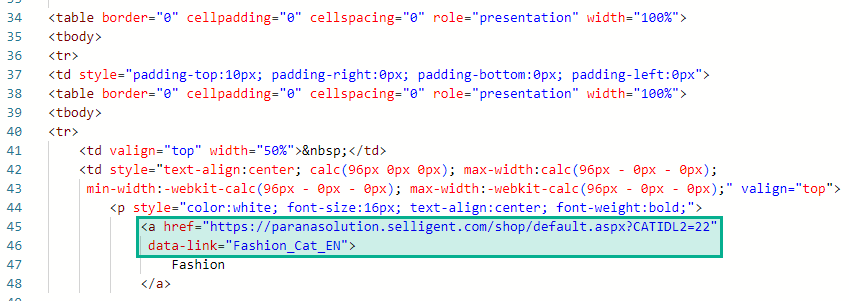
When the Content Block is used in the message, the link appears on the right, in the Links panel.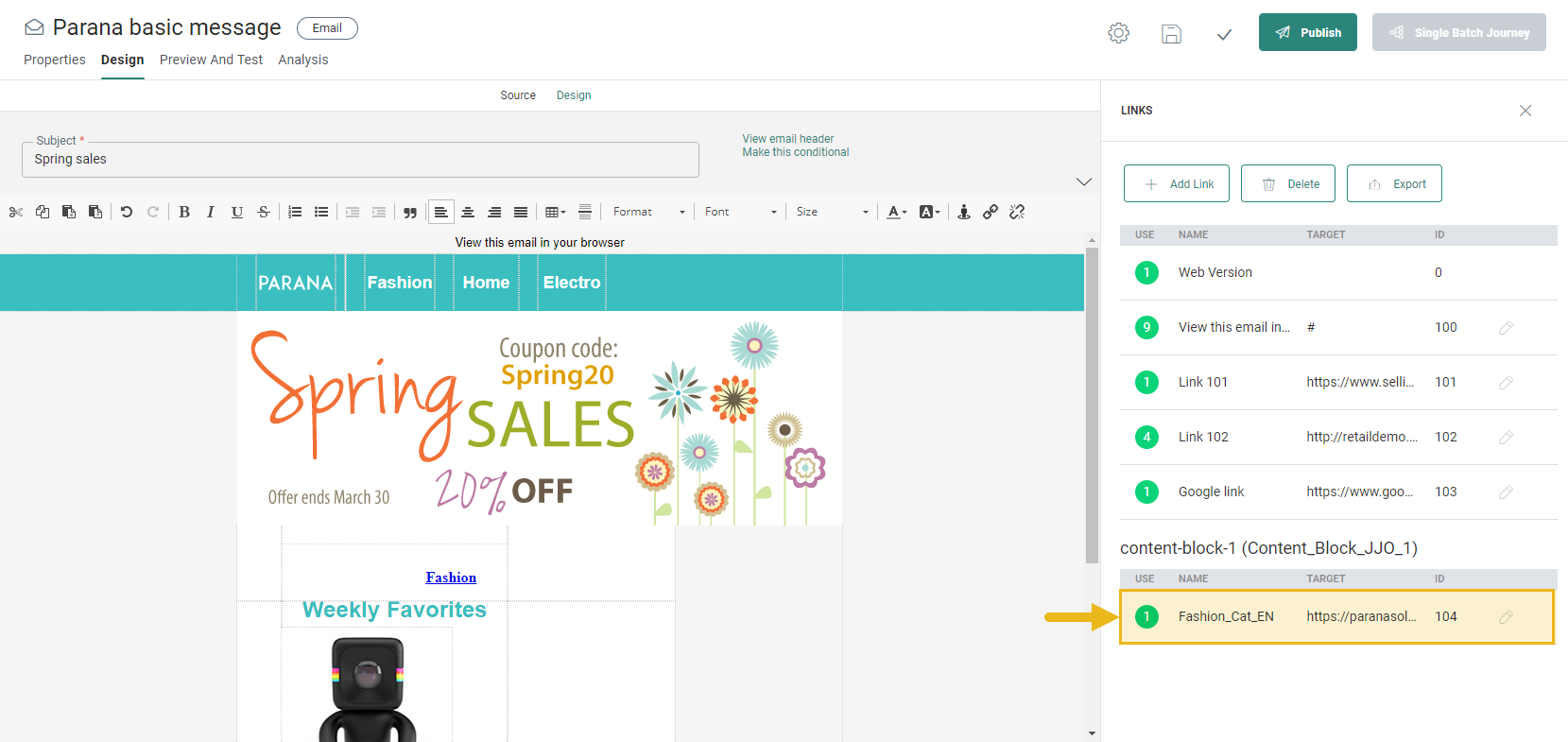
Note: Use of the anchor # tag in a data-link attribute is not permitted.
How Tracked Links Behave
- All tracked links in a Content Block appear in the Links tab of the message.
- If the same Content Block is used multiple times in a message, separate tracked links are created for each instance.
- This allows you to track which Content Block generates the most interaction.
Reference Tracked Links by Name
In a Content Block, you can reference a tracked link using its name instead of its ID.
You can reference this link in expressions within the Content Block:
[%link('my_url')%]Example with an expression:
[%concat(link('my_url'), '&context=', urlencode([VARIABLE.URL]))%]Note: This only applies to expressions used inside the Content Block, not in the message. You can reference links defined in the Content Block and links defined in the message.
Use link aliases for reporting
When tracked links appear multiple times, reporting can become difficult to interpret. To avoid confusion, you can assign an alias to a tracked link.
Assign a Link Alias
1. Open the message.
2. Go to the Links section.
3. Select the pencil icon next to the link.
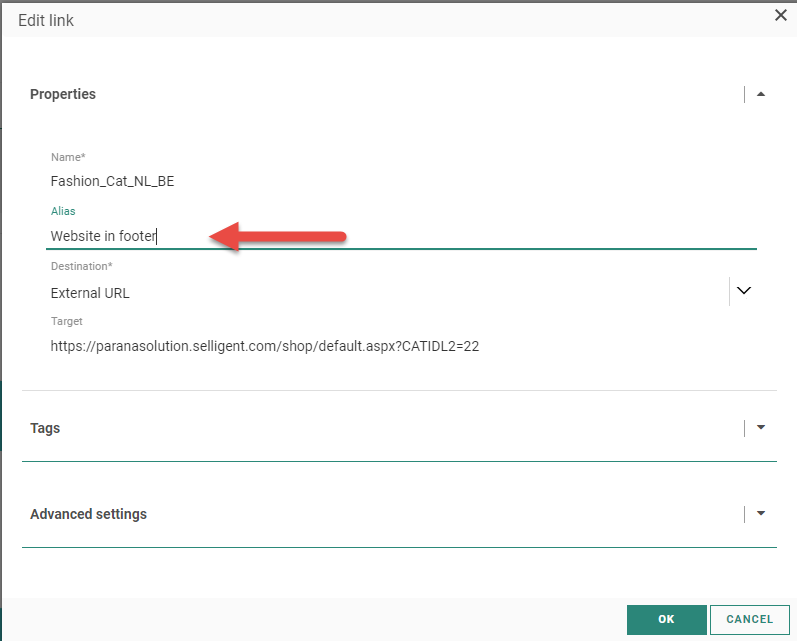
4. Enter an alias in the Properties dialog.
Both the link name and alias appear in the Links overview, making reporting clearer.
The alias and the name of the link are displayed in the Links overview:

Pass parameters to journey links
If a link points to an existing journey, you can pass parameters directly in the query string.
Example: static parameters
<a href="sgmc://journey/123/456?c=subscribe&canal=email" data-link="SMC-journey">
Click here
</a>Example: dynamic parameters using expressions
<a href="sgmc://journey/123/456?c=subscribe&canal=[%[PREFERENCES.PREFERRED_CHANNEL]%]" data-link="SMC-journey">
Click here
</a>
In these examples:
- 123 is the Journey ID
- 456 is the Component ID
When no data-link attribute is added, the link is an ordinary hyperlink. It will not be displayed on the Links tab when used in a message and it cannot be edited once used in the message.
Control link targets with the href attribute
The href attribute determines whether a link target can be edited in a message.
- If href is defined, the target is not editable.
- If href is not defined, you can configure the target when using the Content Block in a message.
Editable targets include:
- An external URL
- A page in an existing journey
- A target defined in the journey
(You can find more information on the use of Content Blocks in this topic. )
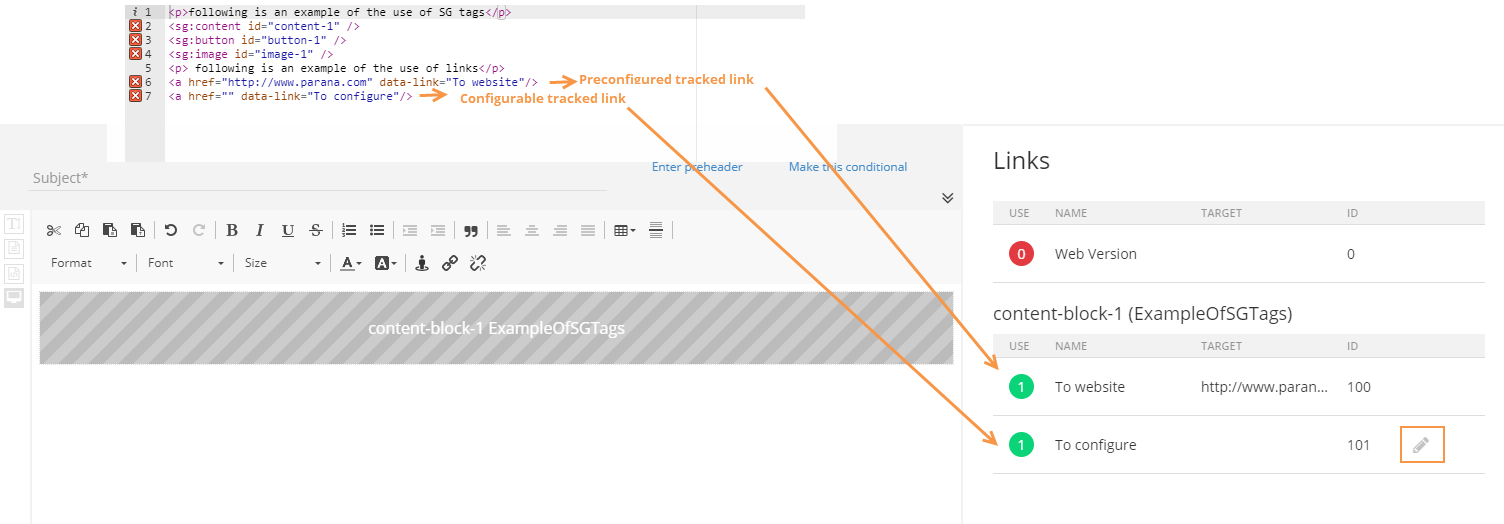
Example: A Content Block contains
- one pre-configured hyperlink where the HREF attribute is filled out
- one without the HREF attribute.
Both links appear in the Links section of the message. The second hyperlink will be configurable.
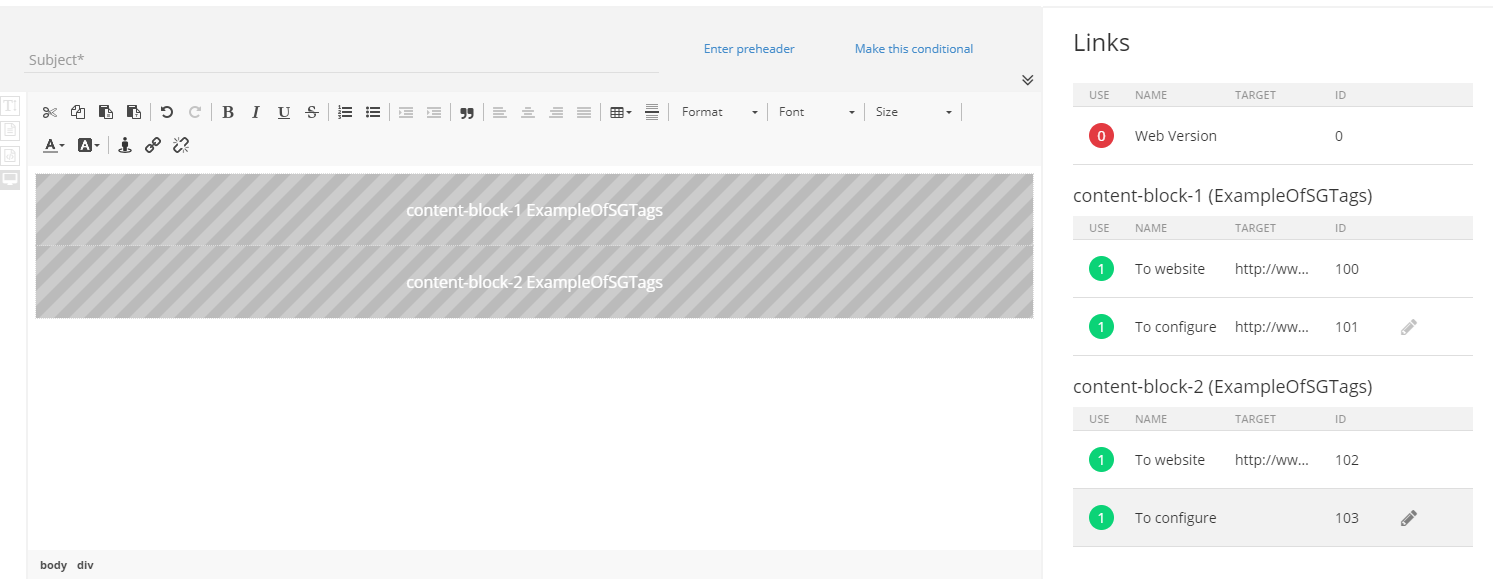
If you add the same Content Block multiple times:
- Each instance has its own set of links.
- Configurable links can be set differently per instance.
Create Links to Journeys and Campaigns
Use the following syntax to link to journeys or campaigns. This syntax works only in Content Blocks.
Example of links to journeys:
<a href="sgmc://journey/123/456" data-link="SMC-journey">Link to  journey</a>
<a href="sgmc://campaign/123/456" data-link="Campaign-journey">Link to journey</a>Example of links with parameters:
<a href="sgmc://campaign/123/456?USERNAME=Andrew"
data-link="Campaign-journey-param">Link to journey</a>
In all examples above, the indicator 123 refers to the Journey ID and the indicator 456 to the Component ID.
Add web version link
To include the default web version link in a Content Block, use one of the following syntaxes:
<a href="[%LINK(0)%]" style="text-decoration:none;color:#0000aa;">web version</a> or
<a expr:href="LINK(0)" style="text-decoration:none;color:#0000aa;">web version</a> LINK(0) always refers to the default web version link created in every message. This link is not editable.
Exclude Unsubscribe links from reporting
If a link is used as an unsubscribe link, add the unsubscribe-link attribute to exclude it from standard reporting.
<a href="sgmc://journey/123/456" data-link="Unsubscribe" unsubscribe-link="true">
link to Unsubscribe journey
</a>
Unsubscribe Link Behavior
- Unsubscribe links are reported separately to ensure a dedicated metric that provides information on the number of customers who have clicked it..
- They are available as a distinct event in the Segment Builder. This lets you create segments that take account of the actions on an Unsubscribe link.
- Clicks on unsubscribe links are excluded from A/B test winner calculations.
Enable analytics tracking
On the other hand, tagging a link in the Content Block will allow it to be included when trackers are activated on your environment. The syntax is as following:
<a href="https://acc3.emsecure.local/shop/default.aspx?CATIDL2=47"
data-link="Home_Cat_NL_BE"
analytics-link="Home Electronics">
Electronica
</a>Note: You can use expressions in the analytics-link attribute.
More information on the use of Content Blocks with links can be found in this topic.
Add Interest Tags for interest tracking
You can tag links with Interest Tags for interest tracking:

The attribute interest-tags-link is added to the link tag. The tags are separated by a comma.
Technical note: Interest tags used in the Content Block must match the tags in the Tag List linked to the relevant Audience List for which the content is being created.
When the Content Block is used in a message:
- All links appear in the Links section.
- Opening a link shows the associated Interest Tags.