
Publish a Content Block
Publishing a Content Block makes your changes available for use in messages. Saving a Content Block does not apply changes on its own.
Each time you publish a Content Block, the system creates a new version. When you embed a Content Block in a message, you can choose to:
- Use a specific version, or
- Always use the latest version
This versioning gives you control over when and how updates apply to your messages.
How Publishing Affects Messages
When you publish a Content Block:
-
All messages configured to use the latest version automatically use the newly published version.
-
Messages configured to use a specific older version are not affected and continue using the selected version.
This approach helps you manage updates without disrupting existing content.
Important Note: Content Block publishing and versioning is a new feature that lets you select a specific version of a Content Block or automatically use the latest version.
Because this feature was newly introduced, a one-time update is required for any existing messages that already use Content Blocks. More information in this user guide.
Read more about using Content Block versions in the Content Block Component topic.
Note: Publishing Content Blocks requires special permissions.
Publication history
Each published version of a Content Block appears in the Publication History.
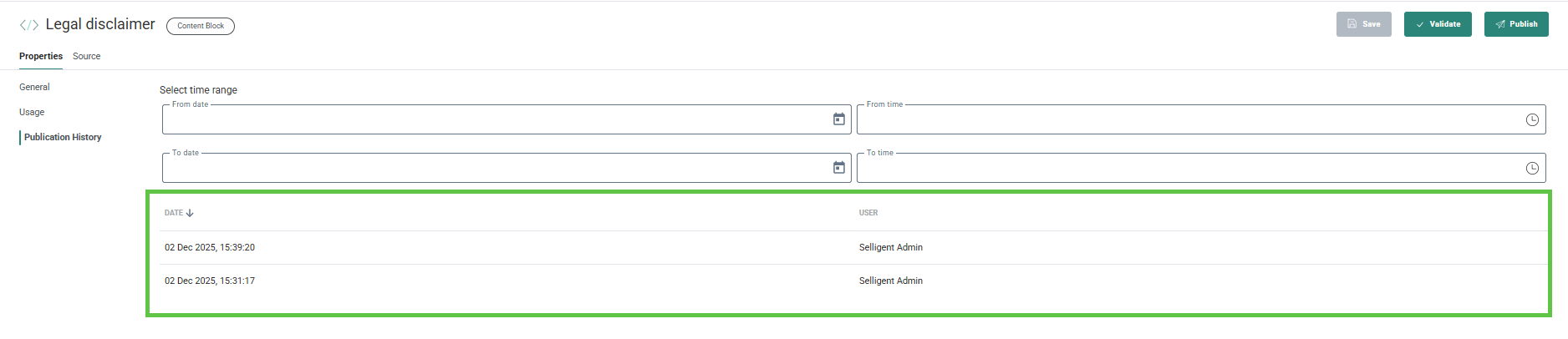
From this overview you can:
-
View a version by selecting the eye icon (visible on hover).
-
Restore a previous version, edit it and republish it. Once republished, it becomes the new latest version
Republishing an older version
If multiple versions of a Content Block exist, you can return to an earlier version, make changes and publish it again.
1. In the publication history overview, hover over the version you want to restore.
2. Click the Restore this publication icon.

3. The Content Block editor opens allowing you to make changes if needed and republish this version:

At this point:
-
If this is not what you intended, click Cancel. The latest version of the Content Block will be displayed again.
-
If you wish to continue, make the necessary changes and click Save, then Publish the Content Block.
It is now listed as the latest version in the publication history. All messages using the latest version of the Content Block are automatically updated