
At the initial creation of an RCS message, some of the message properties are already predefined. You can still modify most of these properties after the message creation.
1. Click Properties in the toolbar and access the properties panel:
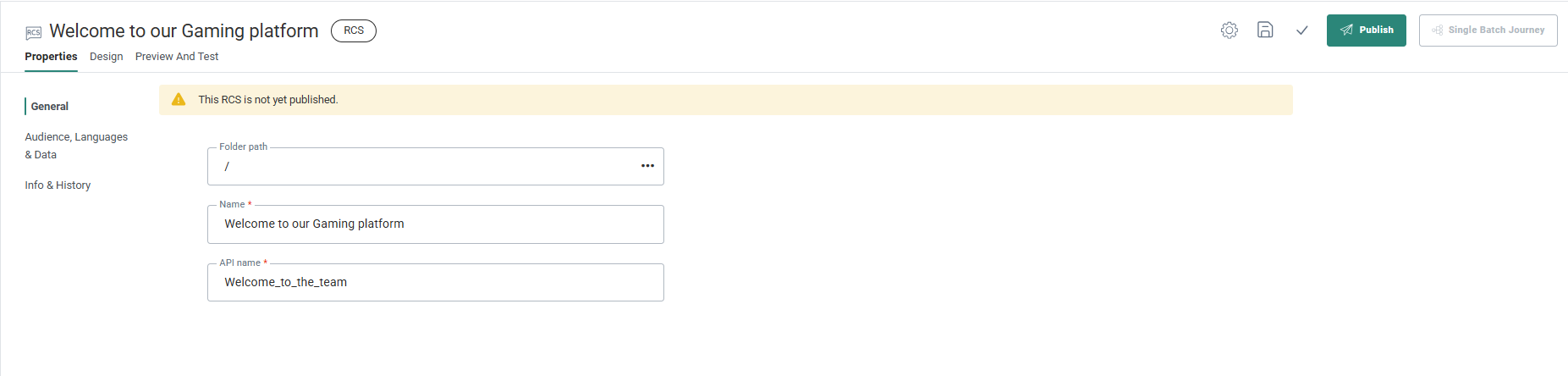
Note: At the top of the Properties panel, the current status of the message is visible. If the message has not been published at all, the status will indicate this. Also, when the message was edited and the changes have not yet been published, the status will inform the marketer of unpublished changes.
The following properties can be set for an RCS:
Basic properties
- Folder Path — The folder where the RCS is stored.
- Name — Enter an explicit name to easily recognize the RCS messages, especially when many are available for multiple Business units.
- API Name — Give an API Name to this RCS. The name cannot contain spaces. The API name is used when the message is called from the API.
- Audience — The audience defined at creation of the RCS is listed and it can be modified here. Only audiences defined in the Business unit Properties are available for use. Fields from the selected audience and profile extensions will be available for personalization of the RCS message.
- RCS channel endpoint — Select the endpoint of your choice from the drop-down. These endpoints are configured in the Business unit properties and define which operator to use for this RCS.
- Languages — Select the number of language versions that you want to create for this RCS message. The list of languages to choose from are defined in the Business unit in which the RCS message was created.
- Contacts without a language receive — Indicate which language should be displayed if there is no language information for the contact.
- Contacts with no match on language receive — Indicate which language the contact should see if the RCS message does not exist in the contact's language.
- Data Selections (optional) — Define all possible data selections that might be used in the RCS. Fields from these data selections can be used in personalization of the RCS message. The available data sources to choose from depend on the Business unit configuration. For more details on how to configure data selections check out this topic.
Note:The audience has an impact on the personalization fields. If the audience is modified, make sure that the fields used in the message exist in the new audience.
-
Event data: here you can choose between
- No event data — In this case the message behaves as a normal message.
- transactional data — Select this option to make the message available to create transactional journeys from. By selecting the option, the message is marked as a transactional message, transactional data can be defined and used and the message will only be available for use in a Transactional Journey. (For more information on transactional messages check out this topic.)
- Custom event — When Custom Events have been defined for the selected audience, the marketer can use the data in the Custom Events to personalize the message that will be used afterward in a Custom Journey triggered by the Custom Events. Messages using Custom Events data can only be used in event-driven journeys.
Info and history
- Description — Enter an explicit description to easily recognize the RCS messages, especially when many are available for multiple Business units.
- Labels — The label(s) assigned to this asset. Select one or more labels from the drop-down. (These labels are configured in the Admin configuration.) Users with the proper Access permissions can also create new labels here by typing the new label value in the field