
Highlights in Selligent by Zeta
Test Groups
WILL BE ROLLED OUT IN THE COMING WEEKS
BACKGROUND:
When running marketing campaigns, it's essential to test how messages are displayed and perceived across different scenarios. Every recipient is unique, and the same message can appear differently depending on the context. Testing plays a crucial role in ensuring your campaign is effective, and having a dedicated Test Group makes this process significantly easier and more reliable.
Also, Test Groups help you keep the people in your organization aware of outgoing communications by including them as a recipient in every campaign.
SOLUTION:
Test Groups are now available, allowing you to create a group of contacts to easily test a message in preview, and who can be included in any communication sent out, by adding them as a seed group to your campaigns. This way, contacts in the Test Group are kept in the loop of any communication going out.
What this looks like in the solution:
Test Groups are designed as a static segment against an Audience List. It is possible to create multiple Test Groups for the same Audience List and use different Test Groups for testing of communications. Test Groups can contain test users only, real contacts or a combination of both.
Two additional options are now available when creating a static segment:
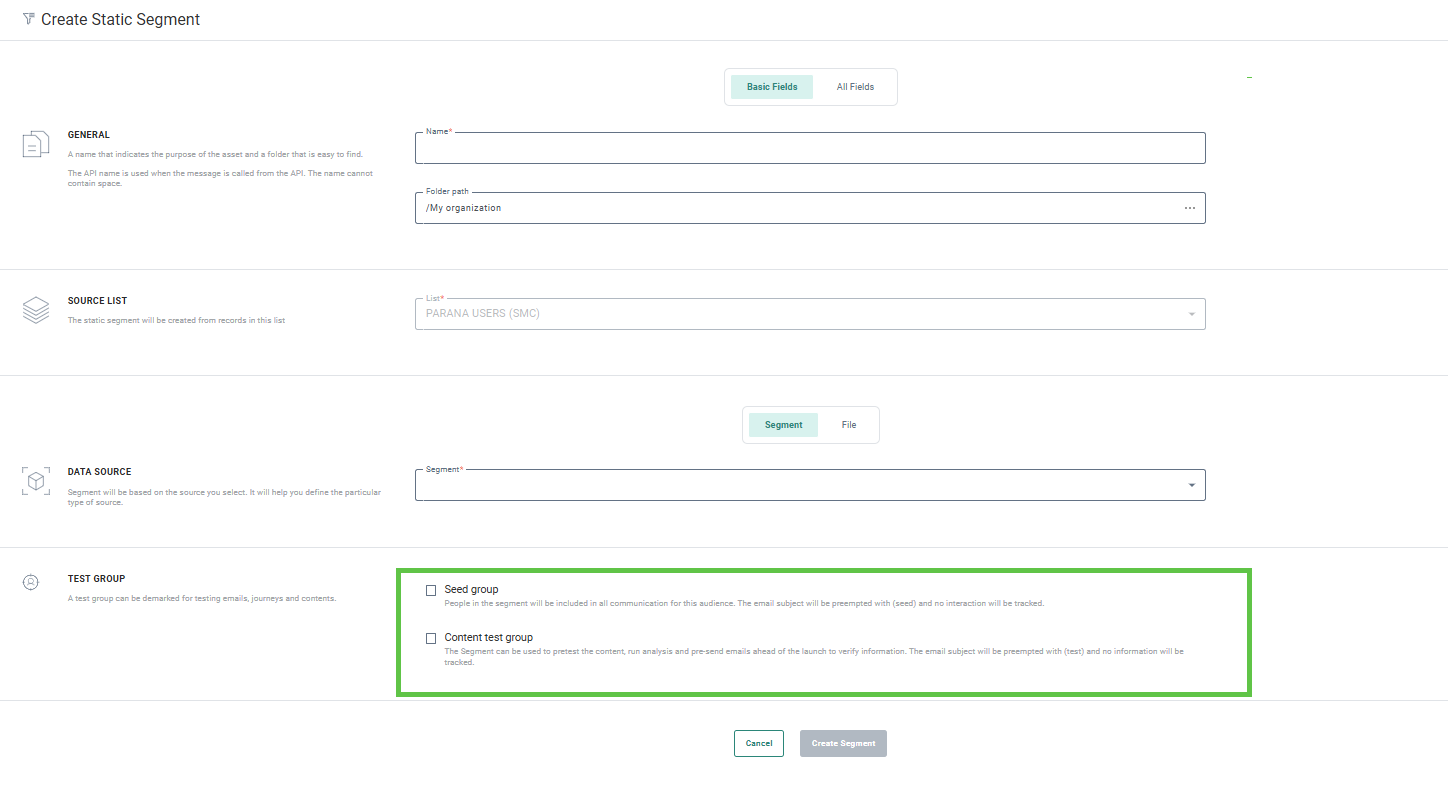
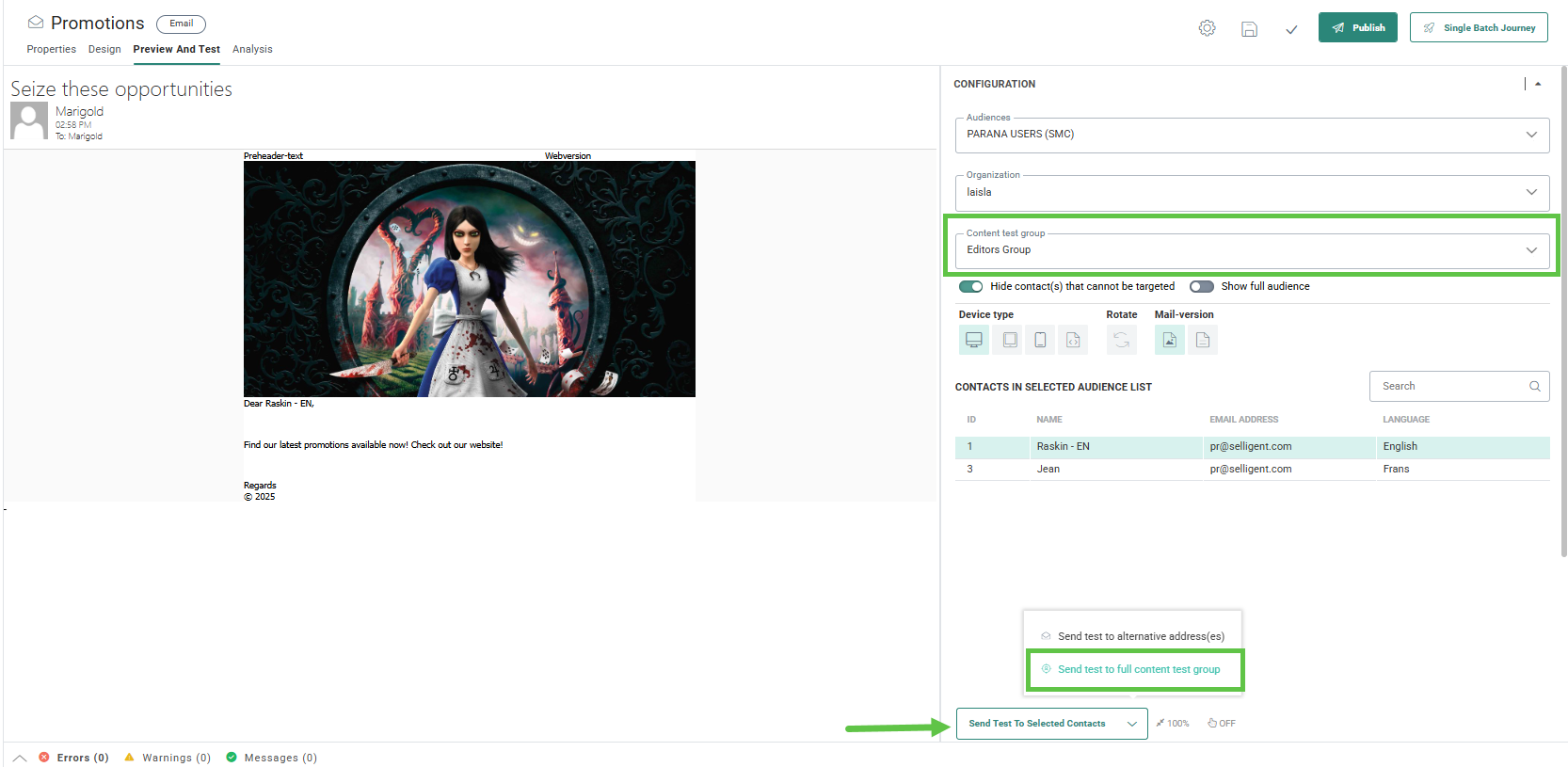
Use this static segment As a content Test Group — These Test Groups are available in the Preview and Test section of a message and can be used to test the content of a message against this Test Group, in preview and when sending out test messages ahead of the launch. This allows you to obtain feedback and make the necessary changes before the message is sent to the entire audience.
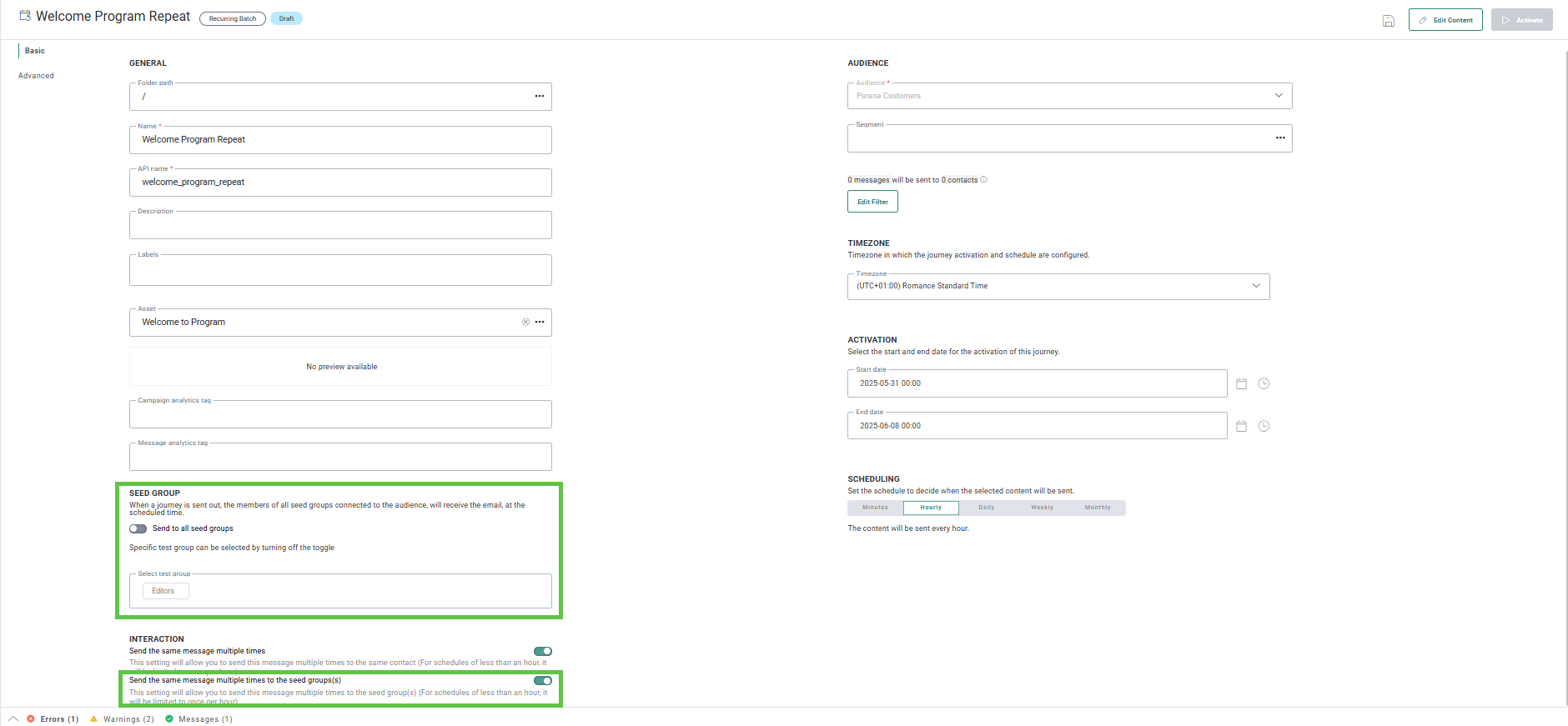
Use this segment as a Seed Group — Seed Groups come into play when the journey is launched. When the option is activated for a static segment, the contacts in this segment can be included in all communications in journeys that have the option Send to all Seed Groups activated and that are based on the Audience List to which the Test Group is linked.
These options are set on journey level, at creation or update of the journey.
For more details on this, please refer to the Test Group overview topic.
Bot detection enhancements
ACTIVATED ON REQUEST
BACKGROUND:
Currently, Journey reporting includes data on potential bot interactions, but detection is limited to
- a predefined list of IP addresses attributed to bot interaction
- user agents used by specific bots (such as Googlebot)
SOLUTION:
Differentiating between real activity and interaction by email providers and privacy software can be complex. We use an algorithm trained on their behavioral patterns to decide what interaction comes from your subscribers and what interaction comes from email providers and privacy software. This kind of differentiation is an art and not a science – it's constantly evolving – but our algorithm is constantly learning and adapting to continually improve accuracy. All of this tracking is done in real-time. It is not applied to historical data.
There are some behaviors our algorithm looks for to differentiate between real activity and email provider and security software interaction. Some behaviors are immediately flagged as not real activity, like multiple, sustained fast clicks in a short period or clicks coming from a data center, VPN, or other hosting organization. Link clicks on links a human user usually wouldn't follow and a real click followed by one from a hosting organization are also looked at to differentiate types of activity in your messaging.
What this looks like in the solution:
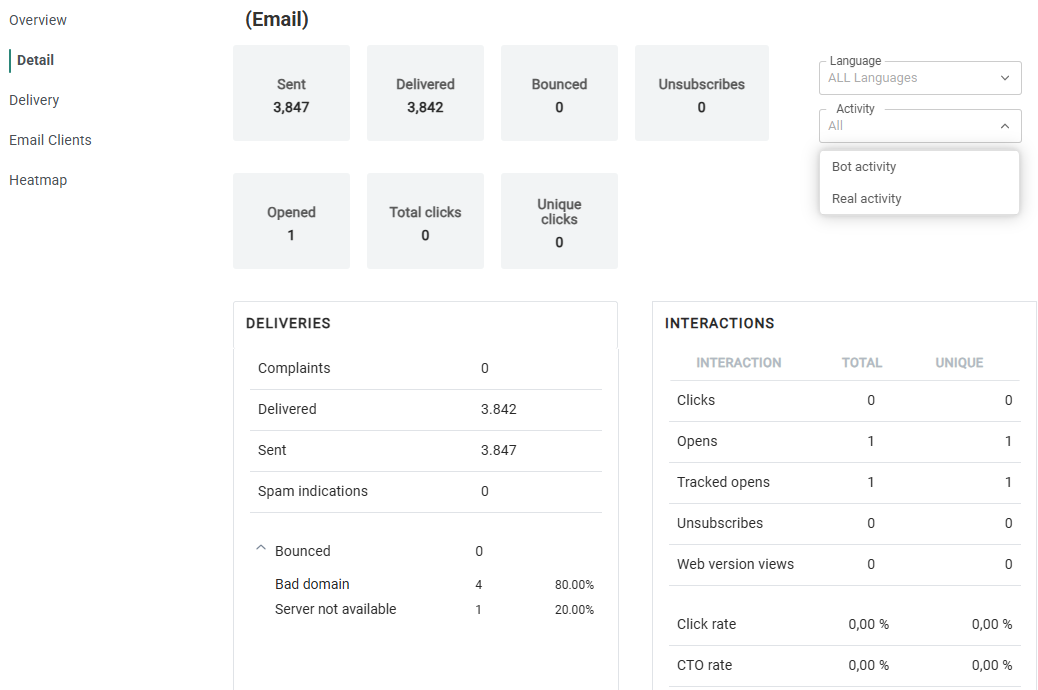
When the new bot detection is enabled in your environment, the Journey reporting feature includes an additional filter that lets users view data including only real activity, bot activity, or all activity. By default, All is selected. (If bot detection is not activated for your environment, you will only have one option in de drop-down: Real activity.)
Find out more about Bot detection in general in this dedicated topic and about the impact on journey reports in Selligent by Zeta.
Accessibility Act and Selligent
AVAILABLE TO ALL USERS
BACKGROUND:
We need to ensure that messages created in Selligent by Zeta are accessible and readable to all recipients.
SOLUTION:
To ensure that all recipients have a positive experience with our communications, we have added an additional check when designing a message.
What this looks like in the solution:
In the light of the Accessibility Act implementation in June, we implemented a few enhancements.
When adding an image to a message without providing an alternative text, the user will receive a warning about this and will be prompted to add an alt text for each of the images added to a message.

This applies to image components added to the message, but also to Content Block images and images added in the source code of the message.
Based on the language of the message, we also implemented a language attribute that is added automatically upon publish to an HTML tag in your messages and pages. This is important because these language tags are used by browser AI translations.

Use of custom data now possible in dashboards
AVAILABLE TO ALL USERS
BACKGROUND:
Previously, only standard data and datasets were available in Data Studio to build dashboards from. However customers also require dashboards based on data that is specific and custom to their environment.
SOLUTION:
The Data Enabler is now available, providing our customers with the possibility to use custom data in dashboards.
What this looks like in the solution:
Custom data can be added to Data Studio and made available for use in dashboards. The process of getting that data from your Selligent environment into Data Studio is supported by the services team and does not require the customer to have access to Data Studio Pro.
The Data Enabler is specifically interesting for customers who do not have access to external data storage or don’t have the knowledge to extract their own data.
Enhancements in the user experience
AVAILABLE TO ALL USERS
BACKGROUND:
We're always working to improve the user interface so our platform feels better and easier to use.
SOLUTION:
Improvements have been made in the Admin Configuration as well as in the Content Blocks.
What this looks like in the solution:
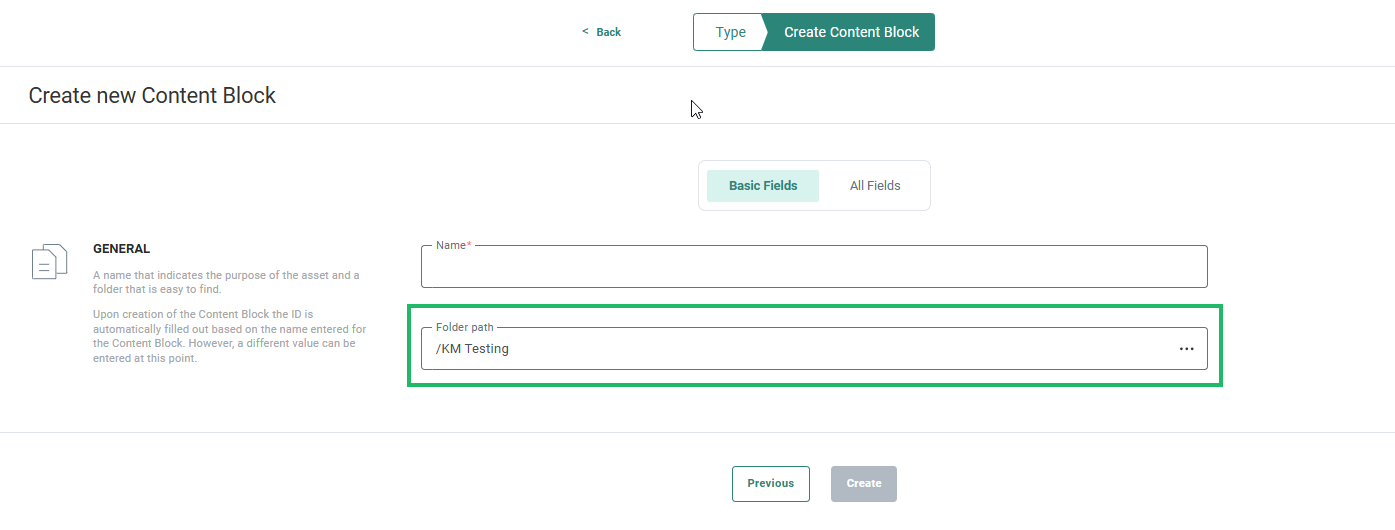
In the Content Blocks, when creating a new one, the folder path is automatically filled out with the breadcrumb for the folder you are currently in. You can still change this folder if needed.
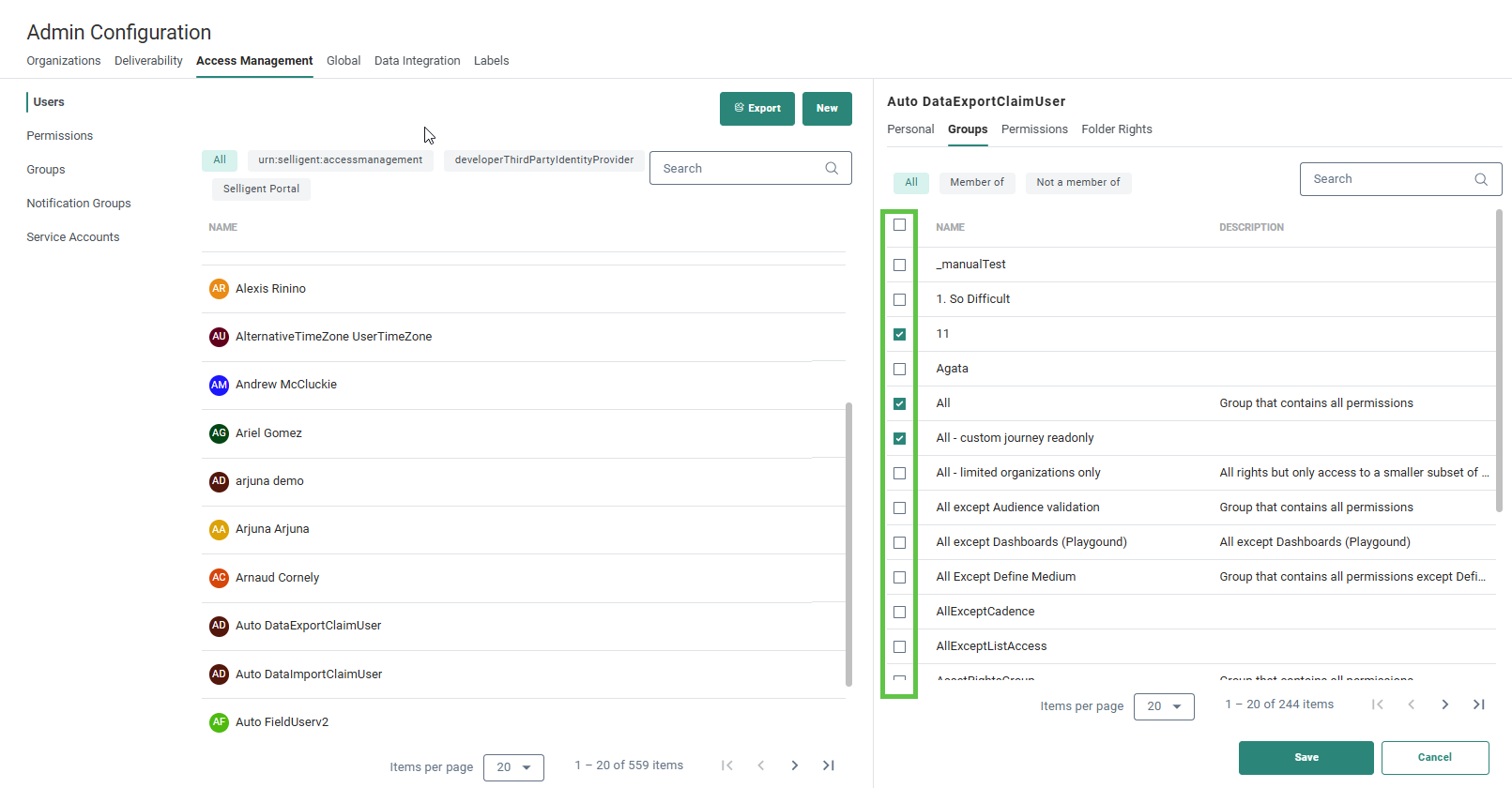
In the Admin Configuration, when working in the Members and Groups section, settings are now remembered when switching from one tab to another.
For example, selecting groups on the Groups tab and switching to Permissions and back, remembers the selected groups:
Pre-built connectors for Selligent
Our pre-built connectors offer a seamless, efficient solution for your integration needs. With automated bi-directional synchronization, you can effortlessly manage customer data, enabling advanced segmentation, personalization, and machine learning capabilities.
These connectors are plug and play and allow us to easily react to organizational changes within your company.
A full list of these connectors is available here
Documentation updates
In addition to the update of topics related to the introduction or update of features, following additional updates have been made in the help center:
- Facebook to leads doc has been updated with the latest changes for app creation.
- Help center has been updated to reflect the new ClientSecret authentication for MSDynamics.
- The Selligent Functions, Consumer Information Walkthrough, Journey Reports and Maintenance Overview topics have been updated based on feedback from our users.
- A new topic has been added consolidating the information on the use and availability of Selligent AI in Selligent.
- Overview of features available in the solution related to the Accessibility act