
AI In Selligent
Introduction
With AI, marketers can save time and effort while crafting campaigns, all while benefiting from AI-driven suggestions, improvements, and alternative content options. The platform harnesses this powerful functionality by integrating AI across various touchpoints within the application, providing marketers with the tools they need to build the most optimized campaigns possible.
AI is integrated in the following sections of the application and is available on request:
-
In the Text components in an email, template or page.
-
In a mobile message to define the Push Notification banner and title, as well as in the In-app title and text content.
-
For Subject lines and preheaders in emails and templates.
-
In Subject line A/B testing to set the subjects for the test.
-
In the creation of dashboards in Data Studio, through suggesting widgets and items or asking AI to help with the selection.
Note: It is recommended to always verify the results generated by the AI module, to ensure correctness and completeness.
Using the Selligent AI feature
The Selligent AI feature is slightly different depending on where it is called from:
From a Text Component, SMS, MMS, RCS
1. When AI is activated for your environment, you can access it through a dedicated AI icon in the personalization bar of the component or element.
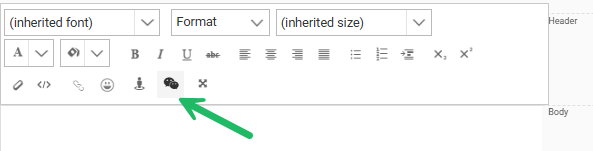
2. A Selligent AI dialog is displayed to assist you with your copy.
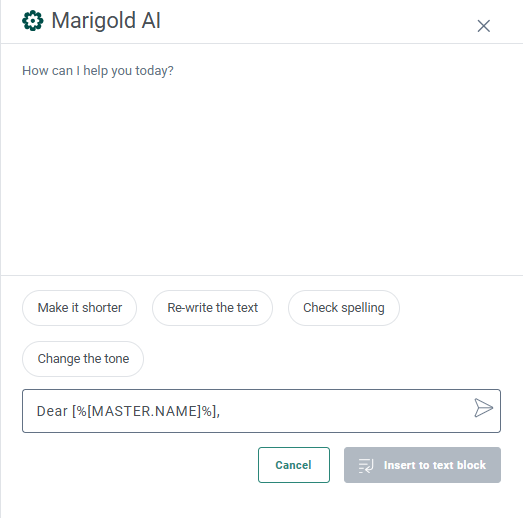
There are 2 ways in which the AI module can be used:
- Improve the current content. In this case, select first the text in your component and then click the AI icon.
- Create new content based on an instruction or question.
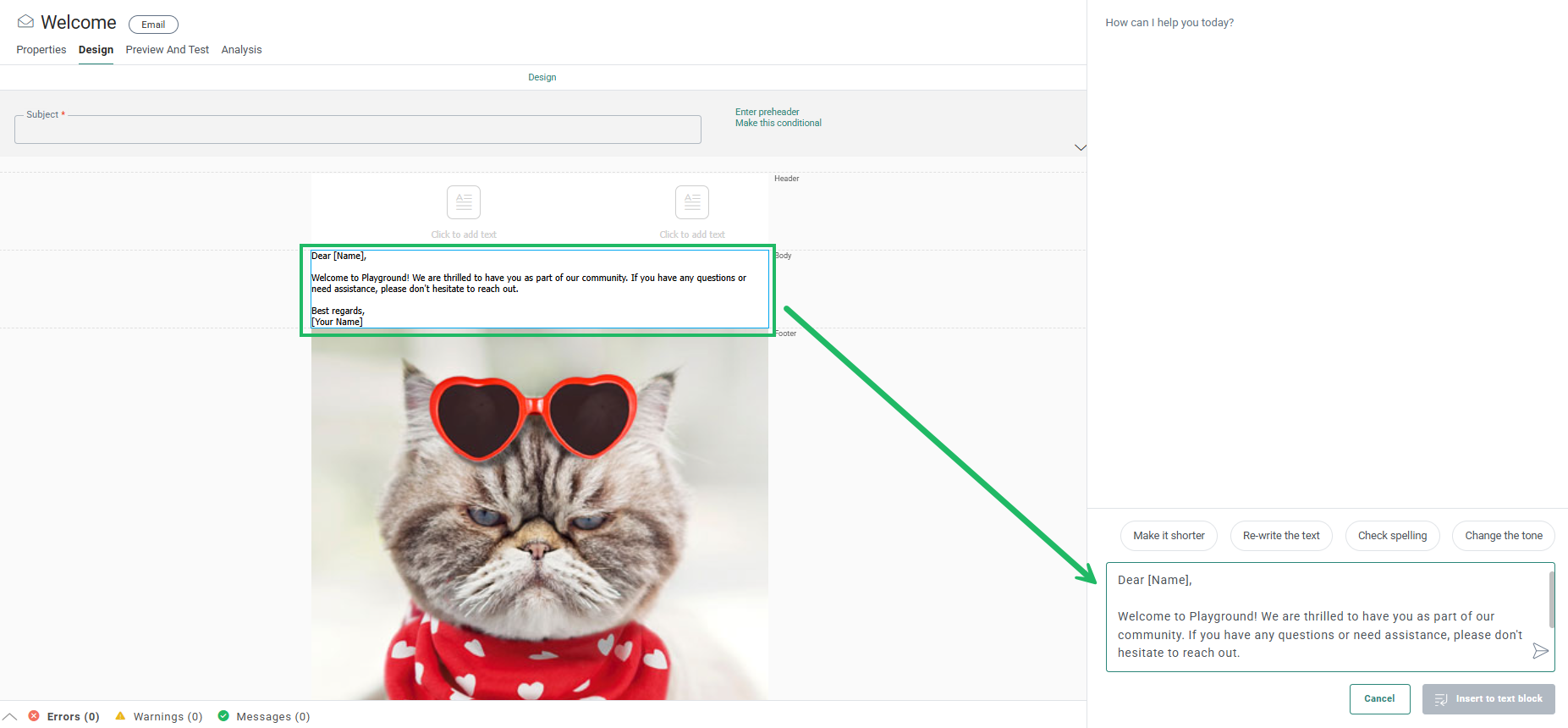
3a. If you select existing text in your message and then click the AI icon, the selected text is used as the question in your dialog. You can then choose to make the text shorter, re-write it, check for spelling errors or change the tone. When happy with the result, click the button Insert to Text block to overwrite the existing text with the AI generated one.
3b. If you don't select the existing text, click the AI icon and enter your question or instruction:
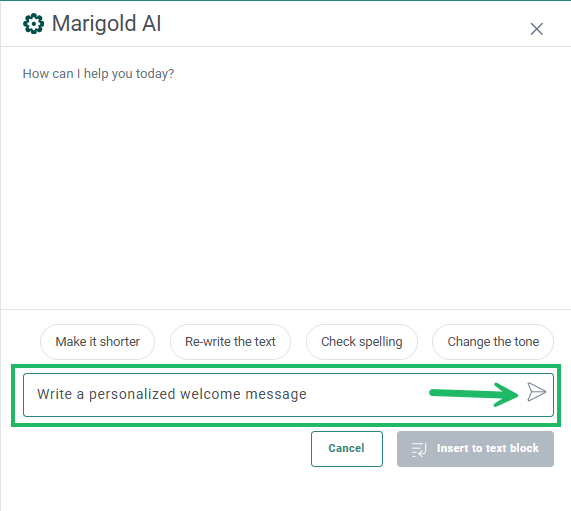
Click the arrow in the instruction field to generate the result. The generated text is returned:
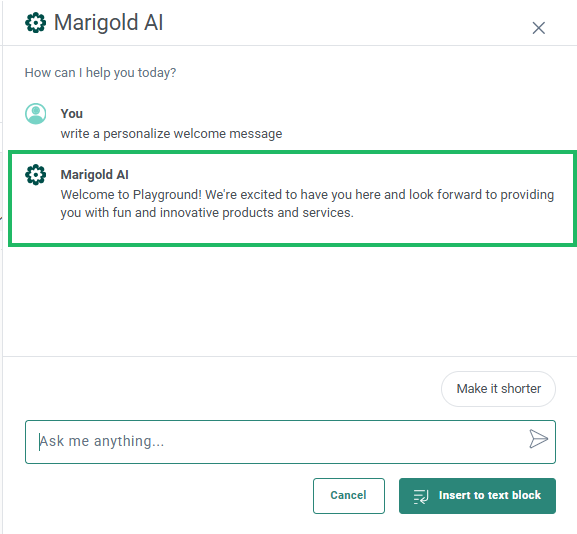
Note: The generated text is by default in the language in which the question is asked, unless specific instructions are given in the AI dialog. After generating the text, you can also ask to get it translated by adding for example in French in the chat.
If you are happy with the result, you can insert the text block into your message. Or, you can continue to improve, by using the Make it shorter button or enter a new instruction to improve or change the text.
From the Mobile Messages, Message Subject lines and Preheaders
Selligent AI can be called from the Message Subject Line and Message Preheader as well as from the Mobile Notifications and In-app messages, using the AI icon available from the Personalization menu: .
-
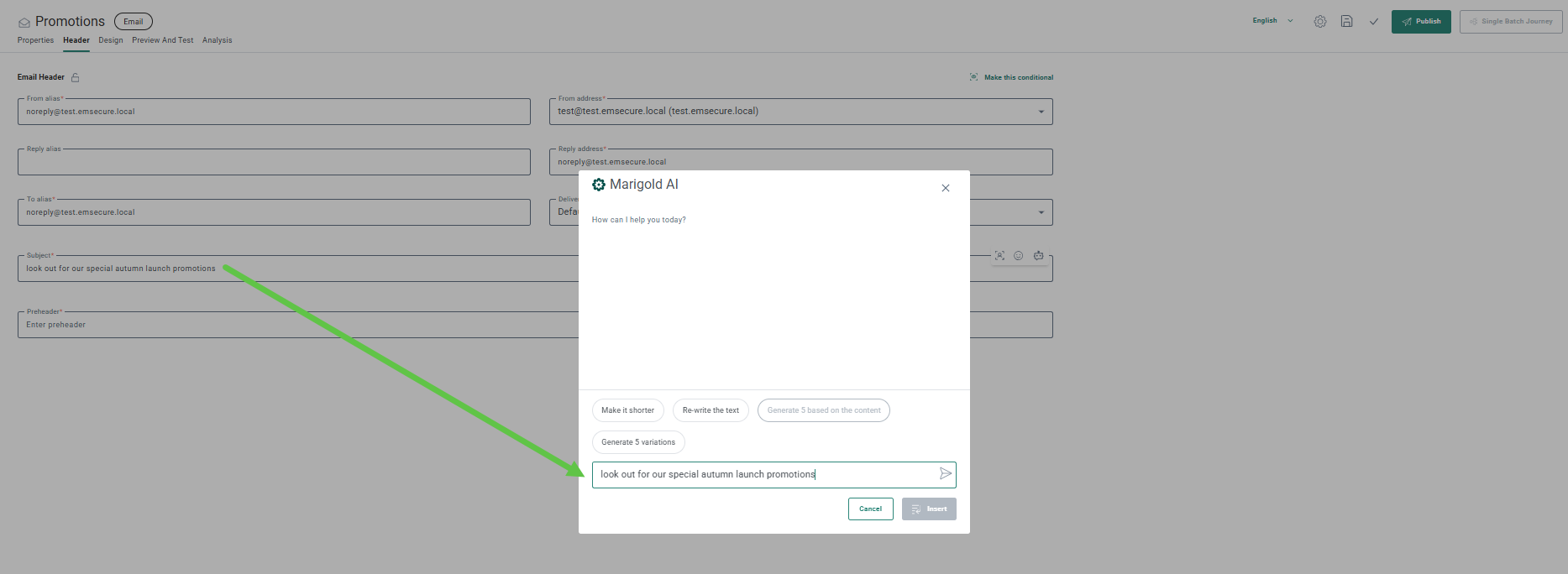
If there is already content available in the subject or preheader, the text is automatically used as the question in your dialog. You can then choose to make it shorter, re-write the text, generate 5 based on the content or generate 5 variations of the content.
-
If no text was available in the subject or preheader, you can enter the instruction manually and generate 5 variations using an instruction, make it shorter, re-write the text or generate 5 variations based on the content.
When choosing to generate 5 variations, they are listed in the dialog for you to choose from:
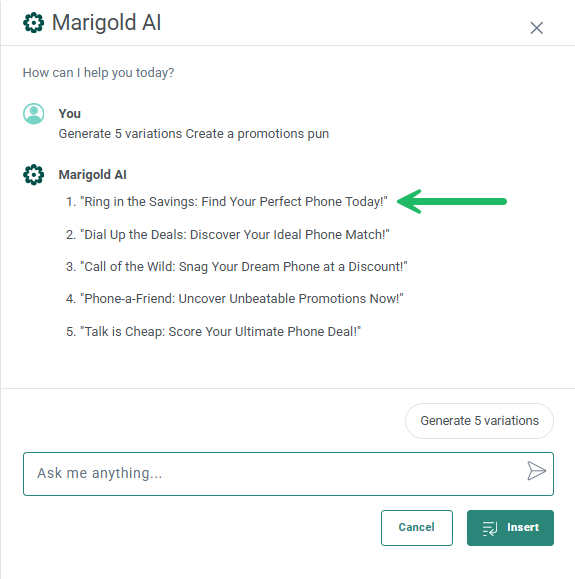
If you want to improve, you can use the Generate 5 variations button again to regenerate the result. Or, provide an instruction to improve on the result.
When you are happy with the result, click the option in the list to use it in your message.
From the Subject Line A/B Component or Subject Line A/B Journey
1. In the Subject Line A/B Test, Selligent AI can be called through the  icon.
icon.
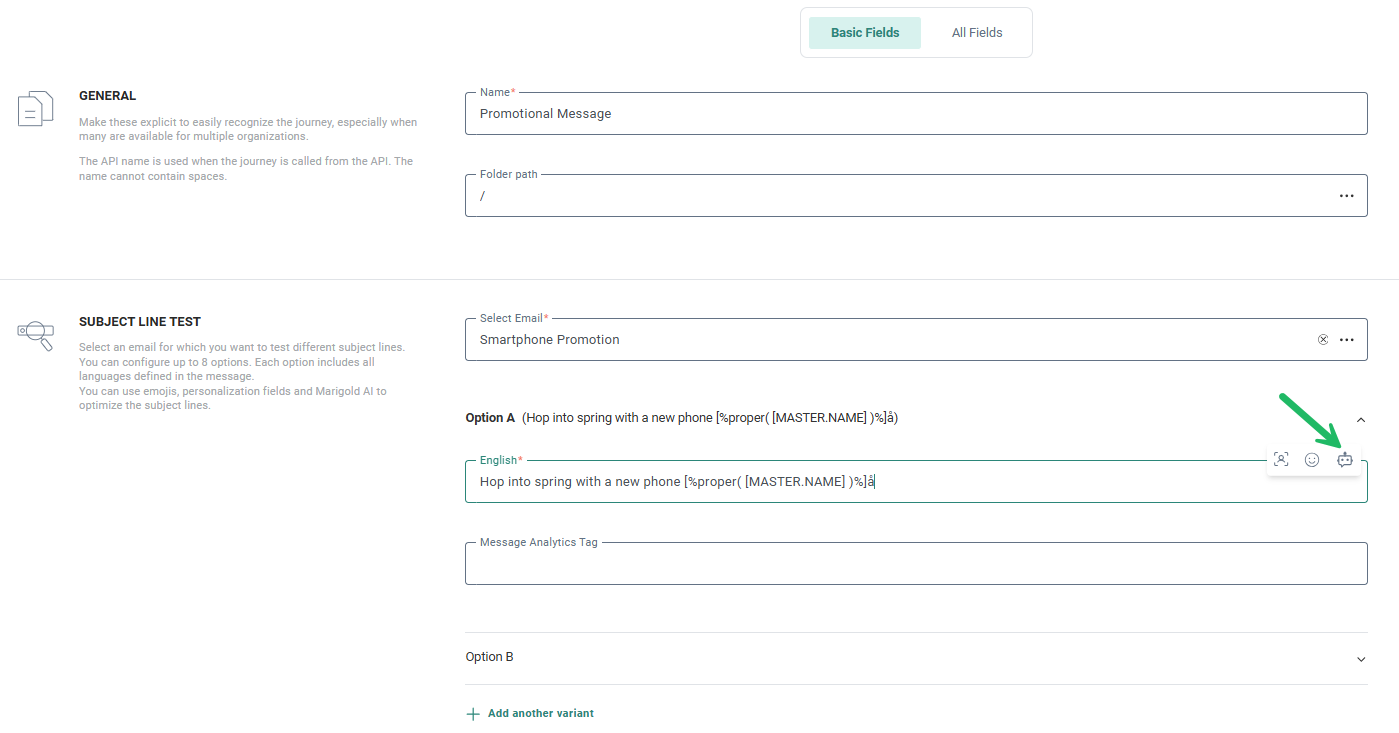
2. If a Subject Line is already filled out, it is used as the question or instruction in the AI Dialog:
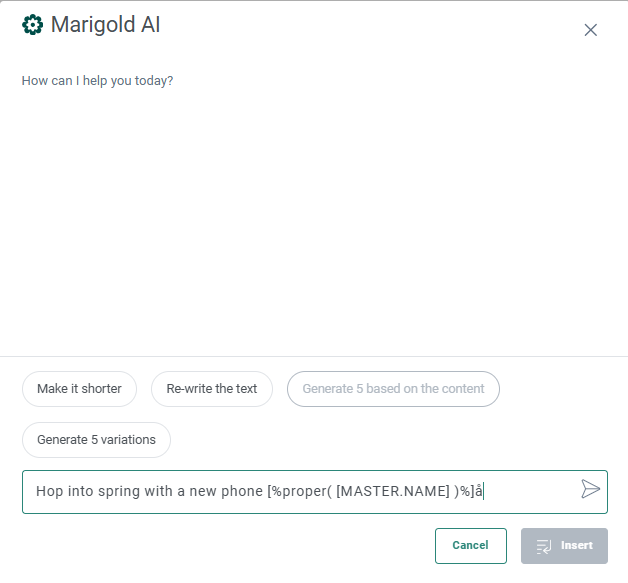
You can choose to
- Make it shorter: A shorter version of the existing text is generated after which 5 variations can be generated.
- Re-write the text: The existing text is reworded and improved.
- Generate 5 variations: Five different versions of the existing text are generated
- Click the arrow in the Instruction field: An alternative version of the entered text is generated
If you are not yet happy with the result, you can still improve and generate new versions.
3. When done, select the preferred variant. It is added to your Subject Line.
Creating a dashboard using AI
Data Studio allows the dashboard creator to use AI-suggested graphs in their dashboards. There are 2 ways in which this can be done: using suggestions, or ask AI for help.
Suggestions:
1. Under Add Item, the tab Suggestions is shown.
2. Selligent AI will generate examples of graphs that can be integrated in a dashboard.
This suggested graphs are based on a specific dataset, shown on top of the window.
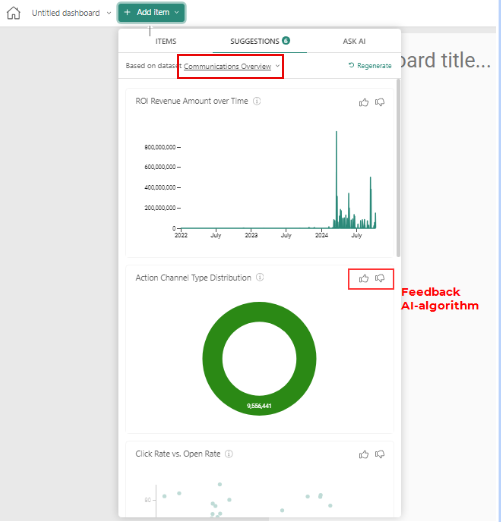
3. The source dataset can be changed to any other dataset to which the user has view-rights.
4. In order to use the suggested graph in your dashboard, you just need to drag & drop the graph onto your dashboard. After the graph is placed on the dashboard, you can still modify the data and/or the setup.
Note: In the backend, AI is learning which graphs could be interesting to you or other clients. In order to increase this knowledge, it is recommended to provide feedback through selecting the thumbs up/down in the suggested graph.
Ask AI
1. Under Add Item, the tab Ask AI is shown
2. The Ask AI feature enables you to create graphs based on common language, such as Show me the evolution of the open rate per month or Show me a bar chart with the top 10 journeys over the open rate of the current year. The resulting graph will be displayed.
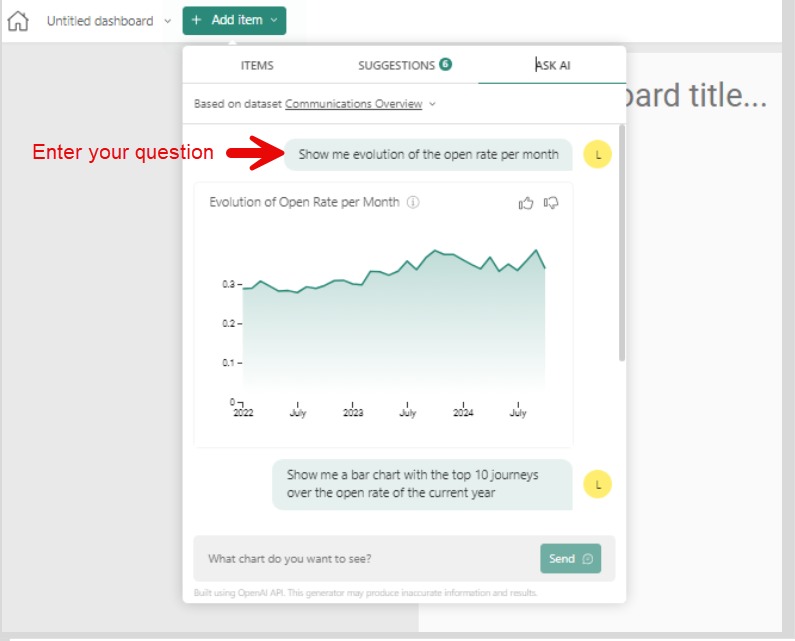
3. This generated graph is based on a specific dataset, shown on top of the window.
4. The source dataset can be changed to any other dataset to which the user has view-rights.
5. In order to use the proposed graph in your dashboard, you just need to drag & drop the graph onto your dashboard. After the graph is placed on the dashboard, you can still modify the data and/or the setup.
Some Tips and Tricks when using AI
Some tips on how to get a better result:
-
Provide a clear prompt to the AI using the following formula: Desired Voice + Number of Words + Target Audience + Desired Outcome This may look like "With a persuasive marketer voice, in 60 words, write about why September is a great month to begin a fitness program."
-
Use your brand guideline on voice. You can also include your company website in the prompt as In the marketing voice of mycompany.com, write...
-
Describe a specific target audience, if applicable. If generating text from a more general prompt, use "customer".
-
Document your most successful prompts for re-use.
-
In general, using a URL to a specific product gives the AI product descriptions that can be used to write compelling content. You can also paste a brief product description into the prompt box.
Keep in mind:
-
Don't rely solely on AI
-
Always verify the results generated by AI. Don't copy blindly
-
Be mindful of personal or internal company information