
Prerequisites - Using Real-time Events from Cheetah Digital
Intended Audience: Technical marketers or expert users who have experience with solution configuration, data management, and advanced setup.
Journeys are triggered by customer actions such as a customer sharing their contact details for the first time or making a purchase, these are known as events. To use them, you must configure a producer application to send that event data into your Journey.
These events are either captured by the Cheetah Digital application itself such as a customer opening an email or clicking on a link, or they are based on customer actions such as logging in to your Mobile App, that are captured in external systems and ingested by Cheetah Digital.
You will need to upload to or synchronize external events with Cheetah Digital depending on your processes for sharing data with Marigold. The methods available are shown below with a link to the article for that specific data sharing process:
-
Any entity update Note: it’s essential to add a Filter to this method to avoid sending ineligible customers on your Journey. If you are intending to use batch file for the update, it is advised to use the Scheduled Journeys instead.
Once the events are captured by Cheetah Digital they must be converted to a format that Journeys can listen out for and recognize.
Cheetah Digitalprovides two methods for sending customer interaction or event data to Journeys: Event Maps and Webhooks.
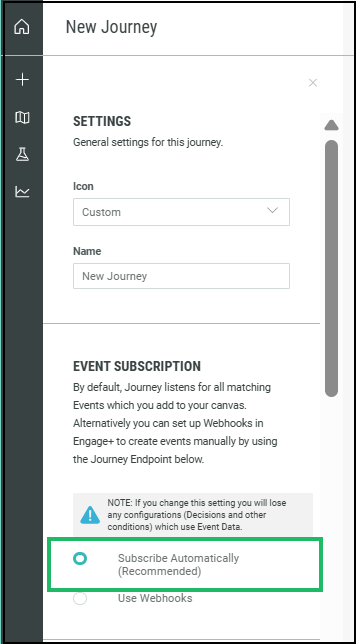
If you use only Cheetah Digital as your producer application, in the Events field you can specify either Subscribe Automatically or Webhooks to use the event data from Cheetah Digital.
Configuring Cheetah Digital Event Maps
(Undefined variable: Engageplusvars.ProductName) streams customer event data to event stream based on the Event map settings. Journeys subscribes to this event data and accordingly the customer is placed in the Journey or progressed through the Journey.
To use event data from Cheetah Digital, you must first configure your Event Maps. These maps make event data available to Journeys based on the configured triggers.
When you set your Journey's Event Subscription setting to Subscribe Automatically, it will subscribe to all the event data sent from Cheetah Digital.
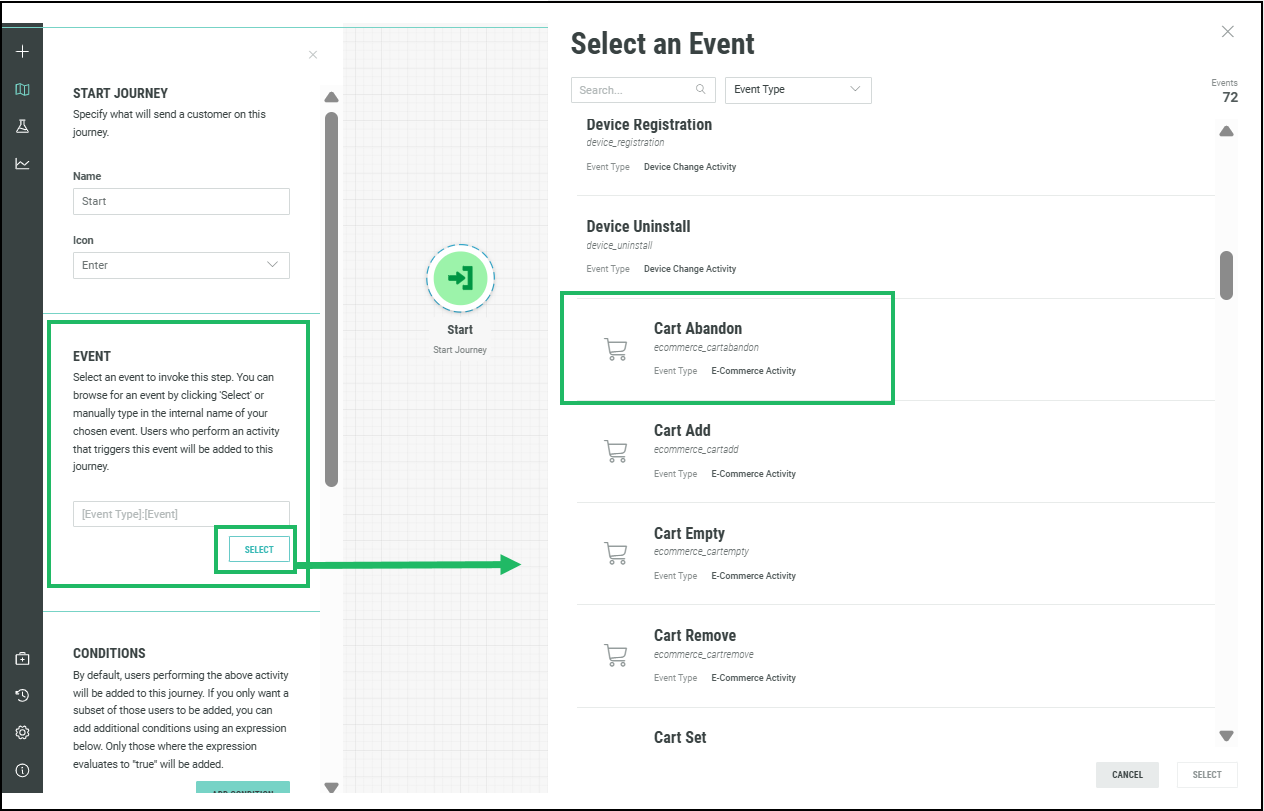
Based on the event data required for your Journey steps, you must select the appropriate event in the Event field within your Step settings.
For this data to be available in your Journey, an Event Map with the same Event Type must exist.
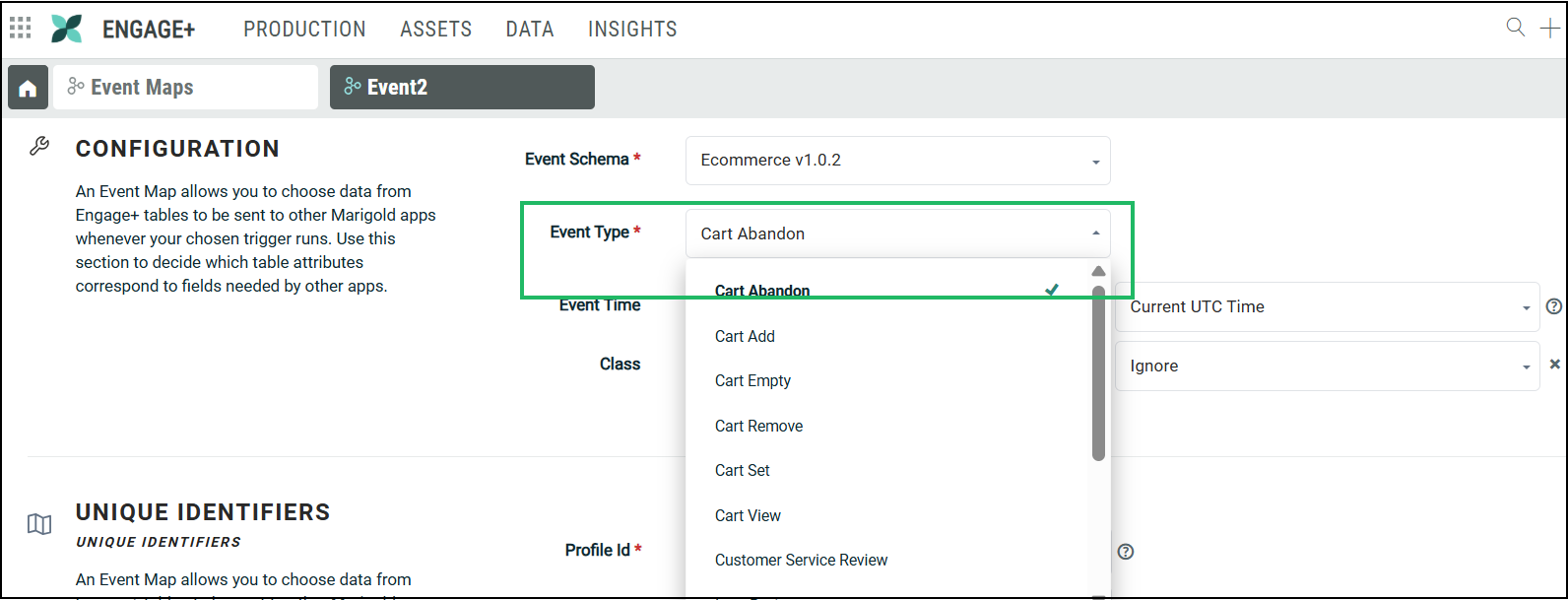
For example, to use the Cart Abandon event in the Start step of an Abandoned Cart Journey, you must have an Event Map created with the Event Type: Cart Abandon.
Note: You do not need to create a separate Event map for every Journey. You only need to ensure that an Event map with the required Event Type exists to send the appropriate event data from Cheetah Digital. Once this data is available, it can be used across multiple Journeys.
Similarly, you can have multiple Event maps linked to the same Event Type but configured with different conditions, such as different triggers or schedules. For example, different online stores can each have their own trigger mapped to the same Purchase Event Type.
Contact your Marigold representative to provision Event maps in your account, and set up the necessary Event Schema and Event Types.
To create your Event maps, refer here for instructions.
Using Cheetah DigitalWebhooks
Webhooks is another mechanism to send event data from Cheetah Digital to Journeys. This method allows communication of highly customizable event data.
To use Webhooks to communicate event data from Cheetah Digital, you need to create them beforehand in Cheetah Digital.
To create Webhooks, refer here for instructions.

