
Understanding: Two-Factor Authentication
Note: This article is only applicable for non-Zeta Login setups.
If Zeta Login is being used, look at this article instead.
Two-factor authentication (also known as 2FA) helps reduce the risk of unauthorized access to your Grow account. It does this by requiring you to enter a time-limited, one-time passcode that is generated on a secondary device (e.g. your smartphone). Once enabled, it is extremely difficult for a remote attacker to gain access to your account without getting hold of your email/password combination as well as the secondary device used to generate passcodes.
Enabling Two-Factor Authentication
You'll need an authentication app setup on your smartphone or similar device before you can continue. In the rest of this guide, we will assume you're using Google Authenticator which is available from both the Apple App Store and Google Play Store.
- Log in to Grow and head to User Settings in the top-right menu.
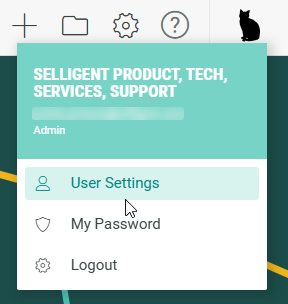
- If two-factor authentication is not already set up, click the Enable button.

- Scan the QR code using your authenticator app.
In Google Authenticator, click on the + or add button and choose Scan Barcode. Authorize Google Authenticator to use your camera, if prompted, and then point the camera at the barcode shown in Grow.
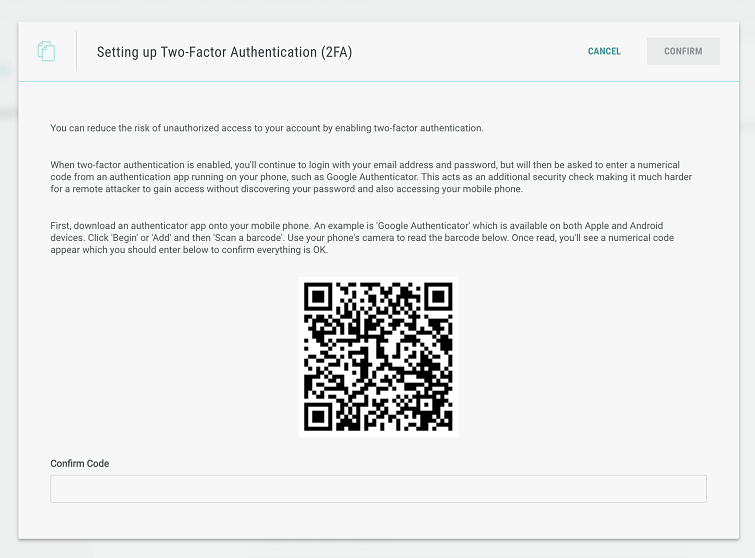
- Confirm everything is set up correctly by entering the current passcode.
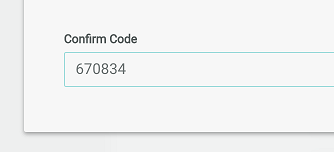
Google Authenticator will read the barcode and complete its setup. You should see a six-digit code in Google Authenticator for Grow. Notice that there is a timer indicating for how long the code will be valid. Wait for a new code if the current one is about to expire. Enter the passcode in the Confirm Code field and then click Confirm.
You're all set!
Congratulations! Two-factor authentication is now active. You'll be asked for a passcode the next time you login. Be sure to keep your secondary device with you as you won't be able to access Grow without it.
Signing in with Two-Factor Authentication
When logging in, you need to enter your email address, password and a one-time passcode coming from your authentication app.
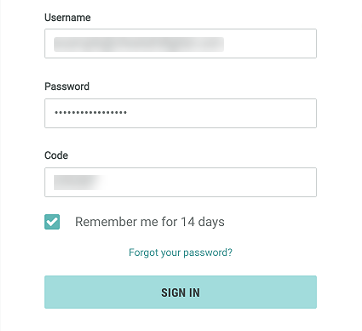
Enter the passcode before the timer in the app expires. If the timer runs out, you'll need to request a new code and try again. After five incorrect attempts, your account will be temporarily locked, and you'll need to complete account recovery before you can continue.
If you lose your secondary device, or have issues logging in once two-factor authentication is enabled, contact our Support team for help.
Important: We will never ask for your password or a one-time passcode. Never provide these to anyone!
