Understanding: The Experience Library
The Experience Library is an ever-growing library of innovative Experiences and Custom Experience ideas that can be delivered by our Studio Team. It sees us continuing our quest to help marketing teams move faster and deliver more value, whilst saving time and precious resources.
Let's take a closer look...
To get to the Experience Library, click on the link from the top navigation.
From the Experience Library home page, you see all available Experiences.
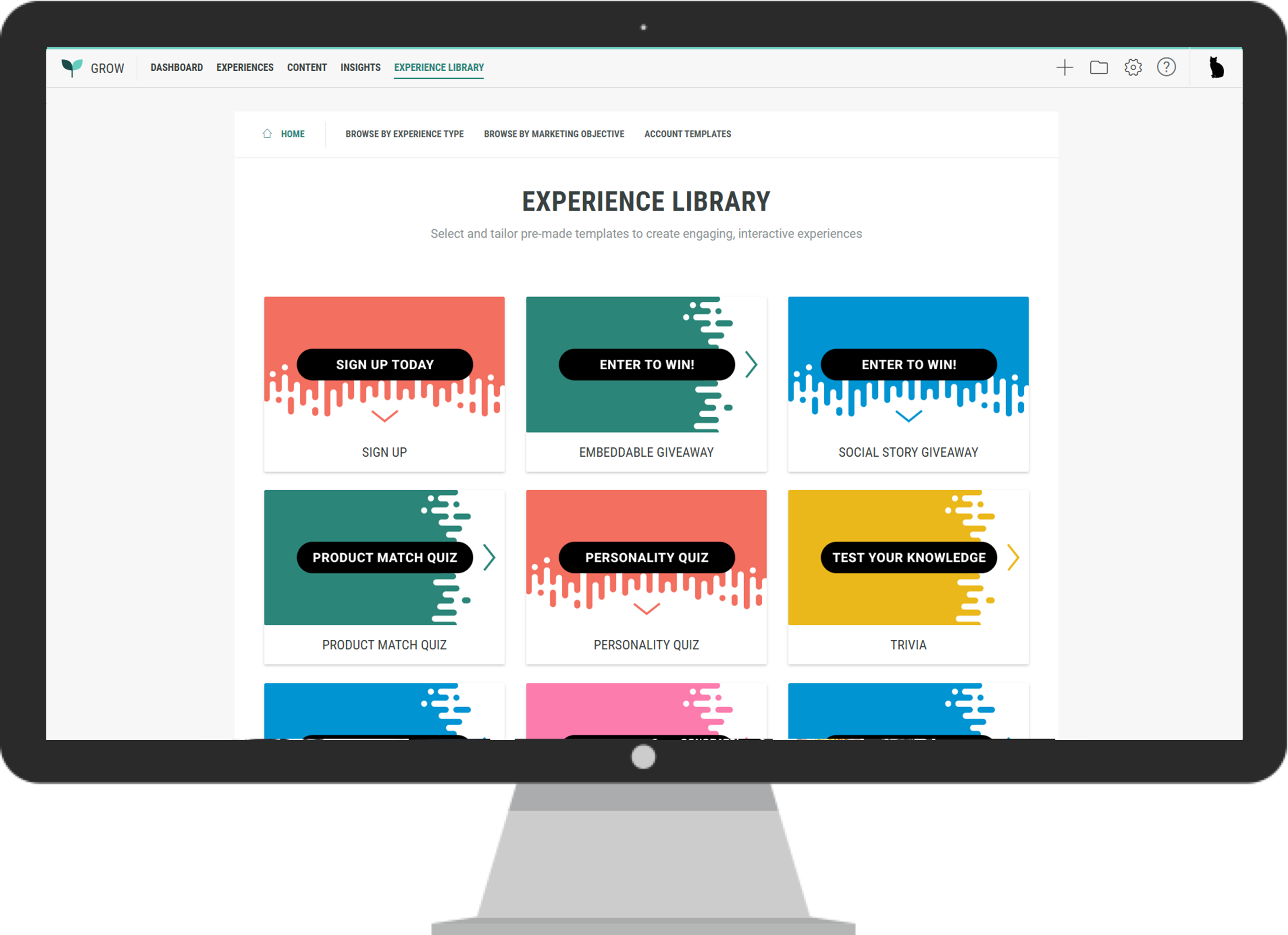
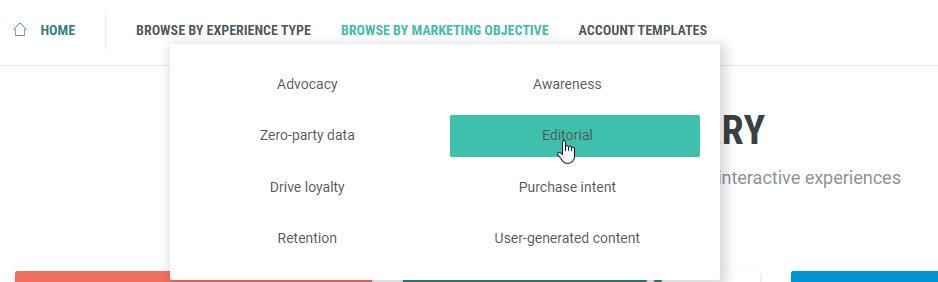
You can browse Experiences by type and marketing objective, and go to the templates set up for your account.
Get all the details you need
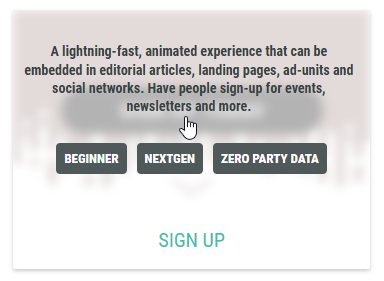
Hover any Experience to see a short description.
Click any Experience to access its detailed Experience screen.
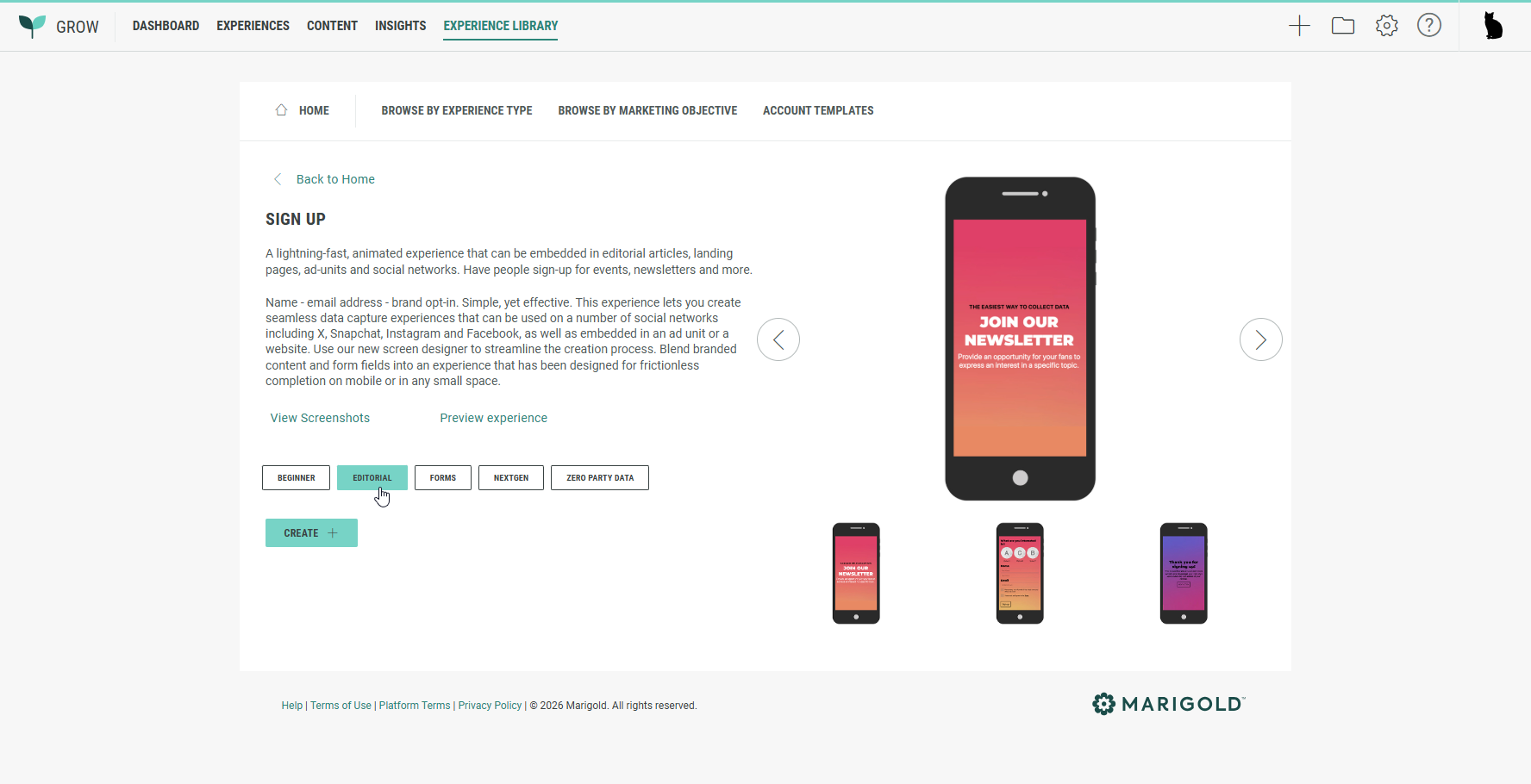
From here, you can :
- See the Experience title and description on the left.
Read specifics about the app’s features, key objectives it can help your team meet, as well as what you’ll need to launch an Experience.
- View some example screenshots.
- Click on the View screenshots link under the description. This shows the screenshots in full size on a different screen, where you can scroll through them by clicking the left/right arrows.
- Navigate through the medium-size screenshots shown at the right, by clicking the left/right arrows.
- Click on any of the thumbnails at the bottom-right to jump directly to the applicable screenshot.
- Preview the Experience by clicking the link under the description.
This gives you an immediate hands-on approach to test the default Experience setup, without the need of actually creating and configuring the Experience to test out the basics.
Note: This option is not available for all Experiences.
- Get inspired by seeing some real-life markting examples of how other marketers have used the Experience.
Instead of the Preview Experience link, for some Experiences, a View Examples link is available. This shows example screenshots in full size on a different screen, where you can scroll through them by clicking the left/right arrows. That way, you have an idea on how the final Experience may look like (for different verticals).
Note: This option is only available for some Experiences that do not have the Preview Experience option.
- Show all Experiences with identical tags.
Click on any of the available tags at the bottom-left, to show all Experiences that are tagged the same way.
For example, clicking Editorial leads to the Experiences page with all Experiences designed for the Editorial marketing objective.
Easily create your preferred Experience
To add an Experience to your account, simply click on the Create button.
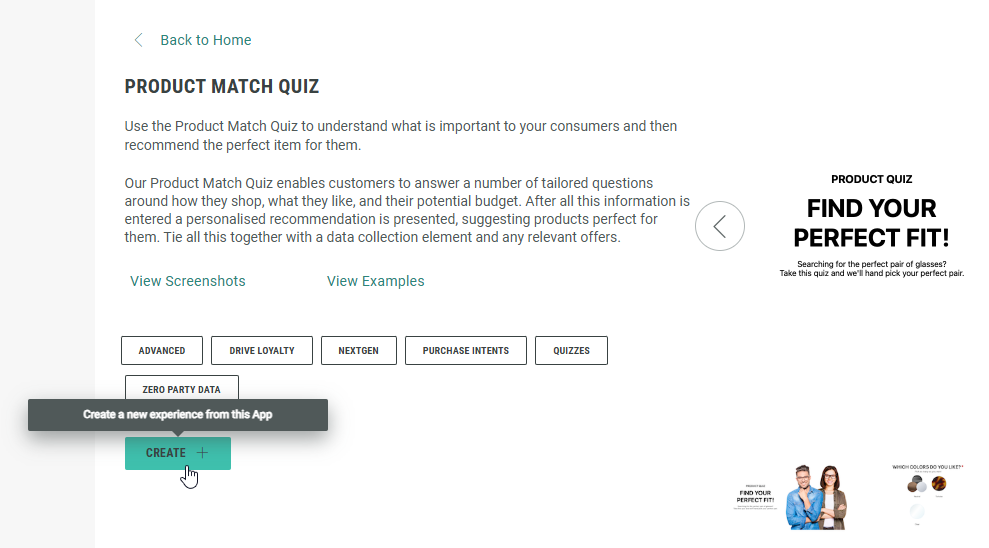
This will run you through a wizard in which you can define the basics for your Experience.
Once completed, you end up in your Experience area, where you can customize all you need.
For more details on the next steps, please have a look at the Experience area article here.
Custom Experiences
Custom Experiences are built out by our Studio team. These Experiences typically have more bespoke elements that will require some additional work.
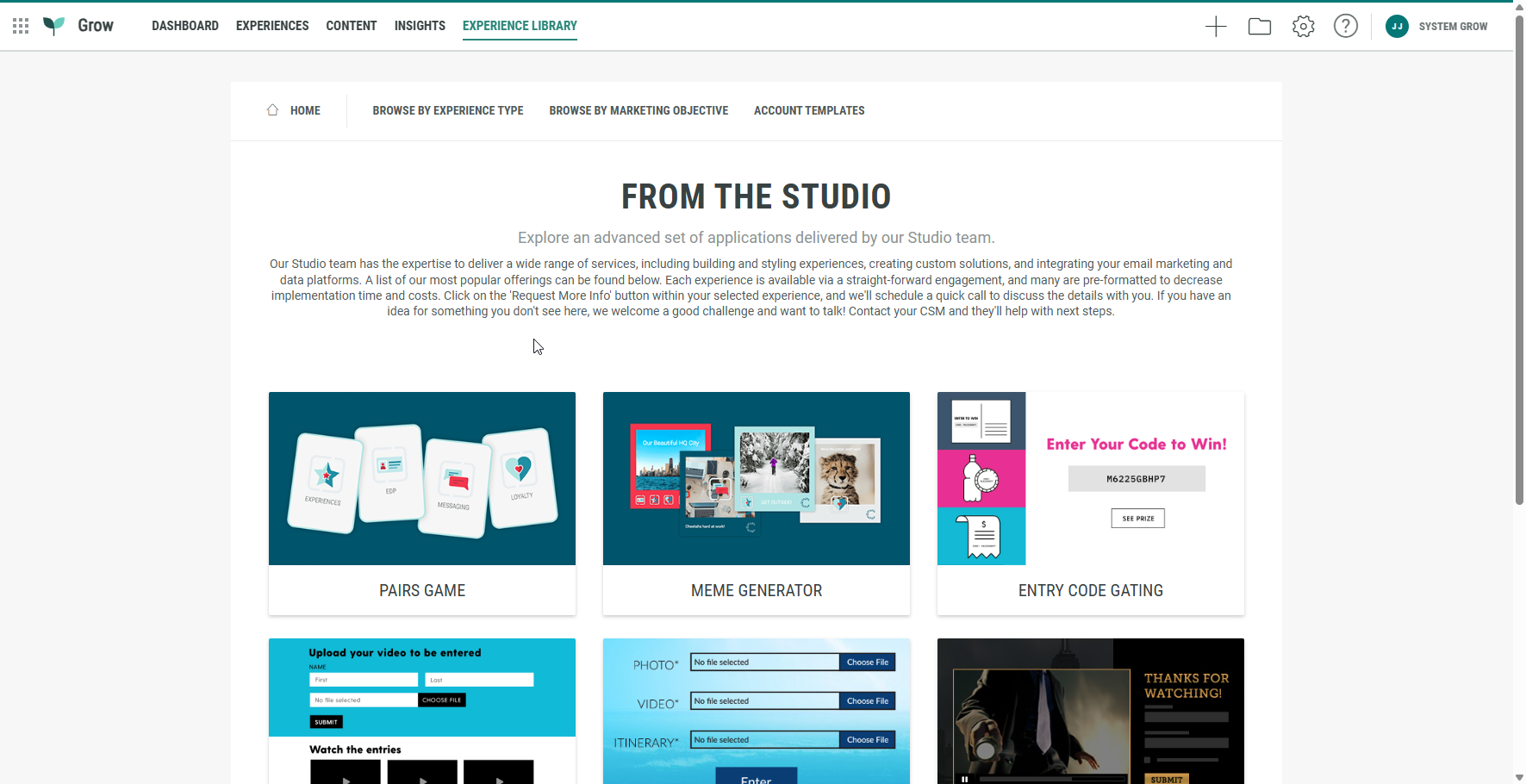
You can find them under Browse by Experience type > From the Studio.
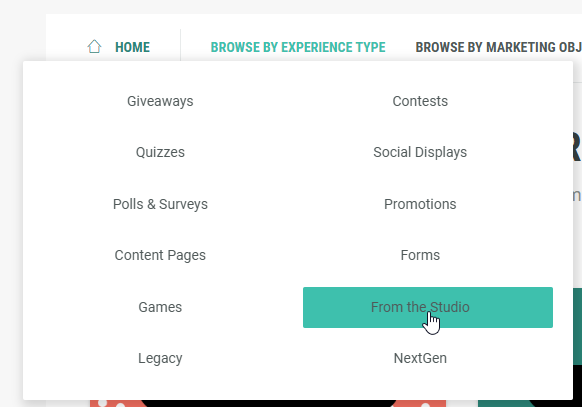
A dedicated From the Studio screen is shown where you can explore the Custom Experiences.