Create a Theme
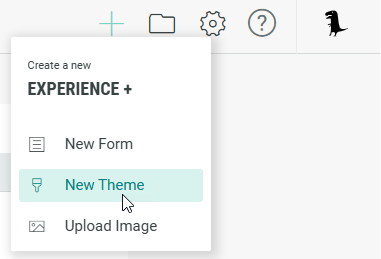
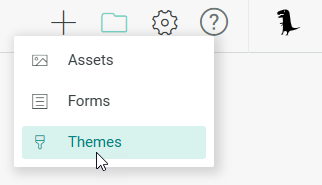
You can create a new theme in two ways from the top-right navigation in Grow:
-
By clicking on the + icon and selecting New Theme.
-
By clicking on the folder icon and selecting Themes.
This shows an overview of all existing themes. From here, you can select + New Theme.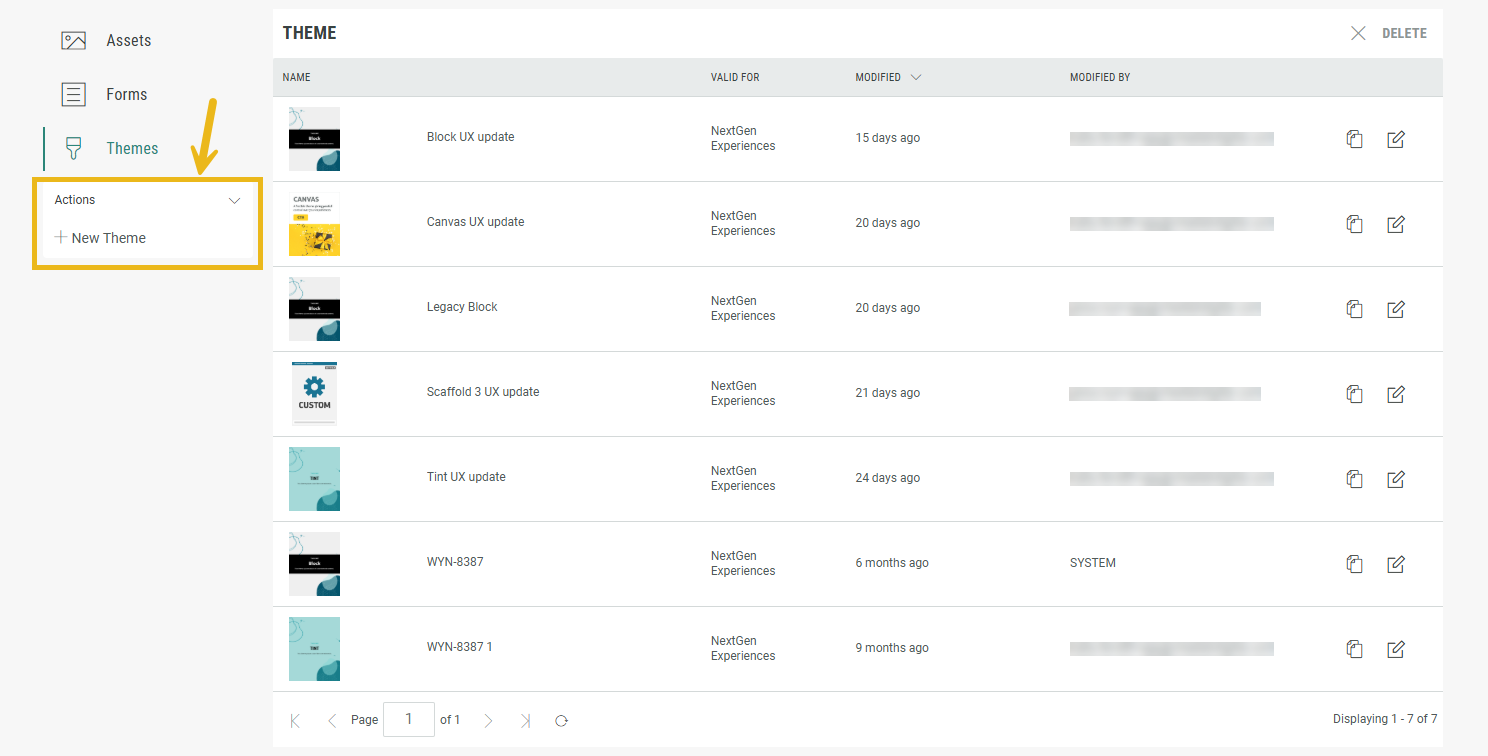
Theme setup
A creation wizard is displayed, guiding you through the following steps:
-
Enter a name for your theme. Then click Next >.

-
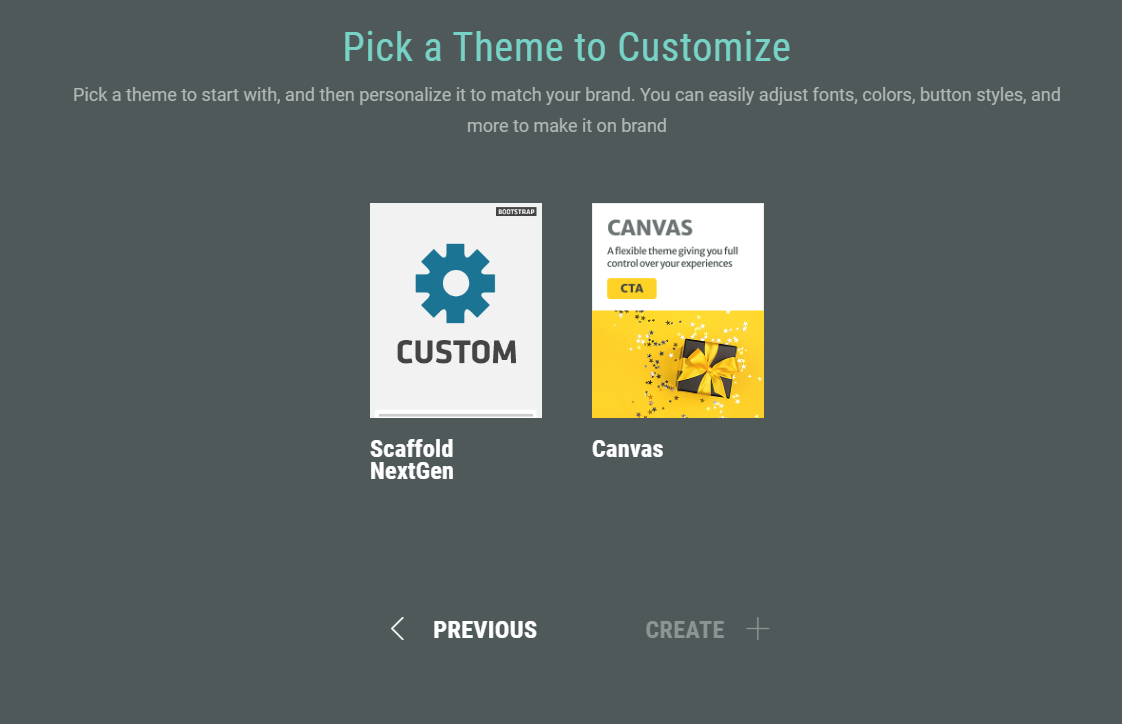
Pick a theme template to start from: Canvas or Scaffold.
-
Canvas — A preset template, for which you can tweak styles later on to suit your needs.
-
Scaffold (NextGen) — A minimal version of a theme. It avoids heavy default styling, giving you a clean slate to start from. Scaffold is for advanced users who have CSS knowledge.
-
-
To finish, click Create +.
-
The overview of all existing themes is shown, including your new creation.

Access the Theme Designer
You can access the Theme Designer, where you can view and edit the theme styling:
- Globally — By clicking on the Edit icon at the right in the themes overview.

Note: Editing a theme here will impact all Experiences using this theme.
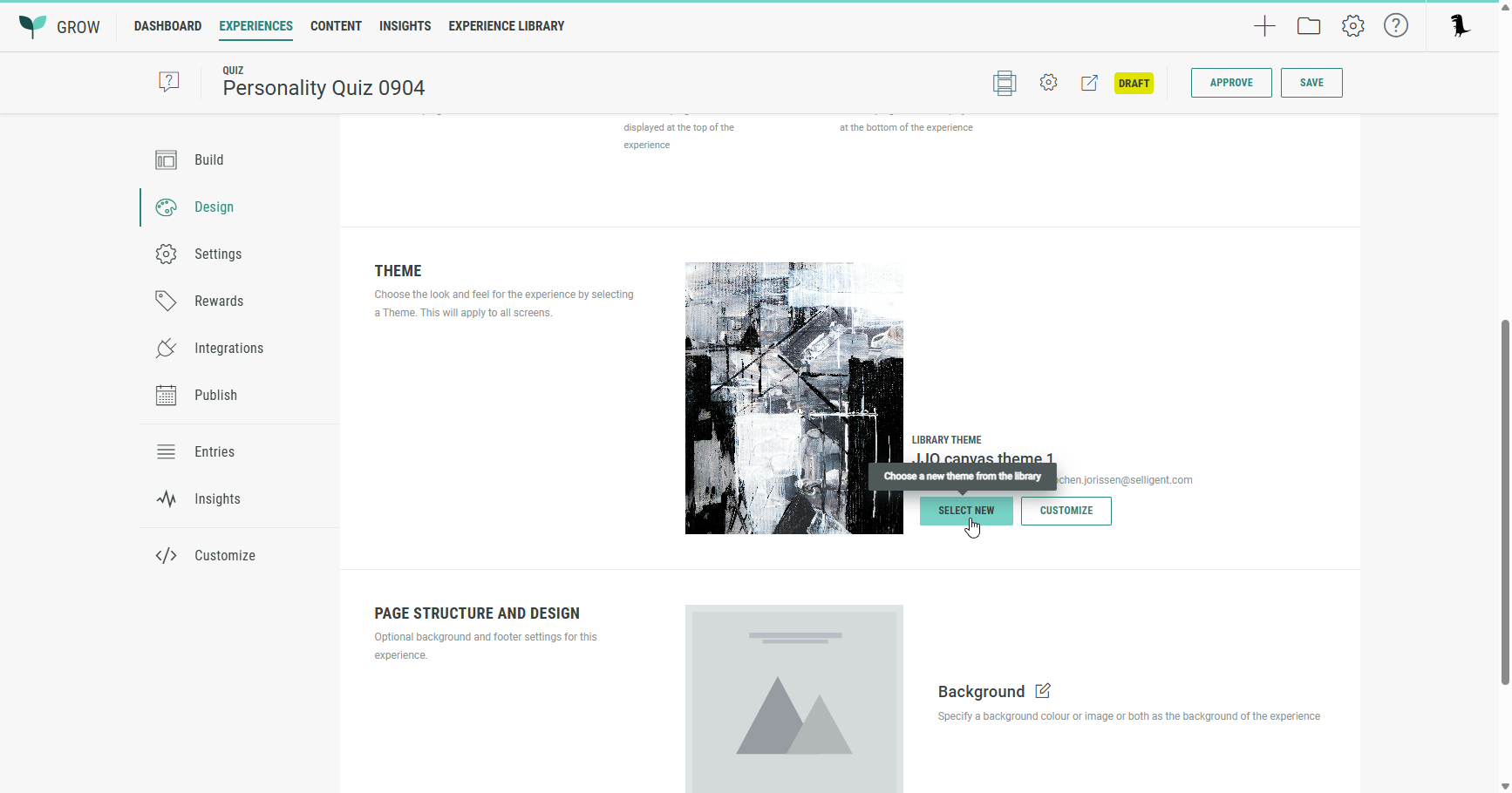
- For a single Experience — By accessing Design in the left hand side navigation of your Experience and clicking on the Customize button in the Theme section.
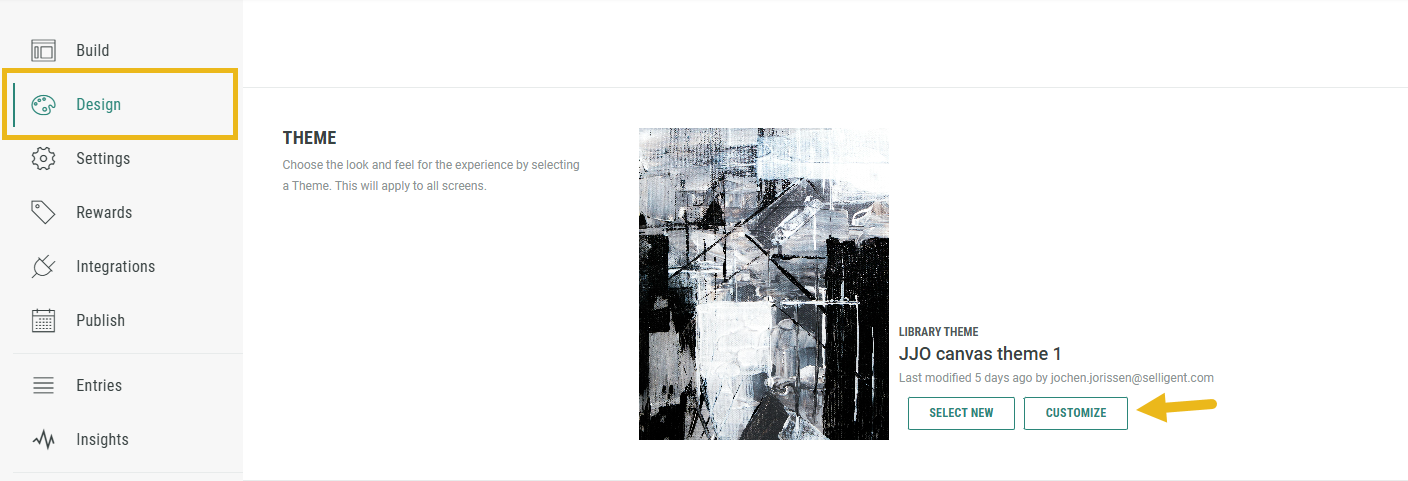
Note: Editing a theme inside an Experience only impacts the Experience itself, not affecting that theme in other Experiences using it. The global theme keeps its original settings.
You can then customize the theme to your needs.
Clone a theme
You also have the option to clone a theme by clicking on the Clone icon.
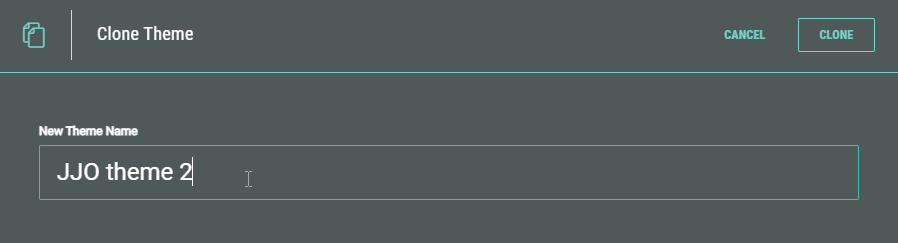
A pop-up appears in which you need to enter a theme name for the clone. Then click on the Clone button.
The cloned theme is visible in the overview of all existing themes.
Use a Theme in an Experience
A theme can be selected when creating a new Experience, on the Apply a Theme step.
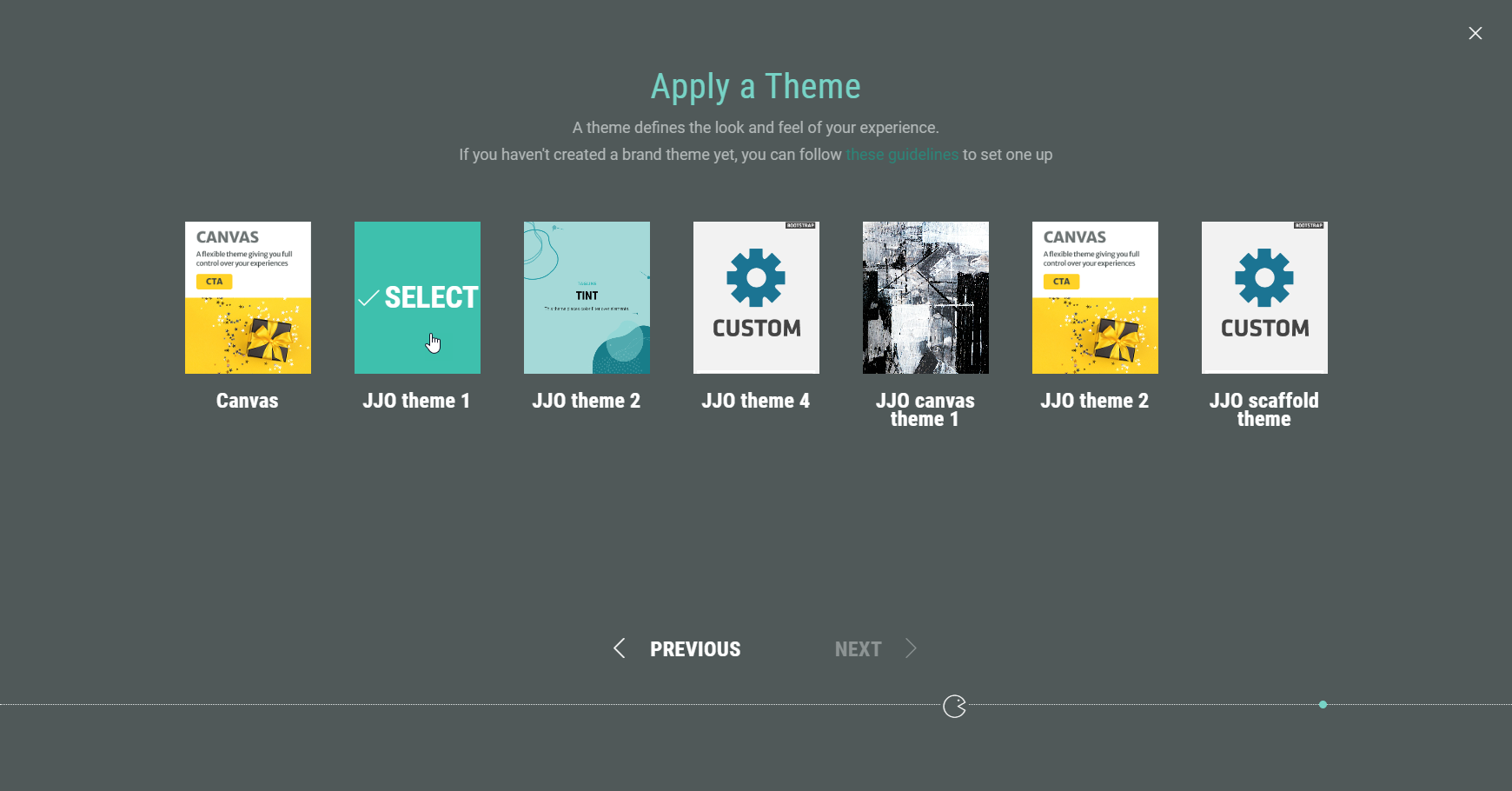
For existing Experiences, select Design in the left hand side navigation and click on Select New in the Theme section.