
How to: Set up an Adobe Commerce Product Quiz
Note: This feature is available on request. Get in touch with your Zeta contact to get it activated.
An Adobe Commerce Product Quiz is an outcome quiz that gathers data from entrants through Quiz Single Choice and Quiz Multiple Choice modules (and others), and has an integration with an Adobe Commerce account.
Once entrants submit their quiz answers, tailored product recommendations (from the linked Adobe Commerce store) will be shown to them based on their answers.
Prerequisites
Understand how your Adobe Commerce product data is organized
When building your Adobe Commerce Product Quiz, think about what product information you have available and what type of questions you might ask as a result to determine what products to show at the end of the Experience.
Note: When you add products to Adobe Commerce, you choose an attribute set containing attributes.
You can also assign products to categories to group them, and work with variants.
For more details on the Adobe Commerce product configuration elements, have a look at this article.
Set up an Adobe Commerce API key
In Grow, an Adobe Commerce API key needs to exist to be able to create an Adobe Commerce Product Quiz Experience.
Note: If no Adobe Commerce API key exists, an error pops up when you try to create an Adobe Commerce Product Quiz Experience.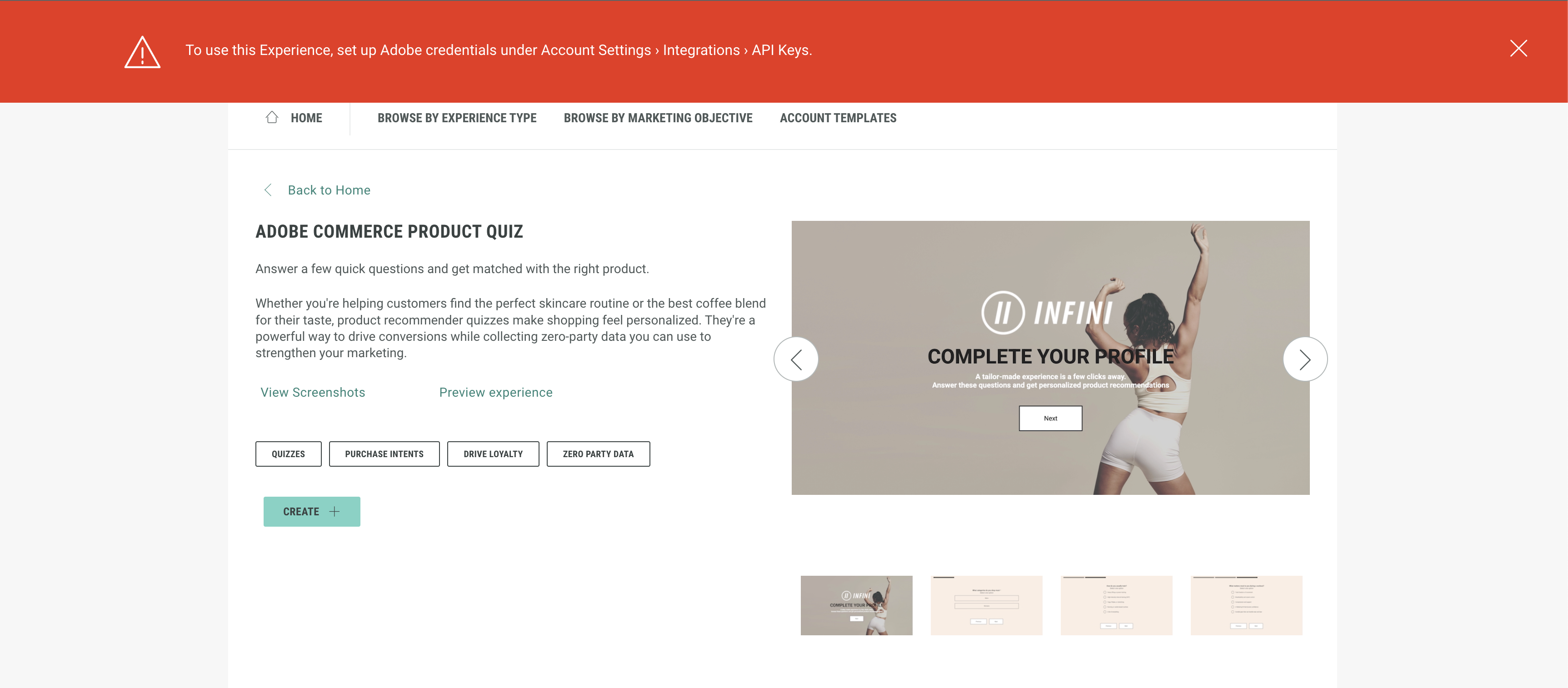
To set up an Adobe Commerce API key, execute the following steps:
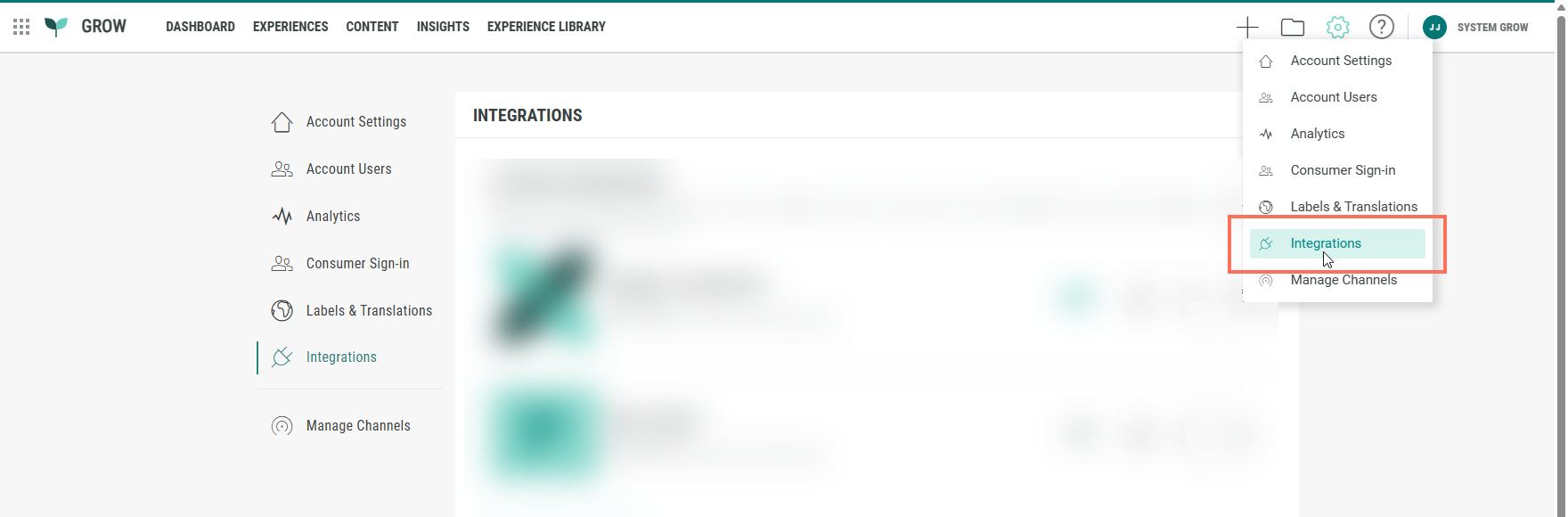
- At the top-right of Grow, click on the Gear icon and select Integrations from the drop-down.
-
Scroll down to the API Keys section, and click on the + Add Api key button.

-
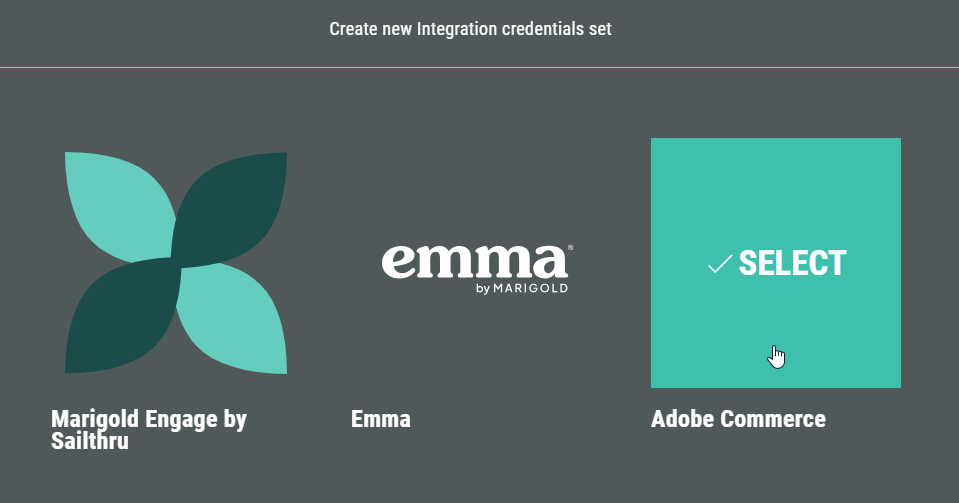
Select Adobe Commerce.
-
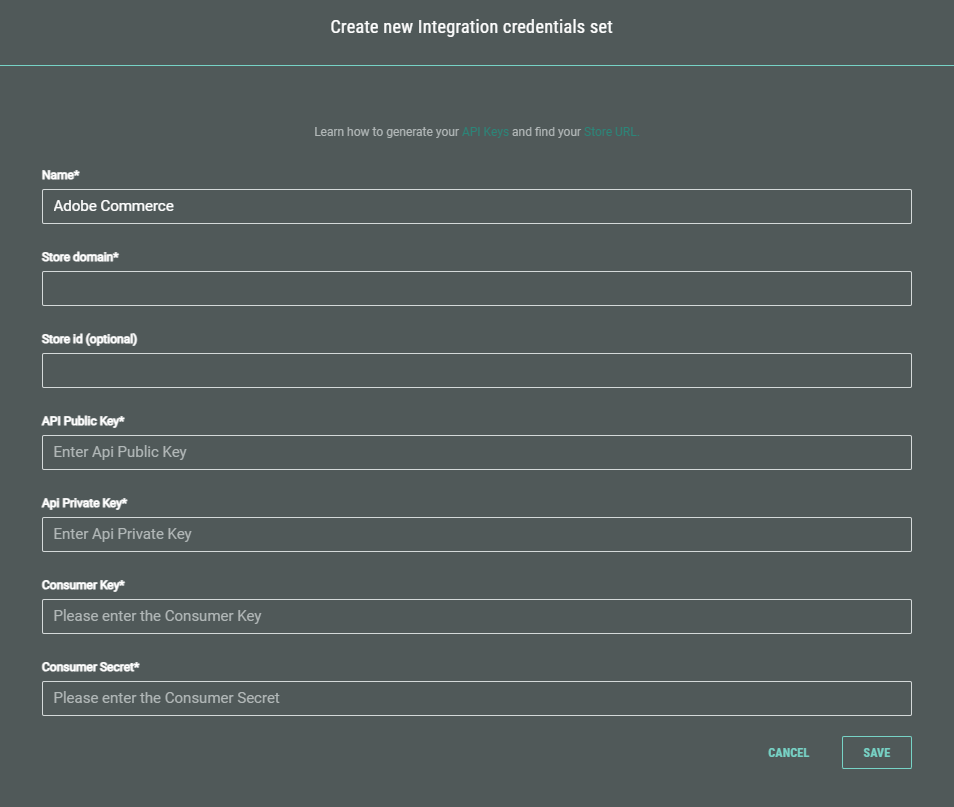
Enter the Adobe Commerce credentials.
Name, Store domain, API Public Key, API Private Key, Consumer Key and Consumer Secret are required fields.
Store ID is an optional field.
-
Click Save to store the API key configuration.
You return to the Integrations screen, where the Adobe Commerce API Key is now visible.
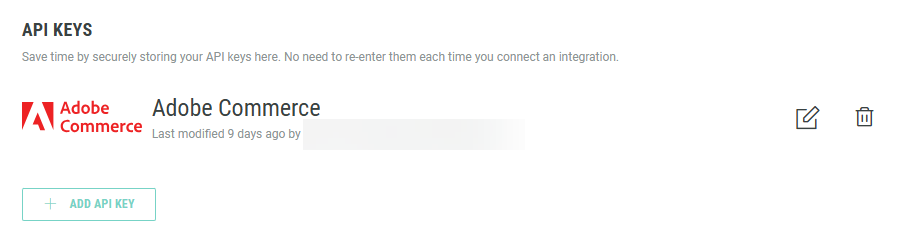
Note: You can click on the Pencil icon to edit the API Key configuration.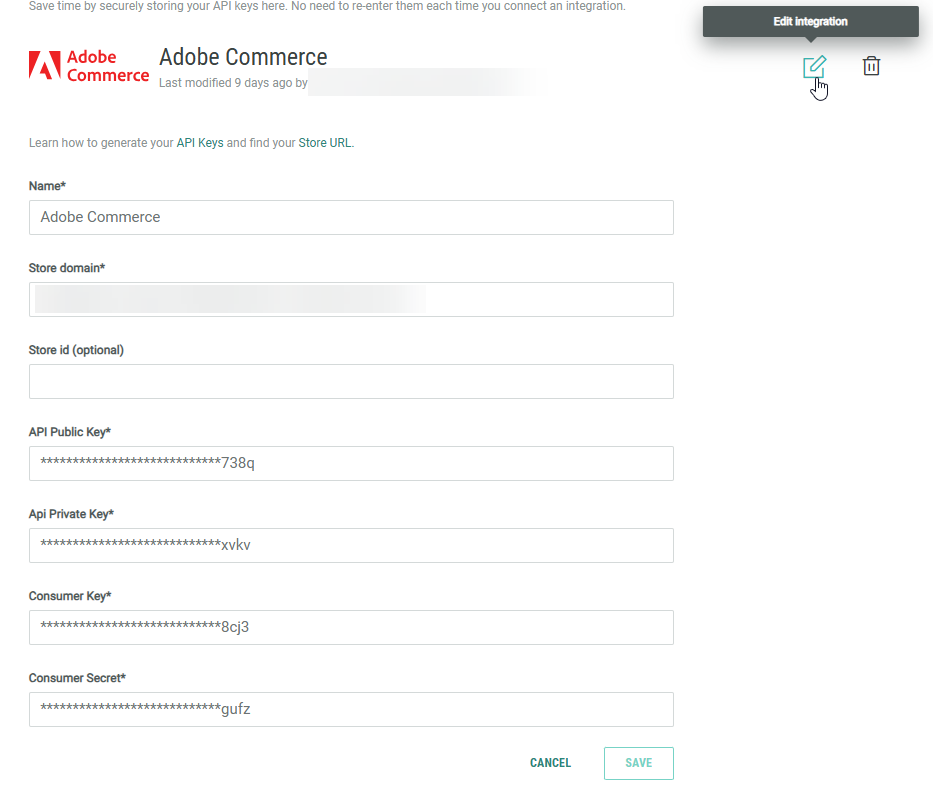
Getting Started
- Navigate to the Experience Library in the Grow platform.

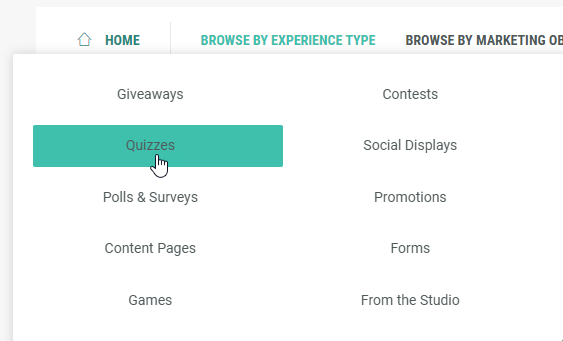
- Select Browse by Experience Type and choose Quizzes.
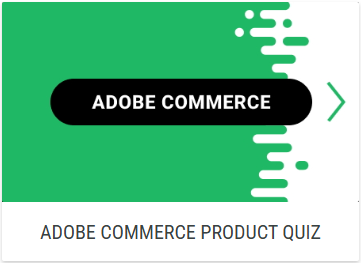
- Pick Adobe Commerce Product Quiz.
- On the next screen, click Create +.
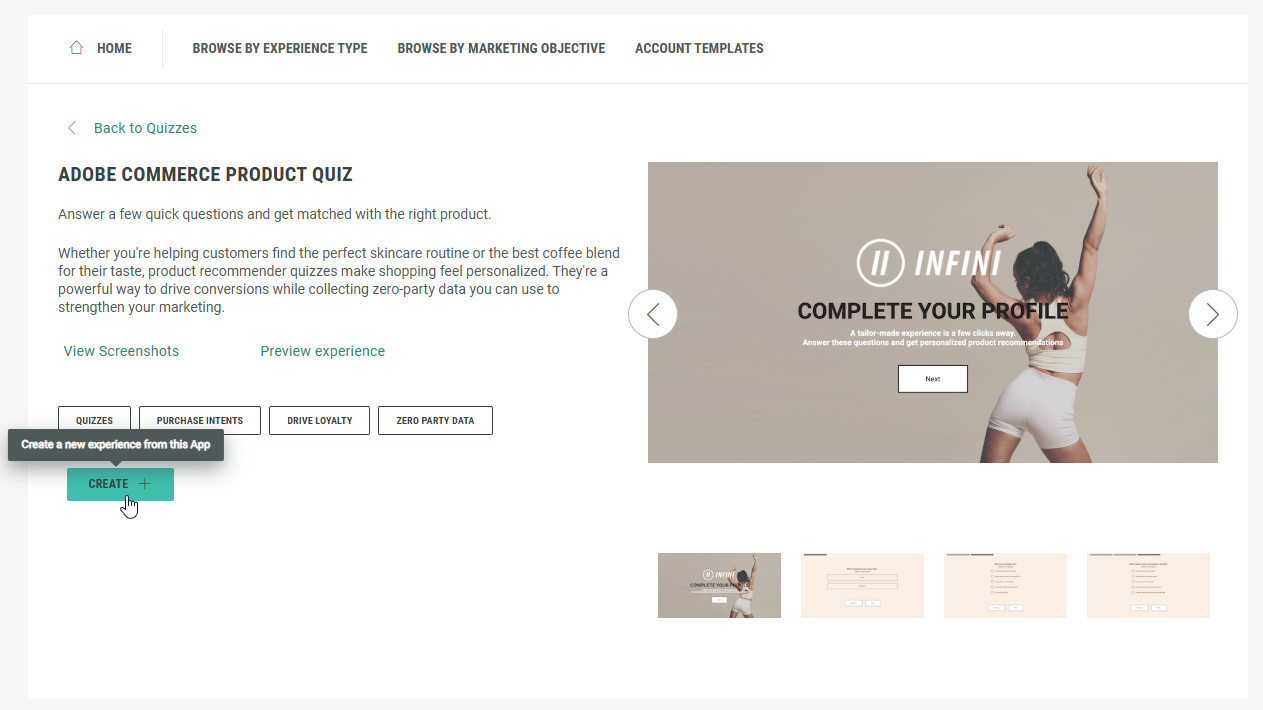
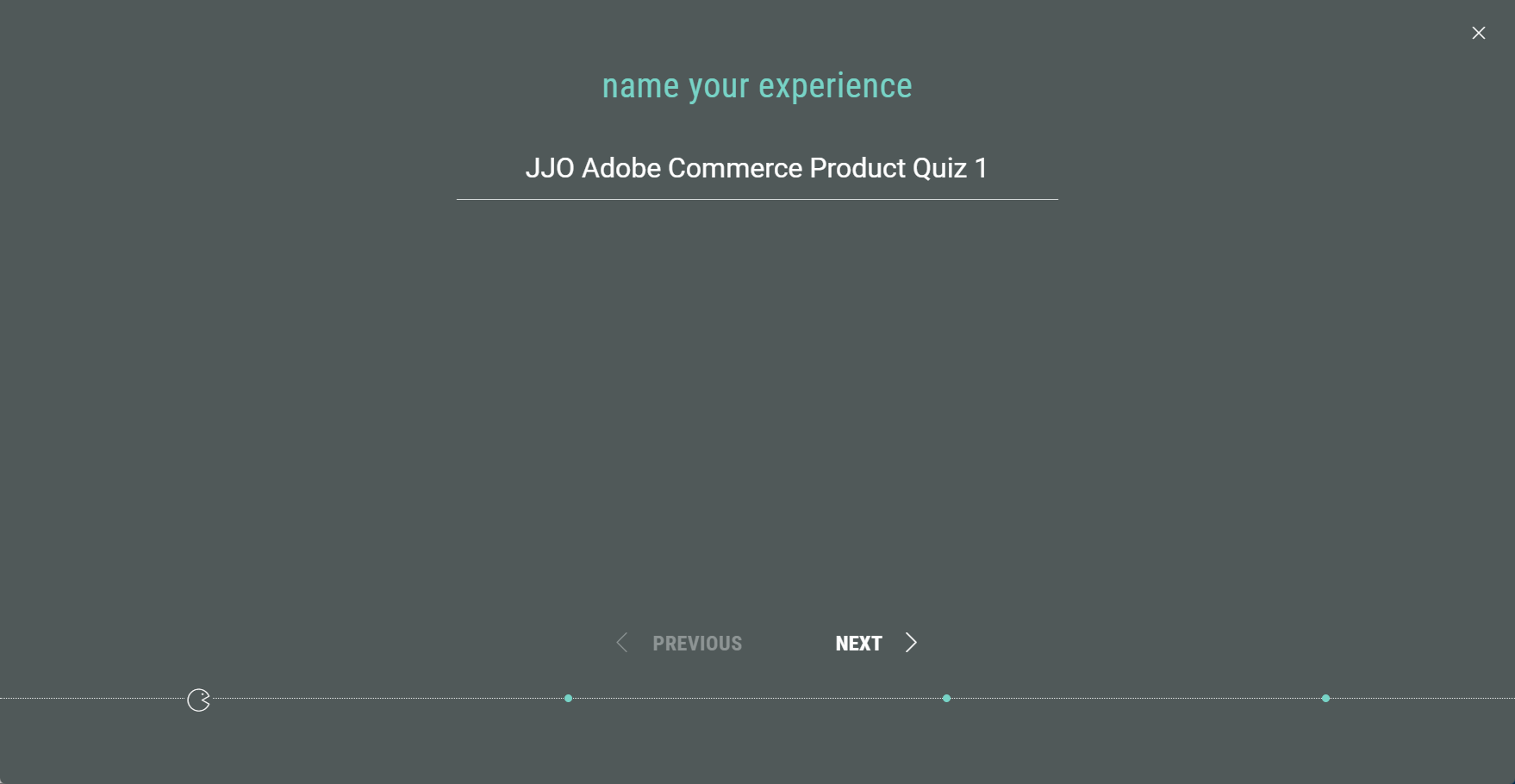
- A wizard takes you through the Experience creation process.
First of all, name your Experience, then click Next.
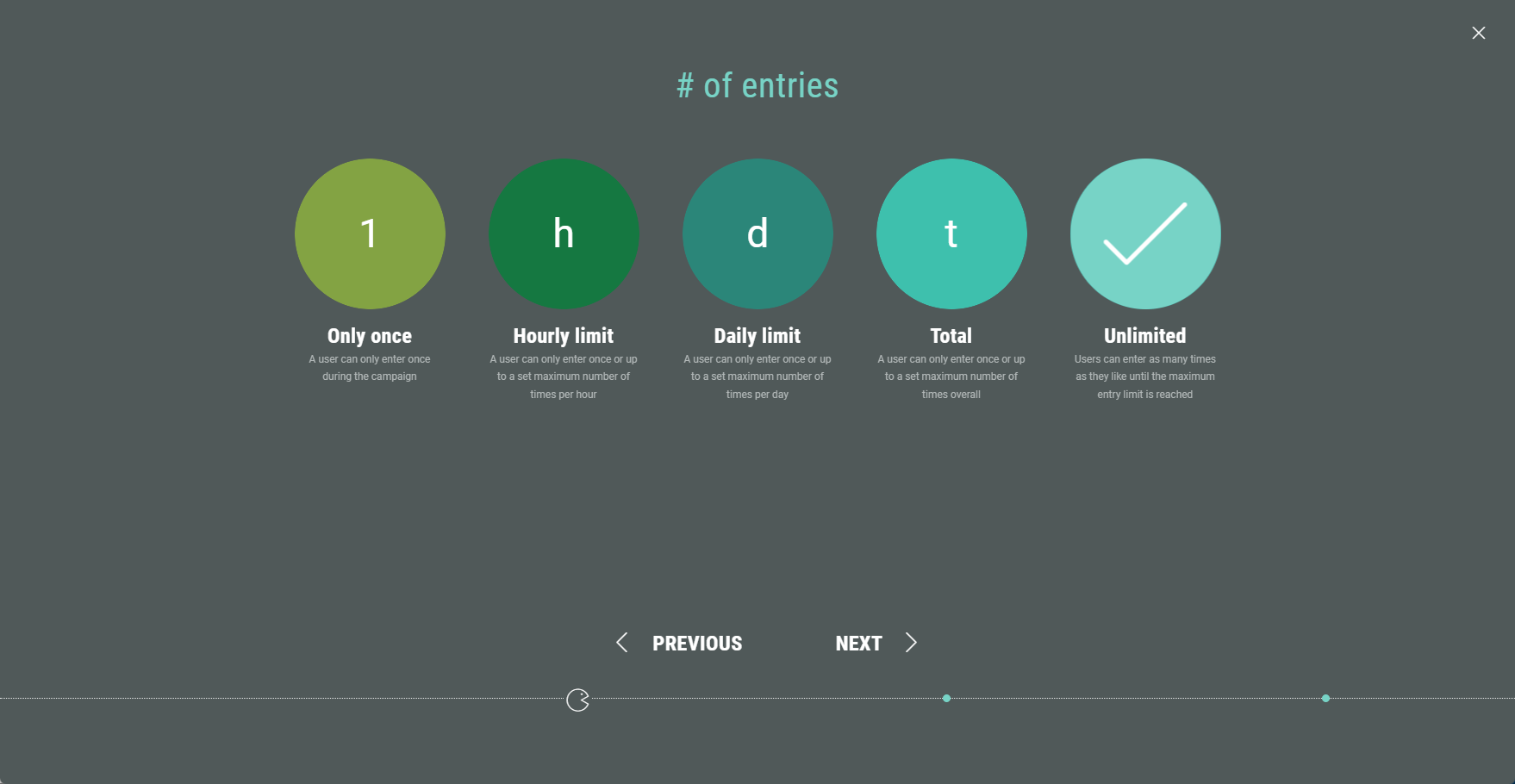
- Select the allowed number of entries per user.
This can be: Only once, a maximum number of times per hour or per day, up to a maximum number of times in total, or an unlimited number of entries. (For our example, we use Unlimited.)
Then click Next.
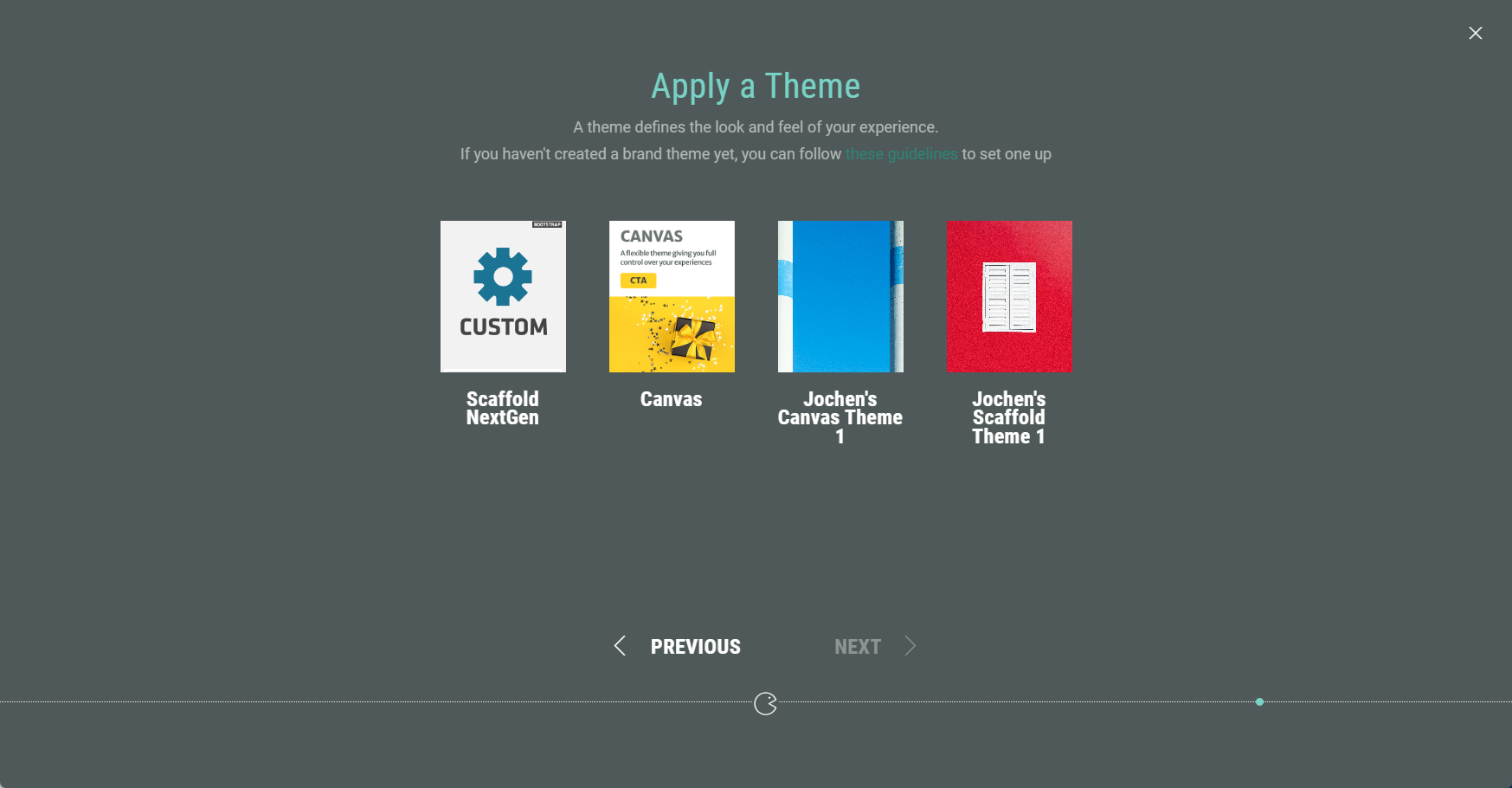
- Apply a theme. You can select one of your available themes. The theme determines the look and feel of your Experience. Then click Next.
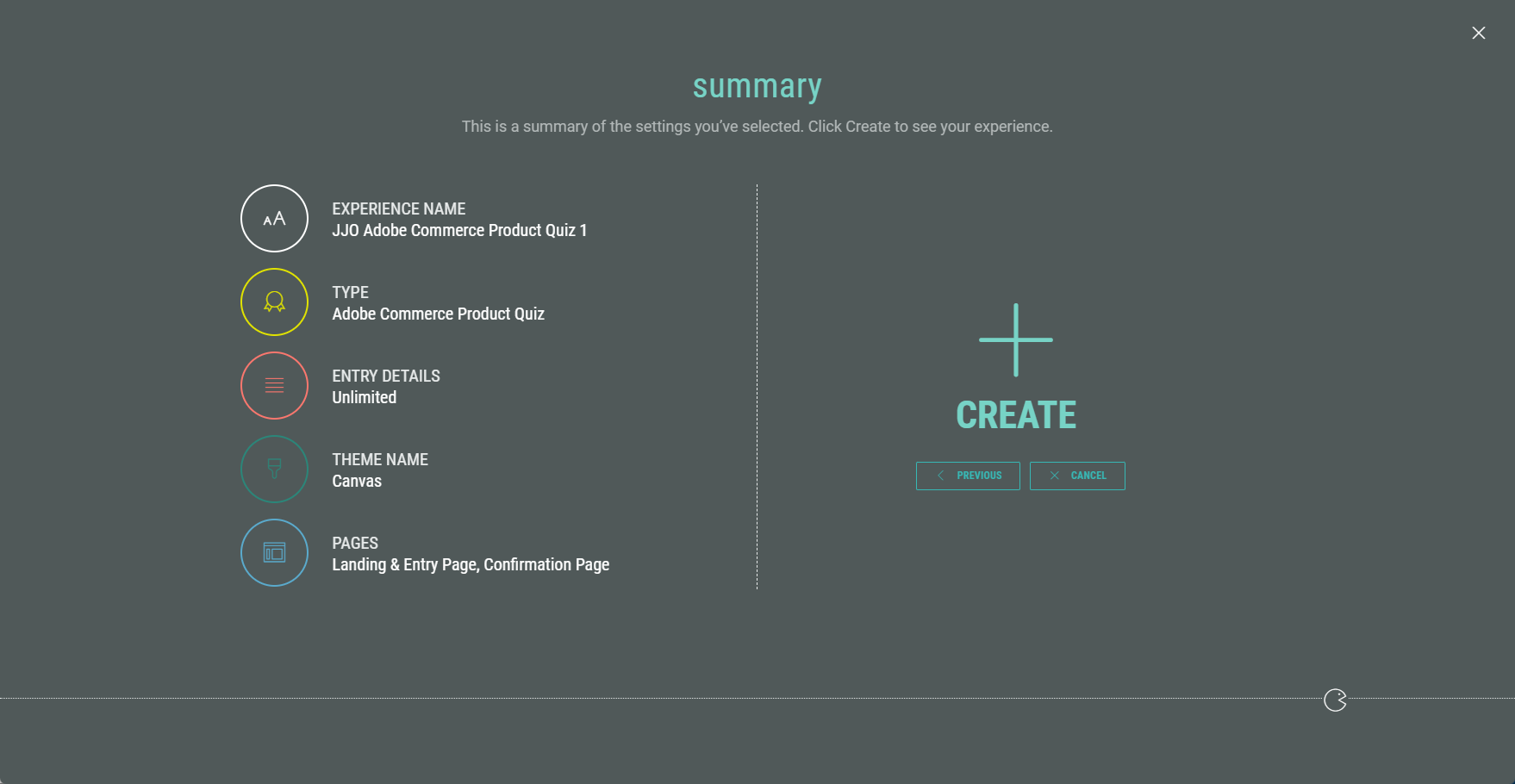
- Finally, you're presented with an overview of your Experience setup. If you’re happy, click Create to finalize your settings and create the Experience.
Customizing your Experience
Once you have completed all the steps in the wizard, you land in your Experience area. Here you find several tabs to work through in order to build your Experience, configure the Adobe Commerce integration, define the Experience design, and publish your Experience.
Build tab
Landing & Entry Page
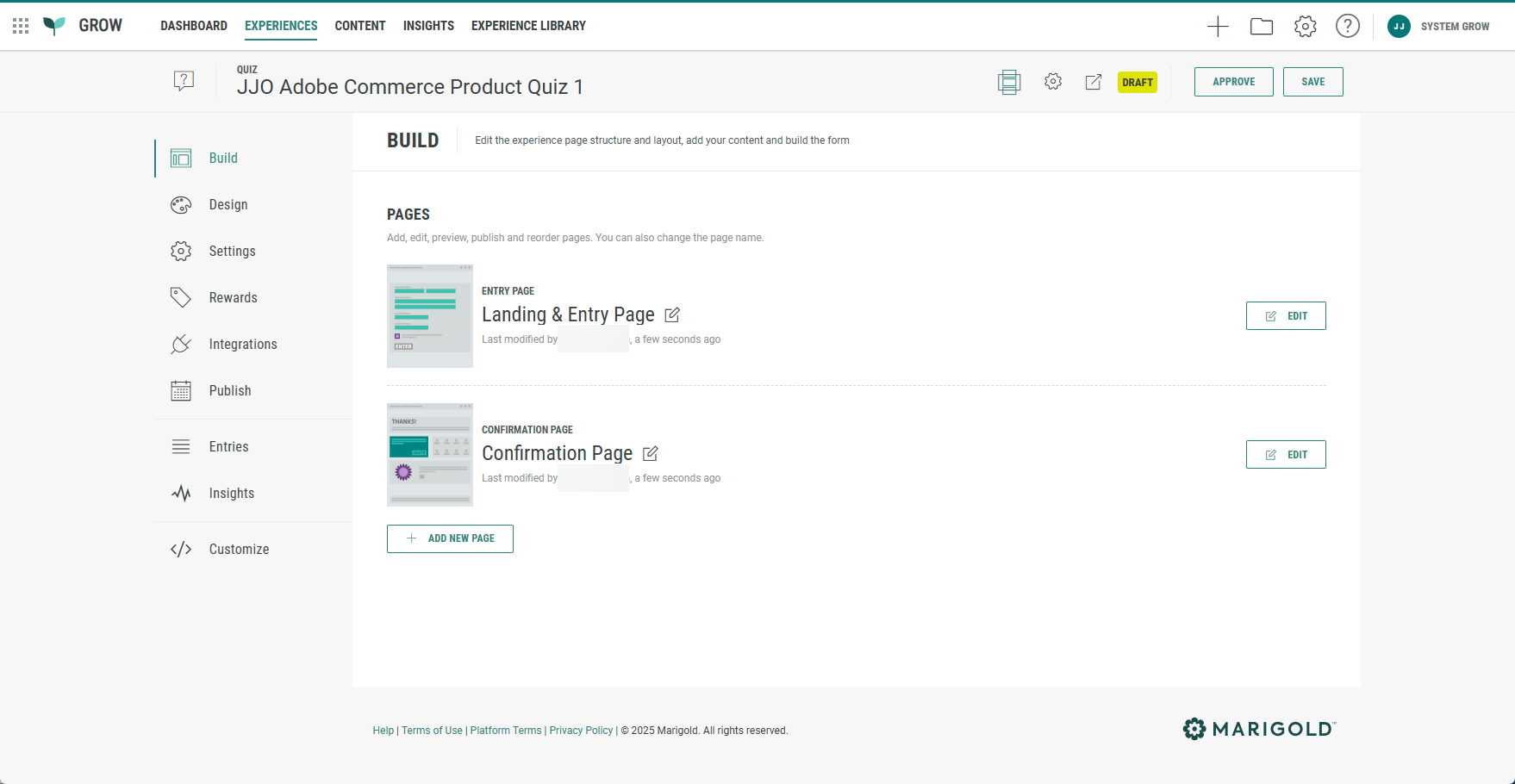
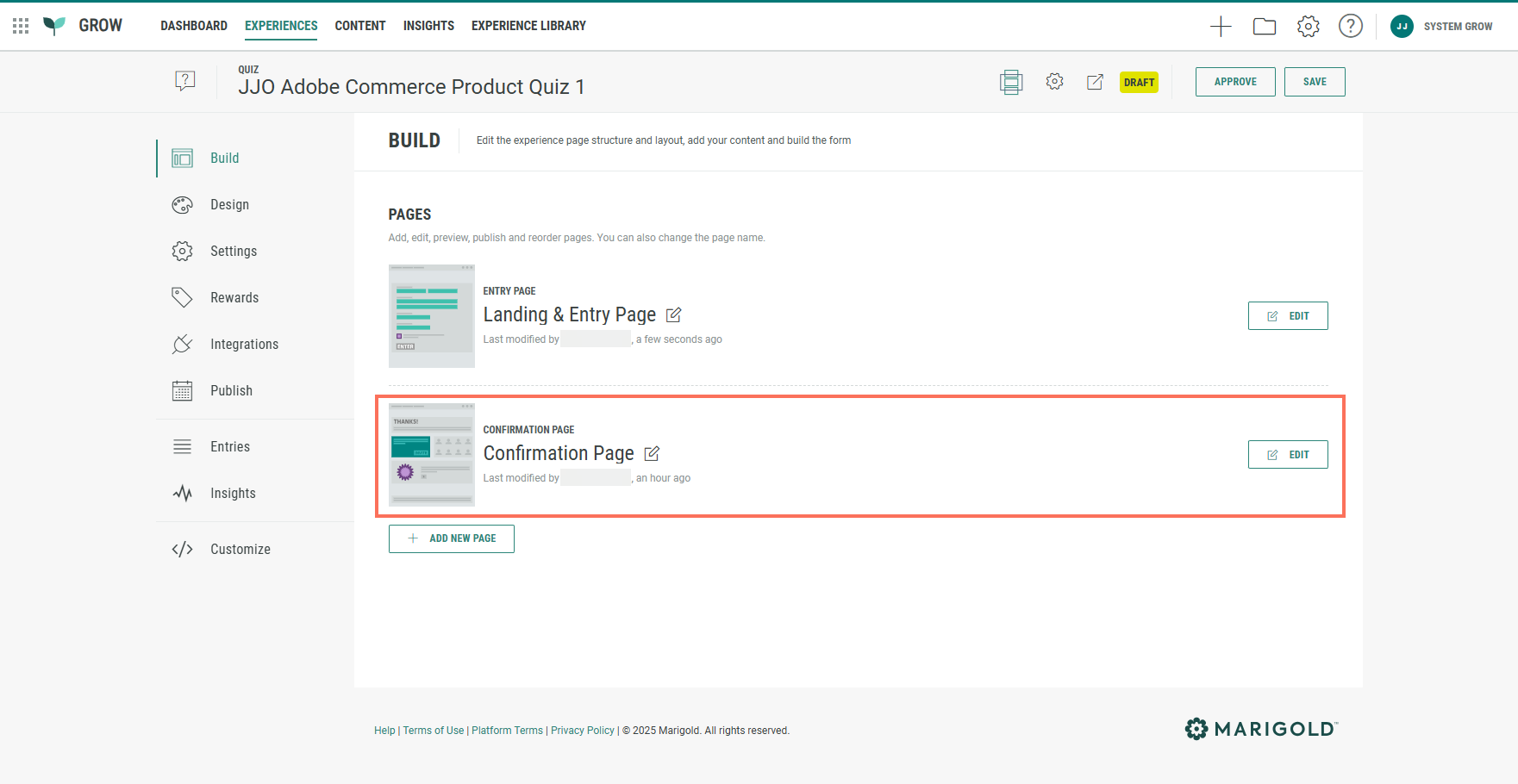
The Build tab offers an overview of the pages included in your Experience. Our Adobe Commerce Product Quiz comes with a Landing & Entry Page and a Confirmation Page.
The Landing & Entry Page is the first page Experience entrants will see, where data capture takes place.
Editing the Landing & Entry Page
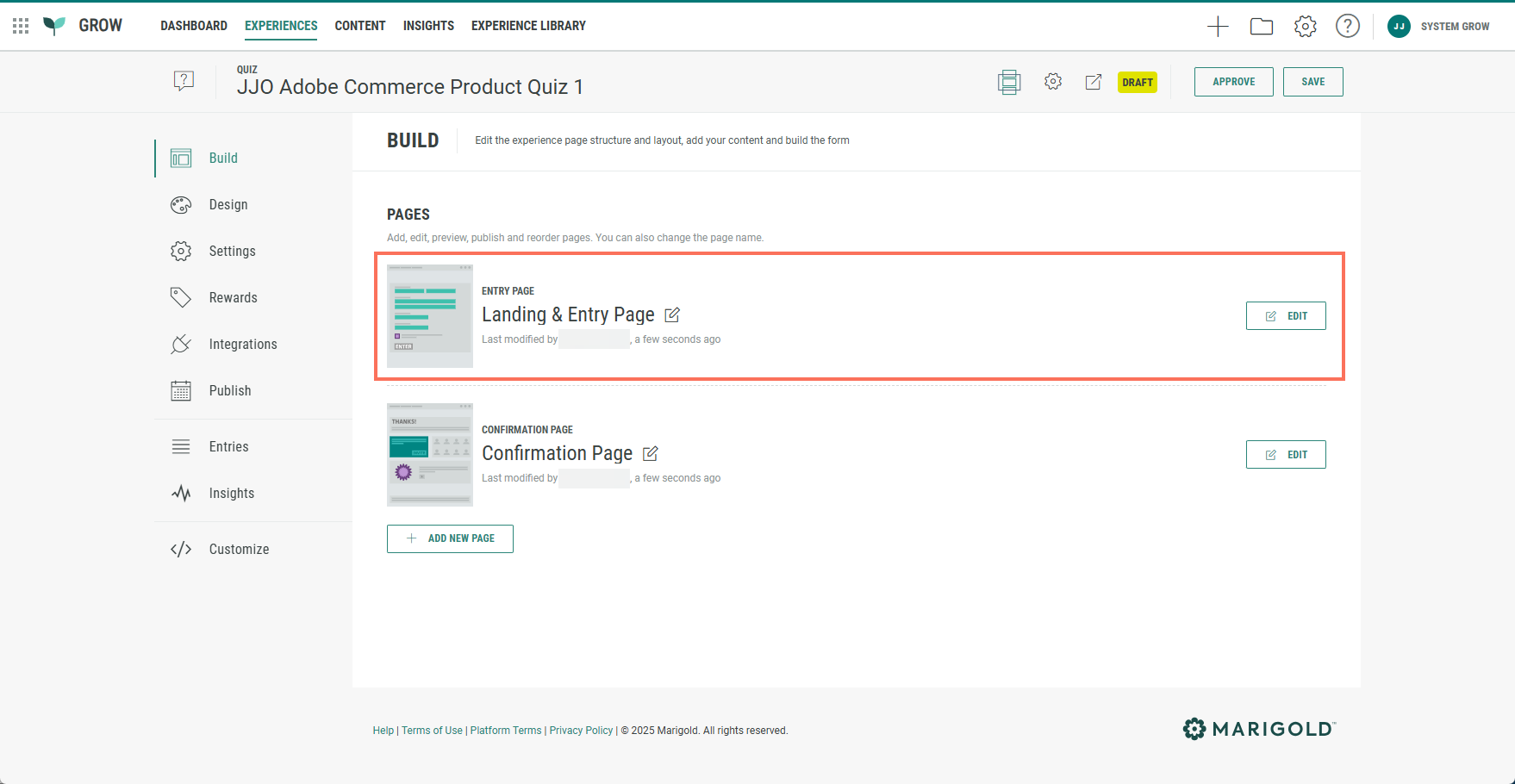
- Click on the Edit button at the right of the Landing & Entry Page.

- The Page Builder is shown.
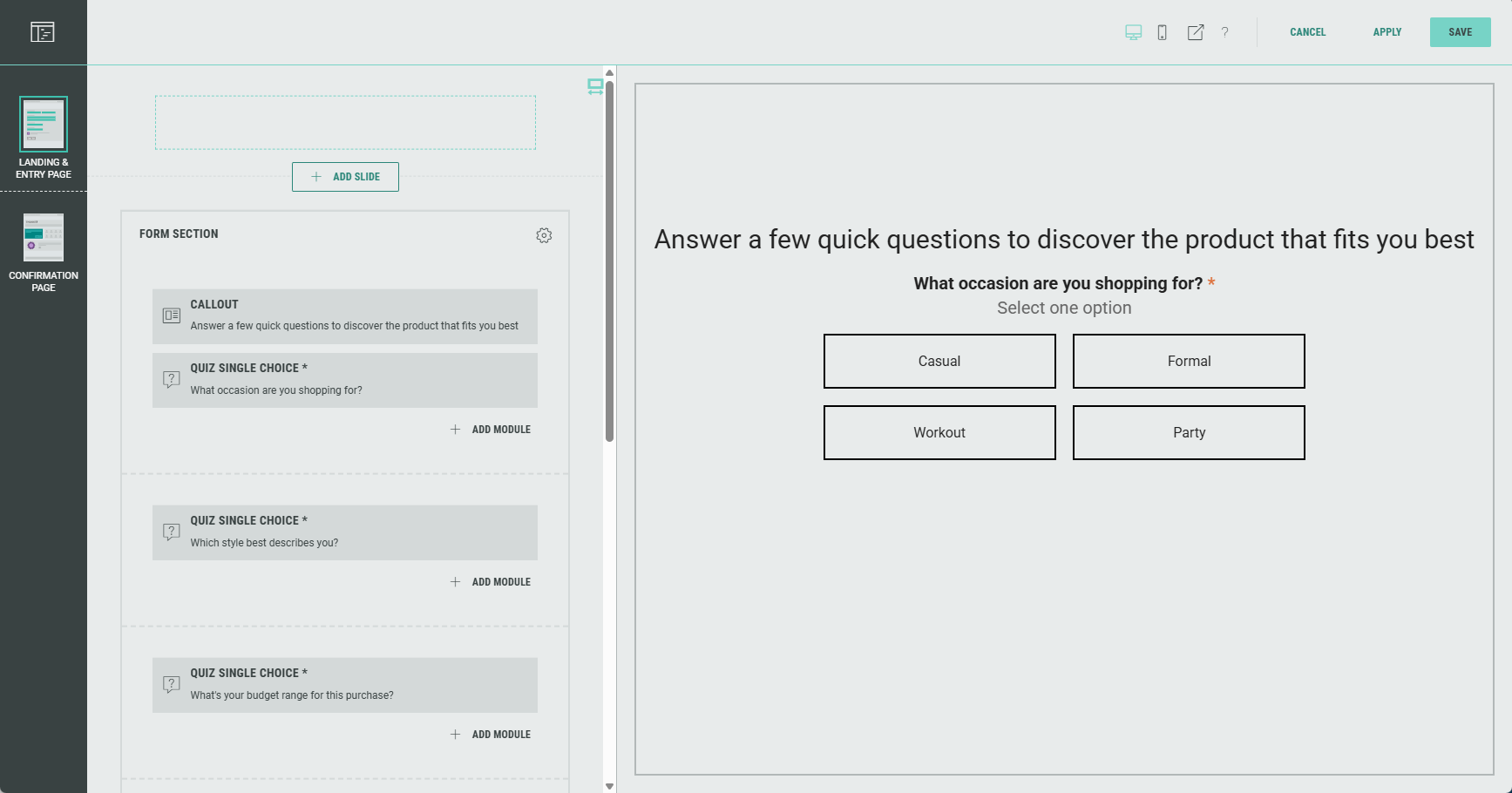
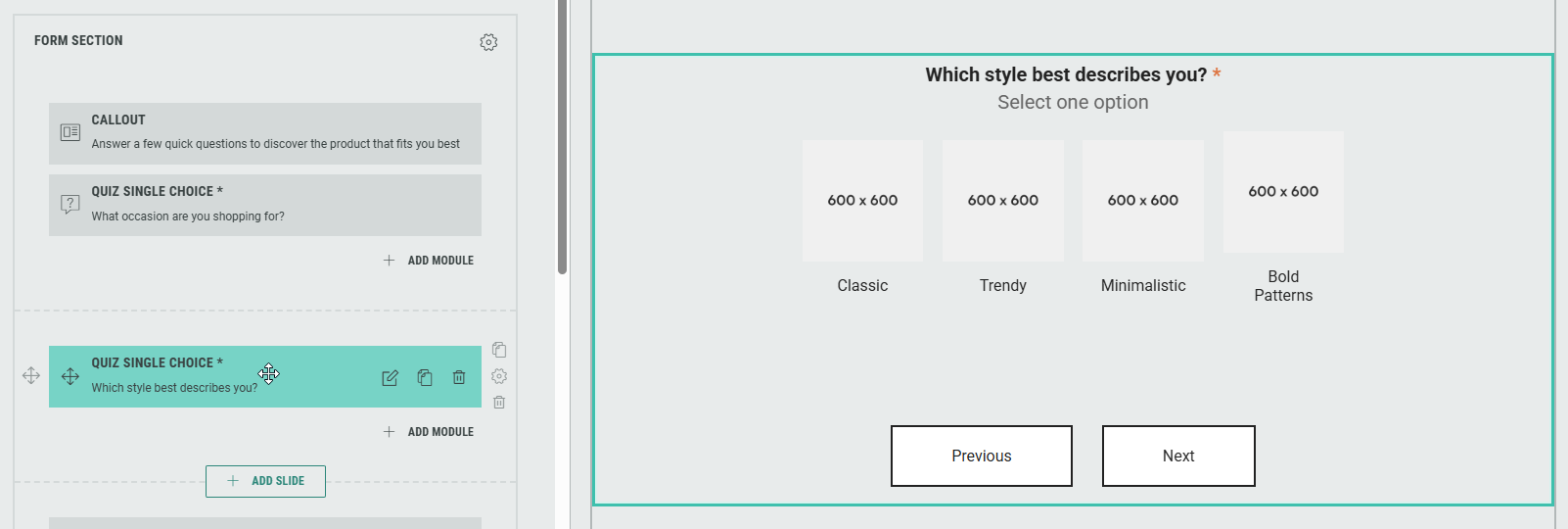
The Landing & Entry Page in the Adobe Commerce Product Quiz by default contains a Form section with four slides.
-
Slide 1 contains a Callout module and a Quiz Single Choice module.
-
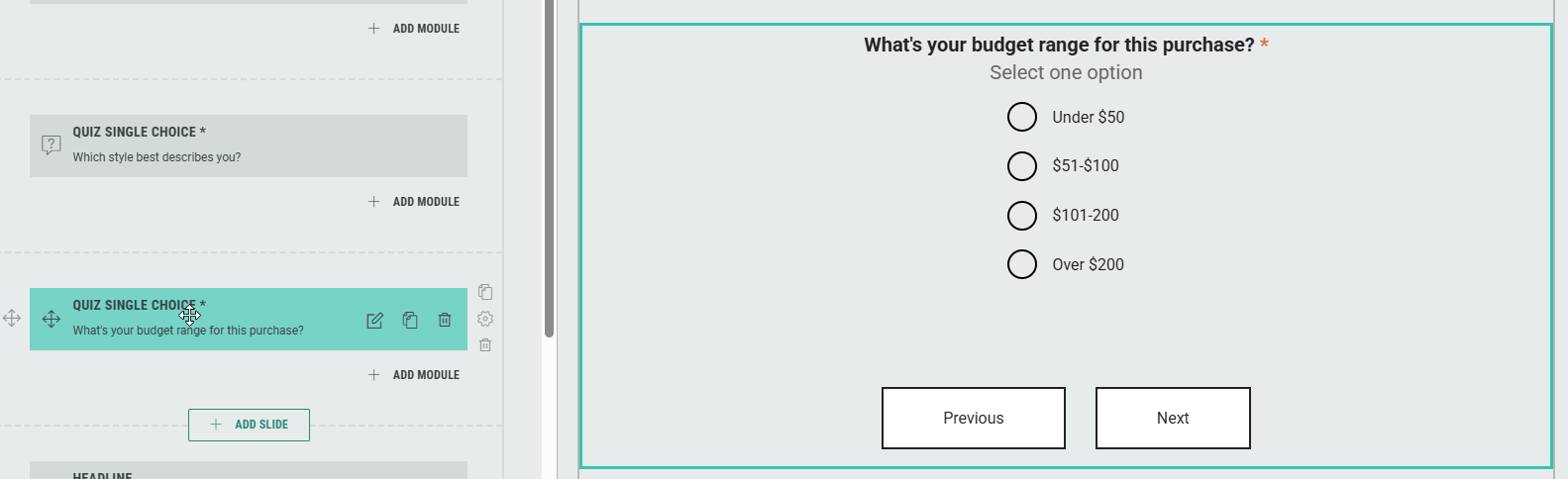
Slide 2 and slide 3 contain Quiz Single Choice modules.
Note: You can use Quiz Single Choice and Quiz Multiple Choice modules.
Check out these detailed topics for more info on those:
- Quiz Single Choice Module for outcome-based quiz Experiences
- Quiz Multiple Choice Module for outcome-based quiz Experiences
-
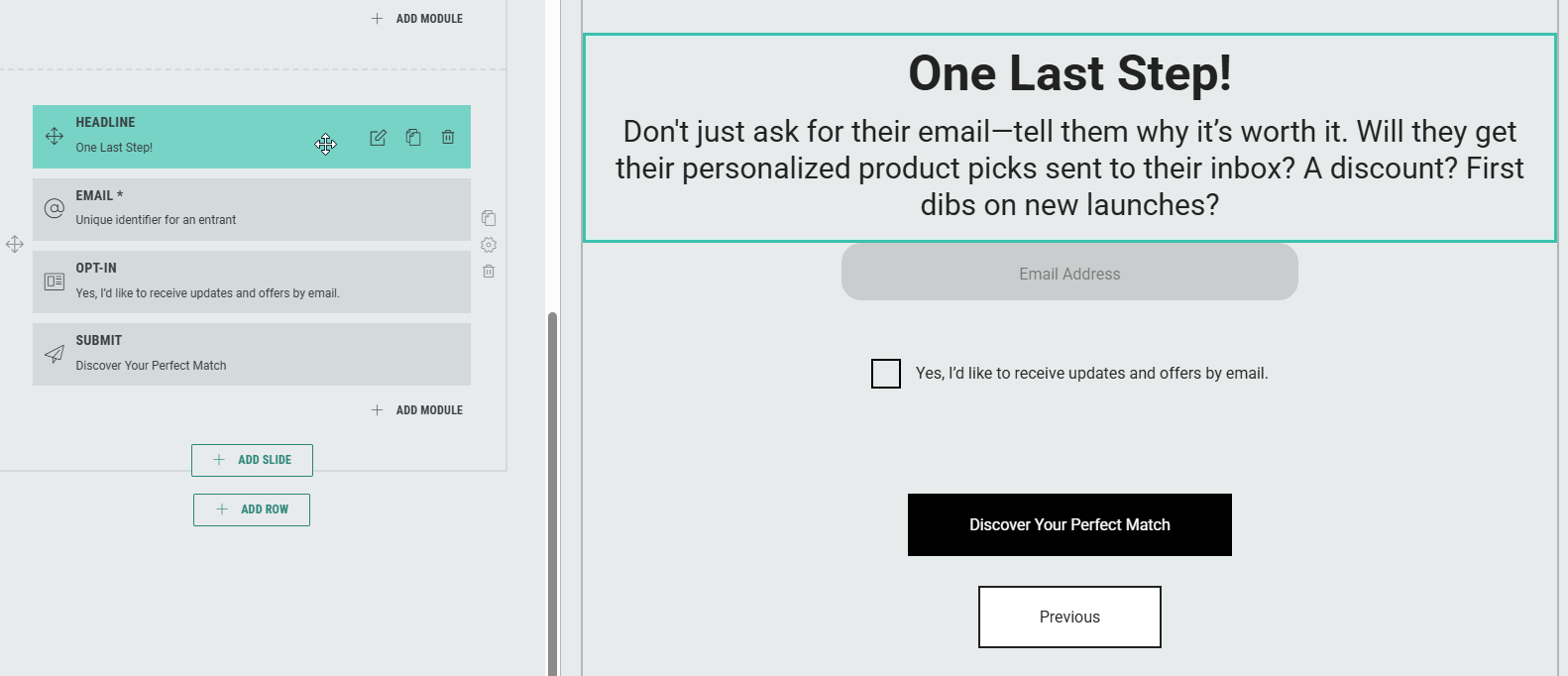
Slide 4 contains Content and Form-type modules — A Headline to show a title and description, an input field to request the participant's Email address, a checkbox to Opt-in to email offers and updates, and a Submit button.
- Optionally, you can add rows to the Landing & Entry Page.
- If desired, you can add additional modules too.
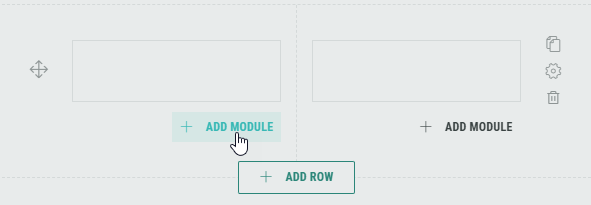
Note: You can add, edit and delete modules, and customize each module for your Experience.
Form modules can only be added in the Form Section.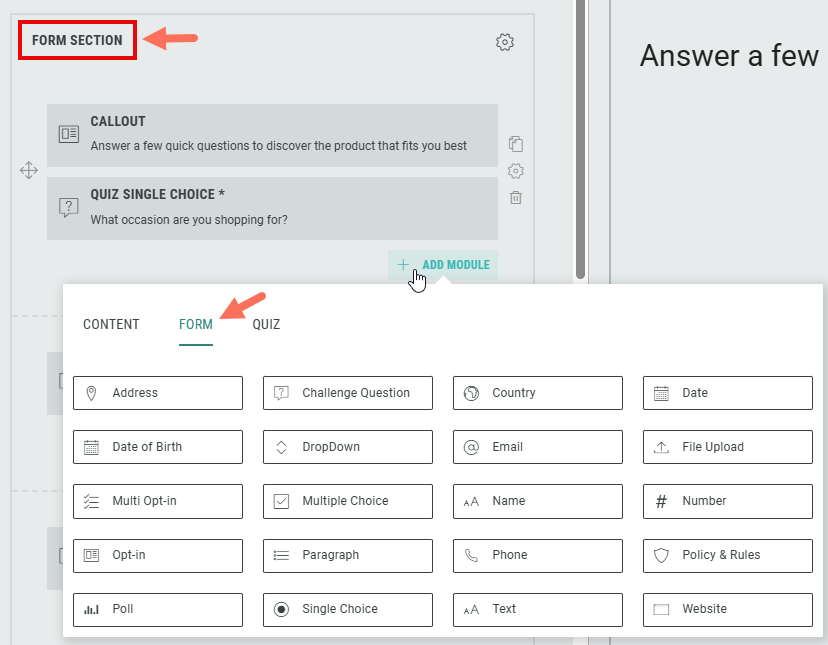
- Within the Form Section you can click on the Gear icon to access the Form Settings.
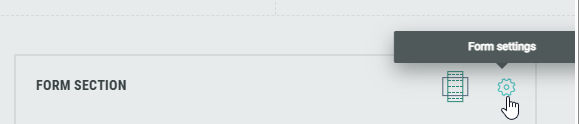
In the Form Settings, you have the ability to customize the form such as adding a background image and color, and changing the field style. Consult this topic for more info on the Form Section.
Note: On the Advanced tab in the Form Settings, you can define a Customer ID for linking data collection to the correct user profile. More info on this subject can be found here.
- Edit the Quiz Single Choice and Quiz Multiple Choice modules, and define options to choose from.
- Make sure that you set a clear Friendly ID in the Connect section, to identify the field when synchronizing data with third party apps (ESP, CRM, etc.)
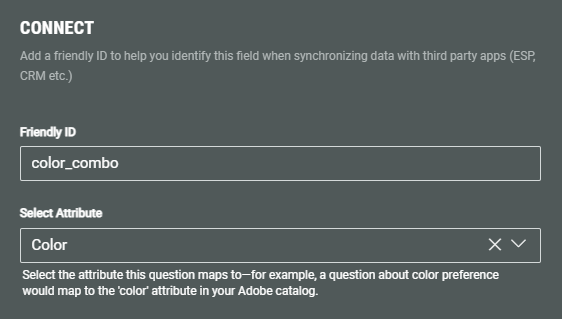
- Select the attribute the quiz question maps to—for example, a question about color preference would map to the color attribute in your Adobe Commerce catalog.
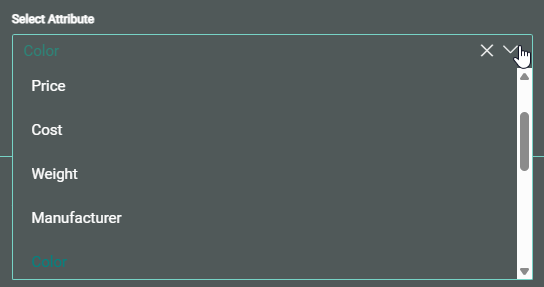
Note: Both custom and system attributes are available from the drop-down. (For more info, see above on how your Adobe Commerce product data is organized.)
- Then, under Values, add answers for the quiz question.
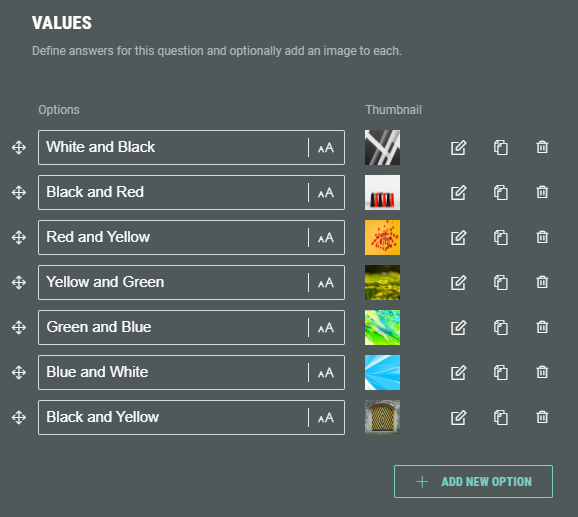
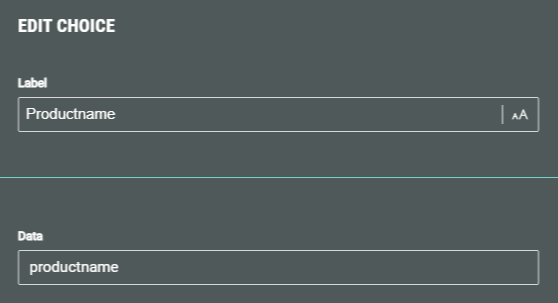
- For each answer option in the Quiz Single Choice and Quiz Multiple Choice modules, set the label and data value (when creating or editing an answer). The data value is used to match the Grow option with the Adobe Commerce attribute value.
Important: Some Adobe Commerce attributes contain a list of options.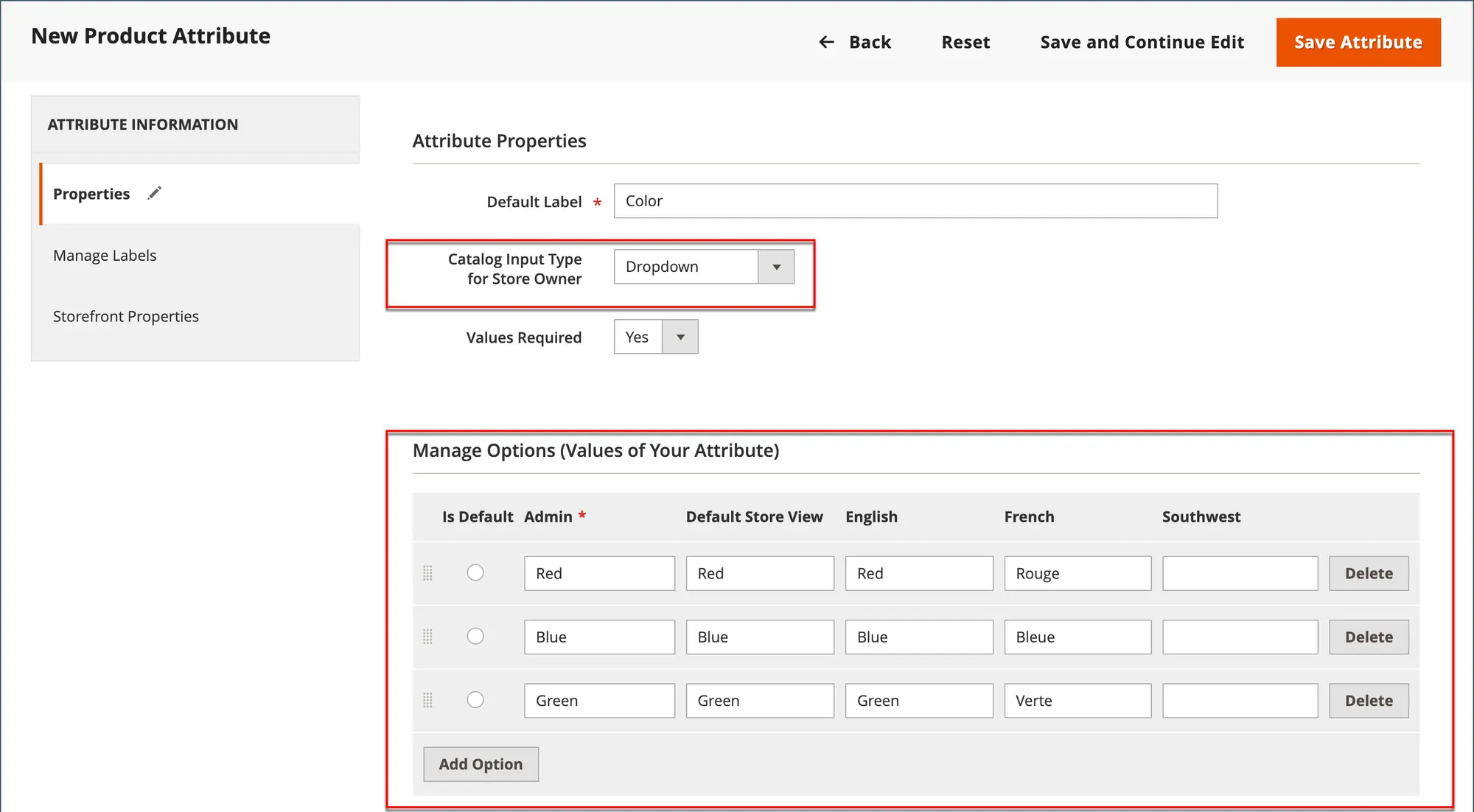
For those attributes, you can select one or more unique attribute values in the Data field.
For example, if the attribute is Color, the value could be Blue and/or Green.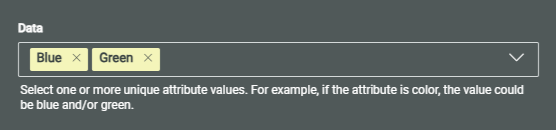
Confirmation Page
Below the Landing & Entry Page, you can see the Confirmation Page.
The Confirmation Page is the final page of the Experience. It's displayed as soon as the participant hits the form submit button.
Editing the Confirmation Page
- From the Experience Build tab, click on the Edit button at the right of the Confirmation Page to enter the Page Builder.
Note: When you're already inside the Page Builder, you can switch between pages on the left.
Click on the Confirmation Page to edit it.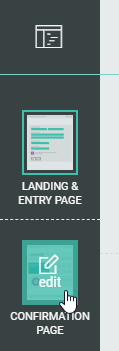
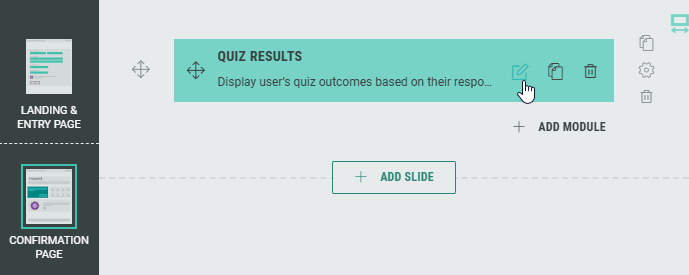
- The Confirmation Page contains a Quiz Results module.
This is a participation-type module, used to display results from a Quiz-type Experience such as the Adobe Commerce Product Quiz.
Click on the Pencil icon to edit the Quiz Results module.
The following screen will be shown:
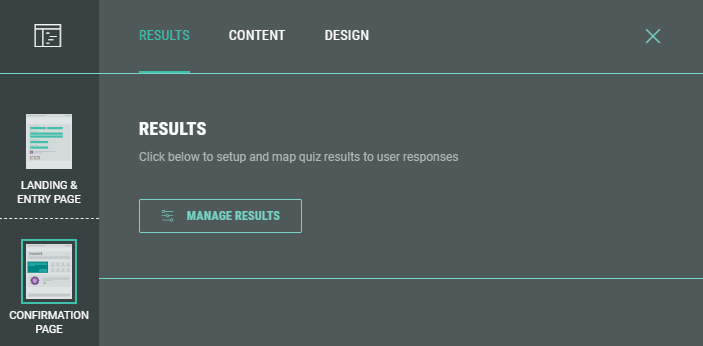
Note: Check out this topic to see how to manage the quiz results, content and design.
- As with the Landing Page, you can add, edit, and delete rows and modules to customize your Experience.
Note: Don't forget to save your changes (see Page Builder actions).
Integrations tab
When selecting Integrations from the left-hand side menu, you'll see that an Adobe Commerce integration has been added automatically to your Experience.
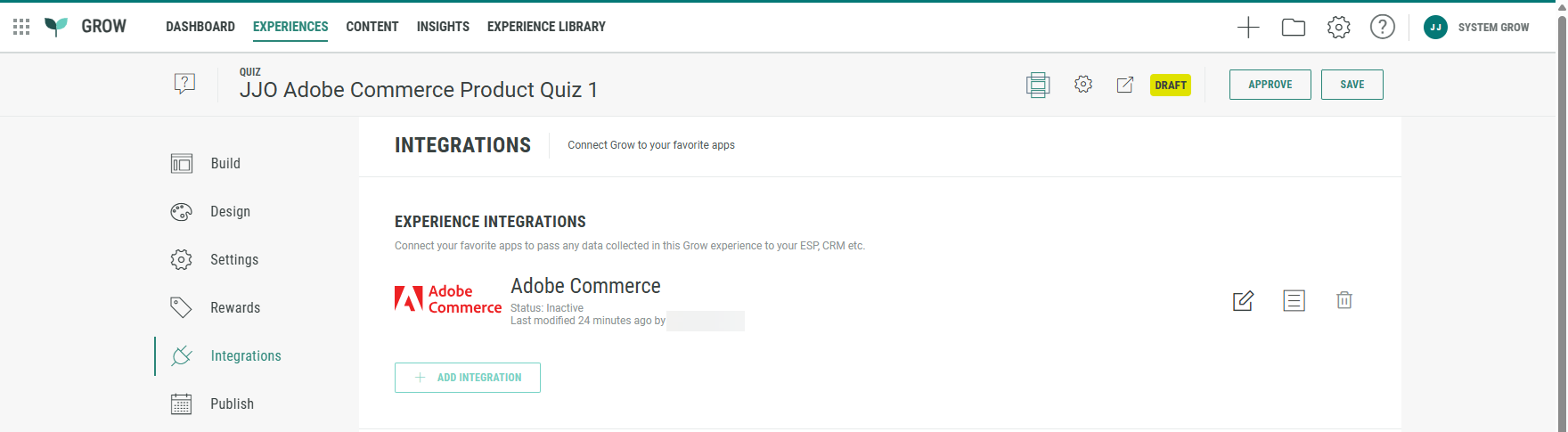
Click on the pencil icon on the right to edit the Adobe Commerce integration.
From the drop-down, you can select different Adobe Commerce credentials (if multiple exist).
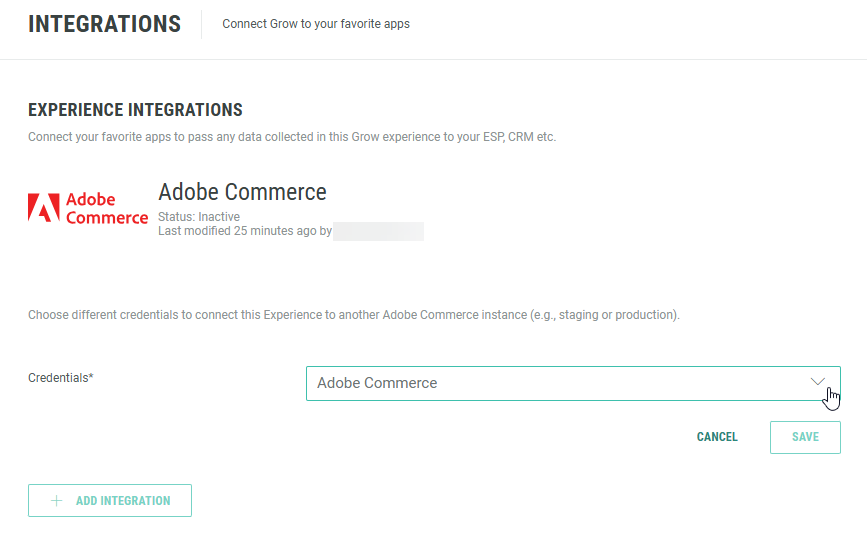
Note: The credentials reflect the Adobe Commerce API keys that are configured in the general Grow Account Integrations section. See this section above to set up an Adobe Commerce API key.
Design tab
The Design tab can be found directly below the Build tab. Here, you can customize your Experience with the Display Type (Page- or Slide-based), change or edit the Theme, and add a footer and background in the Page Structure and Design section.
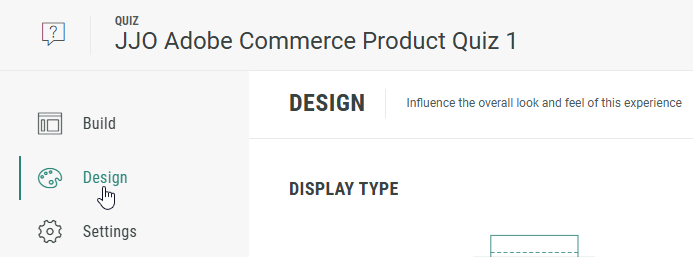
Note: More info on the Design tab can be found here.
Settings tab
On the Settings tab, you define and edit the key settings for your Experience.
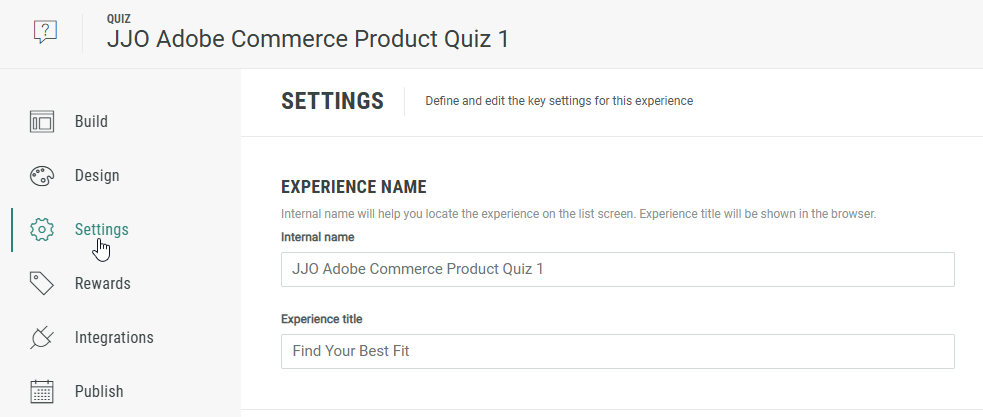
Note:Here you can find more info on the Settings tab.
Rewards tab
A Reward is an incentive offered to customers for participating in a Grow Experience, with the ultimate goal of learning something new about that customer or driving engagement with your brand. Rewards, like prizes, offers, or coupons, can be provided in real-time and have been shown to boost overall engagement. They can be structured as everyone wins or with set odds with consolation rewards as an option. Inclusion of a reward in your experience will boost participation.
Note: More details on Rewards can be found here.
Publish tab
Once you're happy with the setup of your Experience, you can move on to the Publish step.
We offer 3 ways to publish your Experience.
You can either embed it on your website, host it within a pop-up, or publish as a landing page.
Note: Here you can read more about the publish options to make sure you pick the right one for your business needs.
