
How to: Publish your Experience — Web Embed
Before you begin
Start the wizard to publish an Experience (explained in this topic).
Publish to Web Embed destination
Publishing your Experience as a Web Embed generates code to embed the Experience as an iframe on a web page.
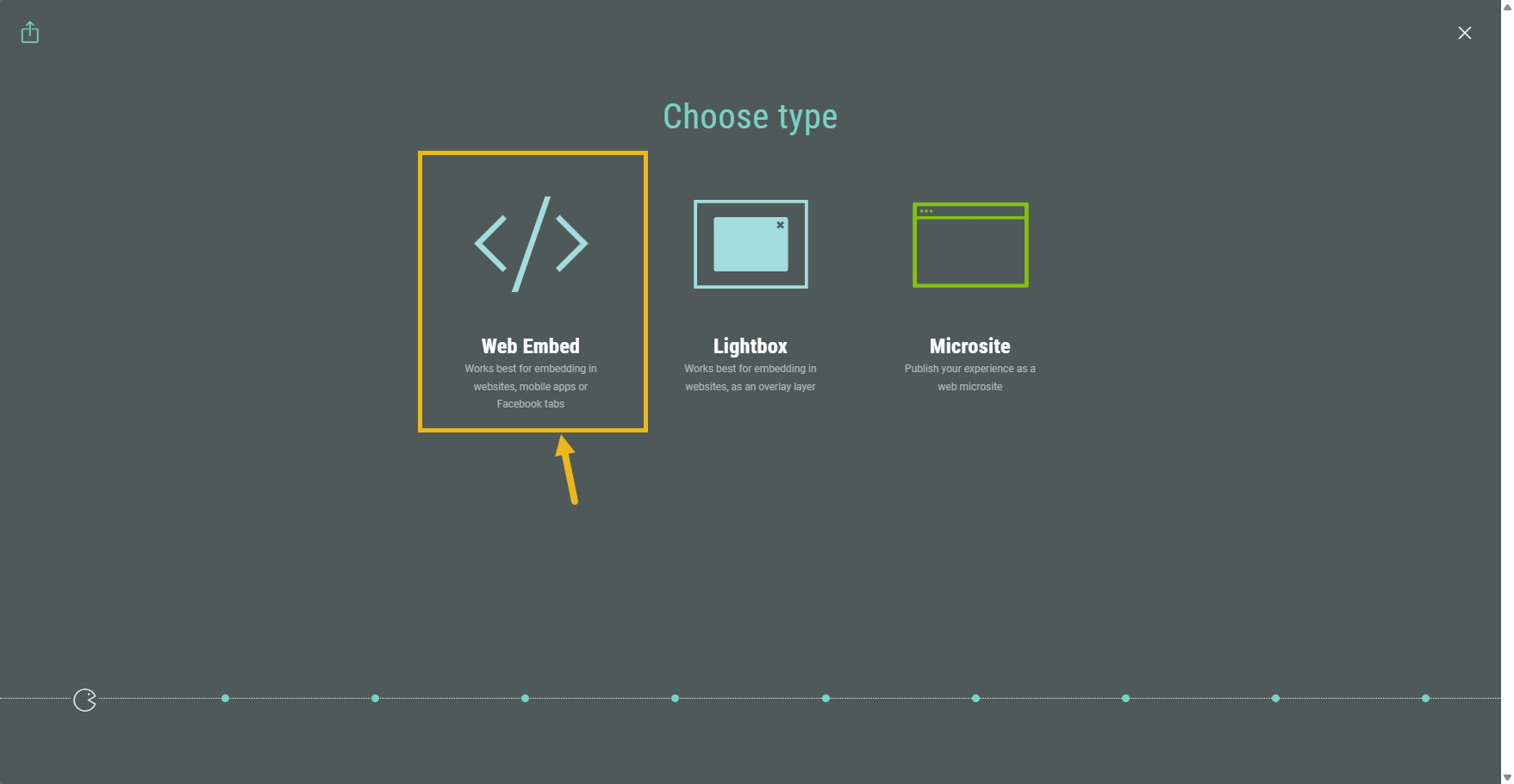
Select Web Embed type
In the Publishing wizard, select Web Embed.
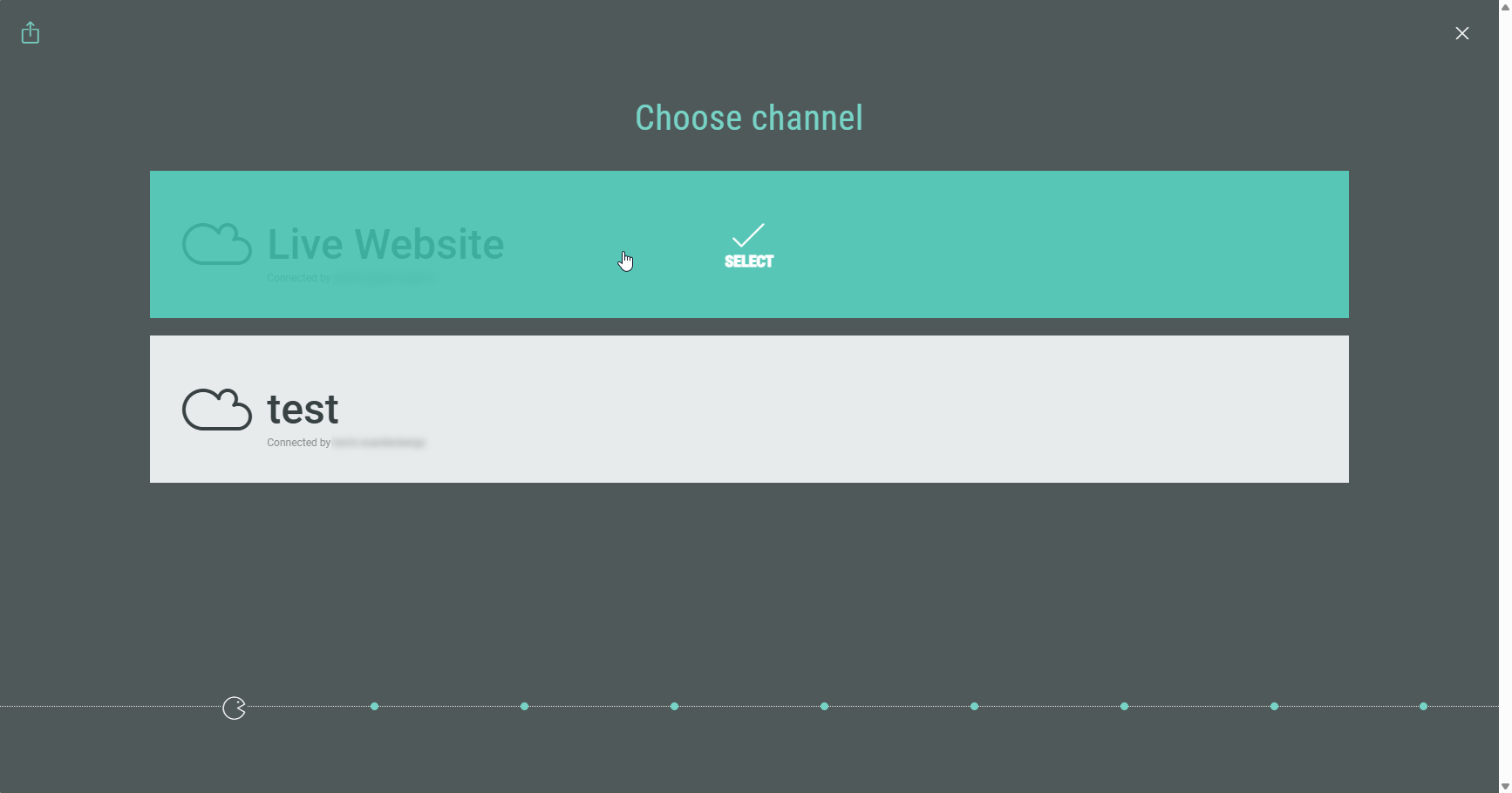
Channel selection (optional)
Choose a channel.
Note: This step only shows up if you are using a custom domain.
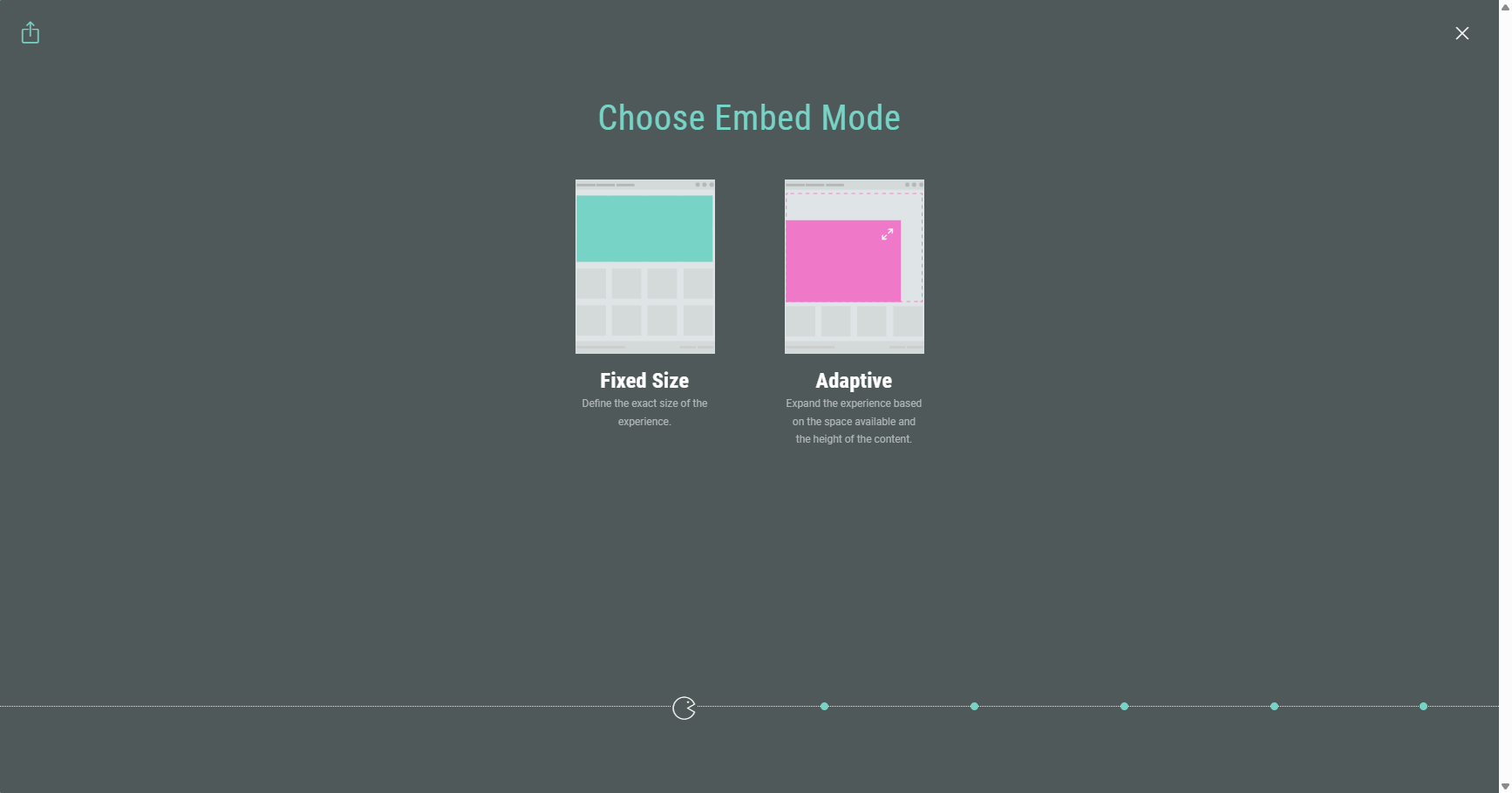
Embed mode selection
Then select the embed mode: Fixed size or Adaptive (automatically resizes depending on screen).
When selecting Fixed size, an additional step is shown to define the height and width of the Experience. This option is best suited for ad units, which typically have fixed sizes.
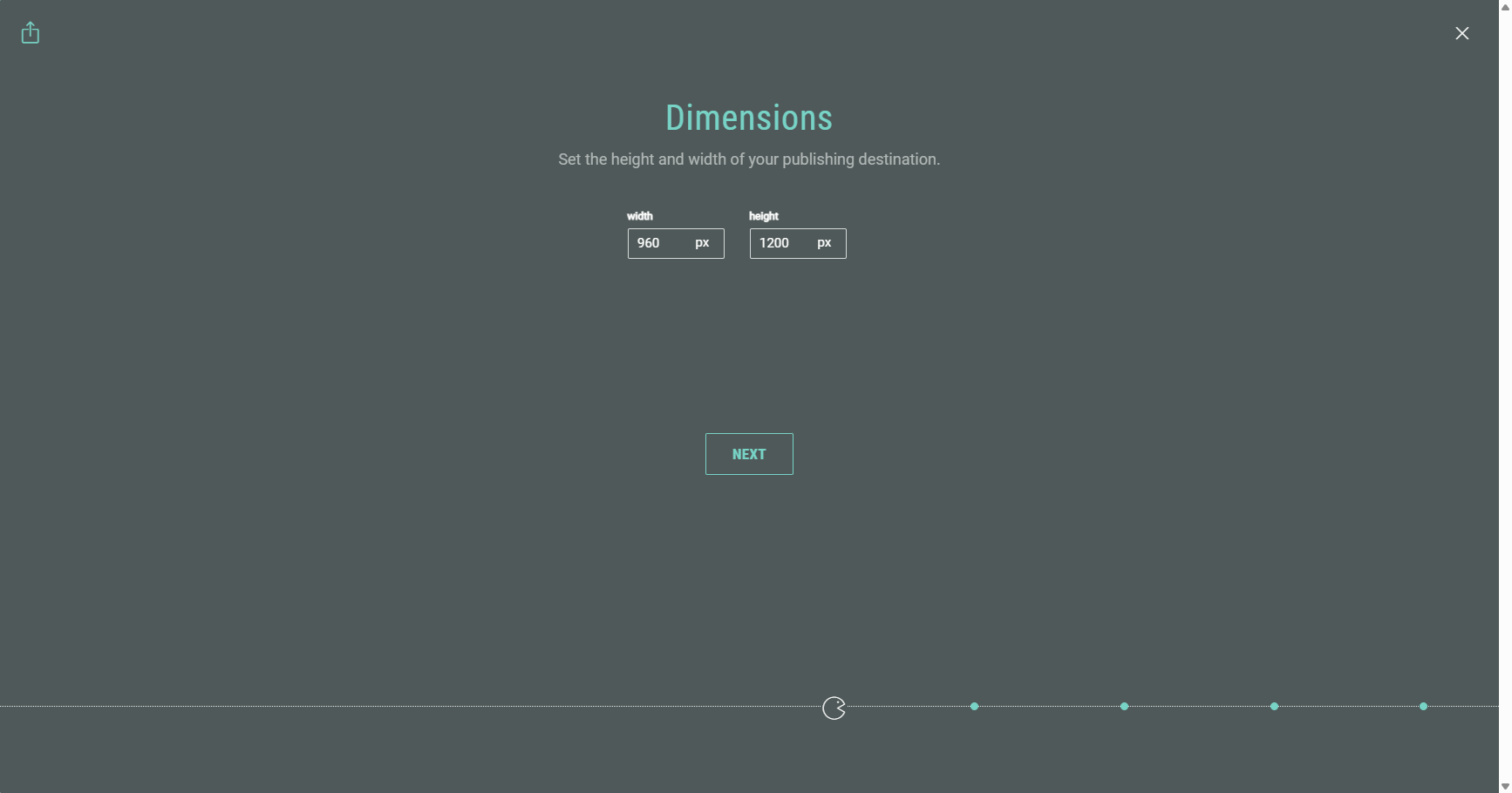
After setting the values, click Next to go to the next step.
Publication time
Note: This step only appears the first time you schedule/publish the Experience.
Once the Experience is in scheduled/live state, any new publishing destinations you add will automatically inherit the existing state.
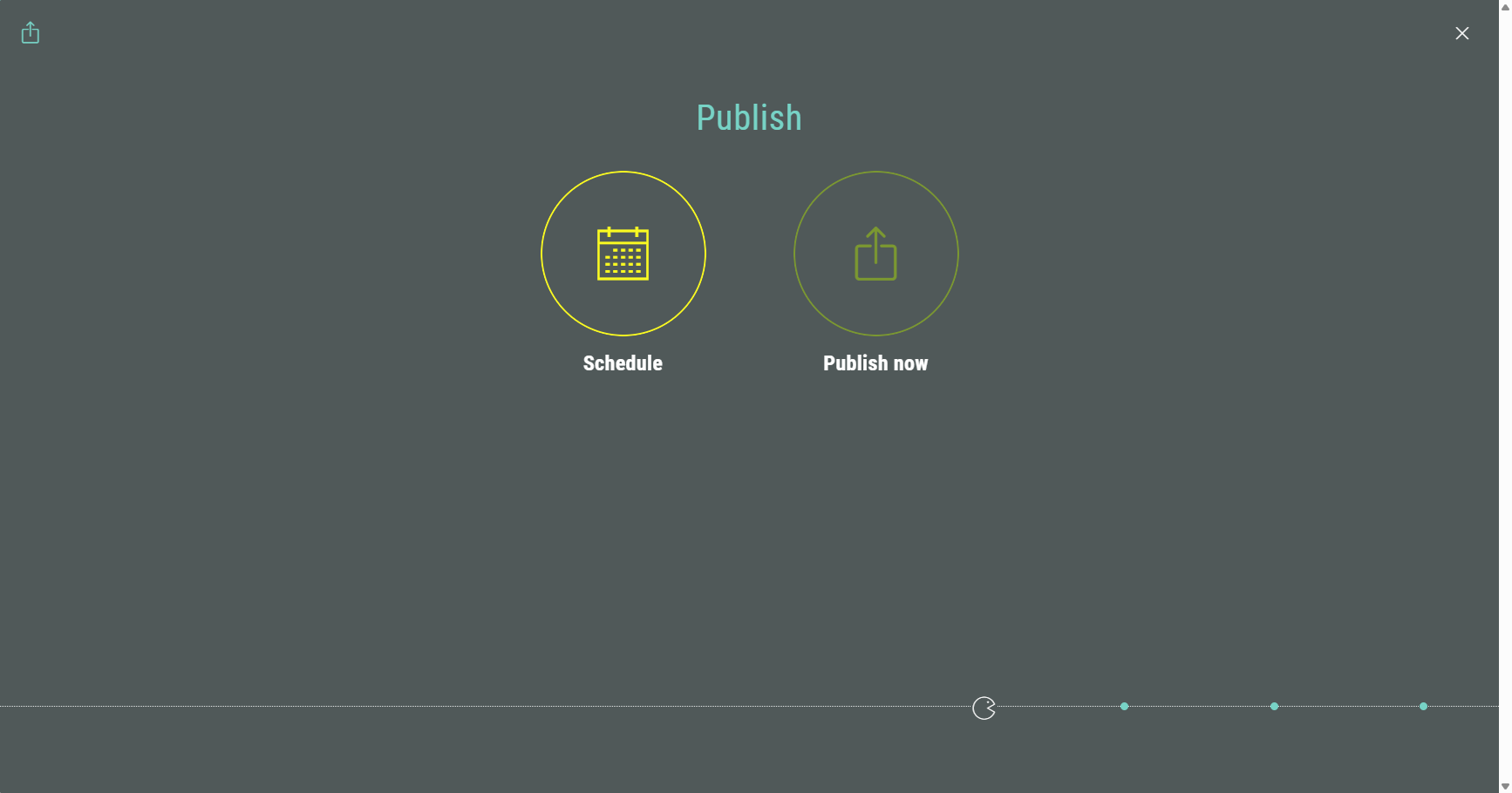
On the Publish step, you can decide to schedule the Experience, making it available for participants on a later date and time), or to publish now (making it available immediately).
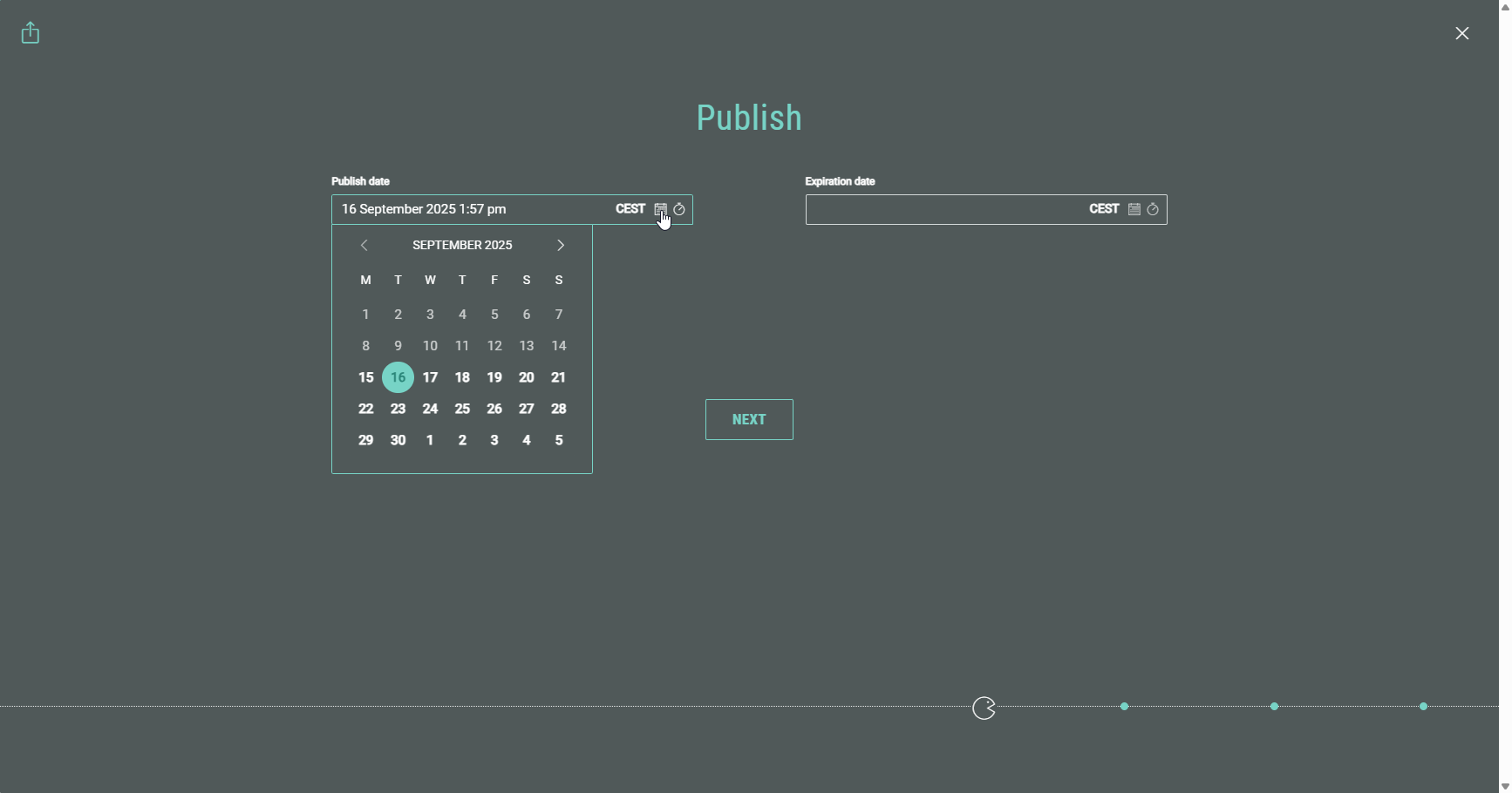
- When selecting Schedule, you can set:
- Publish date — You can choose the date and time on which the Experience becomes available for participants.
- Expiration date — Setting a date and time will take the Experience offline at that given date and time. When you leave this field empty, the Experience won't expire and remains available.
- When selecting Publish now, you can set:
- Expiration date — Setting a date and time will take the Experience offline at that given date and time. When you leave this field empty, the Experience won't expire and remains available.
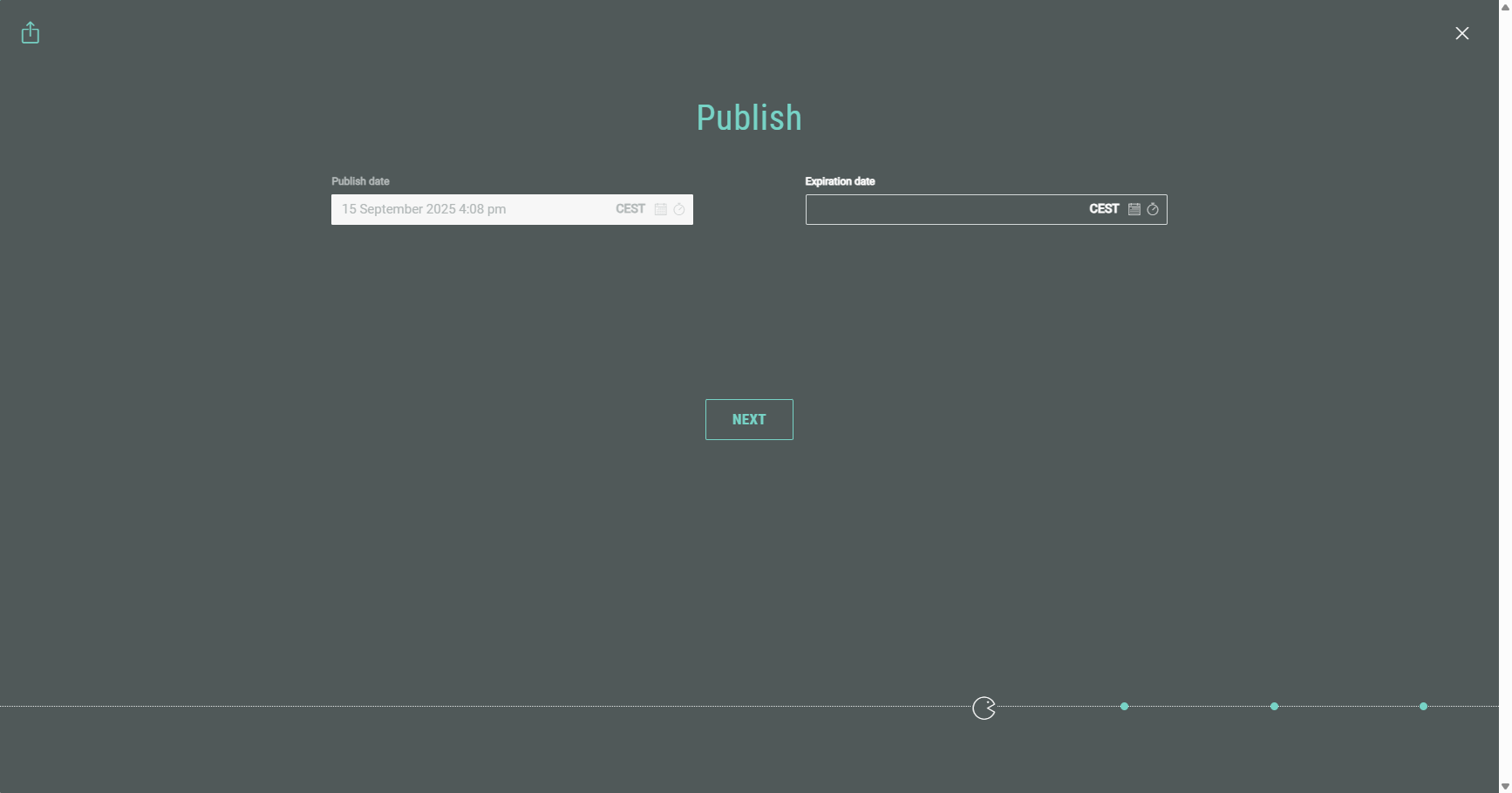
Note: The Publish date is a read-only field when selecting Publish now, as it's available immediately after completing all the publication steps.
After setting the desired date(s), click Next to go to the next step.
Publication summary
A summary screen is shown with all your settings.
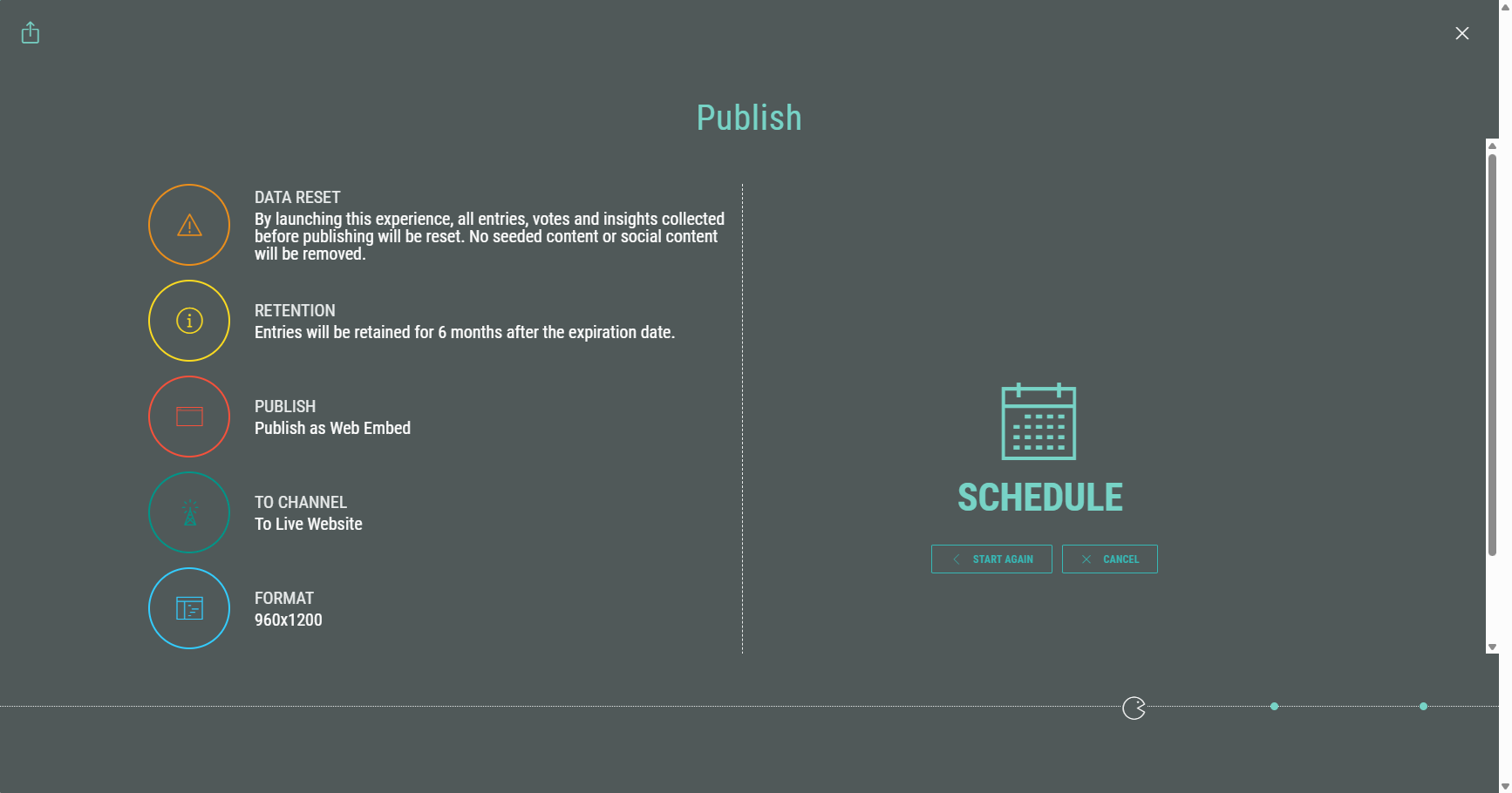
On the summary screen, at the right, you can click:
- Start Again — To run through the Publishing wizard from the start.
- Cancel — To discard your publishing settings and go back to your main Experience screen.
- Schedule or Publish your Experience — Depending on your publication time selection earlier on.
Manage the publish configurations
After clicking Schedule or Publish, the Experience gets scheduled or published, and you return to the Publish section within your Experience, where you can see the details below.
General Web Embed Experience settings
Web EmbedExperiences that are either published or scheduled, both display the following options in the publishing destinations section at the bottom:
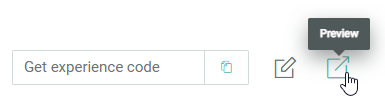
- Copy button — To copy the Experience code to your clipboard.
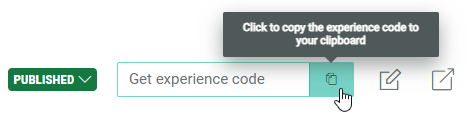
The copied Experience code looks like this:
<script src="https://x.wayin.com/embed/05d4gh9b-655e-4af2-973c-6154843cad10?mode=fixed&scrolling=no&width=960&height=1200"></script>- Pencil icon — To Edit a Publishing Destination.
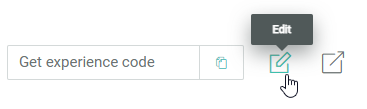
- Preview icon — You can click it to open and run through the Experience in your browser for testing purposes.
Scheduled Experience settings
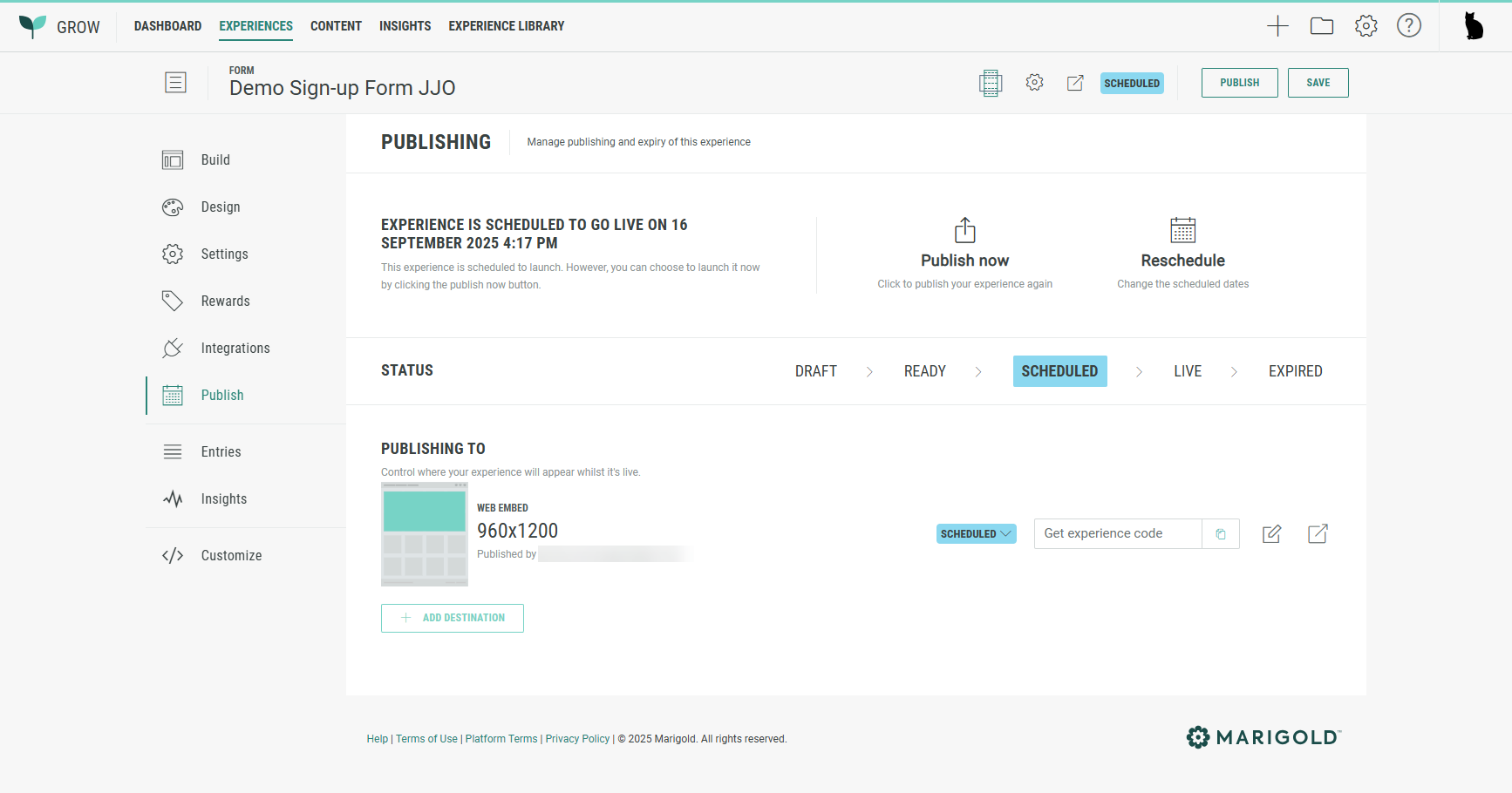
Scheduled Experiences show the following details:
- The text: Experience is scheduled to go live on [publish date and time].
- Status: Scheduled
- A Publish now button is available to publish the Experience immediately. When clicked, the Experience and all of its scheduled destinations below get published immediately.
- A Reschedule button is available to change the schedule dates.
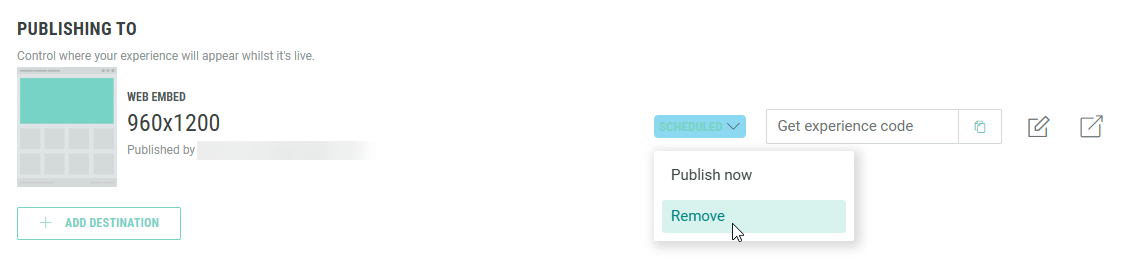
At the bottom, each publishing destination has a drop-down with two options:
- Publish now — To immediately publish the Experience. When clicked, the specific destination gets published immediately. The first time you publish a destination, it also publishes the Experience.
- Remove — To delete the scheduled publishing destination configuration.
Published Experience settings
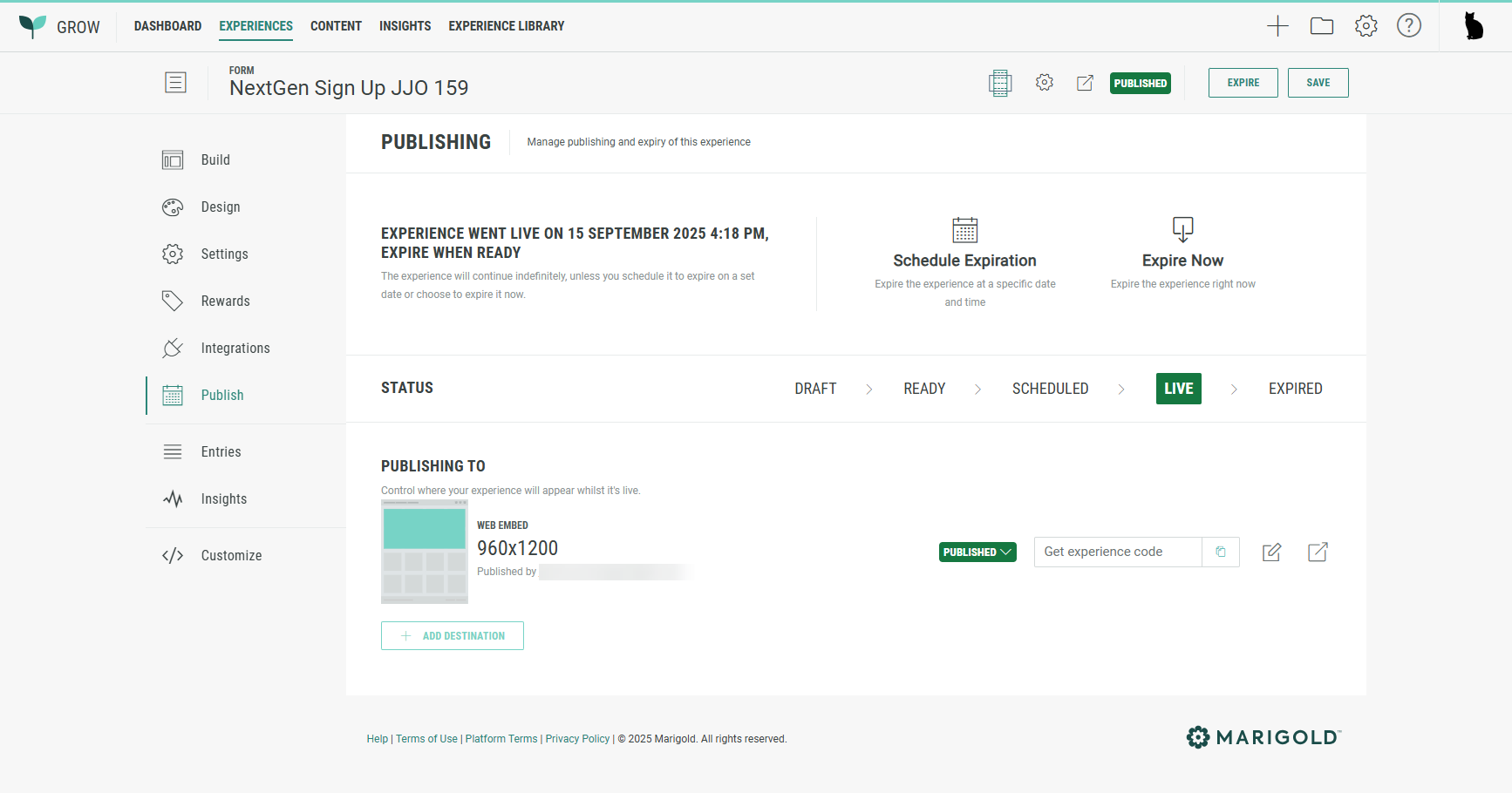
Published Experiences show the following details:
- The text: Experience went live on [launch date and time], expire when ready.
- Status: Live
- A Schedule Expiration button is available to take the Experience offline at a specific date and time.
- An Expire Now button is available to take the Experience offline immediately.
- When an expiration date has been set, the published Experience shows the text: Experience went live on [launch date/time], and will expire on [expiration date/time], and a Re-Schedule Expiration button is available.
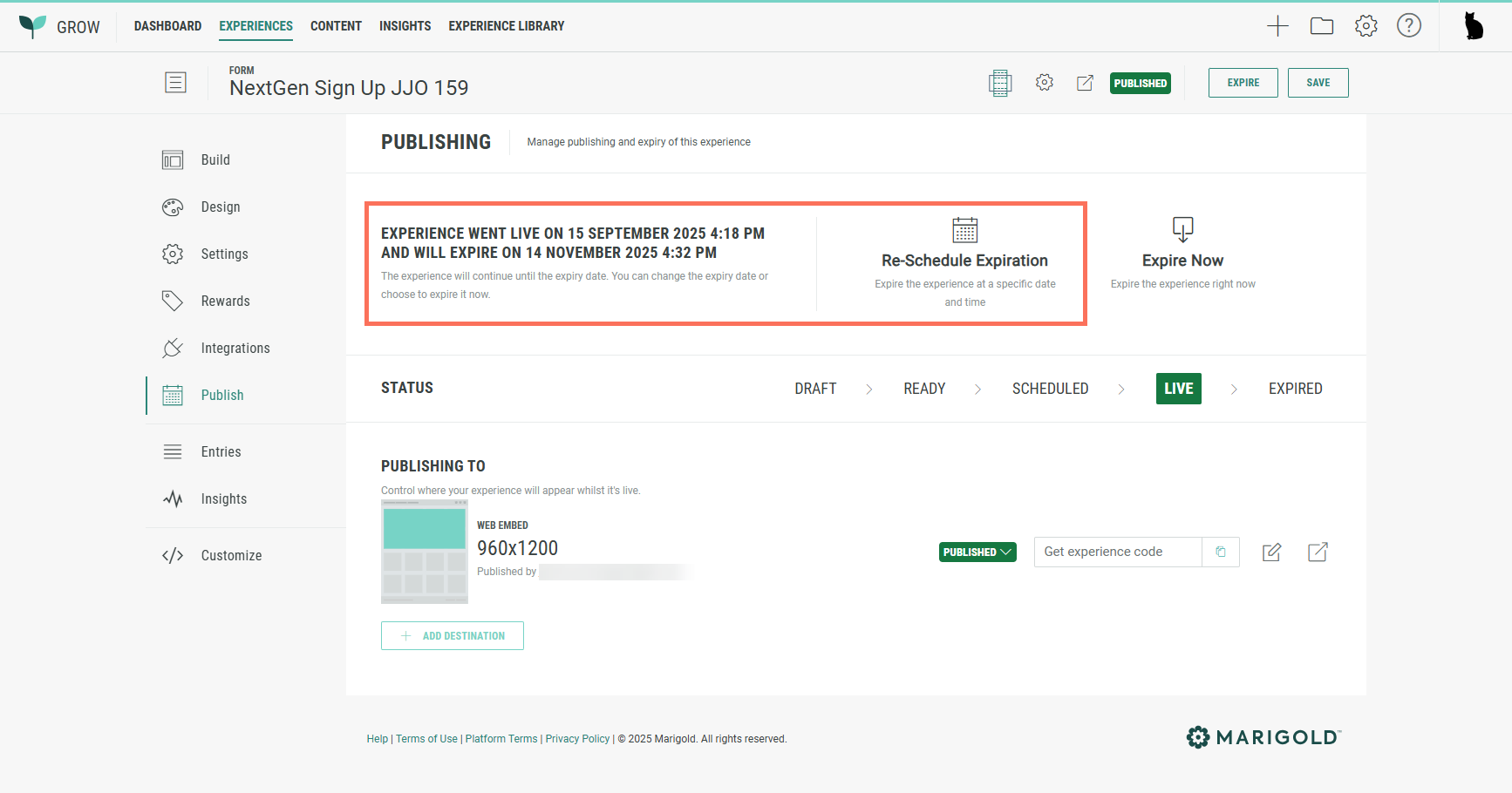
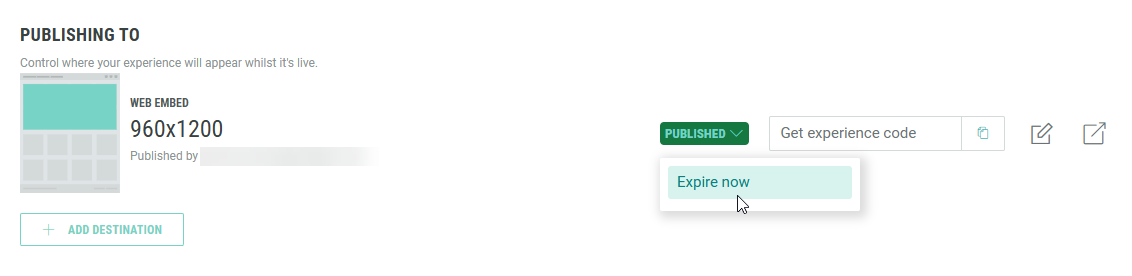
At the bottom, each publishing destination has the option:
- Expire now — To immediately take the Experience offline.
Note: For a single Experience, you can add multiple publishing destinations.
Once the Experience has been scheduled or published, adding a new destination automatically receives the same state as the Experience state. (No schedule/publish choice is offered in the wizard.)
Edit publishing destinations
To edit a publishing destination, click on the pencil icon at the right of that destination.
When editing a Web Embed publishing destination, the following screen is shown:
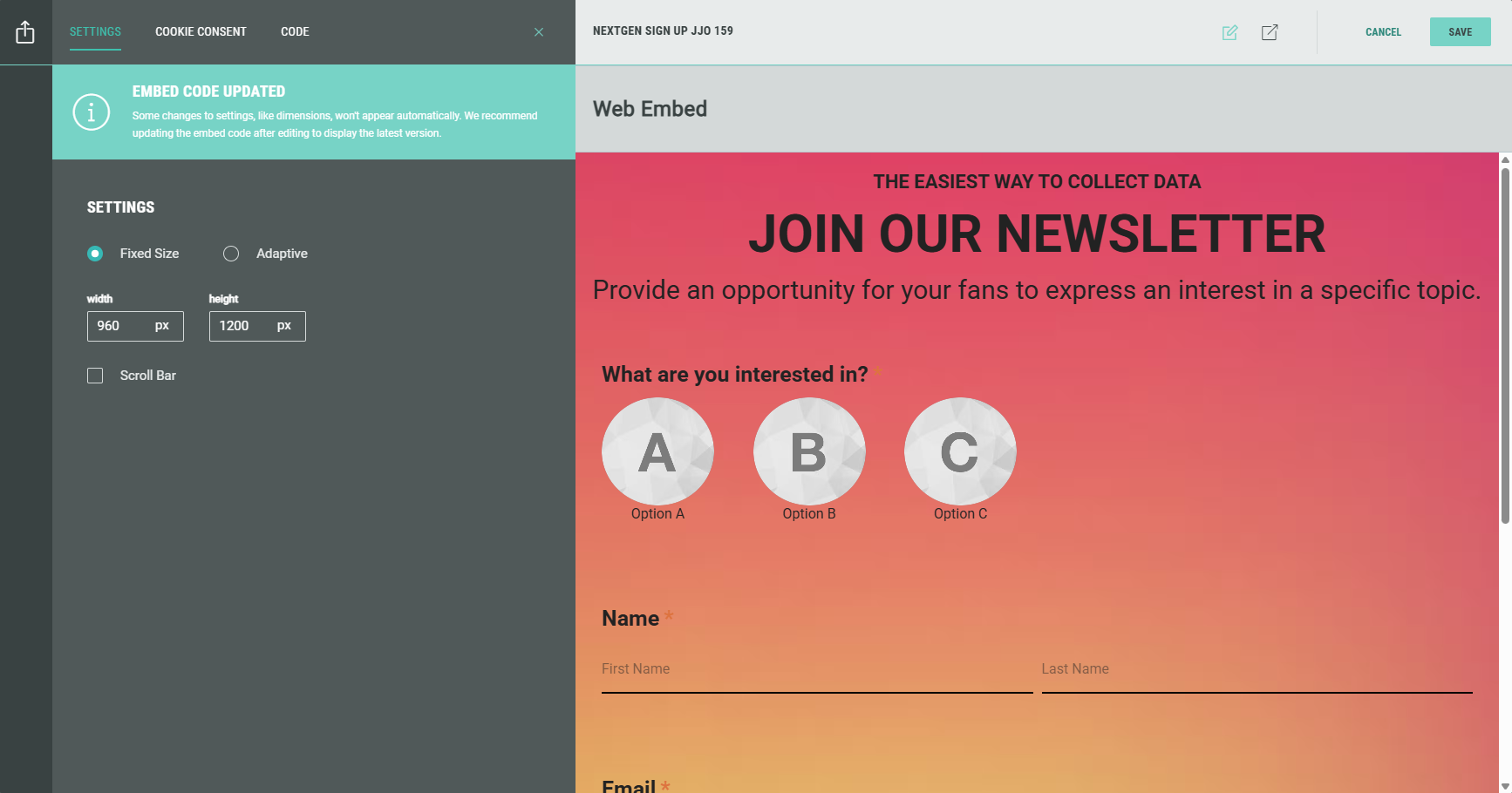
It contains the tabs: Settings, Cookie Consent and Code.
Settings
On the Settings tab, you can adapt the way the Experience is presented to the user.
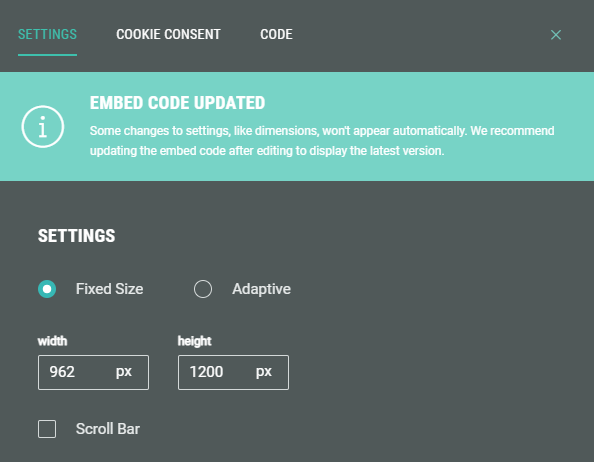
Either use a fixed size or an adaptive size.
When using fixed size, width and height dimensions of the Experience can be defined, and if a scroll bar should be shown or not.
Cookie Consent
On the Cookie Consent tab, you can define how cookie consent management is handled by Grow.
Find more info on cookie consent here.
Code
On the Code tab, you can see the default embed code to be added to your web page for this Experience, as well as a more advanced embed code.
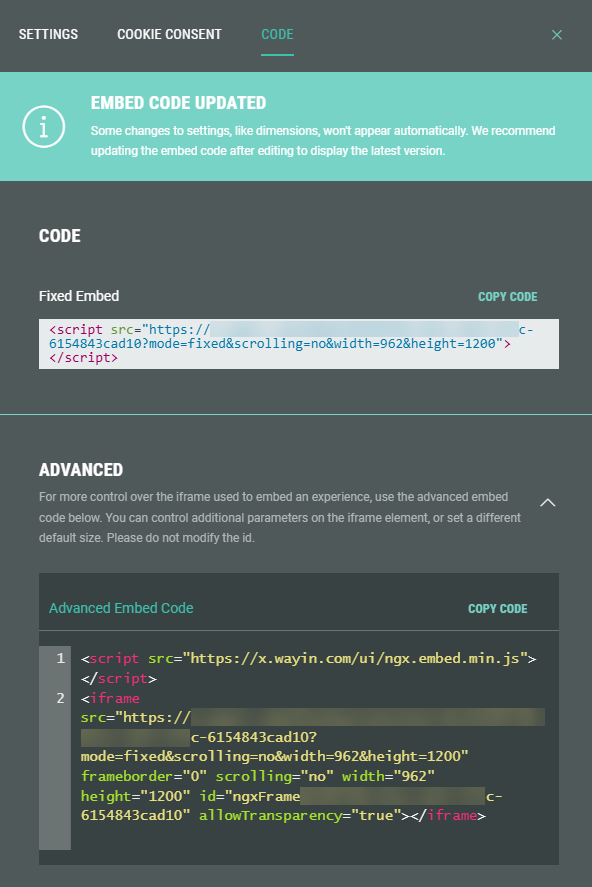
- Default embed code — A single-line <script> tag with the Experience URL with ID as source, and additional parameters such as the mode (fixed or adaptive), scroll bar, and dimensions.
- Advanced embed code — For more control over the iframe used to embed the Experience, use the advanced embed code. You can control additional parameters on the iframe element, or set a different default size. Do not modify the id.
Note: Some changes, like dimensions, won't appear automatically. We recommend updating the embed code on your web page after editing, to display the latest version. Otherwise, the latest changes might not be reflected.
