
Third Party Integrations
Grow connects with a range of external systems, such as Google Analytics, Google Tag Manager, Campaign Monitor and Emma, to help you activate, analyze, and export the data you collect through your Experiences. This article highlights some of those third-party integration options and how to manage them in your account.
Finally, there's an HTTP integration to set up any custom solution.
Note: If you need help with any integrations (direct or custom), please contact your Zeta representative.
Integrations management
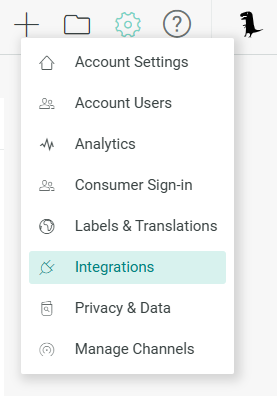
Authorized users (Admin users and Creator/Publisher users with permissions to edit integrations — see this article for more info on user roles) can access the Integrations sections by hovering over the Gear icon at the top-right and then selecting Integrations.
The Integrations screen shows two sections: Account integrations and API Keys.
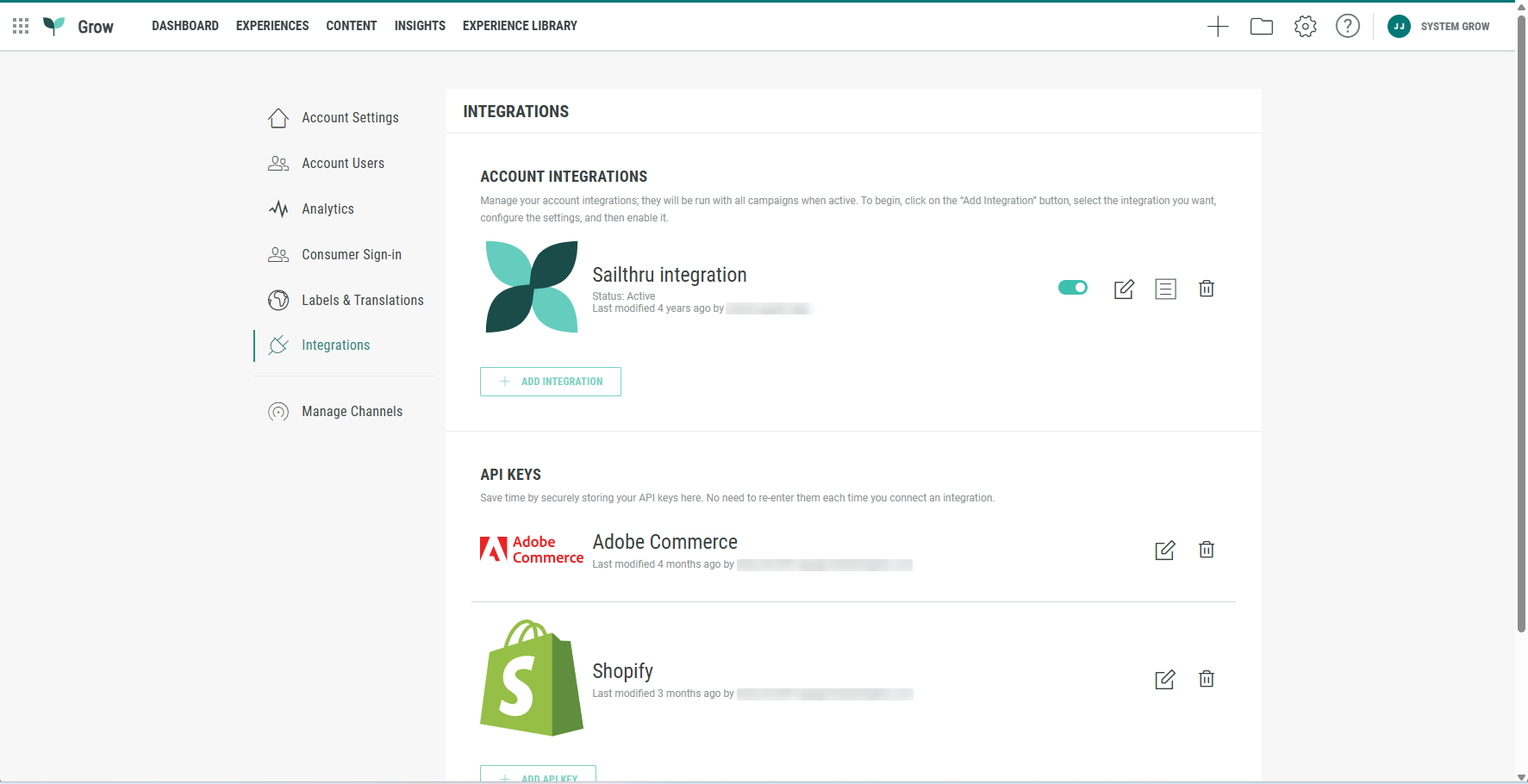
Account integrations
In Account Integrations you're presented with out-of-the-box integrations as well as custom integrations that have been configured for your account.
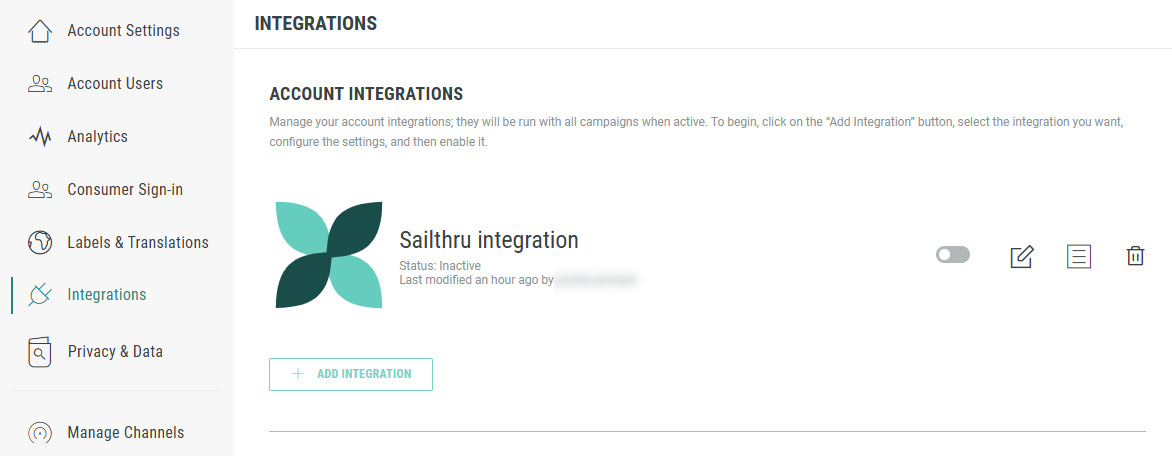
On this screen, you can:
- add new integrations
- enable/disable existing integrations
- edit existing integrations
- delete existing integrations
Add new third party integration
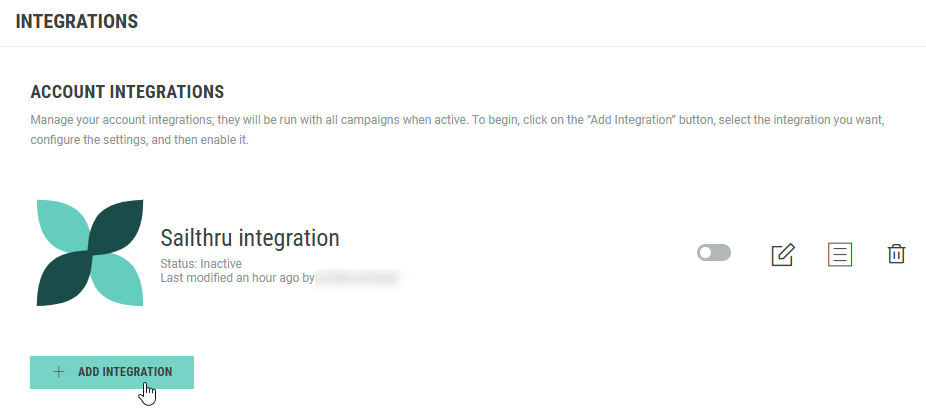
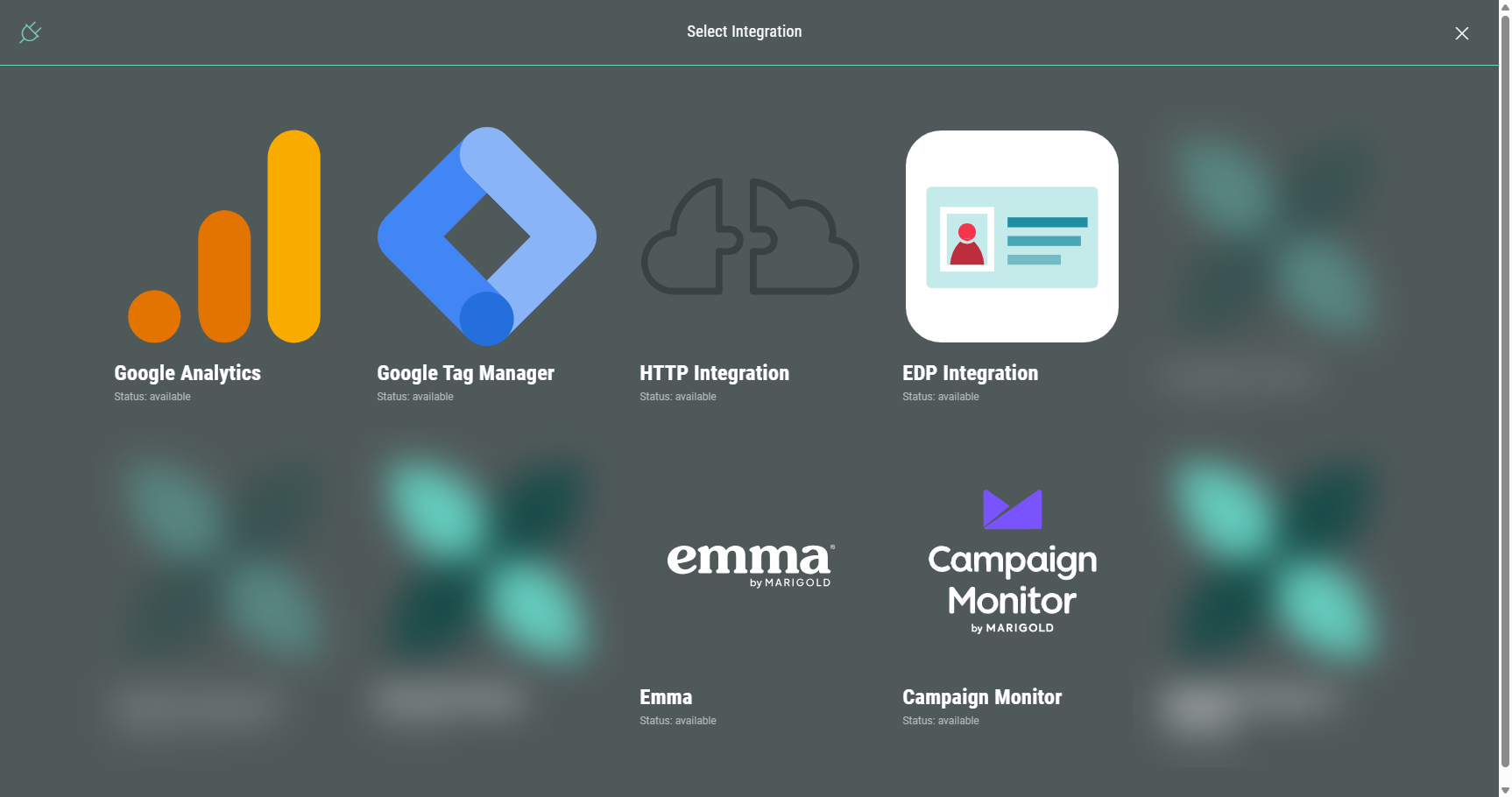
To set up a new integration, click the + Add Integration button and complete the wizard steps that will be presented to you.
The following third party integrations are available: Google Analytics, Google Tag Manager, HTTP Integration, EDP Integration, Campaign Monitor and Emma.
Analytics integrations
Grow analytics integrations include Google Analytics and Google Tag Manager.
To learn more about them and how to set them up, please visit the linked articles.
Data integrations
There are a number of ways to export data collected and integrate them to the Data Management system of your choice. The most convenient option is to have a real-time data push integration set up for your account. This is a Grow-managed service and our internal teams can take you through the process.
Once the data integration is set up, you will be able to see either HTTP (for most email marketing, CRM, DMPs and other platforms) or Messaging or EDP integrations in your account.
To learn more about data export options in general, please visit this article.
Messaging integrations
Campaign Monitor and Emma are email marketing platforms for which Grow also offers integrations. See linked external resources for more info.
API Keys
Underneath Account Integrations, you can see the API Keys section.
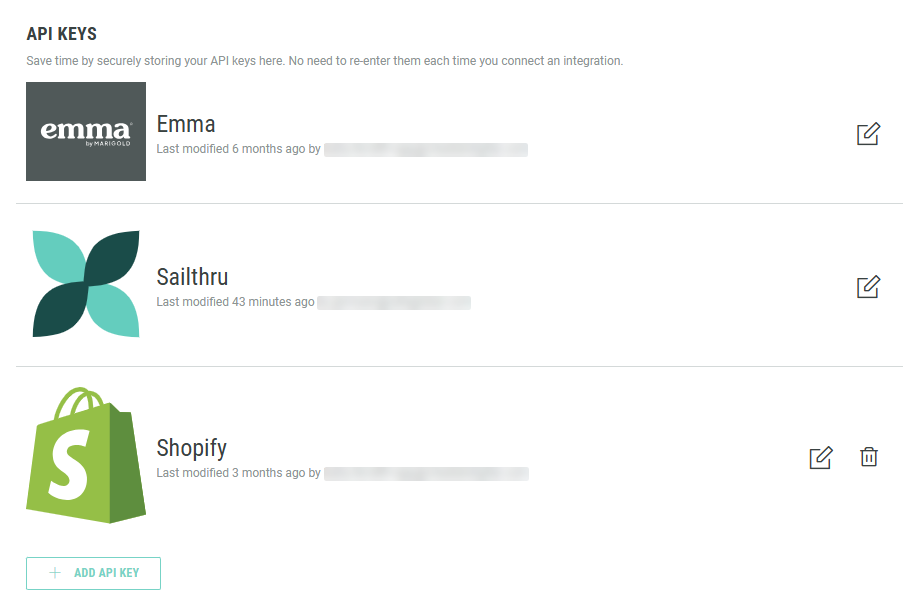
This allows you to save time by securely storing your API keys in a single location.
There's no need to re-enter the same credentials each time you set up an integration.
On this screen, you can:
- add new API keys
- edit existing API keys
- delete existing API keys
Add new API key
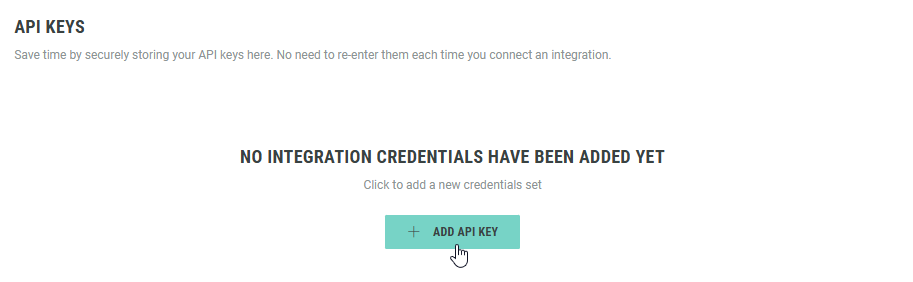
- To set up a new API key, click the + Add API Key button.
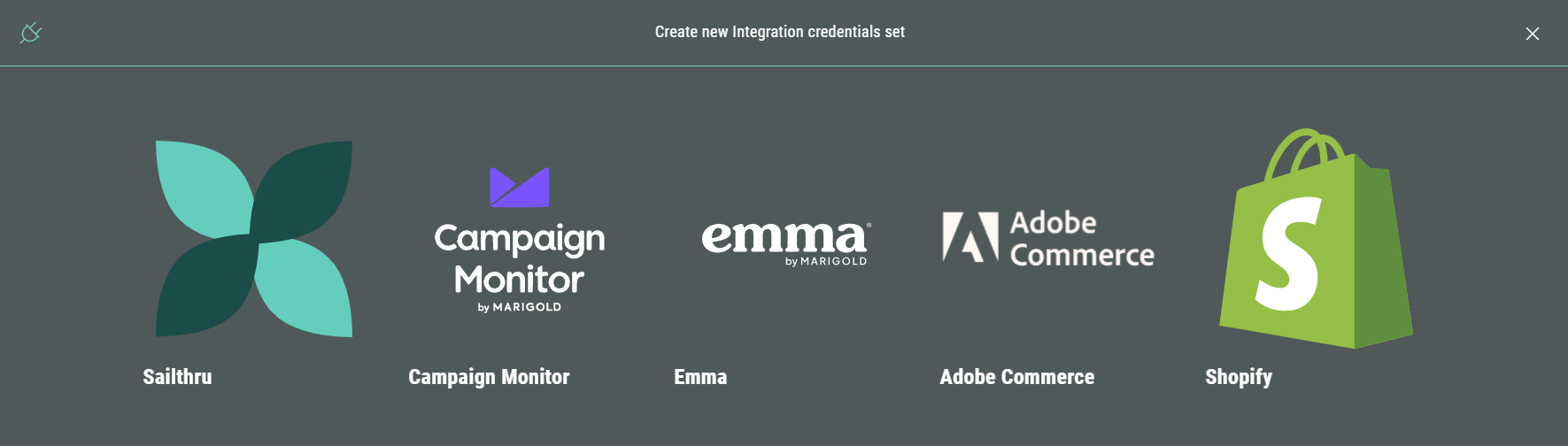
- Select a third party integration for which you want to define credentials, such as Campaign Monitor or Emma.
- Depending on the selected integration, the next screen shows the appropriate API key credentials to be set.
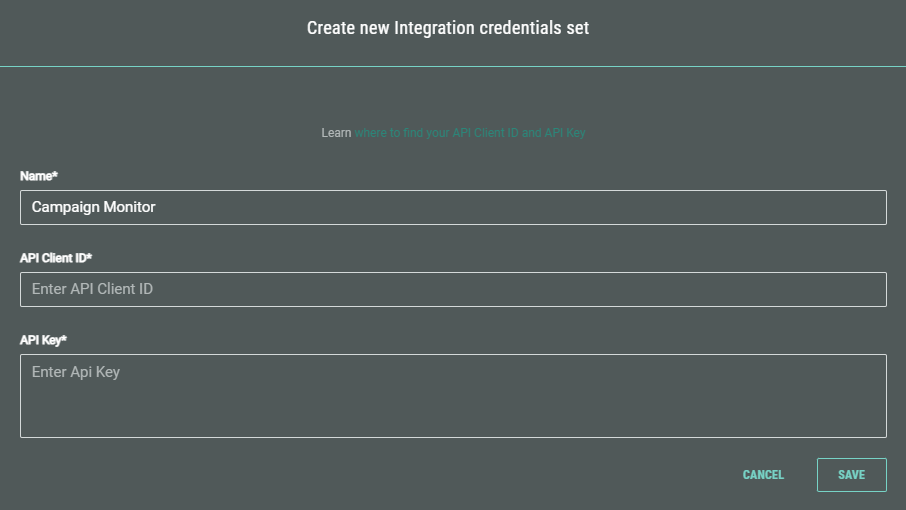
- For Campaign Monitor integrations, enter a name, API Client ID and API Key.
Learn where to find your API Client ID and API Key in the Campaign Monitor knowledge base.
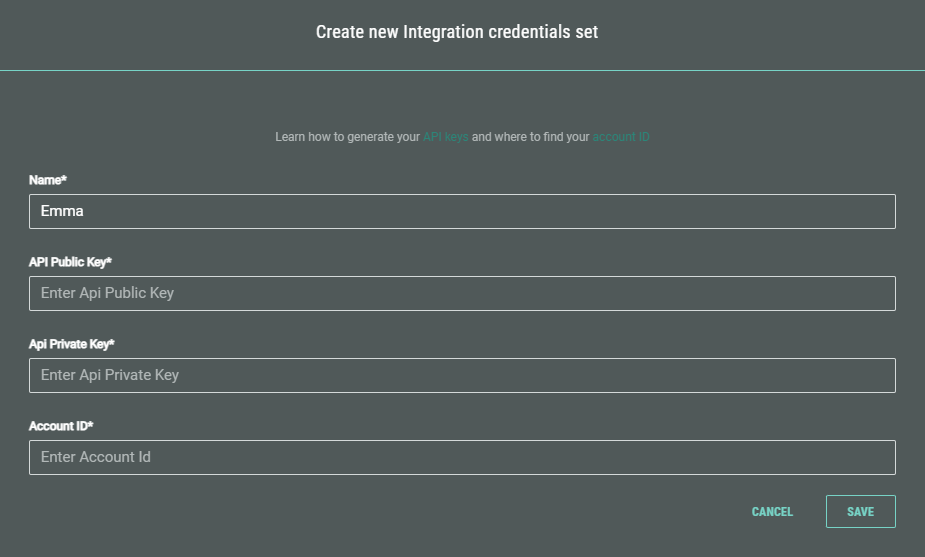
- For Emma integrations, enter a name, API Public Key, API Private Key and Account ID.
Learn how to generate your API keys and where to find your account ID in the Emma knowledge base.
- After saving, your API Key configuration is available in the list of API Keys.
Click the Pencil icon to edit the configuration. You can update any of the fields.
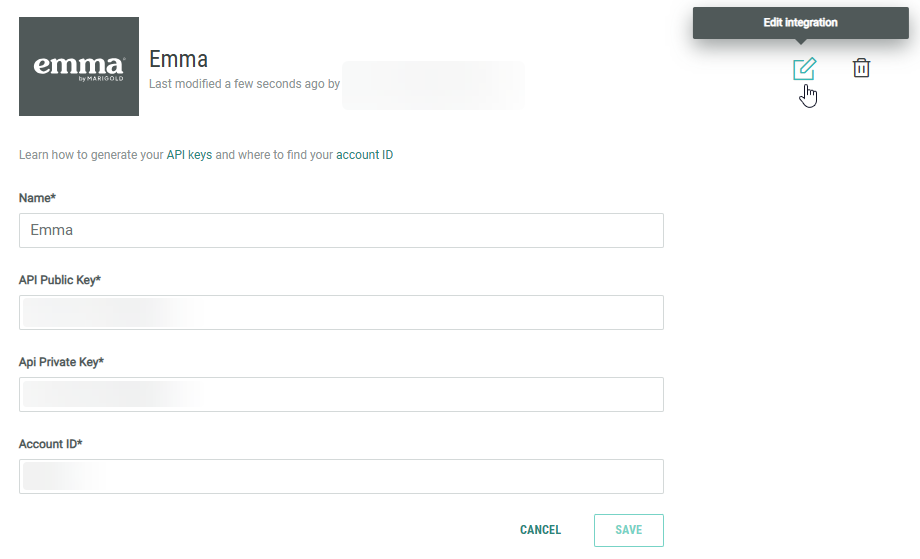
Note: Don't forget to click Save after making changes to your API Key configuration.
