
Deploy Triggered Action Metadata
After making any of the following types of changes to a Triggered Action, you must deploy metadata for the changes to take effect. This process pushes the changes to the Loyalty server, making them available for use across the platform.
-
Publishing a new Triggered Action.
-
Editing any aspect of a Published Triggered Action.
-
Deleting a Published Triggered Action.
-
Archiving a Published Triggered Action.
-
Rearranging a Published Triggered Action within a Trigger Group.
Note: The steps below describe how to deploy metadata directly from the Triggered Actions screen; you can also deploy metadata from the Deployments screen
View Deployed Metadata
To view the currently deployed Triggered Action metadata:
-
Select Rules from the top navigation bar, then select Triggered Actions from the side navigation menu. The Triggered Actions screen is displayed.
-
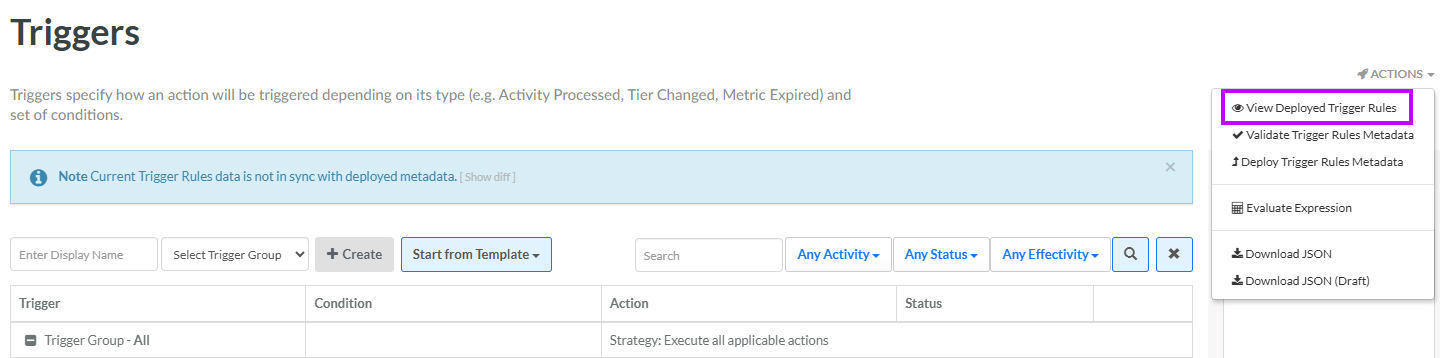
From the Actions menu in the top-right corner of the Triggered Actions screen, select View Deployed Trigger Rules. The View Snapshot pop-up window is displayed.
-
Expand the message to as desired to view additional details, such as the total number of deployed Triggered Actions. You can also drill in deeper, to see details of each deployed Triggered Action (Triggered Action name, type, conditions, etc.).
View Un-deployed Changes
If you have any of the above Triggered Action changes that haven't yet been deployed, a warning message is displayed at the top of the Triggered Actions screen. In a multi-user account, you could have Triggered Actions created or edited by different users. When you deploy the Triggered Action metadata to the server, the process automatically deploys the metadata for all modified Triggered Actions, so you should always verify what Triggered Actions will be deployed before you run the deployment process.
-
Select Rules from the top navigation bar, then select Triggered Actions from the side navigation menu. The Triggered Actions screen is displayed.
-
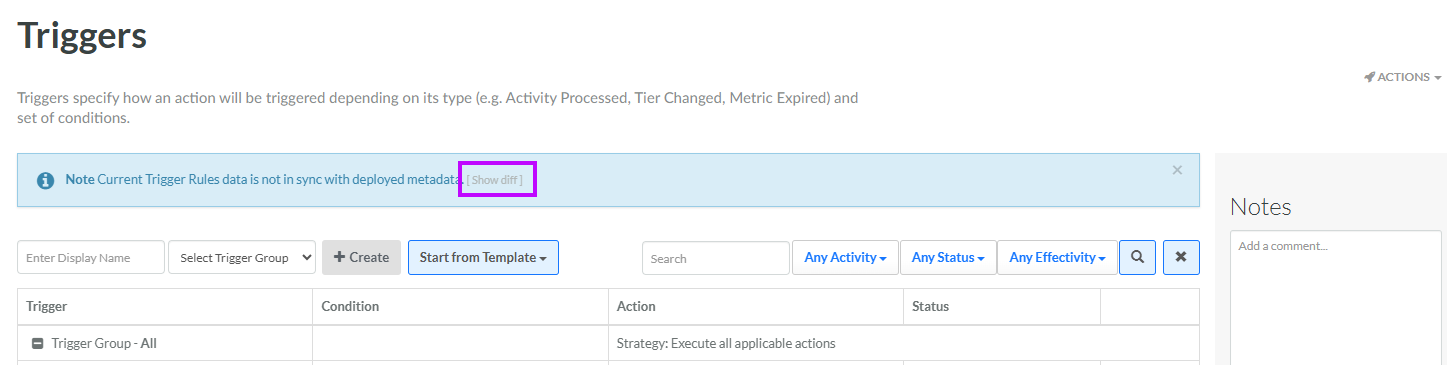
Within the warning message at the top of the Triggered Actions screen, click the Show diff link.
-
The platform displays a pop-up window, showing the difference between the deployed and un-deployed Triggered Actions, so that you can see all the changes that will go into effect when you deploy metadata. When finished reviewing the differences, click Close.
Validate Triggered Action Logic
You can deploy metadata immediately, but the best practice is to validate the Triggered Actions logic before deploying metadata to ensure no incorrect expression code gets deployed to the server that could cause issues.
To validate Triggered Actions metadata:
-
Select Rules from the top navigation bar, then select Triggered Actions from the side navigation menu. The Triggered Actions screen is displayed.
-
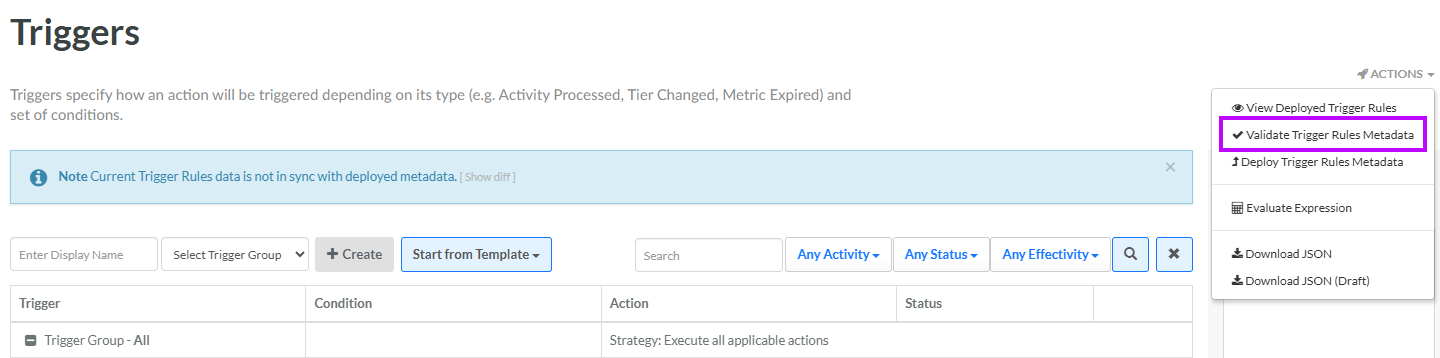
From the Actions menu in the top-right corner of the Triggered Actions screen, select Validate Trigger Rules Metadata.
-
The Validation Result pop-up window is displayed. If the validation step passes, a message is displayed reading: "Trigger Rules Metadata is valid." If the validation step fails, an error message is displayed; review and correct your Triggered Action expressions, then retry the validation step.
Deploy Triggered Actions Metadata
To deploy Triggered Actions metadata:
-
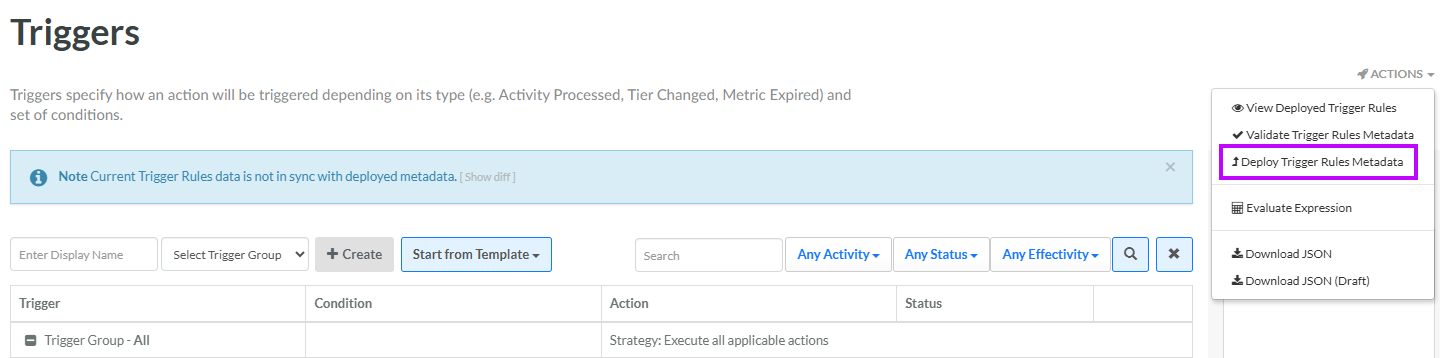
If you validated metadata as described above, within the Validation Result pop-up window, click Deploy Trigger Rules Metadata. Otherwise, from the Actions menu in the top-right corner of the Triggered Actions screen, select Deploy Trigger Rules Metadata. A confirmation dialog box is displayed; click Confirm.
-
If the deployment was successful, a message is displayed reading: "Trigger Rules metadata as been deployed."
