

An Export Definition contains all of the configuration options needed to control the content, scheduling, structure, and destination of an export file.
The platform allows you to either create a new Export Definition from scratch, or to copy an existing Export Definition to use as the basis for a new Export Definition.
Create a New Export Definition
When creating a new Export Definition, the configuration options vary depending on the selected Connector type.
-
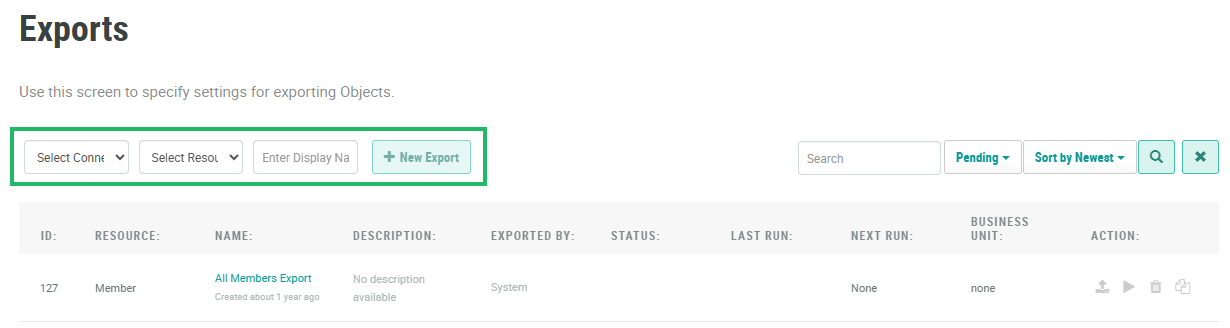
Select Admin from the top navigation bar, then select Integrations > Exports from the side navigation menu. The Exports screen is displayed.
-
From the Connector drop-down menu, select the desired Connector type
-
From the Resource drop-down menu, select the resource from which this Export Definition will extract records
-
In the Display Name field, enter the name of the new Export Definition.
-
Click New Export. The Export Definition Details screen is displayed, where you can configure the Export Definition properties. See Additional Information below for details on how to configure the new Export Definition.
Copy an Export Definition
Instead of creating a new Export Definition from scratch, you can copy an existing Export Definition. When you copy an Export Definition, all the properties and configuration settings of the base Export Definition are replicated in the new Export Definition. You can then adjust these properties and settings as needed.
To copy an existing Export Definition:
-
Select Admin from the top navigation bar, then select Integrations > Exports from the side navigation menu. The Exports screen is displayed.
-
On the Exports screen, search for the desired Export Definition (see
-
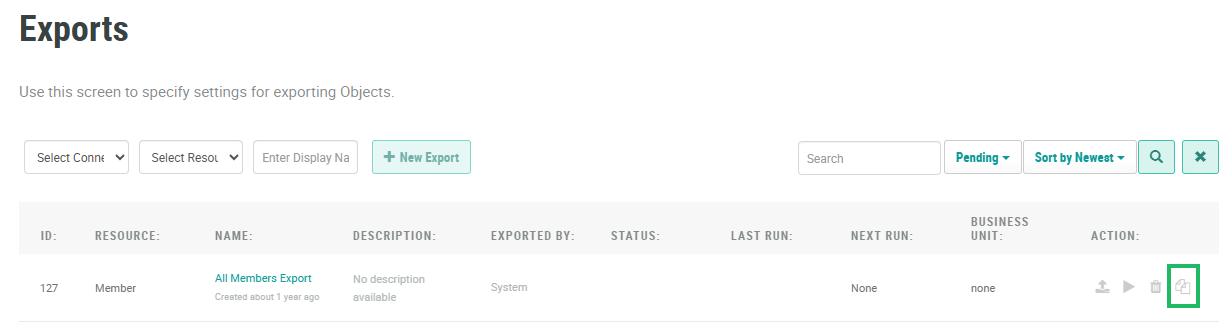
In the Action column next to the desired Export Definition, click the Copy icon.
-
The platform copies the selected Export Definition, and the Export Definition Details screen is displayed. The default name of the new Export Definition is the name of the base Export Definition followed by a counter, such as "(1)" for example. See
See Additional Information below for details on how to edit the configuration of the newly copied Export Definition.
Additional Information
For more information on how to edit or configure an Export Definition, please see the following Help Center articles:
