
 Scheduled Jobs
Using the Scheduled Jobs Screen
Scheduled jobs are a great way for marketers to execute a Marigold Loyalty action, such as sending a batch message as with an annual birthday message, for their customers.
Manage Scheduled Jobs
Use the Admin | Scheduled Jobs screens to manage scheduled jobs on the Marigold Loyalty Cloud Platform. A scheduled job can run one time, or on a recurring schedule (e.g. every Monday at 11:00pm EDT, or on the 30th minute of every even hour). Each scheduled job executes a Marigold Loyalty action (e.g. send a batch message, such as a daily birthday message). The Scheduled Jobs screen prompts you enter the parameters for the selected action, and also optionally pass custom parameters to the action.
Email Notifications
When configuring a Scheduled Job, you can optionally enable email notifications. Email notifications ensure selected users receive detailed and actionable updates about both the job status and the files processed during the job run for both successes and failures. Success notifications will not only confirm that the job ran, but also verify that files were processed successfully, including the "Executed At / Finished At" date and time. Failure notifications will detail information and link to the Scheduled Job.
The platform supports the following types of email notifications:
-
Success with No File Errors: The email indicates the Scheduled Job ran successfully without any file errors, even if no files were present at the time of the run.
-
Success with File Errors: The email indicates the job ran, but encountered file errors. The email provides a link to the Scheduled Job instance for troubleshooting and access to files and logs.
-
Job Failure: The email details the failure, and includes a link to the Scheduled Job instance for error resolution.
|
 Create a Scheduled Job
 Click here
|
 Edit a Scheduled Job
|
|
 Action Type: Tier Expiration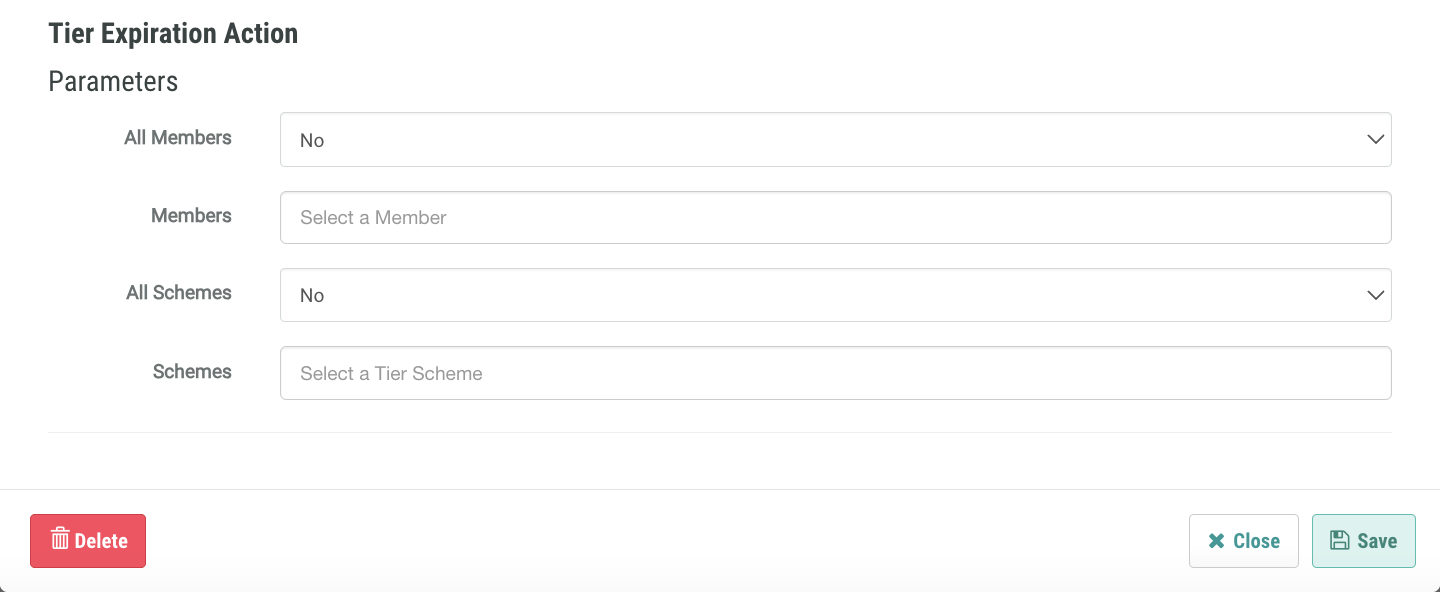
|
 Action Type: Batch Merge Accounts
|
 View Job Executions
|
 Run Now
|
 Refresh Wallet Pass
In addition, the Scheduled Jobs screen has a Calendar view that shows all scheduled jobs in a calendar format.
Cheetah Digital
You can configure personalization details such as member attribute values, metrics, or other activity details in the message configuration of scheduled jobs without the need for scripting. Specifically, this capability applies to scheduled jobs configured to send email via Cheetah Digital for a Grant Anniversary Job or a Send Expiry Notifier Job.
New configuration settings drop-down for Type include Attribute, Metric, Content Token, and Advanced options wherein Advanced allows for a textbox for current scripting options.
Note: For existing scheduled jobs, personalization elements should use the Advanced type to ensure scripting continues to work as expected.
Selligent
Grant Anniversary and Send Expiry Notifier job types feature Selligent as a sending channel option. When the marketer selects the Send Messages via Selligent option, the scheduled job configuration panel will display settings that allow the configuration of the Selligent connector profile, the Selligent journey, the specific language to be used in the message, and personalization parameters.
