Finding Your Way Around in the Interactive Moments Application
Once connected to the Interactive Moments application the following tabs are available:
-
Moments — This tab is where Moments are configured and managed. This step can be done by marketers, using predefined templates.
-
Integration — This tab is where you can find API, GTM and SDK documentation, and where all required settings are configured to integrate the Interactive Moments application with your marketing environment. This includes defining the domains that can send signals, the public SDK and Private API keys to set up a connection, the audiences used, and more.
Moments
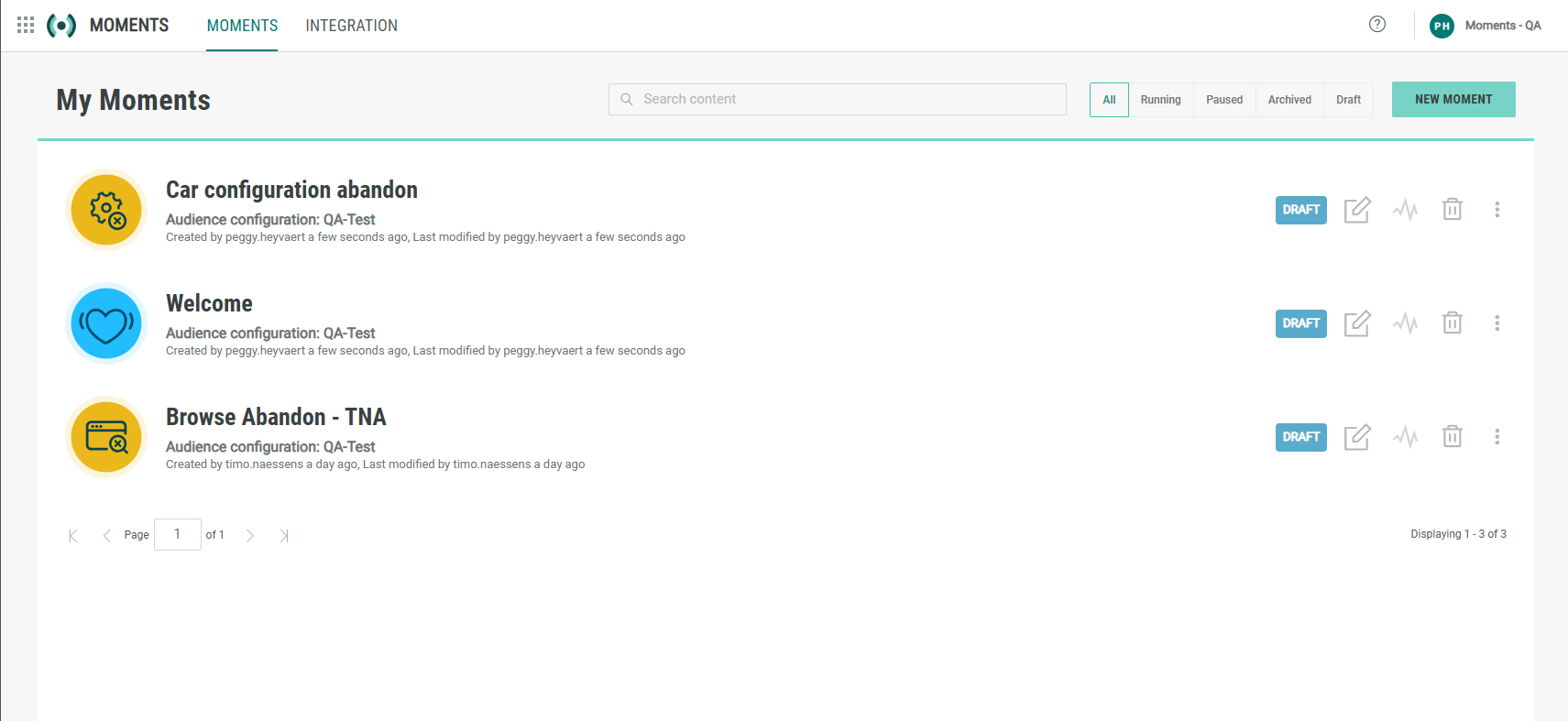
The Moments tab offers a comprehensive overview of all existing Moments, with the most recently updated listed at the top. This allows you to easily see all the Moments currently configured in the environment. For each Moment, key information is provided, including the name, description, creator, last editor, the date of the last edit, and its current status. Additionally, the tab shows the Audience Configuration associated with each Moment.
If no Audience Configuration is available for this Moment, an orange exclamation mark is added behind the name. This happens when the Audience Configuration linked to the Moment, has been deleted.
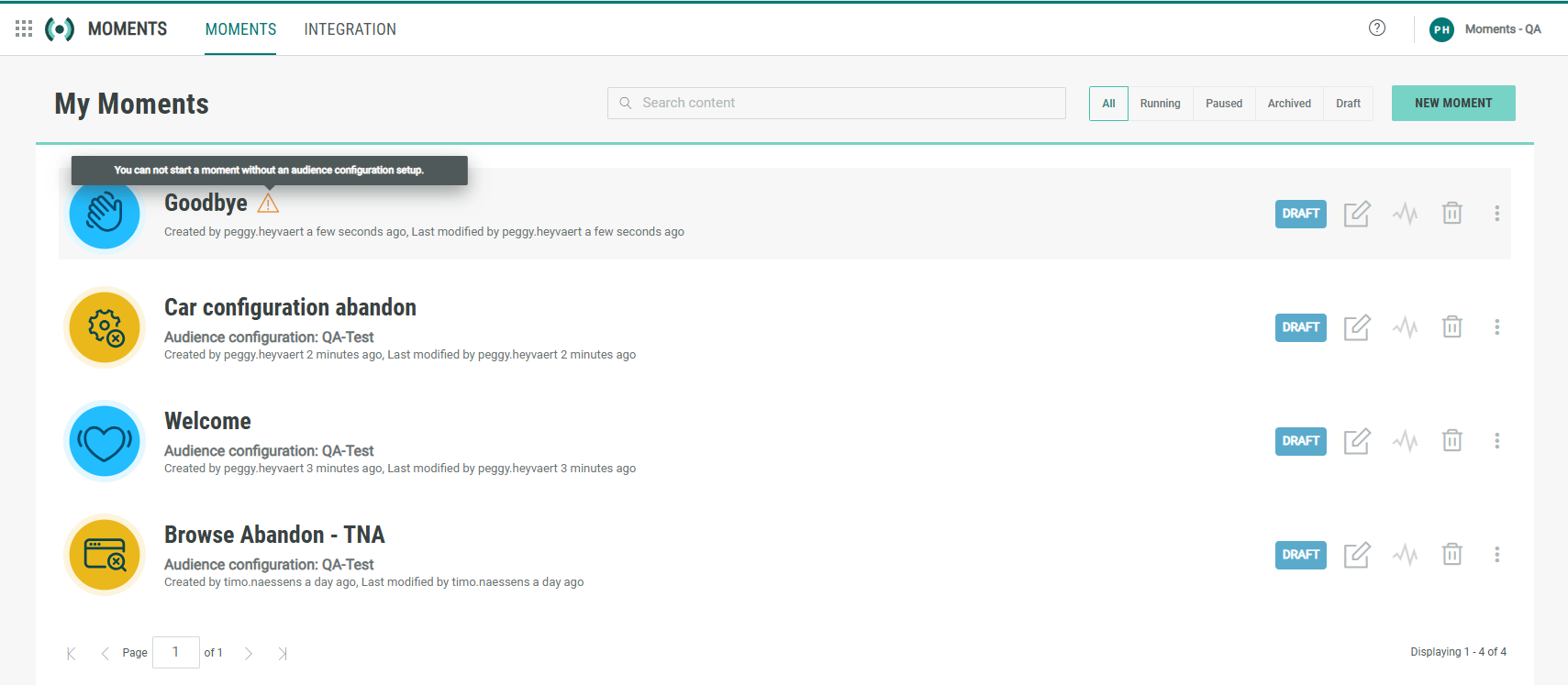
You can use the Filter buttons at the top to narrow down the list based on the status of the Moment.
Pagination allows you to scroll through big lists of Moments, with 10 Moments displayed per page.
From this overview, you can:
-
Search for a Moment. Enter a keyword in the search field to search the list of Moments based on the name.
-
Edit a Moment. This includes changing the name, description, Audience Configuration, duration and status.
-
Delete a Moment. This is only possible for Moments there are in draft mode or archived. It is not possible to delete a Moment that is currently running or that has been stopped.
-
Start a Moment that is in draft mode or has been stopped.
-
Archive a Moment that has been stopped.
-
Restore an archived Moment.
-
Create a new Moment using the button New Moment at the top.
Note: A new Moment can only be created if at least one Audience Configuration exists. If you're unable to create a Moment, start by verifying that an Audience Configuration has been set up.
Integration
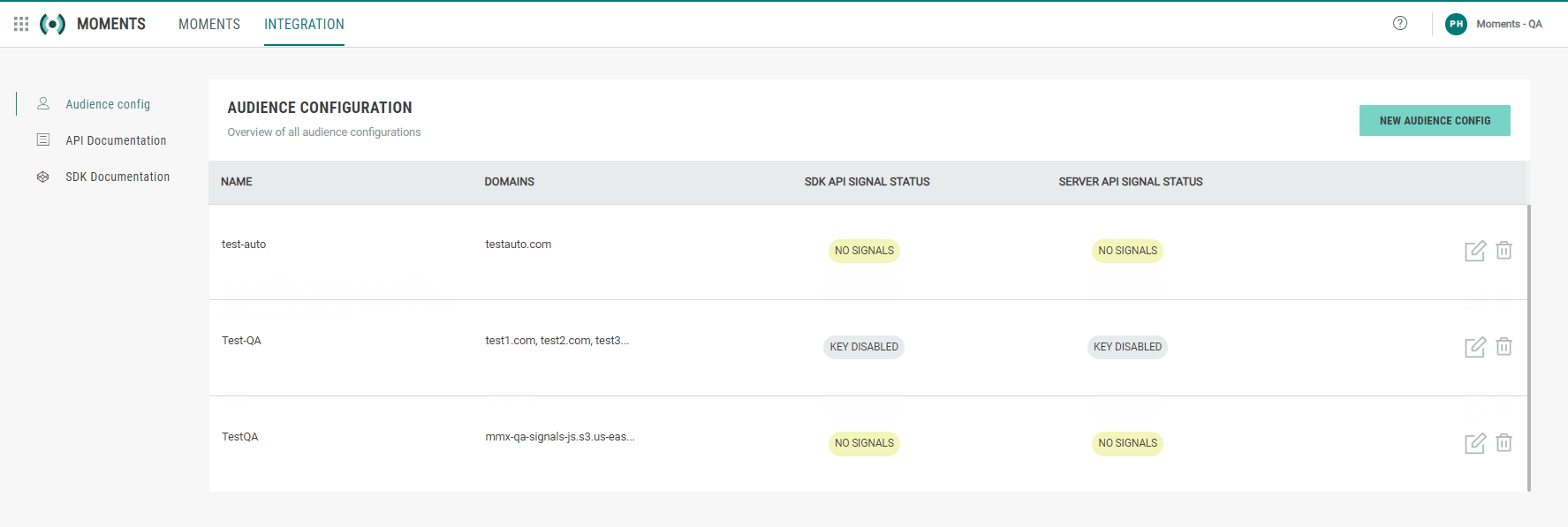
The Integration tab is targeted at administrators and is the go-to place when setting up the integration between Interactive Moments and your marketing environment. Here you will find
-
Direct access to the API documentation.
-
Access to the SDK documentation
-
Access to the Google Tag Manager documentation.
-
Set up of the Audience Configuration, required to map keys, audiences and domains. This configuration defines what domains are allowed to send web signals, which audience in your marketing environment is used to store any data coming from a signal and what keys should be used to send these signals.