You can create Single Batch Journey using a template
- From the Journey entry, through the New/ Single Batch Journey button. (For more info check this topic.)
- From the template itself, by clicking the Single Batch Journey button. You are first taken through the first steps of creating a journey, filling out name and tags. A preview of the template is available.
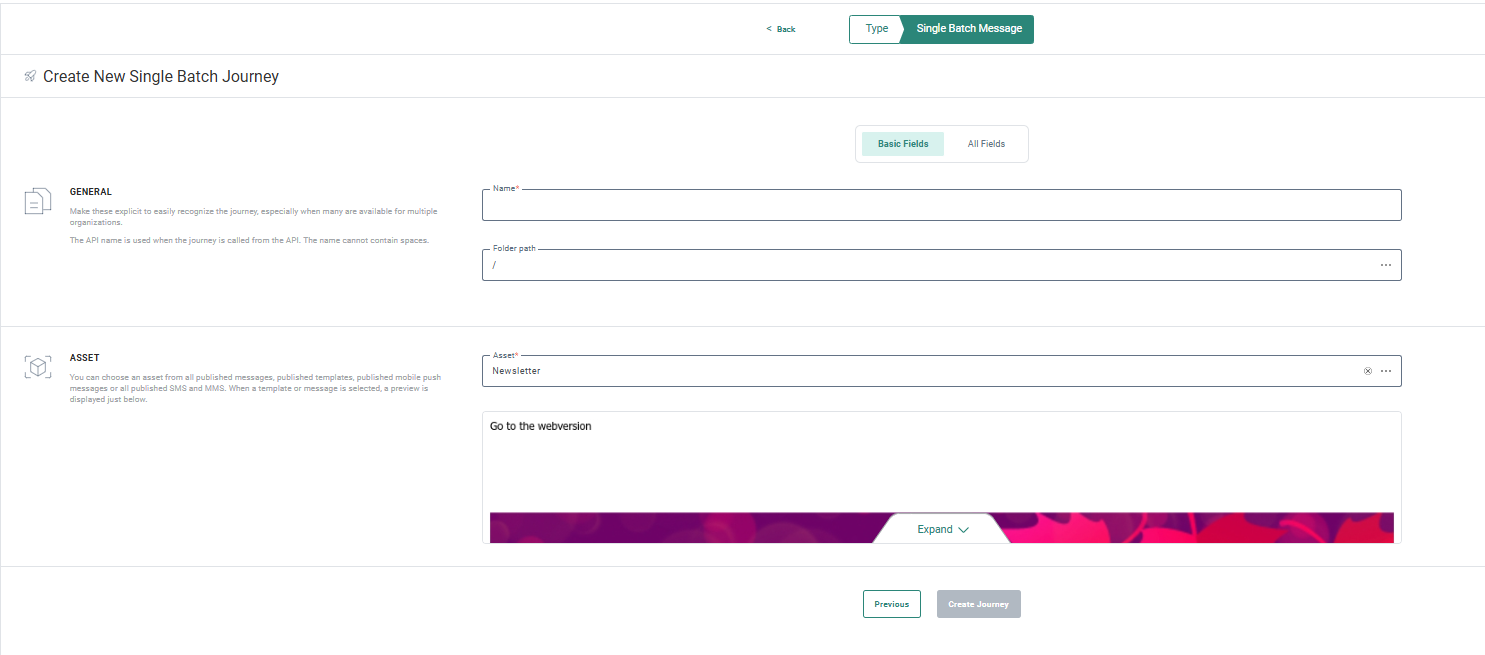
Then the properties of the journey are displayed. If the template is not complete when creating the journey, you are informed.
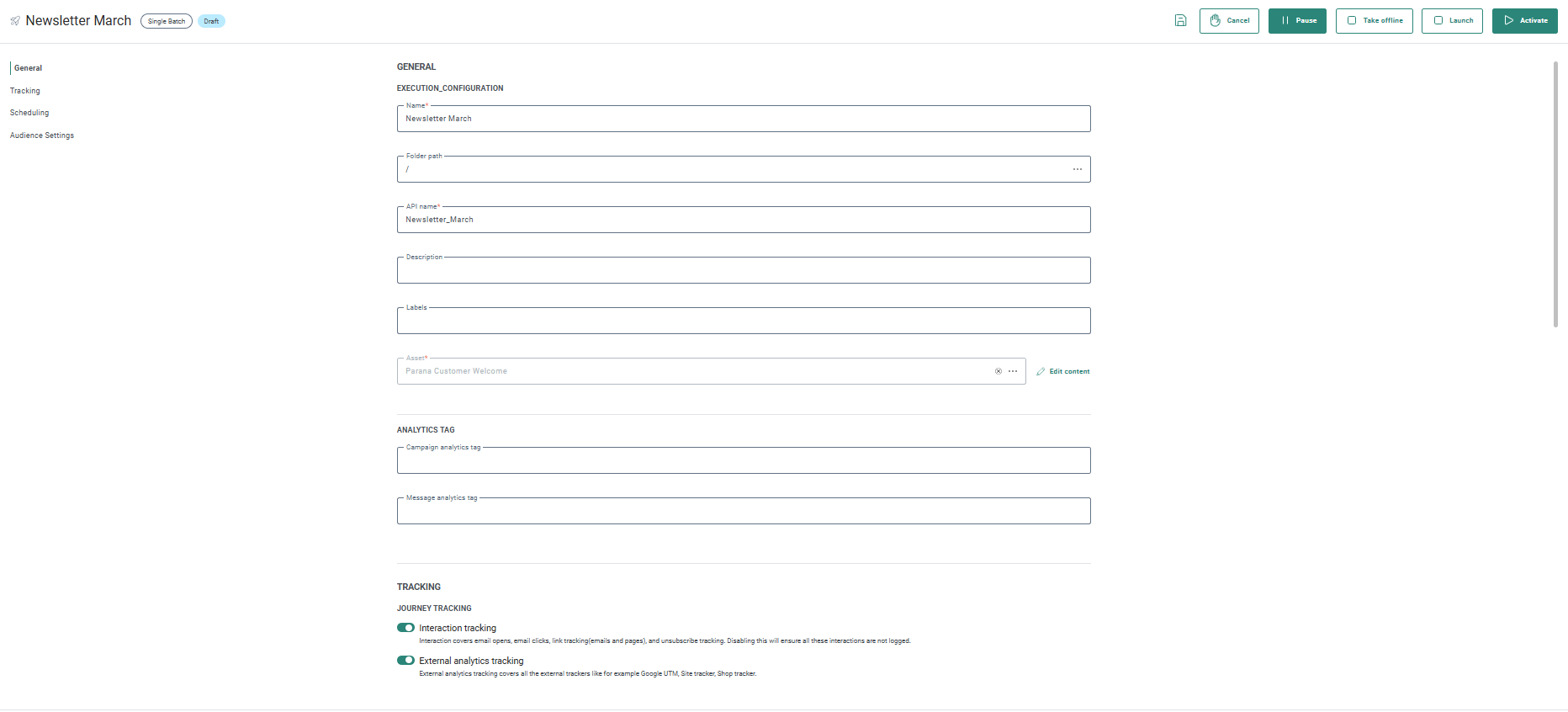
In both cases, click the Edit Content link next to the Asset field in the journey properties page to display the template content and start editing.
Note: When moving away from the journey to the content, you are prompted to either save the changes to the journey, move to the content without saving any changes in the journey or canceling.
Note: When opening a content that uses data selections for which the option 'preload items' is set, but for which no Data imports have been detected, items will be loaded automatically in the message for the marketer to review, edit or complete.
When the opened content uses data selections for which the option 'preload items' is set and for which a Data import has been detected, a dialog is shown with the following message: 'Your data selection list(s)have data imports configured on them. These were last executed after X. Do you want to re-execute them before prefilling your data?'.
If you choose to do so, the data import is executed and when finished, the items are preloaded. While the import is ongoing, a process icon is displayed.
When you create a journey from a template, you can modify some of its content. What you actually can modify is defined on template level through the locking of components. This includes
- Email header fields and constraints when unlocked
- Edit unlocked content components, no layout or constraints, however
- Add new content components to a placeholder
- Create new links
- Fill out variables when they exist in the template
- Add new or existing items to the repeaters using the Item selector
Note: Only applicable for templates with data selections with a data import associated:
When the content uses a repeater with at least one data selection for which preload items is selected and for which a data import has been detected, additional options are available for the marketer to choose from. These can be accessed from the Gear icon in the toolbar. Hover the icon to view the last execution date of the data import. The following options are available from the Gear drop-down: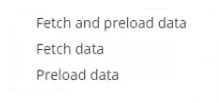
- Fetch and preload data — Triggers the data import for all data selections used in the message for which a data import exists, and then preloads the items when finished fetching the data. This guarantees that the most recent items are used in the message.
- Fetch data — Triggers the data import for all data selections used in the message for which a data import exists. Again, this allows working with the most recent data, for example when manually selecting items through the Item Selector.
- Preload data — Preload the items from your data selection into your message, respecting the filters, sorting and matching defined in the data selection. Once the items are preloaded, the user can edit these. If this option is not available, it means that option was not ticked in your data selection configuration.
Note: When clicking an option, it will be disabled and remain as such as long as the corresponding task is running.
Below is an example of what it looks like when a template is used in a journey:
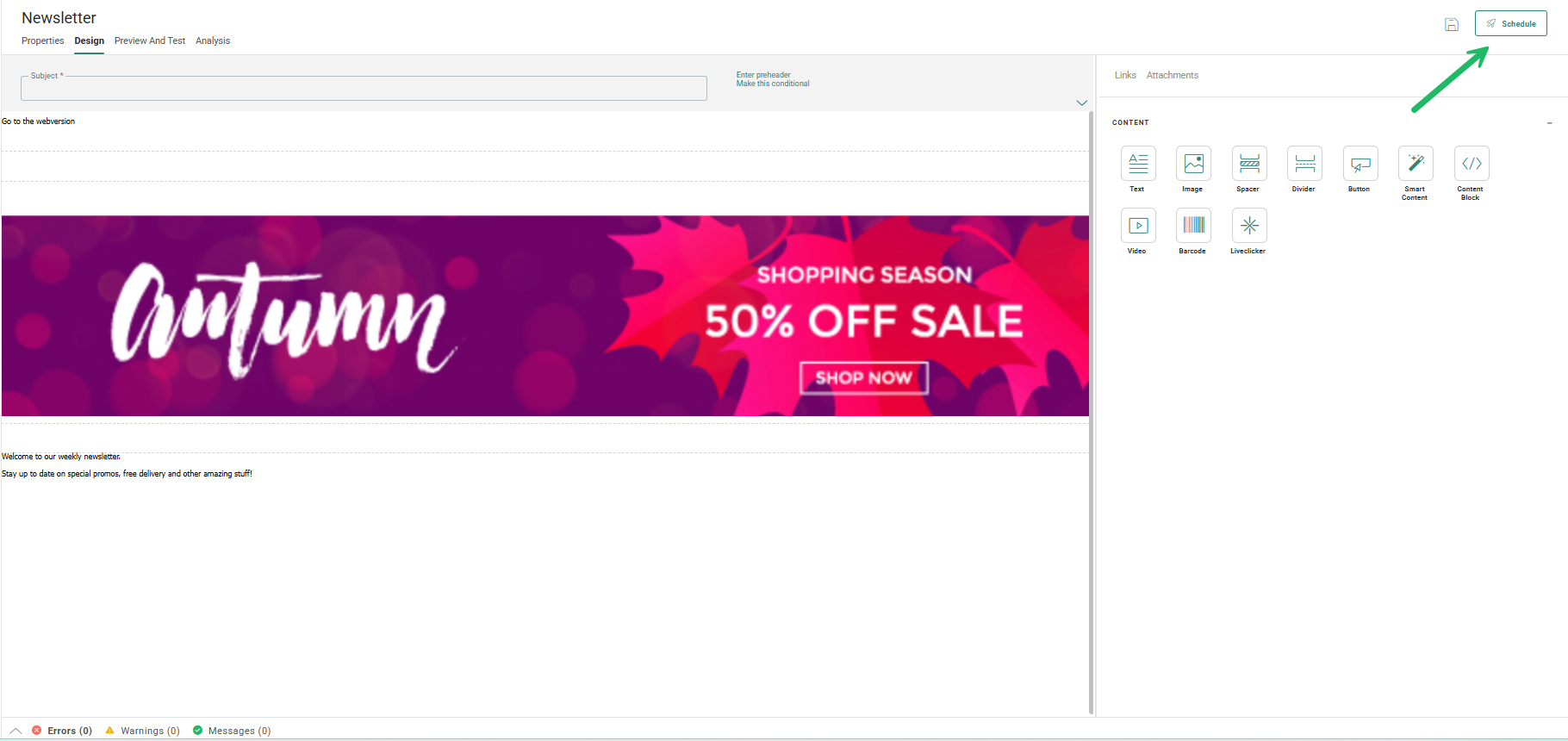
Note: Use the button Schedule in the toolbar to switch back to the journey and its properties.
The Design window contains the email header, design panel on which components can be dropped and some icons that allow a series of actions.