
Test Groups Introduction
Introduction
Quality checks are an important aspect of all marketing campaign. Test Groups consist in general of a small, selected set of contacts that represent various aspects of the targeted audience and can be used to rigorously test your marketing initiatives and strategies, ensuring that campaigns resonate with real, actionable data.
Contacts in these Test groups can be co-workers, but can also include people you collaborate externally with. They can be defined as test-user in the Audience, but can also be a real contact. For example, you are launching a new regional newsletter, for which you worked together with an external agency. You want the agency to be involved in the testing of the email, as well as your internal testing panel of marketing director and designers. Including them in the Test group allows you to preview the message with their data or send a test message before the launch of the journey.
This includes testing the quality of email rendering across different email clients as well as devices. It ensures the email looks good for all recipients, in all languages.
In addition, different variations of the content of the email, subject lines, calls to action, language are tested to determine the ones that resonate the most with the audience. Members of the marketing department as well as from other departments can review the content before sending it to the entire client base, while also making the relevant people aware of the content going out to the customers.
By strategically utilizing Test groups, marketers can refine their tactics, optimize results, and ensure that campaigns are impactful when they launch to the broader audience.
Test Groups comprise two distinct features: Content Test Groups and Seed Groups.
Content Test Groups are used prior to campaign launch to preview, analyze, and send test messages—ensuring everything is accurate before reaching your audience.
Seed Groups, on the other hand, are used to automatically include selected contacts in email communications sent to a specific Audience List. This ensures key stakeholders in your Business unit stay informed and up to date with every campaign that goes out.
Note that Test Groups can also be used for SMS and mobile messages if the relevant channel, i.e. mobile device or phone number, exists for the contacts in the Test Group.
How it works
One or more Test Groups are set up as Static Segments against an Audience List". and different Test Groups can be used for testing different communications.
Test Groups can contain both test users and, real contacts.
Once created, these static segments can then be used in the following way:
-
As a Content Test Group — The content of one specific message is sent to this Test Group for review, test and analysis ahead of the launch to verify information and adjust where required. The email subject line is prefixed with an environment setting (e.g. test ) to indicate a test send and that no information will be tracked. The Test Group is selected on an individual message level and can be different from one message to another. For example, sending the weekly newsletter to the Editors Test Group, while sending the promotional email to the Sales Test Group.
The option to send a test message to the full content Test Group is provided in the preview of the message. -
As a Seed Group — Seed Groups come into play when the journey is launched. When the option is activated for a static segment, that Test Group serves as a Seed Group and contacts in this Test Group can be included in all communications that have the option Send to all Seed Groups activated matching the Audience List to which the Test Group is linked. This allows you to include certain members of the Business unit and make them aware of any communication that is happening. The email subject of these emails is preempted with seed and no interaction is tracked. (Note that this preempted subject is a setting that is defined in your environment. However, if this setting was already used to define the subject for test emails, this same value will also be used for the seed group). The option to include Seed Groups in the communication is defined on journey level.
Preparing the Content Test Group and/or Seed Group
Both Test Group types are created in the same way as any other static segment.
You can have more than one Test Group configured on the audience.
-
Marking a static segment as a Content Test Group makes it available in the Preview and Test section of a message.
-
Marking a static segment as a Seed Group ensures this Test Group is by default included in all campaigns that have the option Send to all Seed Groups activated.
1. To create a Test Group, go to the Audience List for those contacts and click New Segment/Static Segment:

2. The Segment creation wizard is displayed. For more details on the different options for a static segment, check out this topic. The options specific to the Test Group are listed below:
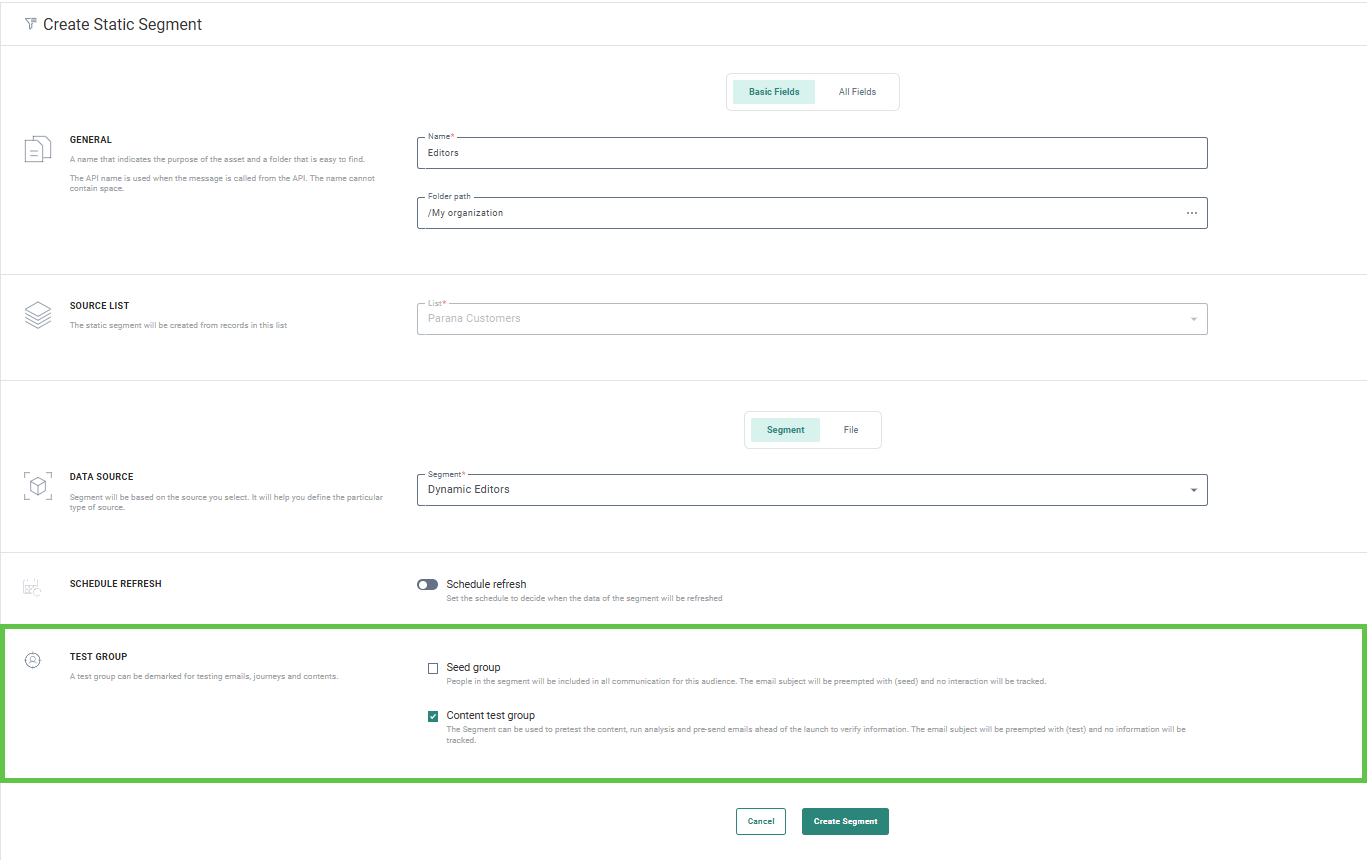
3. Check the option Seed Group, to include the contacts in the static segment in any communication that has been configured with Send to all Seed Groups activated, or that has been configured to include this specific Seed Group. This means that setting a static segment as a Seed Group still requires additional options to be set on journey level for the contacts to receive these communications.
Check the option Content Test Group to make this Test Group available in the Preview & Test section of a message and to pre-test, analyse and pre-send the email ahead of the launch.
Note: It is advised to use this feature with care and ensure all contacts in the Seed Group are eligible to receive communications.
4. When done, click Create Segment:

5. The segment is now listed in the Segments tab of the Audience List. Depending on the options selected for the Test Group, it will be listed with type 'Seed group, Content Test Group'. Use the filter buttons at the top to filter out the Test Groups or Seed Groups.

Note: At any time, you can update an existing Static segment and add or remove selected Test Group options from the Properties tab: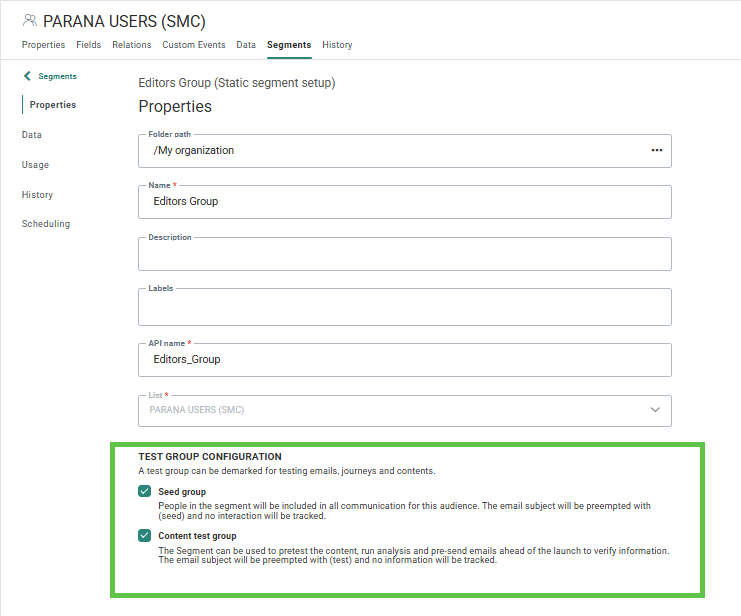
Using the Test Group as a Content Test Group
Once the Content Test Group has been created, it becomes available for use in the Preview & Test section of your message content. You can use the Test Group to preview the message, send test messages or include them in the email analysis. For more information , refer to the relevant topics
To use the Test Group in the testing of your messages, follow these steps:
1. In the Preview & Test section of your message, go to the email properties on the right and, under Configuration, select first the Audience List. You then have access to all Test Groups linked to that Audience. Select one from the List.
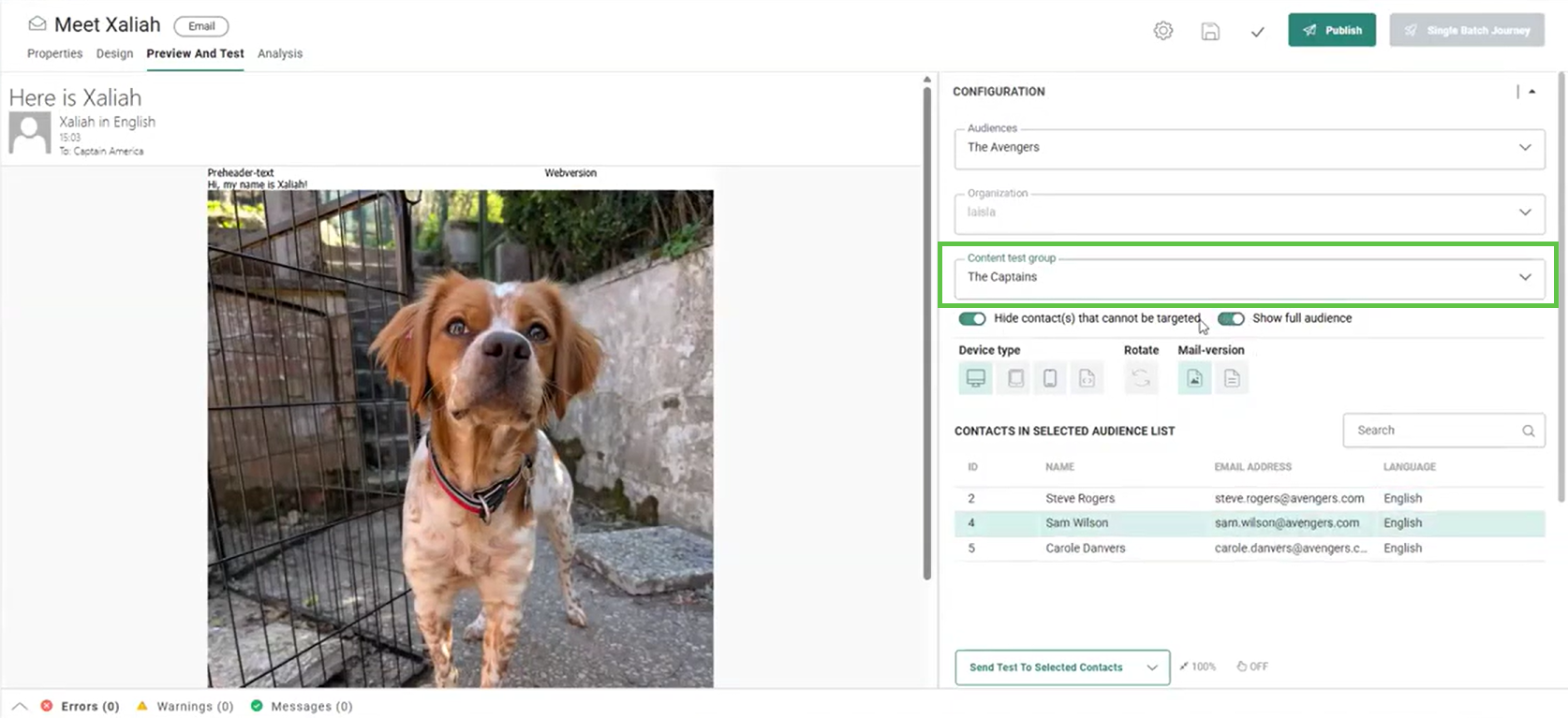
Contacts in the selected Content Test Group are now listed. By default, only contacts marked as test-user are shown. To list ALL the contacts, activate the option Show full audience.
Note: In case of a shared Audience List, selecting an Business unit will impact the contacts listed for the selected Audience List and Test Group. Only contacts that are shared with that Business unit will be listed. For more details, refer to the relevant topics on previewing messages.
2. To send a test message to all the contacts in the Content Test Group, click the button Send test to full Test Group. This will target all the contacts in the Content Test Group with a test email with subject 'test'. (The subject of the test email is a setting defined for the environment)
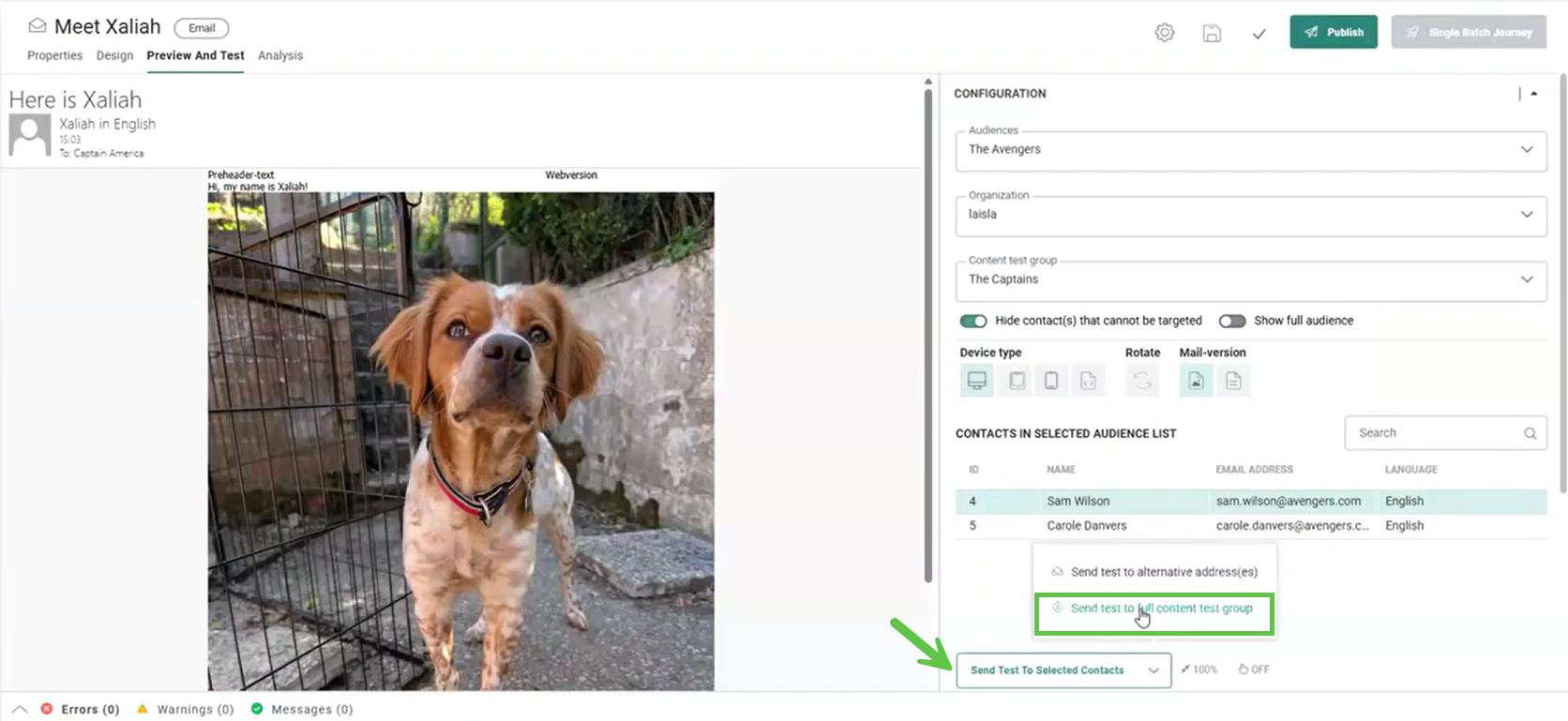
3. The following pop-up is displayed to define additional options for the language. By default, the test email is sent in the language of the contact. However, if you want to test specific languages of the message, toggle the option Send in different languages on and select the languages in which the message should be sent.
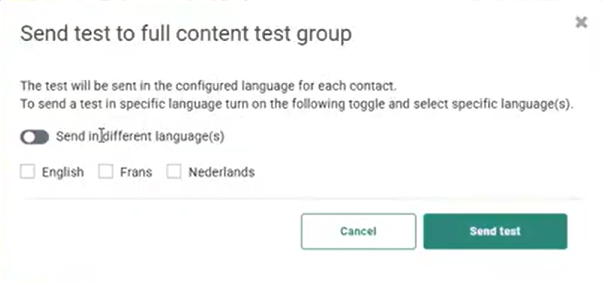
Note: When selecting the specific languages to test, all contact in the Content Test Group will receive the message in those specified languages. (Example: if English and French is selected, every contact will receive the message twice, in English and in French, even if their language is neither of those).
Using the Test Group as a Seed Group
When a Test Group is marked as Seed Group, the contacts in this Seed Group will by default be included in any communication for the linked Audience List when the journey is set up with the option Send to all Seed Groups activated. Or, when the Seed Group is specifically mentioned in the Journey options. This allows you to include stakeholders in any communication sent to your customers, without having an impact on your reporting.
These options are set on journey level:
Single Batch, Custom, Recurring Batch and A/B-Test Journeys
During the creation of a journey, Seed Group specific options are provided in the wizard:

To send the communication to all Seed Groups linked to the journey audience, activate the option Send to all Seed Groups.
To only include specific Seed Groups, toggle the option off, and select specific Test Groups in the field below:
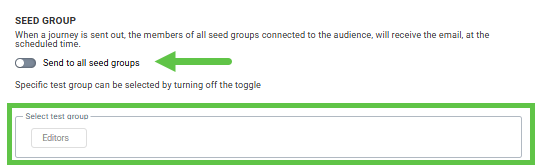
These options are also available , in the properties of the journey, once created
Recurring Batch and Custom Journey specific options
In a Recurring Batch Journey wizard, there is an additional option to specify if the same message should also be sent multiple times to the Seed Group. When activated, the message will be sent to the selected Seed Groups every time the journey is scheduled for execution. Messages scheduled for execution within less than an hour, are only sent once per hour to the Seed Group:

These options are also available after creation, in the properties of the journey.
Note: For Custom Journeys, this option is only applicable when a Recurring Batch Entry Component is used in the journey. When activated, the option applies to all the messages in the Custom Journey.