
Configure an Email Campaign: Status
Note: The Status section isn't enabled until the Campaign is launched.
This tab includes all the post-launch operations, such as to stop or pause the Campaign, and to run the Pickup Changes process.
The features and options available from the Status tab are described below.
If you need to move back to the Review tab, click previous at the bottom of the screen, or click the Review tab.
Review & Approve
If you enabled any of the approval steps when you launched the Campaign, you'll need to approve that step before the launch process can continue. The Review & Approve sub-section allows you to review Campaign counts and stats, and then approve any launch steps that are awaiting approval.
Review campaign launch counts
After you launch a Campaign, the platform progresses through the campaign deployment steps. The counts and statistics generated by the launch process are displayed within the Review & Approve sub-section.
 read more
For Event-triggered and Date-triggered Campaigns, the platforms displays historical stats near the top of the screen. These stats show:
-
Last Run: Number of messages deployed the last time the Campaign executed.
-
Last 24 Hours: Number of messages deployed in the last 24 hours.
-
Total Sent: Number of messages deployed by the Campaign over its total lifespan.
Additional information is available in the Statistics and Progress section.
Approve a launch step
Cheetah Digital allows you to set optional approval checkpoints during the launch process. These checkpoints are displayed on the Status screen, and are generally intended to be used during the initial launch of the Campaign, so you can review audit statistics of a launch step. When you approve that step, the platform then proceeds to the next step. The steps are:
read more
-
Content Calculation: Confirm the stats before letting content calculation begin.
-
Personalization: Review the dynamic content permutations before letting personalization begin.
-
Sending: Require approval of the overall Campaign before sending messages.
To approve a launch step:
-
From within the Status tab, go to Review and Approve section.
If your Campaign contains Cells and Splits, click 3. Setup and Launch Campaign. Then choose either a specific sub-cell (to approve a launch step for only that sub-cell), or a parent cell (to approve a launch step for all its sub-cells) from the Cell Tree in the left-hand pane.
-
Click Approved next to the step that's awaiting approval. A warning dialog is displayed. Click ok. The Campaign then proceeds with the next step in the launch process.
If your Campaign contains Cells and Splits, and you chose a parent cell above in step 1, you can approve a step for a parent cell, which automatically approves all sub-cells beneath that parent cell.
Unapprove (pause) sending step
After a Campaign has launched and begun deploying, you can optionally use the Sending approval checkpoint as a way of pausing message deployment. Essentially, you are “unapproving” the Sending step that you previously approved, in order to stop the Campaign from sending.
read more
When you unapprove the Sending step, the system immediately stops sending messages, but continues to queue any new triggered messages, and continues to collect activity data (opens, clicks, etc.) on any messages previously deployed. The status of the Campaign is changed to “Pending Approval.” The Sending step can later be re-approved in order to resume sending. Unapproving the Sending step is typically done when you need to make changes to an active Campaign via Pick Up Changes, you want to queue records while suspended, and you intend to later resume the Campaign.
If you unapprove the Sending step in a triggered Campaign, the platform continues to “listen” for trigger occurrences while the Campaign is in a suspended state. Any triggers that occur while suspended will be captured, the messages will be queued, and the platform will send those messages after you re-approve the Sending step.
Note: Even if you click all Unapprove buttons, the system will still continue to queue any new triggered messages.
To un-approve the steps:
-
From within the Statustab, go to Review and Approve section.
If your Campaign contains Cells and Splits, click 3. Setup and Launch Campaign. Then choose either a specific sub-cell (to un-approve sending for only that sub-cell), or a parent cell (to un-approve sending for all its sub-cells) from the Cell Tree in the left-hand pane.
-
Click Unapproved next to the required approval step. If you have unapproved the Sending step, the Campaign will pause sending messages.
-
If your Campaign contains Cells and Splits, and you chose a parent cell above in step 1, you can un-approve sending for a parent cell, which automatically un-approves sending for all sub-cells beneath that parent cell.
Edit link URLs
Cheetah Digital allows you to modify the links within the Campaign after the Campaign has been launched. This feature should be used with caution, as changing links will immediately modify the live link-tracking module data, and will begin to redirect recipients to the new URL. Please note that using this feature will not change the content of the Campaign; to change the content, you must use the Pick Up Changes feature instead.
read more
If your URL contains Merge Symbols, the platform imposes certain restrictions on what you're allowed to modify post-launch. You can change any of the static portions of the URL, as well as any parameters sent within the URL. You can't change anything related to the Merge Symbols, including their sequence, or the number of Merge Symbols; this means that you can't switch the Merge Symbols around, or add / remove a Merge Symbol.
For example, let's say the original URL is as follows:
https://www.cheetahdigital.com/store?utm_source=cheetah&utm_medium=email&mi_ecmp={(campaignid)}&utm_campaign=20180525_promo&om_rid={(customer_id)}&utm_content=3
This URL contains two Merge Symbols -- "campaignId" and "customer_id." You could make changes to any other aspect of this URL, except for those two Merge Symbols. The revised URL must still contain those exact same two Merge Symbols, with the same names, and in the same sequence. You can't remove them, or add a new Merge Symbol, or flip the sequence of these two Merge Symbols.
To edit link URLs after the Campaign has launched:
-
From within the Status tab, go to Review and Approve section.
If your Campaign contains Cells and Splits, click 3. Setup and Launch Campaign. Then select the desired cell from the Cell Tree. You must select a cell that has already deployed in order to use the Edit Link URLs feature.
-
Click the Edit Link URLs link. The Post-Launch: Edit Link URLs pop-up window is displayed, showing all of the links being tracked within this Campaign.
-
Place a check mark next to the URL that you want to modify. The URL text field becomes editable.
-
Enter the new URL.
-
Repeat the above steps as needed to modify additional URLs.
-
Click Save Link URLS.
Statistics and Progress
After you launch a Campaign, you can view statistics and status information regarding each step in the Launch process. The various tabs here include:
read more
-
Audience Processing: This tab provides details on the Audience record quantities, starting with the number of records selected by the Campaign's Audience Filter. Next, the platform identifies how many Audience Filter records were determined to be "Non-mailable" and the reason why. Possible reasons for being non-mailable are banned addresses, blank or invalid contact information, or being part of an Exclusion List. The resulting number shows how many messages have been queued.
-
Message Processing: This tab shows the results of each step in the launch process -- Message Creation, Content Calculation, Personalization, and Sending. The details include the status of each step, the start and end timestamps, and the record quantity.
Optionally, click the down-arrow icon next to a step to view detailed statistics for that step. If your Campaign contains Cells and Splits, you can expand a single sub-cell to view the processing status details for just that sub-cell.
For Email Campaigns, the platform can optionally be configured to display Merge Error counts next to the "Sending" count. Merge Errors refer to records that weren't successfully deployed because of issues such as a malformed email address or an incorrect domain. These errors aren't identified until after the message is assigned a "send time," which can cause inaccuracies in the "Sending" count. Please note that these counts aren't available for Campaigns that use the Advanced Event Trigger API as the Trigger Type.
Note: The Merge Error counts are calculated as part of the Campaign Report process; therefore, in order to see the Merge Error counts in the Message Processing section, the Campaign Report must be created. See "Configure Report Settings" on the Email Campaign Help topic for details on how to set the auto-generation schedule for the Campaign Report.
Note: The Merge Error count is an optional feature that must be enabled in your account. Please speak to your Client Services Representative for more detail on how to enable this feature.
-
Message Versions: This tab shows the number of Dynamic Content variations within your message, and how many recipients will receive each variation. Next to the desired content variation, click Preview to view it.
Also, if this Campaign was modified post-Launch via the Pickup Changes functions, the system adds a record to this section, with the date and time of the change.
-
STO: This tab provides insight into the distribution of messages sent by hour in the STO duration, for Email Campaigns with STO settings. It helps to visualize how many messages are sent during each hour of the day, based on the optimized send times determined by STO. This chart allows you to analyze the effectiveness of your send schedules and better understand when your audience is most likely to engage with your content.
The first bar shows the count of users who were sent the mails at the start of the send window. This group includes both users with STO time set as the start send time and those with STO time set 2 hours before the start time.
The last bar shows the count of users who were sent the mails at the end of the send window. This group includes both users with STO time set as the end send time and those with STO time set 2 hours after the scheduled end time.
Details
The Details sub-section displays key information about the Campaign, such as the schedule, Filter, Seed List, Subject Line, etc.
To review the Campaign details:
read more
-
From within the Status tab, go to Details section.
If your Campaign contains Cells and Splits, click 3. Setup and Launch Campaign. Then choose either a specific sub-cell (to review details for only that sub-cell), or a parent cell (to review details for all its sub-cells) from the Cell Tree in the left-hand pane.
-
The summary of the Campaign details are displayed here.
If your Campaign contains Cells and Splits, and you selected a parent cell above in step 1, you can review the details for all the sub-cells beneath this parent cell. Click the Cells and Splits Details link. The Cells and Splits Details pop-up window is displayed. This window lists every sub-cell beneath the selected parent cell. If you scroll to the right, the window displays every Campaign element being tested, and how that element is configured for every sub-cell. When finished, click ok.
-
Optionally, click the link next to Report to navigate to the Campaign Report for this Campaign.
Other Options
Other operations that can be performed in the Status tab are described below.
Run pick up changes
The Pickup Changes feature allows you to make modifications to a launched Campaign while messages are in the process of being deployed. These changes will then be applied to all unsent messages.
read more
You must suspend the Campaign before you can run Pickup Changes. The only exception to this rule is an Event-triggered Campaign that uses Advanced Event Trigger as the Trigger Type; in that one scenario, you don't need to first suspend the Campaign before running Pickup Changes.
Note: Any messages that have already been created and sent can't be retrieved.
For Regular One-Off Campaigns, you can change the Campaign schedule and content; however, you can't change the Filter once the Campaign launches.
For Event-triggered and Date-triggered Campaigns, you can change any aspect of the Campaign, including the Audience Filter.
If your Campaign contains Cells and Splits, click 3. Setup and Launch Campaign.
To modify a launched Campaign:
-
Make any necessary changes to the Campaign schedule and / or content, then click Save in the Tool Bar.
-
Click Suspend Campaign at the bottom of the screen. A confirmation dialog box is displayed. Click Suspend.
-
Now click Pickup Changes (alternatively select Pickup Changes from the Actions menu in the Tool Bar). Please note that this option is disabled if you don't first suspend the Campaign. A confirmation dialog box is displayed.
-
Click Save then Pickup Changes or Pickup Changes without Saving. When the Pickup Changes process is completed, a notification is displayed at the top of the screen.
-
Click Resume Campaign at the bottom of the screen to resume the Campaign with the changes made. A confirmation dialog box is displayed. Click Resume.
To view the change log for this Campaign, including the date / time of the change and other details, click Versions tab in the Statistics and Progress section.
Suspend / Resume a Campaign
When you suspend a Campaign, Cheetah Digital immediately stops queueing messages, and stops sending messages. The platform will continue to collect activity data (opens, clicks, etc.) on any records deployed prior to you suspending it.
read more
If you attempt to suspend a Campaign while it's still in the message creation phase, the platform will complete message creation before suspending the Campaign.
In a Split Cell Campaign, you can suspend sending from the top-level Campaign (encompassing all cells), or from only a selected cell. If you suspend at a cell level, the platform suspends sending from all child cells beneath it.
The status of the Campaign is changed to Suspended. This Campaign can later be resumed. Suspending a Campaign is typically done when you need to make changes to an active Campaign via Pickup Changes, and you intend to later resume the Campaign.
For more details on all the available options for stopping a Campaign, please see Stop Campaign Deployment.
Suspend a Campaign
To suspend a Campaign:
-
From within the Status tab, click Suspend Campaign at the bottom of the screen.
If your Campaign contains Cells and Splits, click 3. Setup and Launch Campaign. Use the Cell Tree to navigate to the desired cell (or to the top-level Campaign) from which you want to suspend sending.
Please note that for Email Campaigns, this button is disabled if the Campaign setup process is currently running. When this process is complete, the button will be enabled.
-
In the displayed confirmation dialog box, click Suspend. The queuing and sending of messages are stopped immediately.
Suspending a Triggered Campaign
While an Event-triggered or Date-triggered Campaign is in a suspended state, no messages will be sent, and the platform will not add new records to the processing queue. So, for example, if the Recurrence Frequency occurs while a Date-triggered Campaign is suspended, those records won't be added to the queue. Those records will essentially get "skipped," even if you later resume the Campaign.
Conversely, any existing records that were in the processing queue at the moment you suspend the Campaign will remain in the queue. If you later resume the Campaign, those queued records will get deployed. Suspending a triggered Campaign just stops the new triggered records from being added to the queue.
Resume a Campaign
To resume a Campaign:
-
From within the Status tab, click Resume Campaign at the bottom of the screen.
If your Campaign contains Cells and Splits, click 3. Setup and Launch Campaign. Use the Cell Tree to navigate to the desired cell (or to the top-level Campaign) from which you want to resume sending.
-
Click Resume, in the displayed confirmation dialog box.
Stop a Campaign
When you stop a Campaign, the system immediately stops queueing messages, and stops sending messages. Any messages currently in the queue at the moment you click Stop are recorded, and the platform will retain history of the fact that these messages were “queued but not sent.” The platform will continue to collect activity data (opens, clicks, etc.) on any records deployed prior to you stopping it.
read more
To stop a Campaign, from within the Status tab, click End Campaign at the bottom of the screen. In the displayed confirmation dialog, click Stop Campaign.
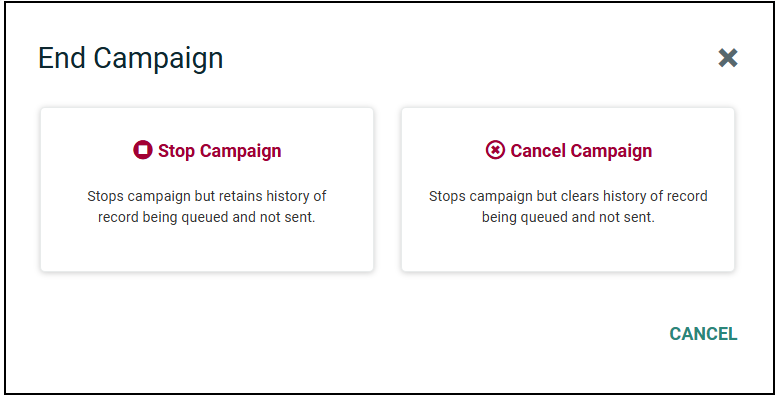
The status of the Campaign is changed to Done. This action can’t be undone, and the Campaign can’t be resumed later.
Note: If your Campaign contains Cells and Splits, please note that using the End Campaign option will stop the entire Campaign.
Cancel a Campaign
When you cancel a campaign, the system immediately stops queueing and sending messages. Any messages that are in the queue at the moment you click Cancel are removed, and Cheetah Digital does not retain any record that these messages were 'queued but not sent.' However, it will continue to collect activity data (opens, clicks, etc.) for any messages that were sent before the Campaign was canceled.
read more
To cancel a Campaign, from within the Status tab, click End Campaign at the bottom of the screen. In the displayed confirmation dialog, click Cancel Campaign.
The status of the Campaign is changed to Canceled. This action can’t be undone, and the Campaign can’t be resumed later.
Note: If you delete a launched Campaign by moving it to the Recycling Bin, the system automatically changes the status for this Campaign to Canceled. Even if you later restore the archived Campaign from the Recycling Bin, you still can’t resume it.
For more details on all the available options for stopping a Campaign, please see Stop Campaign Deployment.
Note: If your Campaign contains Cells and Splits, please note that using the End Campaign option will stop the entire Campaign.
