Journey Settings
Journeys is a great way to visualize the ideal customer experience that you have designed. However, in order to run your Journey, other Marigold apps will need to be configured. These configurations enable your Journey to: Listen to the customer behavior, read sources of customer data in order to personalize a customer’s journey, and to send contents to influence them towards your Journey's intended outcome.
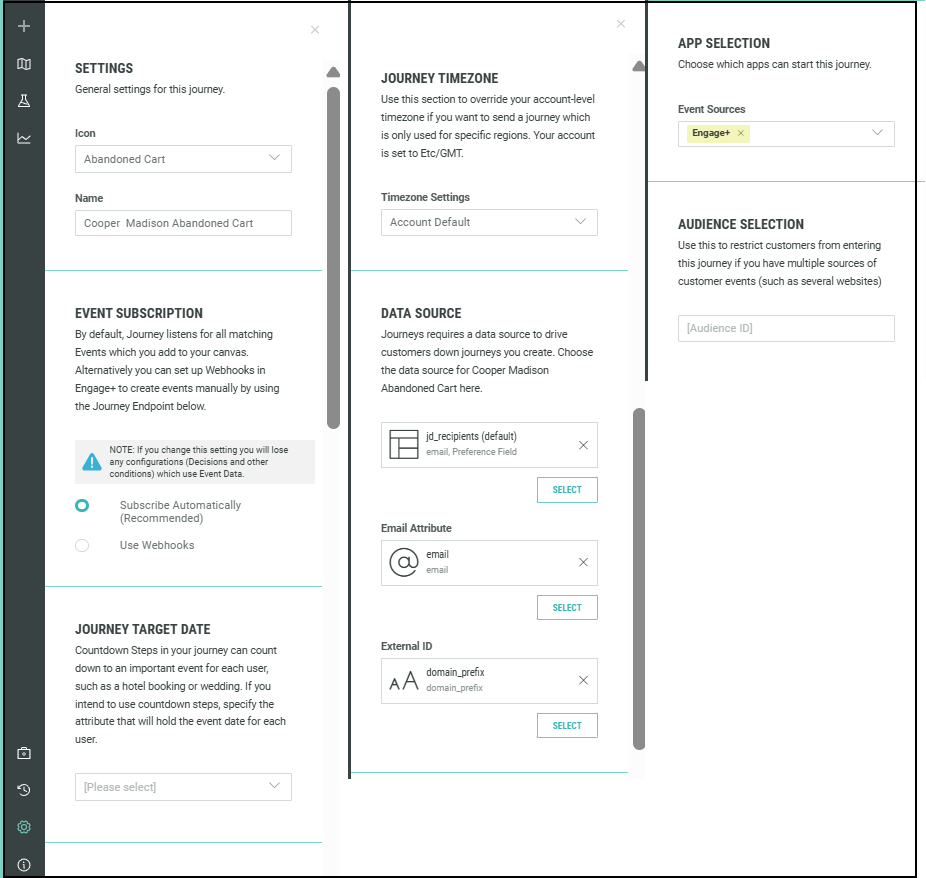
The Journey must be configured with the correct settings. From the left menu, select Journey Settings. These settings are specific for the Journey, and will override any settings made at the account level.
Once you have made the appropriate settings as below, click Apply in the upper-right to save the changes to continue editing the Journey.
Icon
This icon will be displayed when the Journey is listed on the home page. By default, the icon corresponding to the template is selected.
Name
Displays the name given during creation. Use this field to rename the Journey if needed. A meaningful name that reflects the purpose and helps to identify the Journey.
Event Subscription
Enables the configuration of how events are subscribed to throughout your Journey.
Whenever a customer performs certain actions in Marigold applications and your other integrated marketing platforms such as websites, they are identified as Events. Journeys waits to be told about these events by the other Marigold apps, like Cheetah Digital and Marigold Moments. These apps are known as Producer apps.
The Producer apps need to be configured to send the event data to Journeys based on the occurrence. These producer apps need to be configured to send data to Journeys based on a trigger. Journeys will receive Event data whenever a customer performs an action that triggers an event, and accordingly the customer is placed at the start or taken to alternate paths in the Journey.
Events can be used to place a customer into a Journey, guide them to an alternate path within a Journey, or even have them start another Journey based on their actions. Journeys provides a predefined list of common events for you to choose from. Similar events (e.g., a purchase) are grouped into event types.
You can configure your Journey steps to be based on these predefined Events and take the customer through an intended path to exploit opportunities based on the customer behavior.
Note: Ensure that an Event Map with this event type is available in Cheetah Digital, and Moment is available in Interactive Moments, based on the application selected for the Journey. Without the corresponding Event Maps and/or Moments (based on your app selection), your Journey will not start or function as intended.
The Journey uses events from your selected applications (Cheetah Digital, Marigold Moments). These events can be subscribed in your Journey using the following options:
Subscribe Automatically: This method listens to all the relevant events from the producer apps. It is intended to be more efficient and less sophisticated than the Webhook method.
Note: Contact your Marigold representative to provision Event Maps in your account. Refer Event Maps for more details.
Note: Refer the prerequisites instructions here to setup Marigold Moments.
Use Webhooks: Webhooks allow the creation of highly customizable events, based on any trigger within Cheetah Digital. They offer more flexibility than Event Subscription, but also involve a complex set up. Fortunately, many of the settings are the same and are reusable.Webhooks are created in a manner similar to campaigns, though they do not necessarily involve sending messages. Instead, they serve as a communication mechanism, typically used to transmit data between Cheetah Digital and another database or application - in this case, Journeys. Once configured, a Webhook is triggered by a specified event, such as a link click, form submission, or web activity. When the event occurs, the platform initiates the Webhook campaign and sends an HTTP request—containing event-specific information formatted in JSON, to the designated application.
This method utilizes JSON code and programming to signify triggers. Copy the Request URL and the Journey Run ID (only available after the publish) from the settings pane to use in your webhooks JSON code.
Refer Advance Configuration > Webhooks to learn more about using Webhooks in Journeys, and Webhooks to create them in Cheetah Digital.
Journey Target Date
Select a target date for your Journey. The Countdown steps in your Journey can count down to an important event for each user, such as a hotel booking or wedding. If you intend to use Countdown steps, specify the target date or attributes that will hold the event date for each user.
You can specify the target date using the following data:
-
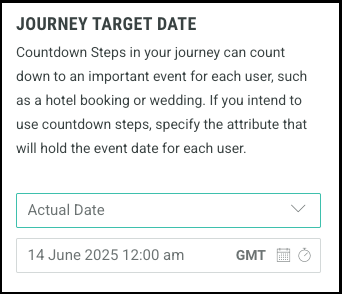
Actual Date - a specific date/time for all customer
-
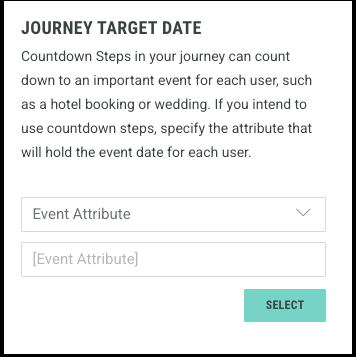
Event Attribute - data based on your Start event
-
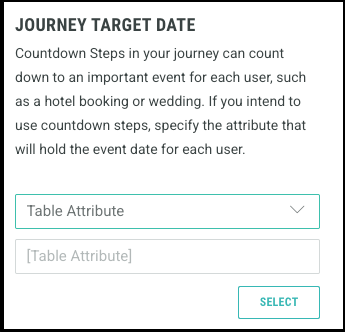
Table Attribute - data from the source table you are using for this Journey
Setting the Journey Target Date from an Actual Date
-
Go to Journey Settings and scroll to Journey Target Date
-
Select Actual Date.
-
Enter the Date and Time you want as your target date for all customers.
Setting the Journey Target Date from an Event Attribute
-
Go to Journey Settings and scroll to Journey Target Date.
-
Select Event Attribute from the drop-down list.
-
Click Select to open the attribute selector.
Note: All the Event Attributes listed here are based on the event selected in your Start step.
-
In the Attribute Selector popup window, choose the required Event attribute to define your target date.
-
Click Select to confirm your selection. The attribute is displayed in the Journey Target Date section.
Setting the Journey Target Date from a Table Attribute
-
Go to Journey Settings.
-
Scroll to Journey Target Date.
-
Select Table Attribute.
-
Open the attribute selector.
-
Choose a table attribute.
-
Click select.
Journey Timezone
Use this section to override your account-level timezone if you want to send a Journey which is only used for specific regions.
Data Source
During a Journey, you may want to reference a customer’s personal details to personalize their experience. Using the right data for personalization can significantly influence customer behavior and improve the success of your Journey.
Identify the data table where your customer data is stored. This ensures that Journeys uses the correct data source for campaigns, events, and triggers. Specifying the customer data source in the Journey settings allows unique customers to be identified across multiple table locations.
When Journeys is enabled, a data source table called the primary sending table in Cheetah Digital is automatically set as your default table. This table is used by default for all Journeys. If you need to use a different table for a specific Journey, you can select it in the Journey settings.
Ensure that this table either contains, or is joined to, tables with all the data required for campaign sending, personalization, and event triggers.
Note: If you're unsure which Cheetah Digital database table contains the customer data, contact your Cheetah Digital administrator or Marigold representative for assistance.
Start Steps, Update Steps, Decision Steps, and settings like Journey Target Date rely on customer data stored in your Cheetah Digital table to tailor the Journey for each individual. To enable this, you must specify the Cheetah Digital customer table in the Journey Settings—this ensures that customers are correctly identified across all data locations.
By associating a single table, Journeys can identify the exact table row corresponding to a unique customer. Journeys uses this customer ID (also known as the PKID) to locate the customer within the Journey, communicate with Producer apps to retrieve more details, and trigger the appropriate personalized content. The PKID helps you uniquely identify customers across multiple tables and systems.
Your Journeys account will use a default table, which every journey will default to. This can be overridden in the Data Source field. However, if you are using Exits to trigger another Journey, we’d recommend that you stick to the default so that all of your Journeys run from the same send table. It’s also important to consider the joins of your tables in Cheetah Digital are set up accordingly so Journeys can access all the data, even if it's in different tables.
To select a Data Source:
-
Click Select in the Data Source field.
-
In the displayed Select a Table popup window, select the required table.
-
Click Next.A Select Attribute popup window.
-
Select any three relevant attributes. These attributes allows you to run Simulations, by choosing a recipient which matches the personalisation you have created in your Journey, and will also be displayed in the Journey summary.
-
Click Select to complete the selection.
When you want to configure Journeys to use other database tables, you need to specify two additional fields in the Data Source settings.
Email Attribute allows you to select the email address as an unique identifier to identify the customers in other database tables and joins.
External ID is similar, but allows you to select your own unique identifier from the listed attributes.
App Selection
Journeys works through a close integration with other Marigold Solutions. It will listen to the customer behavior through other Marigold apps, like Cheetah Digital. These apps are known as ‘producer’ apps. These producer apps need to be configured to send data to Journeys based on a trigger. Journeys subscribes to the Events stream, a platform service used by Marigold applications and microservices to exchange event data with one another in real time. You can select one of these applications.
-
(Undefined variable: Engageplusvars.ProductName) streams customer event data to event stream based on the Event map settings. Journeys subscribes to this event data and accordingly the customer is placed in the Journey or progressed through the Journey.
-
Signals & Marigold Moments: Marigold Moments is integrated with your marketing platform (to send out omni-channel communications) and website, to track customer behavior and sent to the Signals API. As a result of a signal, a Moment is triggered which in its turn triggers a Journey.
Note: Irrespective of the application selected, Journeys will use Cheetah Digital to send the campaigns or “messages” to the customer, as part of their Journey and Cheetah DigitalData tables for customer personalization.
Audience Selection
If you have multiple sources of customer events (such as several websites), you can enter the audience ID to segment customers from a particular source to enter his Journey, using the corresponding IDs.
Note: This option is mainly used when your selected application is Marigold Moments.