
Highlights in Selligent by Zeta
October 2025
Version 5.98 - 5.104
Journey wizards
BACKGROUND:
The creation of Journeys is currently not aligned with the creation process of Content. Also, it is not always clear to users what type of information is expected in the creation form.
SOLUTION:
A Journey creation wizard has been introduced, aligning the creation process with the creation of Content and Lists. In addition, on-screen help informs the user of the type of information that is required to complete the creation process.
What this looks like in the solution:
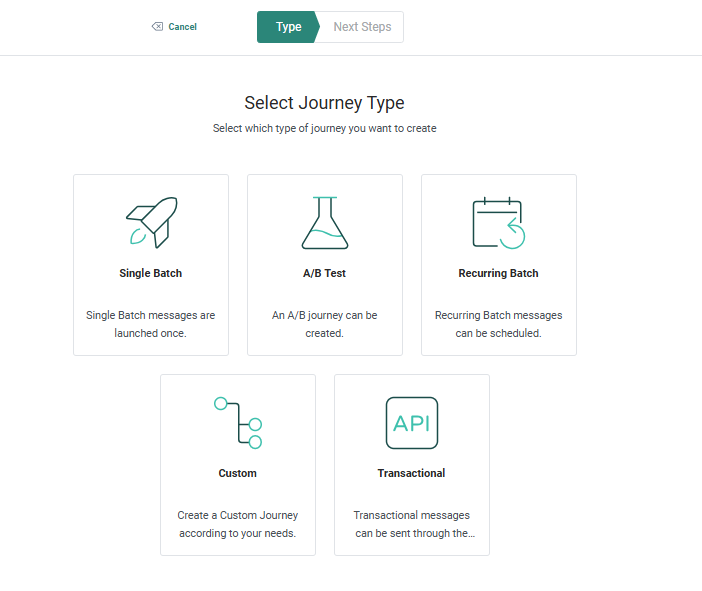
Upon creation of any new Journey, either through the fly-out menu or from the overview page, a wizard guides the user through the creation process.
First, select the Journey type. You can choose from any of the types presented by clicking on the thumbnail.
A Properties panel is displayed, organizing the information into Basic fields and All fields:
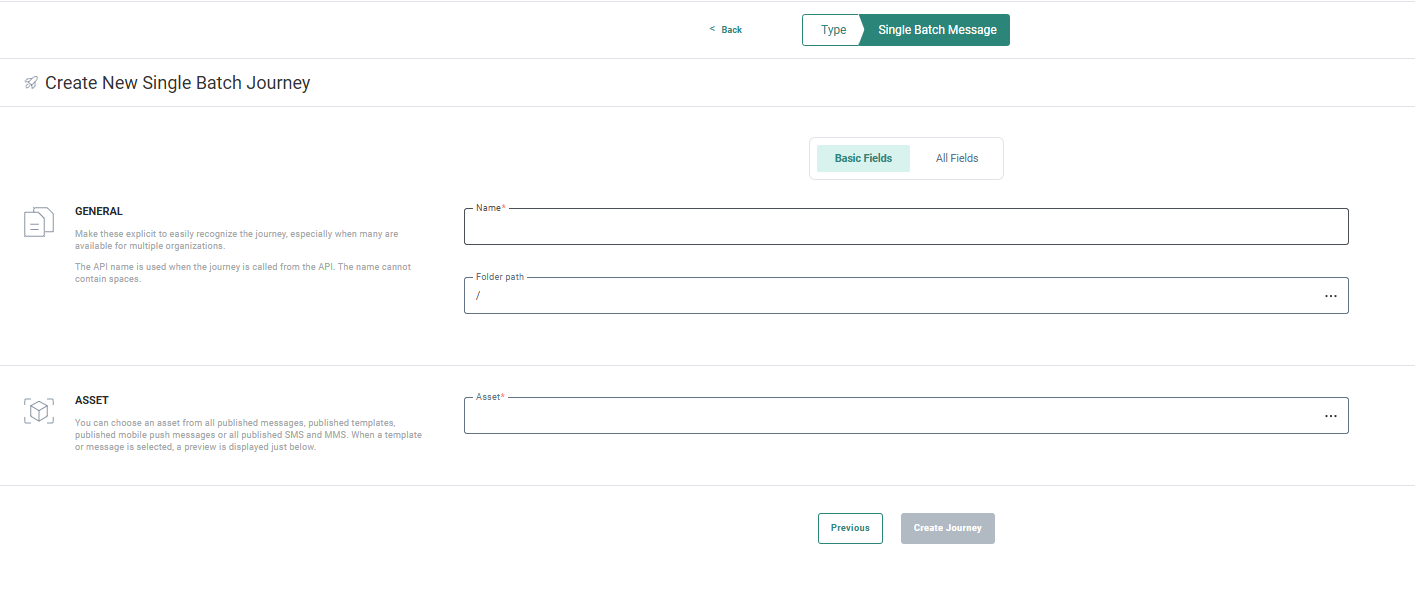
The Basic Fields tab shows the minimum information that needs to be filled out, with a description of what is expected. The All fields tab displays all the additional information that allows you to categorize and configure the Journey.
Accessibility act and Selligent
BACKGROUND:
Creating accessible content ensures that everyone, regardless of ability, can access, understand, and interact with your message. People use digital content in different ways: some rely on screen readers, others navigate with keyboards, voice commands, or assistive tools. When content is designed with accessibility in mind, it opens the door to more inclusive, equitable experiences for all users.
SOLUTION:
To ensure that all recipients have a positive experience with our communications, we have added an additional information when designing a message.
What this looks like in the solution:
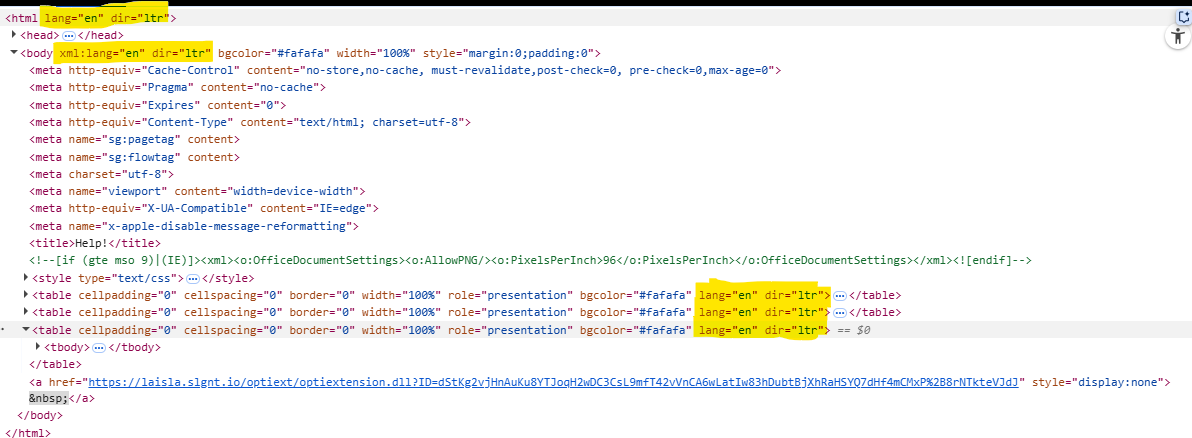
Based on the language of the message, upon Publish, a lang and dir attribute is automatically added to the HTML tag in your messages as well as to the body. The dir attribute indicates the direction in which the text needs to be read, ltr or rtl. This is important because these tags are used by browser AI translations.
Selligent help chatbot
BACKGROUND:
Finding the right help article hasn’t always been easy — traditional keyword searches via the question mark icon often required extra time and effort.
SOLUTION:
The chatbot solves this by offering users a convenient way to explore the help center, using natural language and quickly find answers to their questions, whether they're learning how to use the application, discovering features, or troubleshooting issues.
Note: Although this feature will be rolled out for all customers in the coming weeks, you can always request to deactivate it for your environment through a ticket.
What this looks like in the solution:
When the chatbot opens, you can begin entering your questions immediately, in your own words. The Selligent Help Chatbot relies on trusted Help Center content, ensuring reliable and accurate product specific information.
We’ve prepared a Best Practices guide with tips on asking questions and giving instructions. Please remember not to share personal information (see our Privacy Notice for details).
You can find more information on the chatbot in these articles: Selligent Help Chatbot and Selligent Help Chatbot - Best Practices
RCS enhancements: SMS fallback and additional buttons
BACKGROUND:
RCS business messaging is not universally supported, availability varies by country, carrier, and device, and not all users have RCS enabled on their mobile phone. Currently, when an RCS message cannot be delivered, its text content is automatically sent as an SMS fallback. This can result in multiple SMS segments being sent, potentially increasing costs, and may include references to links or images from the original RCS message, content that may no longer be meaningful in the SMS format.
Moreover, RCS messages can only contain one button at the moment, limiting the options presented to the reader.
SOLUTION:
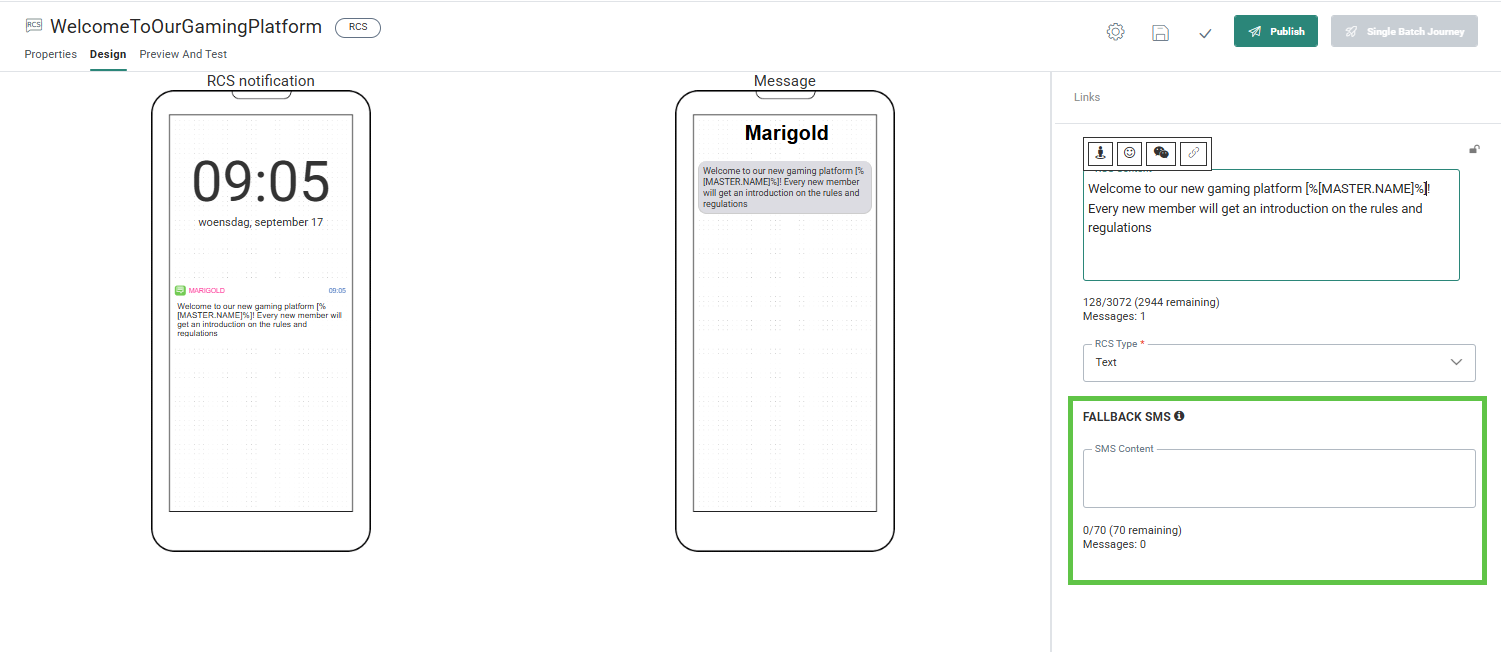
A flexible fallback mechanism lets marketers define a tailored SMS message to be sent automatically when RCS delivery isn’t possible, ensuring consistent communication and a seamless customer experience.
Additionally, three buttons can now be added to an RCS message.
What this looks like in Selligent (Selligent):
In the design of an RCS you can now add custom content for the fallback SMS that needs to be sent out when no RCS is available or possible.
Also, Rich Card messages can now contain three buttons. These are defined on the Buttons tab in the properties of the RCS:
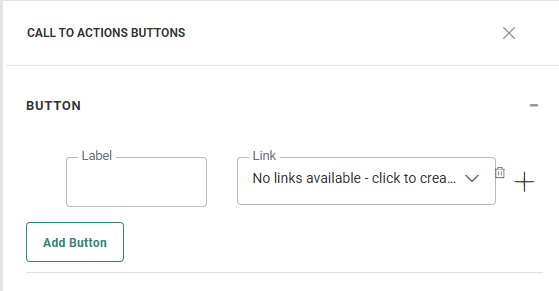
For more information on how to define the fallback SMS and create buttons, check out the Design RCS topic.
Multi-channel opt-out
BACKGROUND:
Selligent has long supported omni-channel opt-out management, allowing opt-outs both at global level as well as at channel level. However, configuring and managing was not possible through the UI and required access to the database, limiting visibility, flexibility and adoption of this feature.
SOLUTION:
Now, it is possible to configure and manage multi-channel opt-out through the interface, including SMS, RCS and MMS channels. (Mobile push is not included here as this requires an opt-out on device level, not contact level)
What this looks like in the solution:
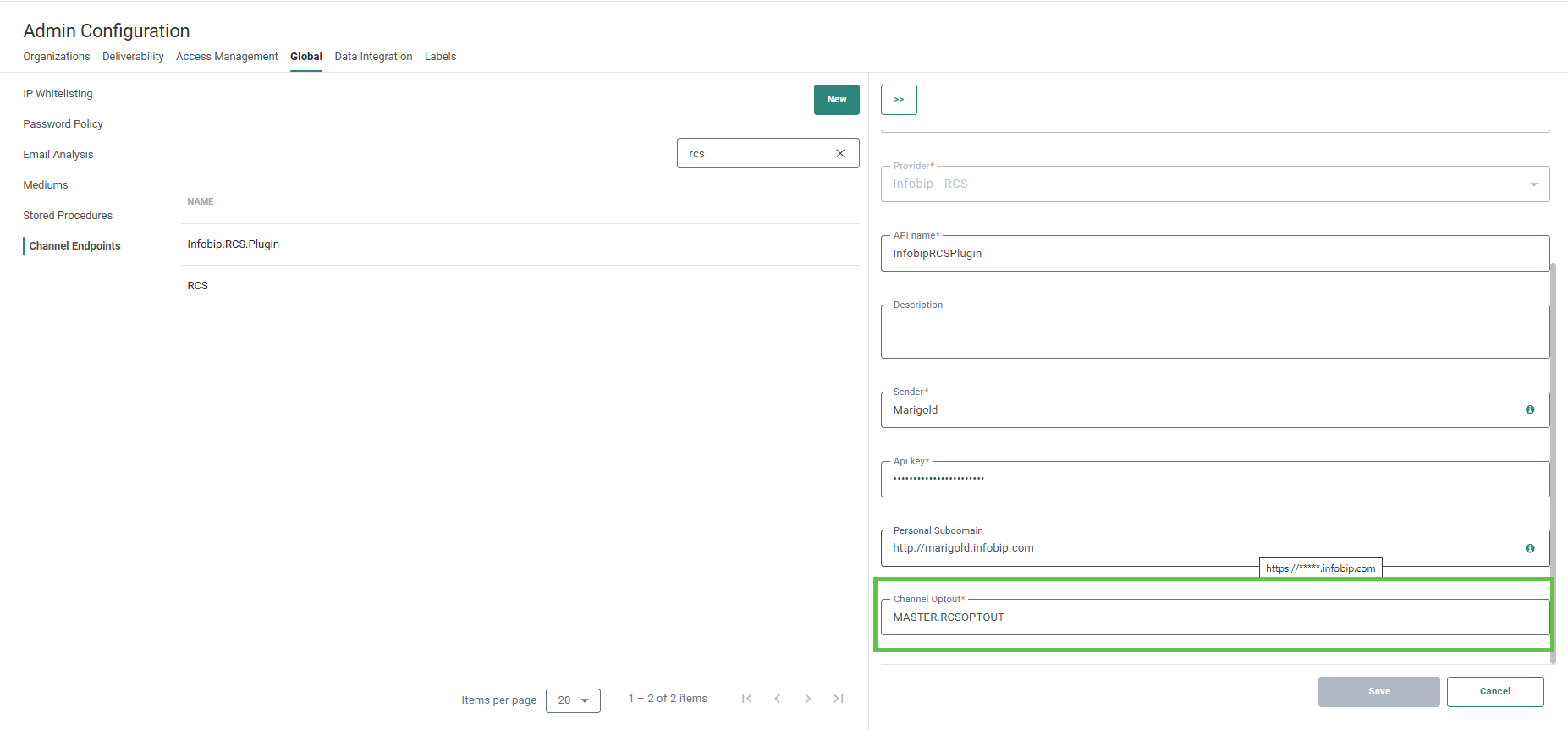
Channel endpoint settings now offer greater flexibility for administrators by allowing them to specify the exact field that stores the opt-out status for each channel. Check out the Channel endpoint configuration in the Admin configuration for this new option:
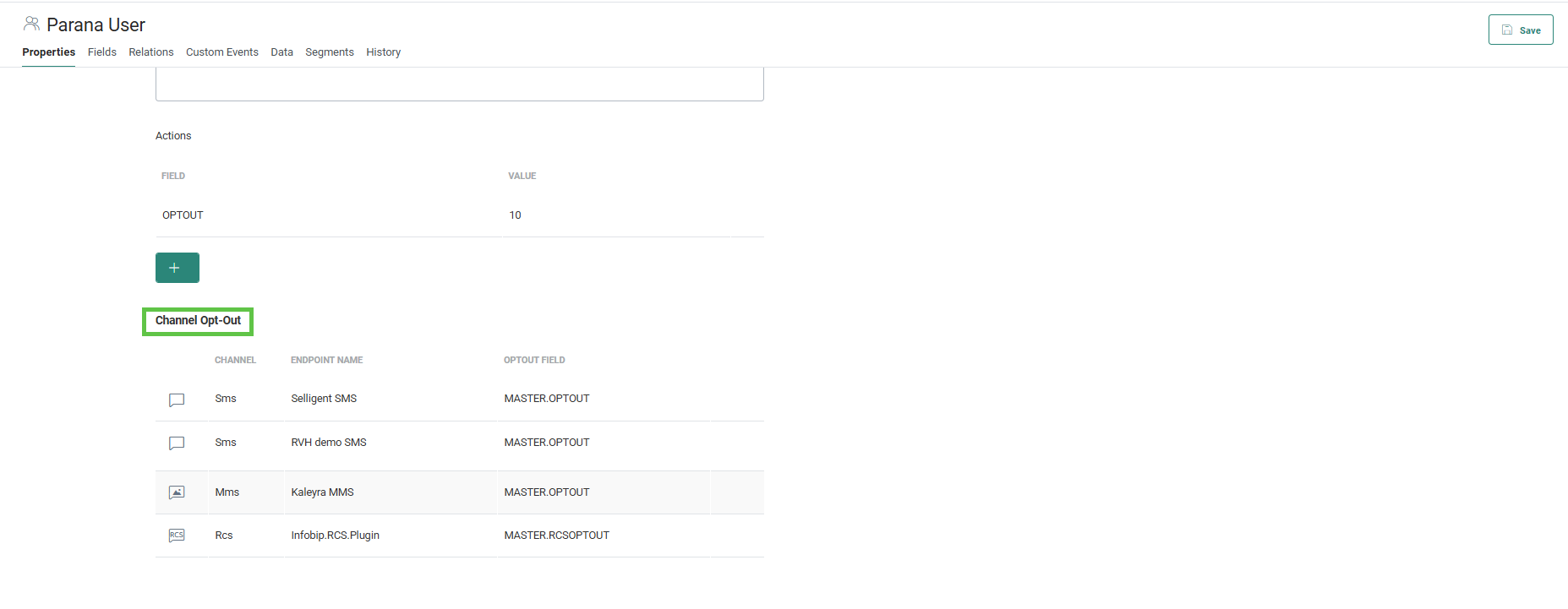
Additionally, users can easily identify which opt-out fields are associated with a given Audience List via the Email Quality tab, offering clear visibility and control. If there are issues with the opt-out fields, a warning message will be displayed.
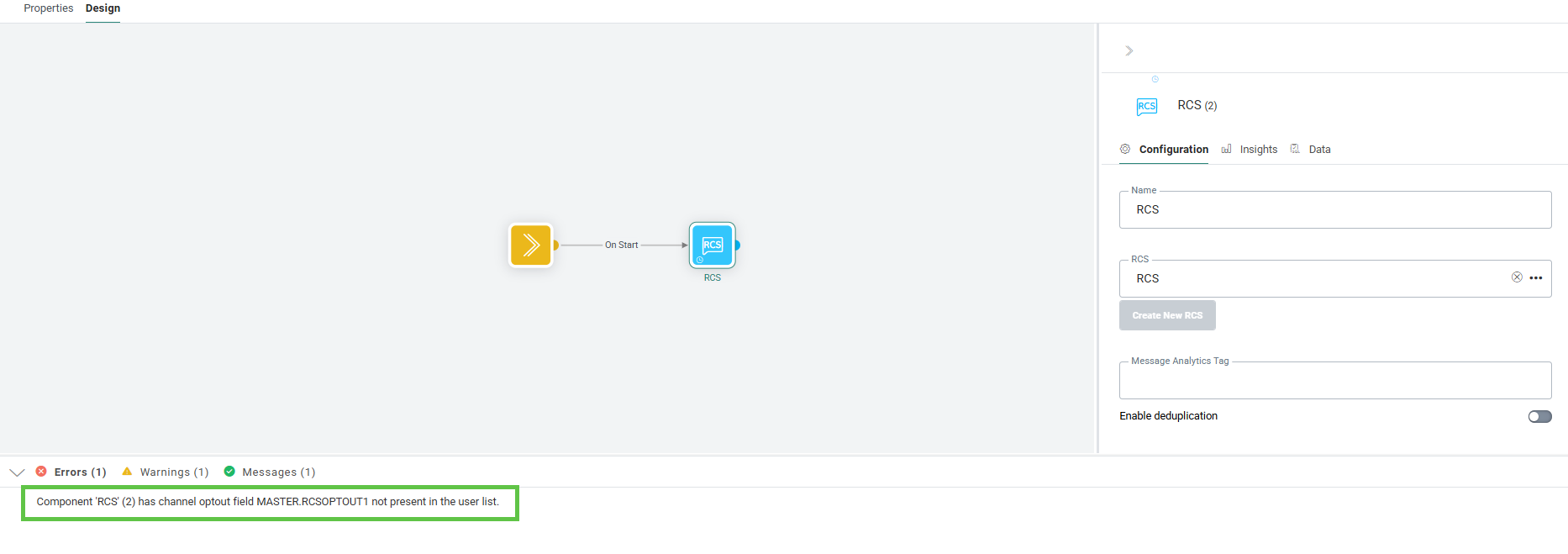
To ensure data accuracy, validation checks are automatically performed whenever a channel endpoint is used in a journey, confirming that the opt-out fields are properly configured in the Audience List and that my Audience List is compatible with the opt-out configuration of the channels used in the journey.
For a full explanation, please refer to the user guide.
Additional security in email rendering of HTML
BACKGROUND:
To ensure the continued security and integrity of user input across our platform, we’ve introduced additional safeguards. These enhancements are part of our ongoing efforts to proactively strengthen data handling and maintain a safe experience for all users.
SOLUTION:
While response encoding helps prevent forged HTML content from being embedded in web pages, email rendering does not by default apply the same safeguards. Selligent now offers the ability to manually implement anti-phishing techniques.
What this looks like in the solution:
To achieve this, users will be able to use and apply a new function when using text personalization fields in a message.
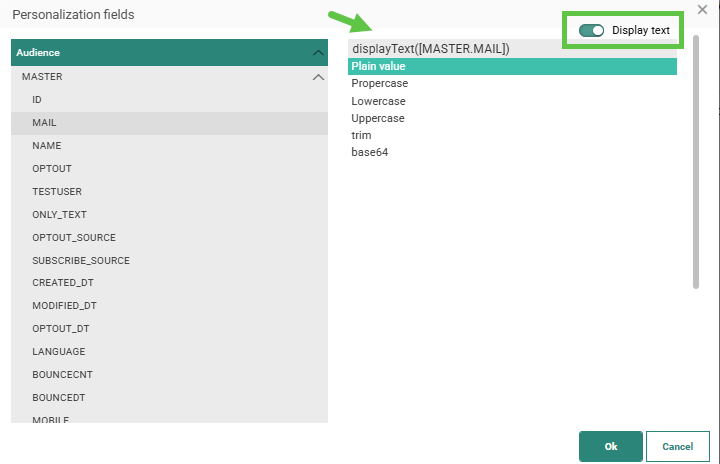
A toggle Display text is available in the top right corner to only display text for a text field. When the option is selected, a function displayText is added to the field, in addition to the already selected function for that field.
This function ensures that HTML in the field will not be rendered as HTML but as simple text only.
UI Enhancements in Single Batch Journeys
BACKGROUND:
As part of our continuous efforts to increase user experience, UI enhancements are being introduced across the platform.
SOLUTION:
The Properties panel of Single Batch Journeys has been redesigned and now allows continuous scrolling through the different sets of properties, saving the user several clicks when configuring the journey and offering a smoother experience.
In addition, we aimed at making better use of the space available and at the same time optimize the presentation of information and fields
What this looks like in the solution:
When you open the Single Batch Journey properties, you’ll see several entries on the left that organize the journey details in a clear, structured way. You can click any entry to jump to a specific section, or simply scroll through the screen to browse them all.
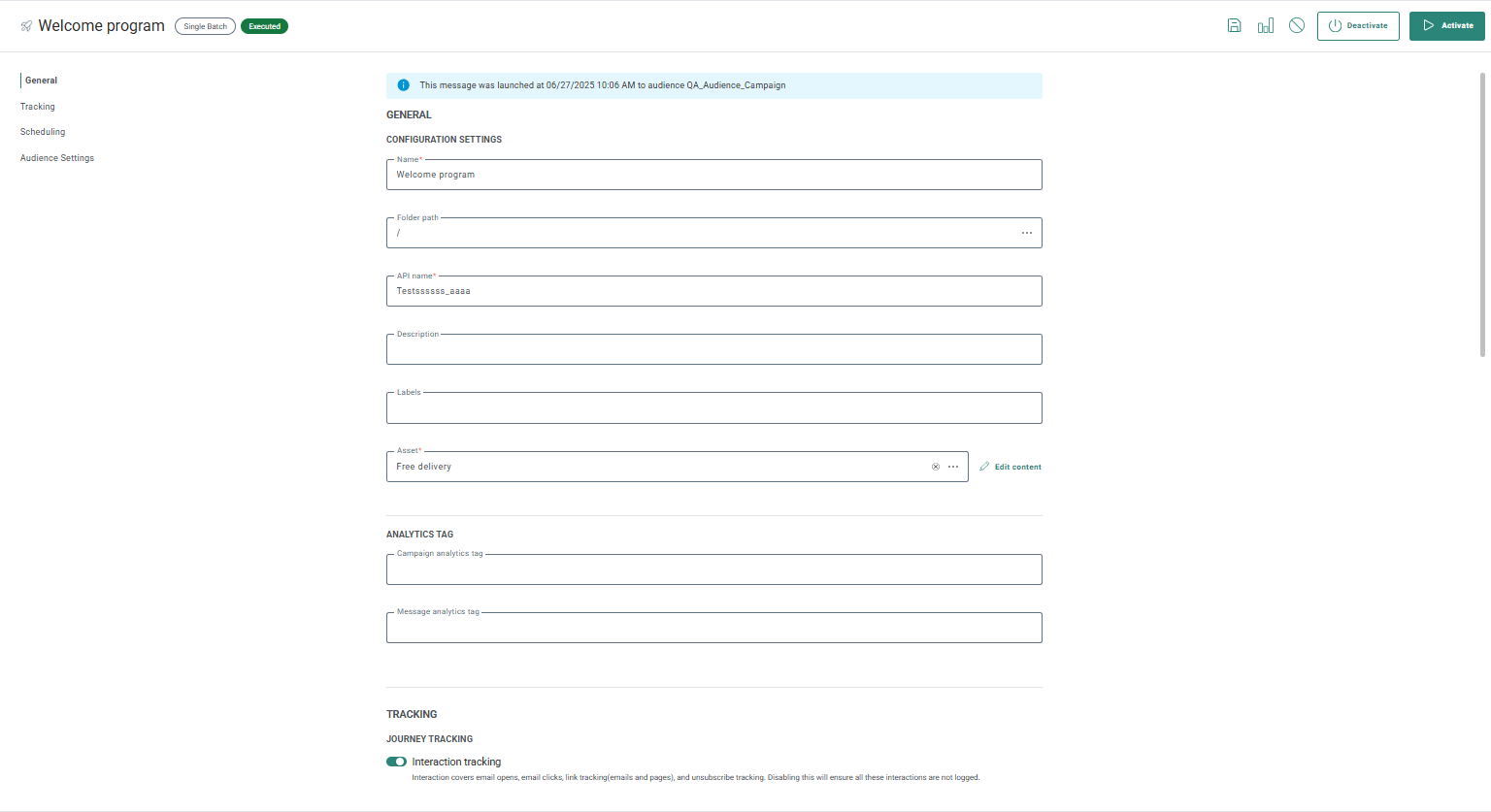
The properties screen now makes better use of the available space, and content editing for the journey is done directly within the asset field instead of through the toolbar. This makes it clearer to users exactly what they're editing.
Native Snowflake connector
BACKGROUND:
For enterprise marketers, connecting the dots between central analytics environments and marketing platforms remains a major bottleneck:
- Customer profiles and segmentation models live in Snowflake, but cannot be easily activated
- Manual CSV uploads are slow, error-prone, and require ongoing coordination between data and marketing teams
- Engagement data does not flow back into Snowflake, leaving a gap in campaign analysis
SOLUTION:
The Snowflake Integration makes it easy to schedule recurring data flows between Snowflake and Selligent: keeping audiences fresh, engagement profiles enriched, and reporting unified.
Users are able to:
- Import audience and profile data from Snowflake into Selligent
- Export journey performance and activity data from Selligent to Snowflake
- Monitor the status of the synchronization and configure mapping between Selligent and Snowflake
- Provide direct access to this integration via the Selligent UI.
What it looks like in the solution:
The native Snowflake connector uses batch data export and import. This batch sync is configurable by hour, day, or even a custom setting.
In the Admin configuration, under Data Integration/Connectors, a new connector for Snowflake can now be created:
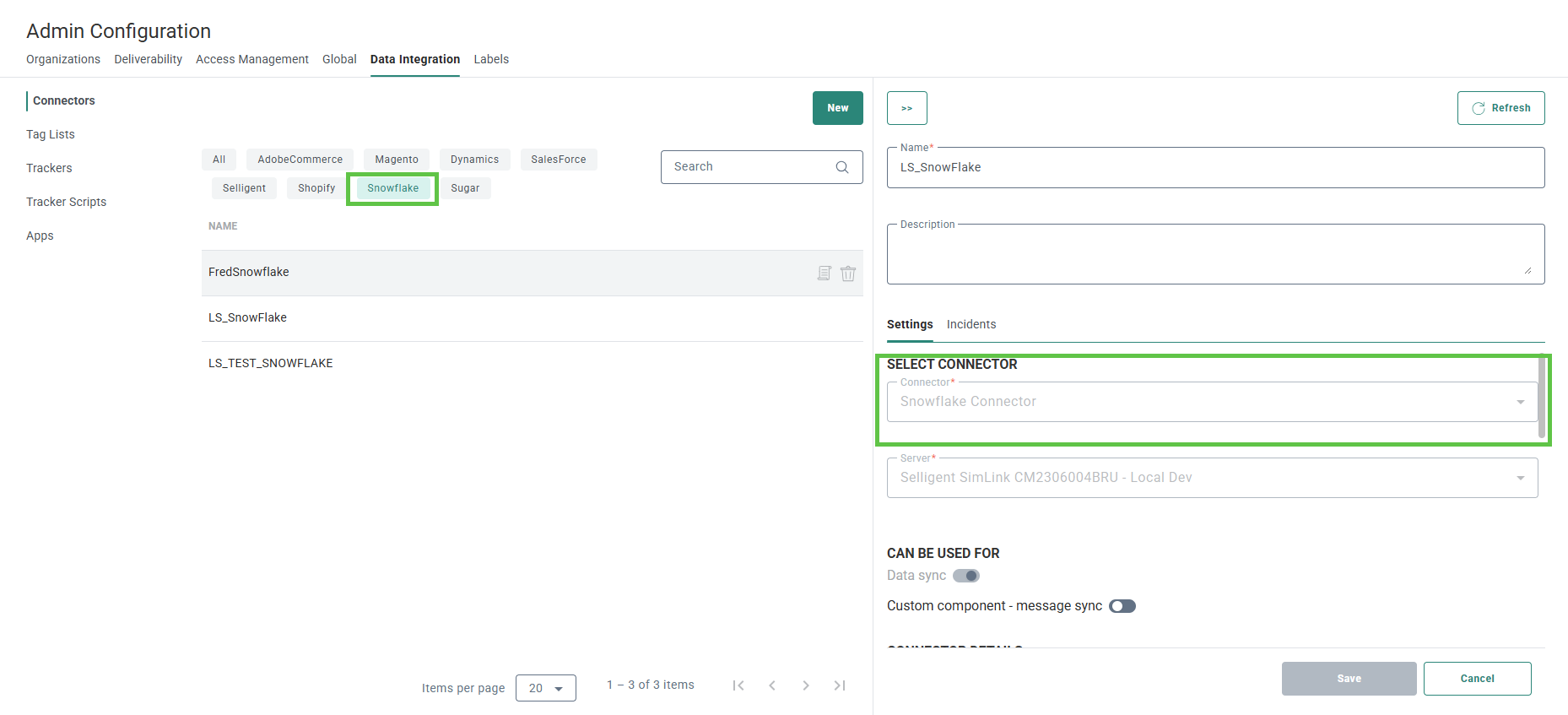
Once created, a data sync can be configured, mapped and scheduled in the Data Exchange chapter, under data sync.
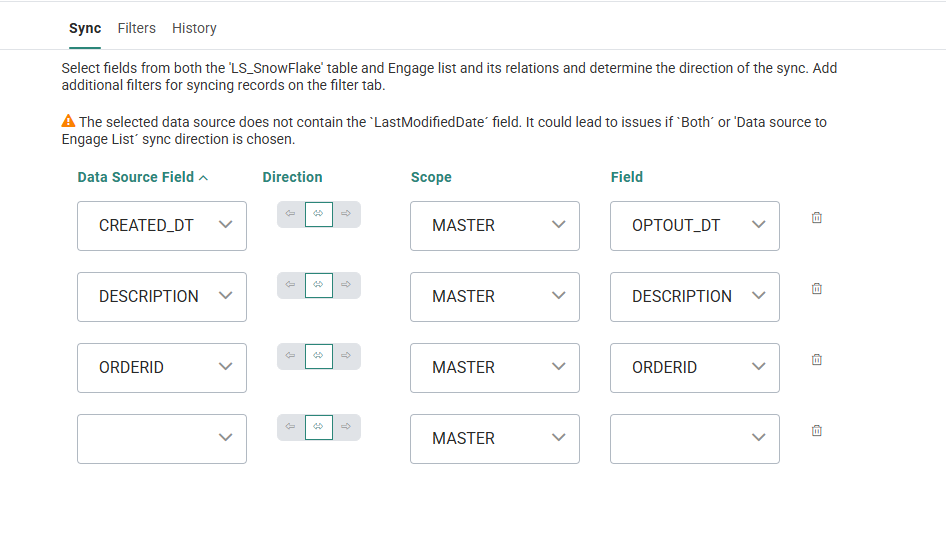
You can find more details on this in the Snowflake user guide, available from the help center.